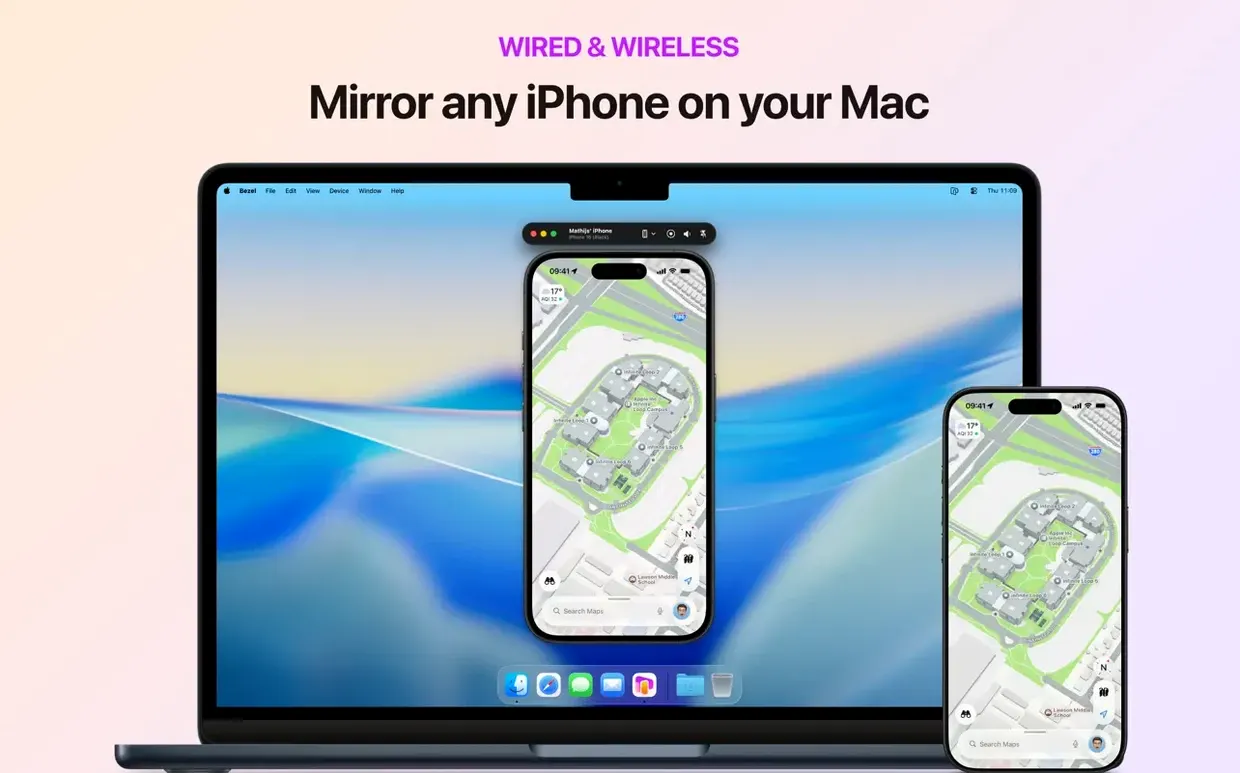
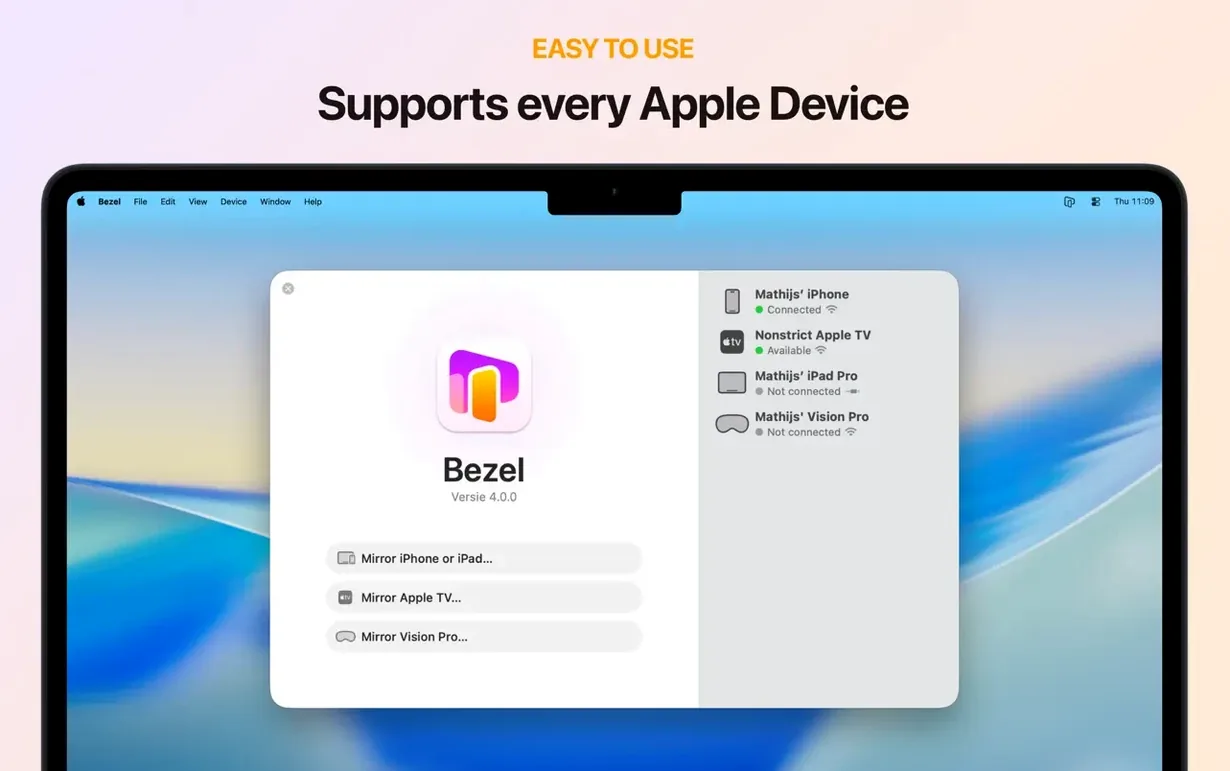
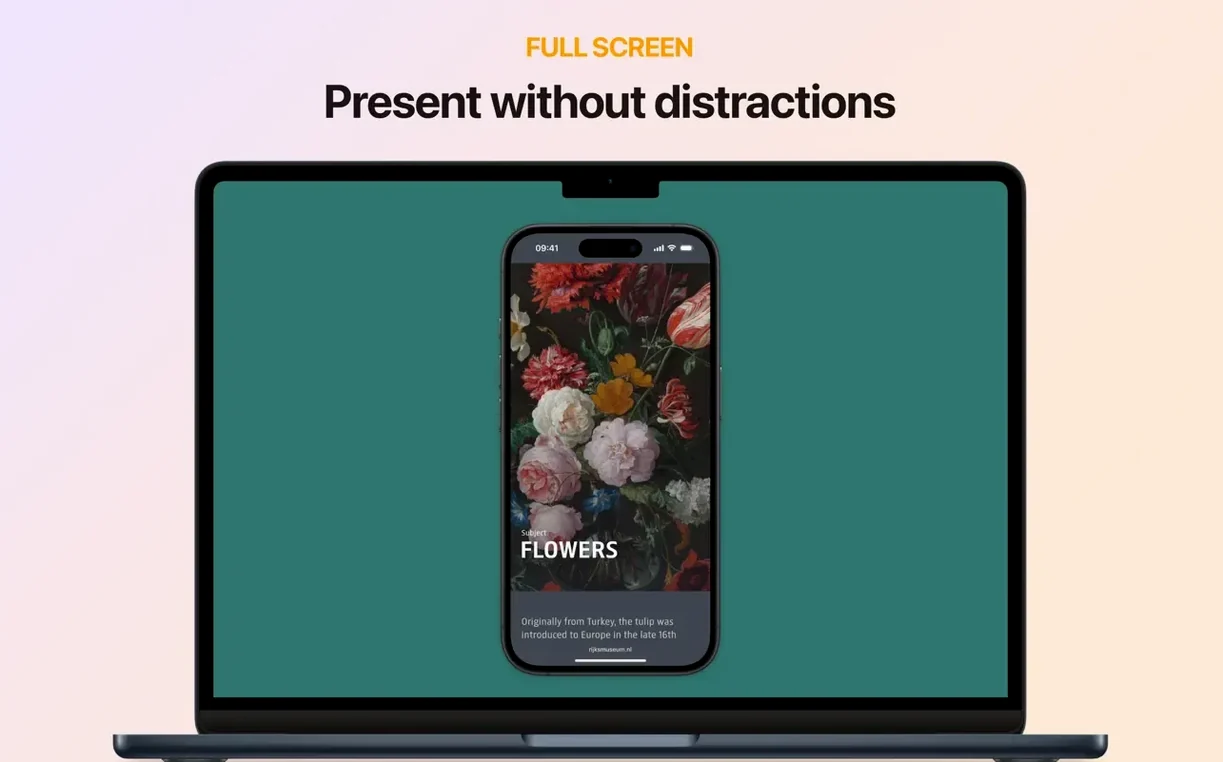
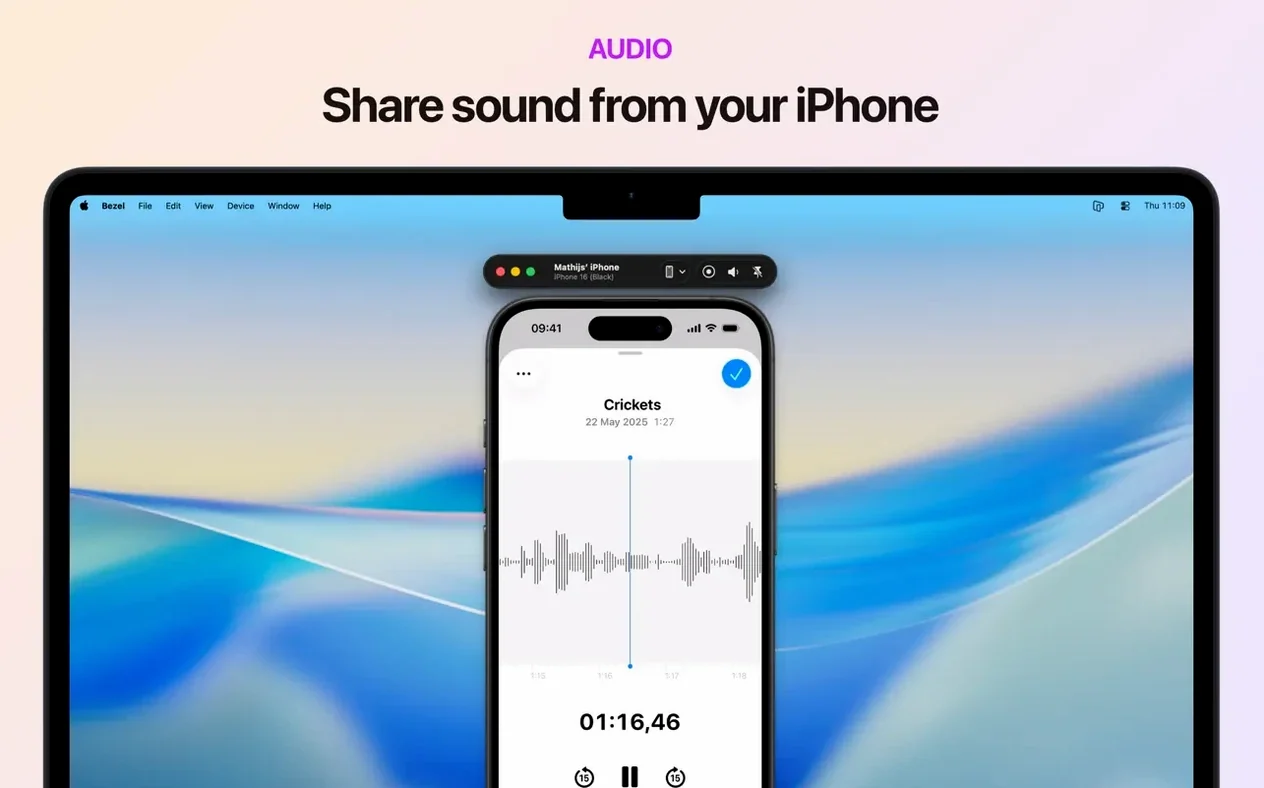
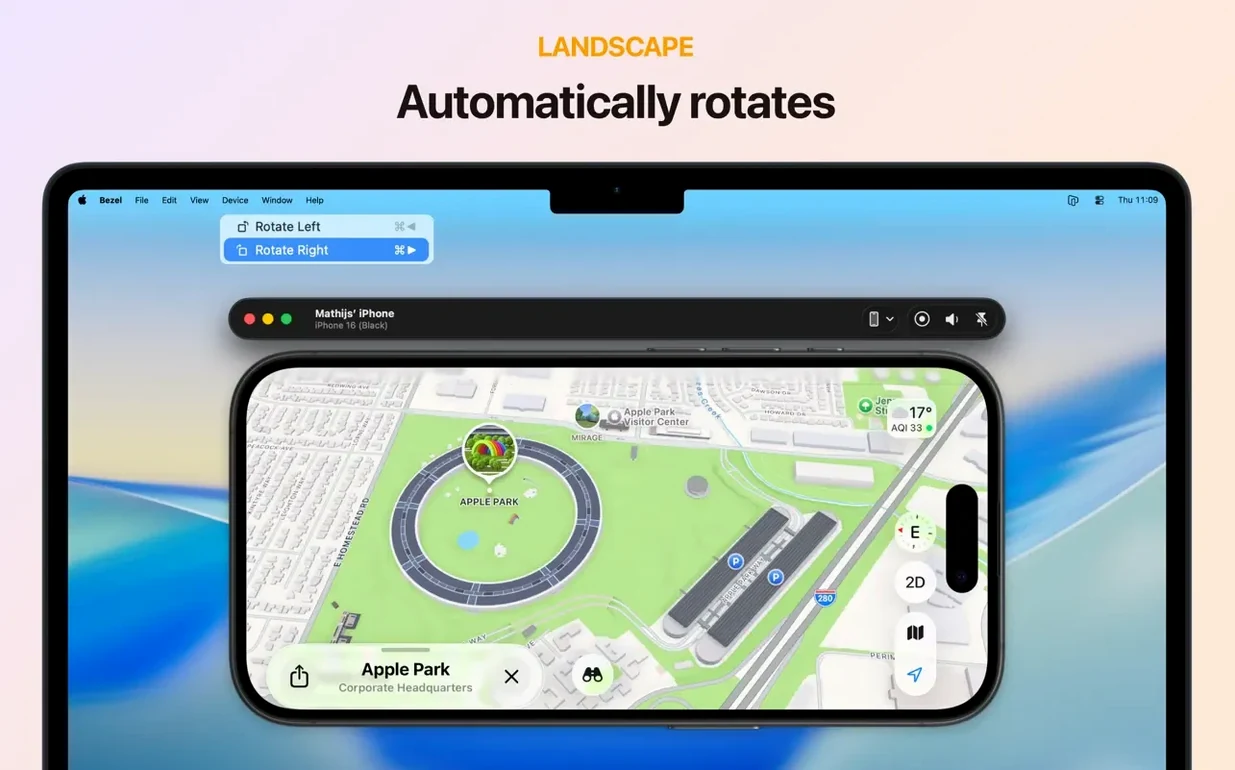
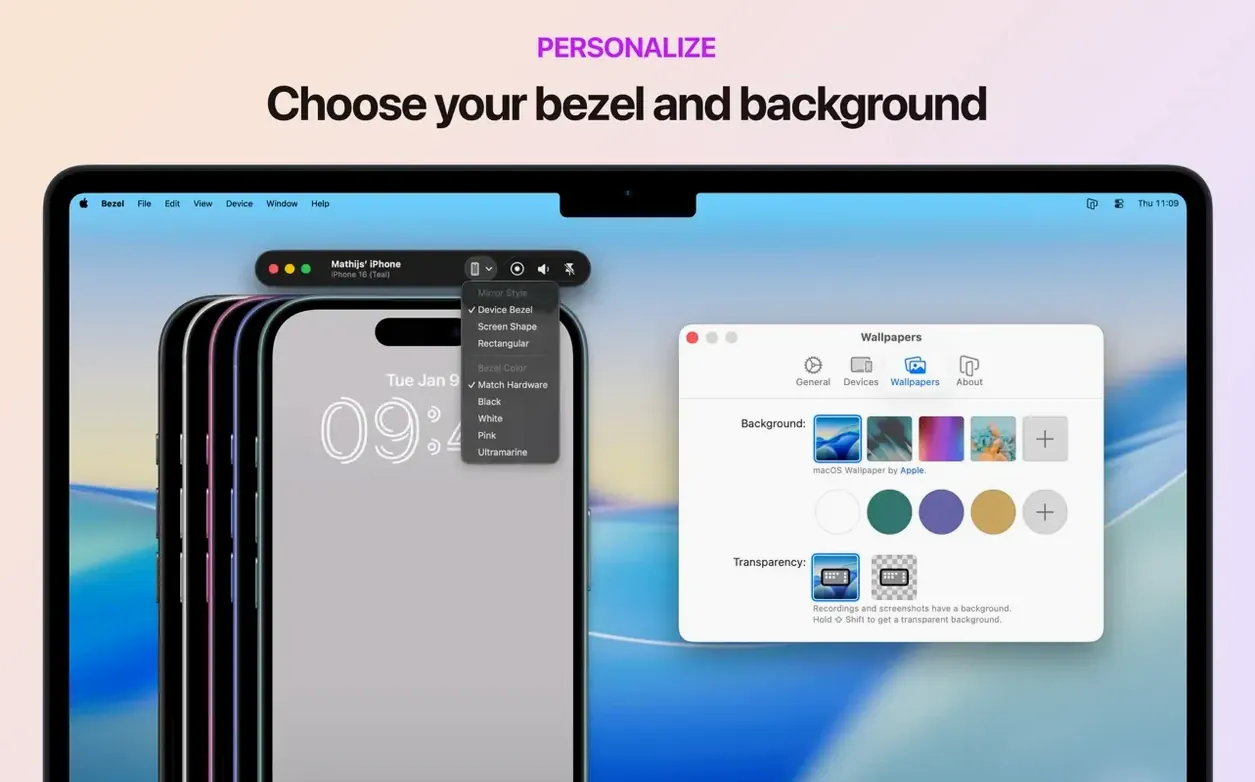
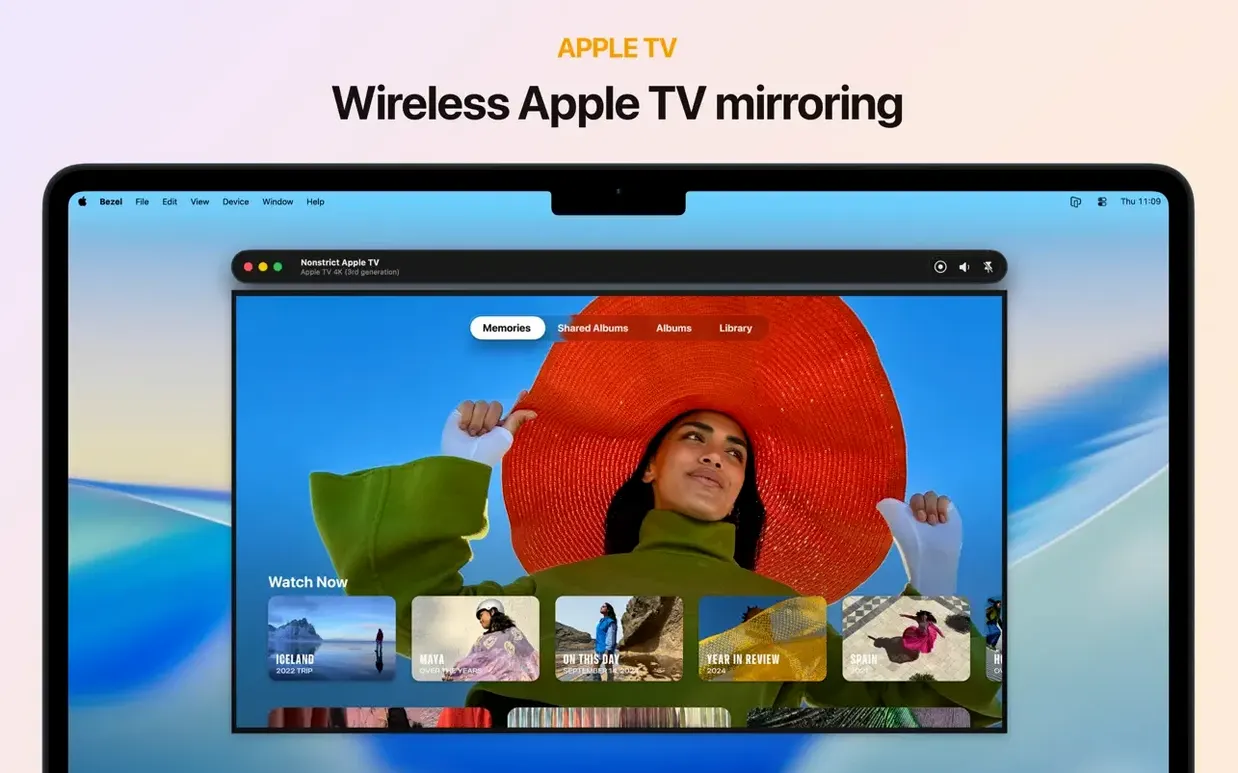
Rotate to Match kicks in the second you flip your phone sideways, and it tells you what kind of app this is — one that pays attention. Bezel is a native Mac utility that puts your iPhone, iPad, Apple TV, or Vision Pro screen right on your desktop. It’s built for macOS 14 and above, runs on Intel and Apple Silicon, and the 5.1.0 update adds support for macOS 26 Tahoe alongside the new Liquid Glass design.
Demo, Record, or Screenshot Without Grabbing the Phone
Anyone who demos apps, records walkthroughs, grabs clean screenshots, or just wants a live device view without picking up the hardware. The mirroring pauses automatically when the device locks or goes to sleep — a small touch that saves you from blank recording bloat.
Connect Over USB or Wi‑Fi and Hit Record
- Open the app and connect your device over USB or wirelessly. The mirror pops up in a resizable window.
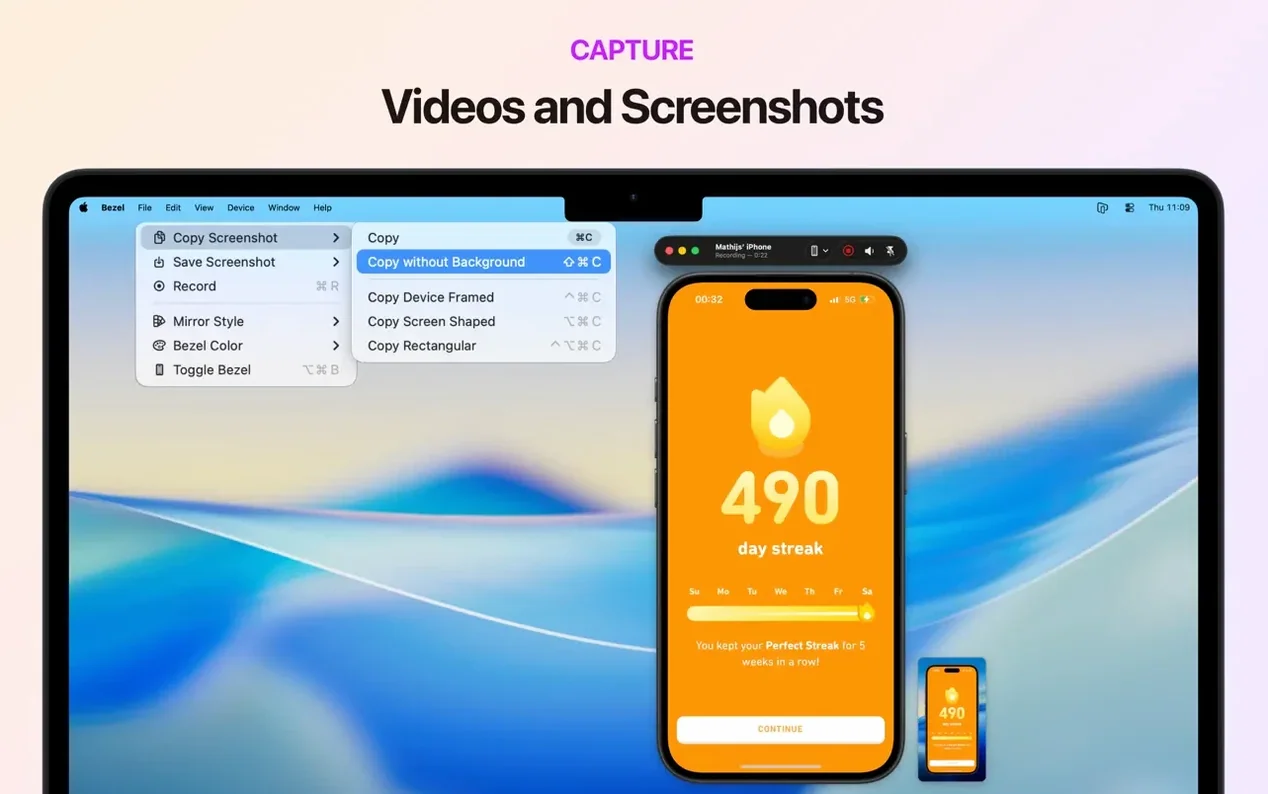
- Hit the record button on the toolbar to capture audio and video, or grab a still with the screenshot tool.
- Use hotkeys for everything — they’re mapped to virtually every feature, so you can start a recording mid-presentation without hunting for the mouse.
- The view orientation follows the device; turn your iPad and the window turns with it.
Wireless mirroring arrived in this version, cutting the cord when you’re presenting or just need a quick look. The interface stays out of your way with a native Mac design that doesn’t feel bolted-on. English is the interface language.
Where It Plays Nicely
Bezel slots in between QuickTime Player and Final Cut Pro without pretending to be either. QuickTime can record an iPhone screen as a generic video feed, but it gives you a fixed-size window and zero device chrome. Bezel frames the display inside a realistic device bezel — you get a presentation-ready view that looks like the hardware, not a raw pixel dump. Drop that recording straight into Final Cut, and you’ve already skipped the step of masking a screen recording inside a device mockup.
For live demos, it pairs well with Zoom or any app that does screen sharing. Share the Bezel window instead of your whole desktop, and the audience sees only the device, no dock clutter or notification banners sneaking in. The Bezel Phone Mirror Mac torrent workflow — people searching for exactly this kind of clean device capture — tends to hook into OBS setups too. You can pull the Bezel window as a source and composite it over a presentation background without a green screen.
On the Apple ecosystem side, it respects AirPlay handoff without fighting it. If your Mac is already acting as an AirPlay receiver for extended display, Bezel still grabs the dedicated mirror stream. It coexists with Sidecar rather than clashing — you can have an iPad in Sidecar mode for your Mac palette while Bezel mirrors an iPhone on a separate window, no cable swaps needed.
Beginner Traps Worth Skipping
The most common stumble: plugging in a device and expecting the mirror to appear with no interaction. On first launch, you need to trust the Mac from the device’s “Trust This Computer” prompt, and Bezel won’t nag you if you miss it — the window just stays blank. Check your iPhone or iPad screen before assuming the app is frozen.
Another one is recording without checking the audio routing. Bezel grabs device audio during recording, but if your Mac’s system output is set to something weird — say, a disconnected Bluetooth speaker — the recorded file will be silent. A five-second test clip saves a re-shoot.
Wireless mirroring trips people up when the Mac and device land on different Wi-Fi bands. Both need to be on the same network, and mesh systems that split 2.4GHz and 5GHz can silently separate them. If the wireless option is grayed out, plugging in a cable for ten seconds usually forces the handshake, after which wireless picks up normally.
Lastly, the auto-rotation is smart but literal. If you’re recording a portrait app and tilt the phone too far flat on the desk, the window flips to landscape mid-take. Lock rotation on the device when your framing matters, and leave Bezel’s auto-rotate to do the work when you’re switching orientation on purpose.
- macOS 14 or later
- Apple Silicon or Intel 64-bit Mac
Notes from the edit bay · 0
Sign in or get an edit-bay pass to leave a note.
No notes from the edit bay yet. They go up after I read them.