You’ve got a deadline in three hours, the timeline needs a ripple edit, and your left hand is already doing the Ctrl-Option-Command dance. You just want to swipe on your Magic Mouse and have the blade tool activate—only in Final Cut, nowhere else. That’s the kind of precise, context-aware control BetterTouchTool drops into macOS.
Same Gesture, Different App: Per-App Triggers
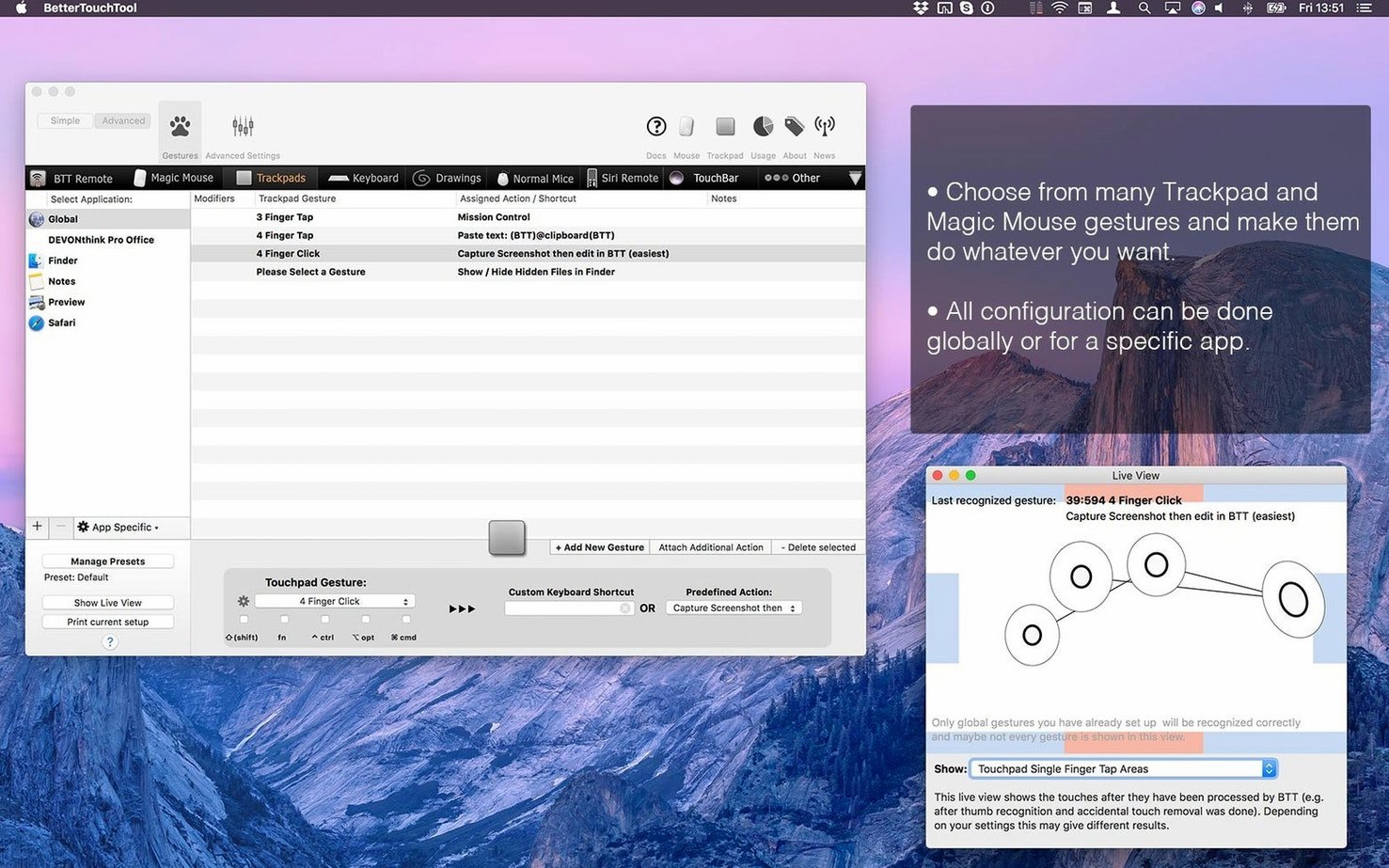
- Per-app trigger rules. The same gesture can ripple in Final Cut, mute in Zoom, and switch tabs in Safari. The app reads the active application and acts accordingly.
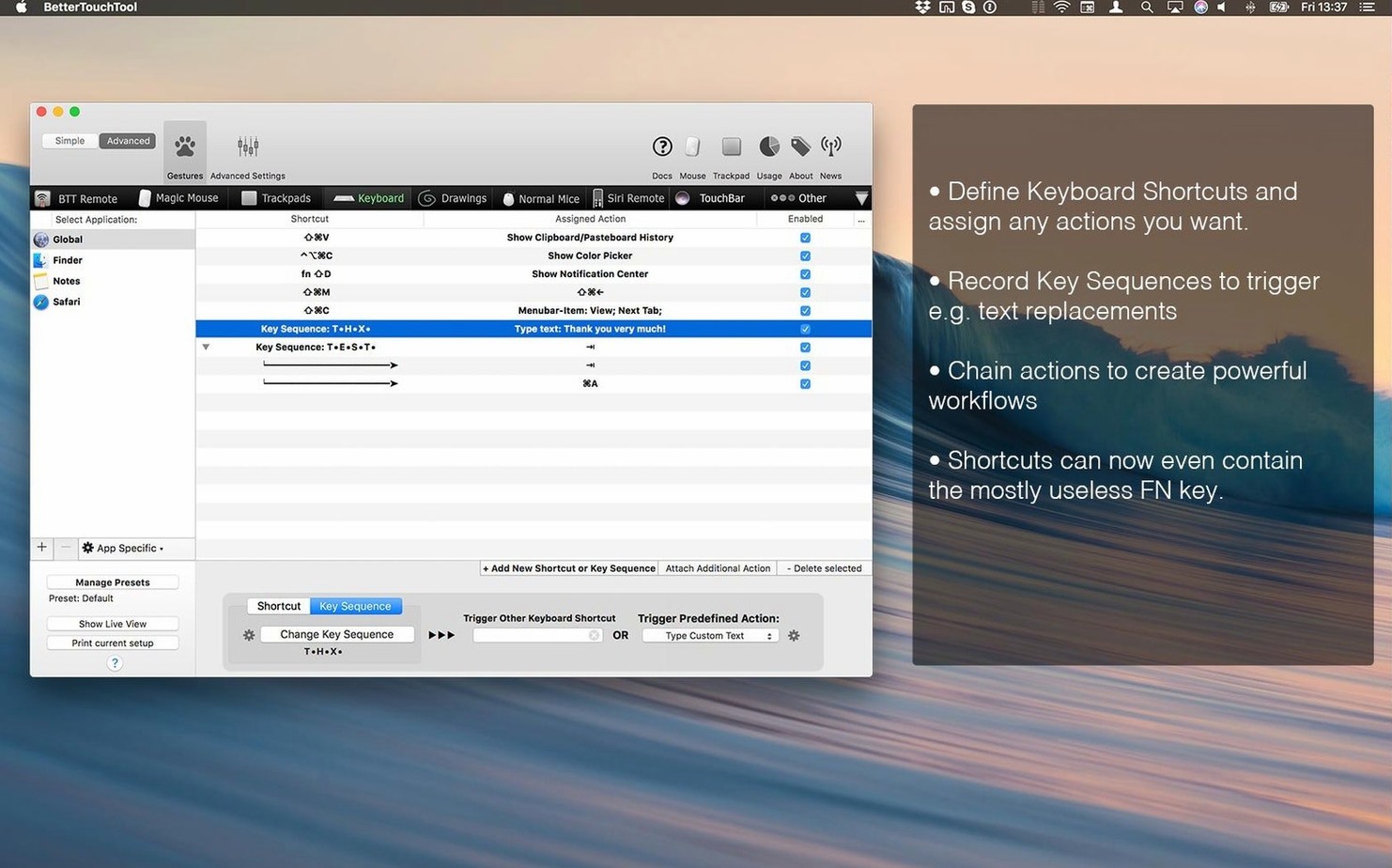
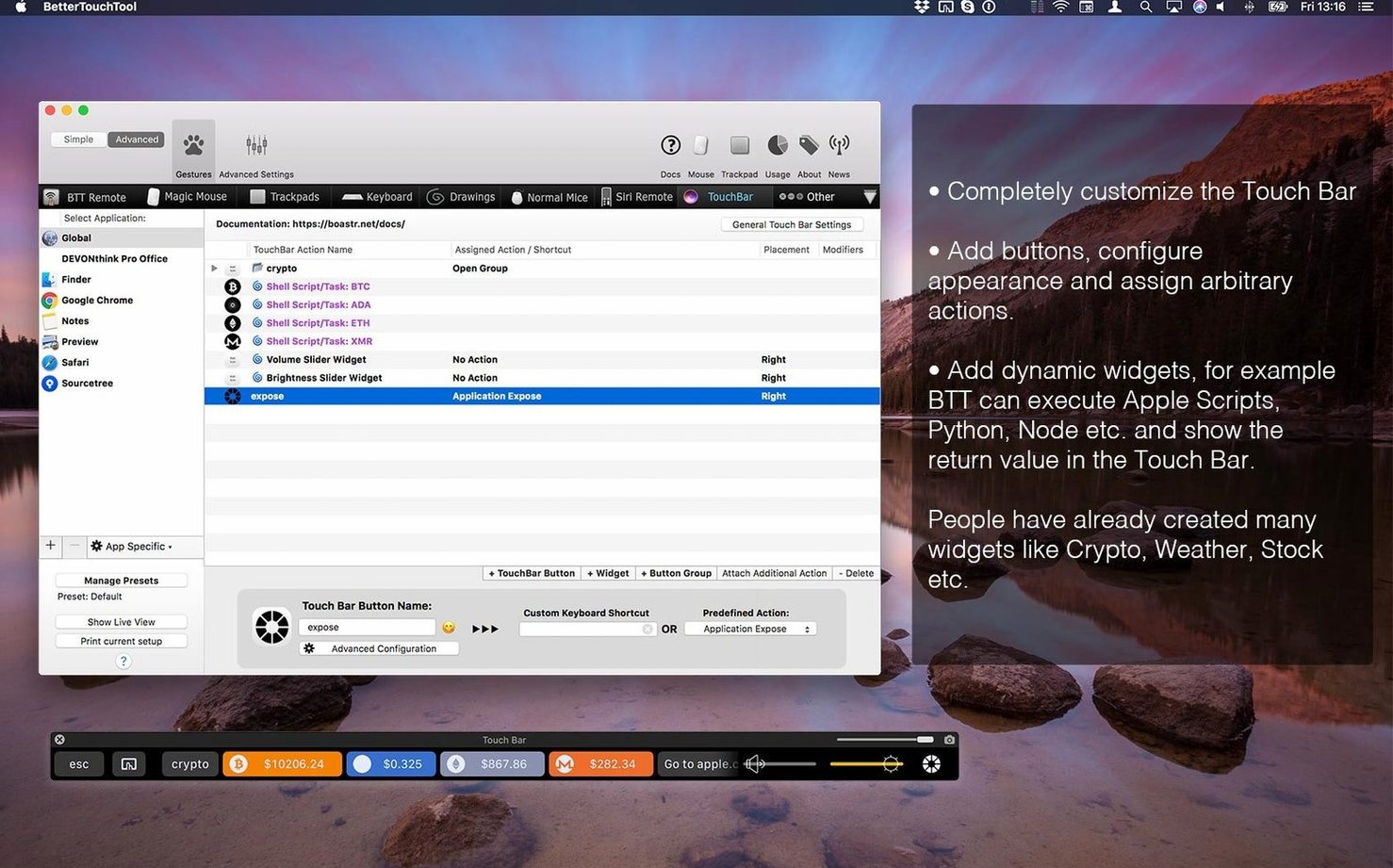
- Wide input coverage. Trackpad, Magic Mouse, regular mouse, Siri Remote, Apple Remote, keyboard shortcuts, and Touch Bar elements all live under one configuration roof.
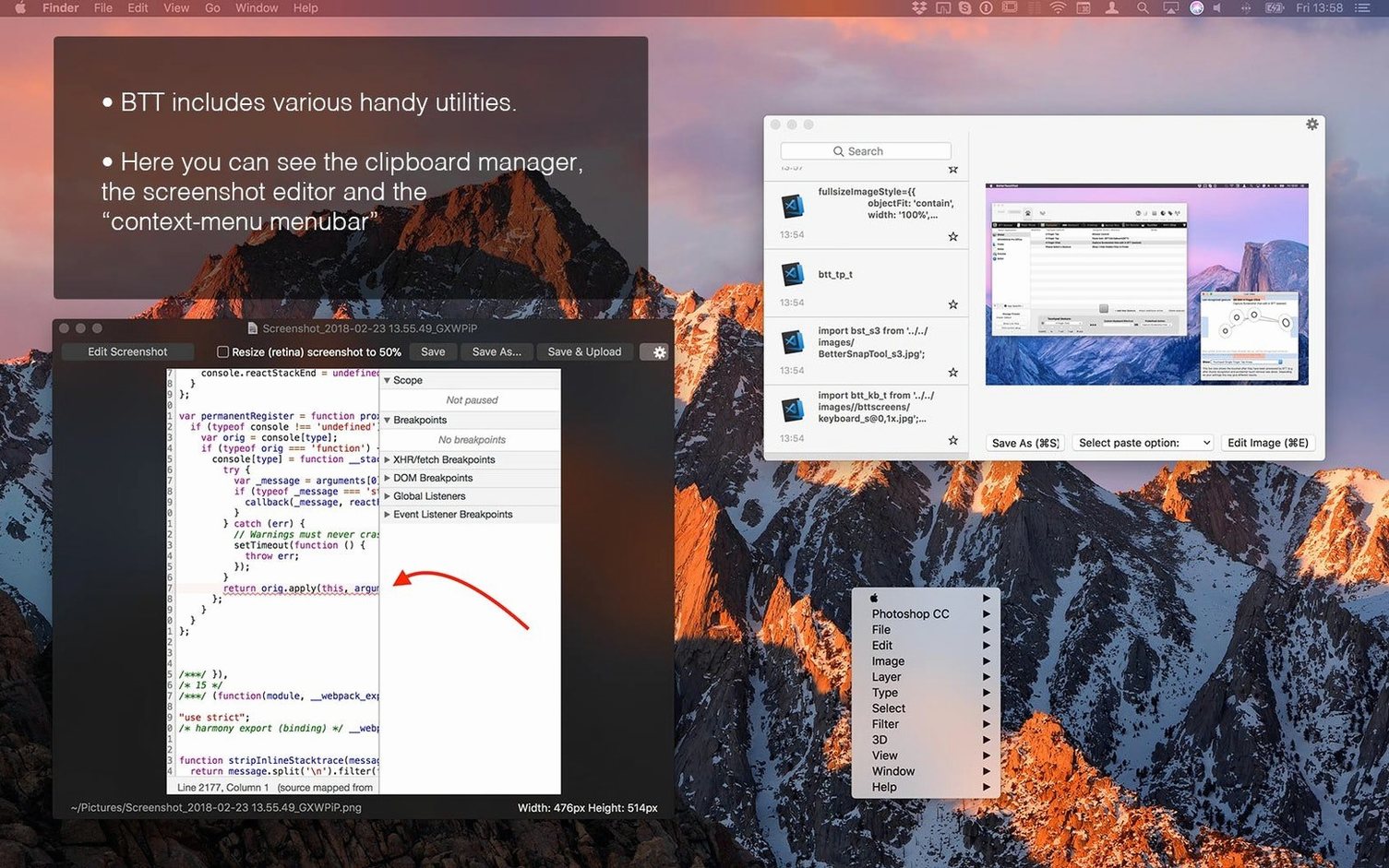
- Built-in capture tool. Snag a frame and mark it up immediately with the onboard screenshot editor—no extra app needed mid-revision.
- AppleScript and web hooks. Tie a gesture to a custom URL scheme or an HTTP request for automated widget creation that fits your post-production pipeline.
Block Out an Afternoon for Initial Setup
- The sheer depth of options means the initial setup requires a focused afternoon; it’s a power tool, not a quick pref pane swap.
- The app runs natively on Apple Silicon and Intel Macs but stays locked to macOS 10.15 or later.
Small conveniences in BetterTouchTool hide in corners you’d never click if you’re racing to map a gesture and get back to the timeline. Once you know they exist, they cut friction in ways that matter at 2 a.m.
The named clipboard manager sits in the menubar, but it also lives inside every trigger you build. When you assign a “Paste specific clipboard item” action, you can pick from your last 30 copied things without cycling through them blind. I map a three-finger force click to paste my email signature and a corner-swipe to dump the last screenshot URL. The clipboard stores images, formatted text, and plain strings, and it preserves the order after a restart. You can also pin items so they survive a clipboard purge—handy for client asset IDs you reuse across exports.
Another thing that slips past most people: the drawing gestures aren’t a gimmick. Draw a “D” on the trackpad with your index finger to duplicate a clip. Draw an “R” to reveal the retiming controls. The gesture recognizer tolerates sloppy angles, and you can set a sensitivity slider per trigger so it doesn’t fire when you’re just scrubbing. Combine a drawing with a conditional “only in DaVinci Resolve” rule, and you’ve got a command that never misfires in the Finder.
If you use a Magic Mouse, the tip-tap triggers are worth the five minutes it takes to tune them. A single-finger tap on the right edge of the mouse surface versus the left edge registers as two independent actions. I use left-edge tap for play/pause and right-edge tap for blade. The trick is dialing the “tip-tap sensitivity” low enough that normal swipes don’t trigger them—start around 3 and inch up. And yes, this works alongside regular swipe and pinch gestures without conflicts, because the app separates tip-tap from continuous-touch recognition.
Then there’s the floating web view widget. You can pin a tiny, always-on-top browser window—say, a frame.io review page or a live waveform monitor—to the Touch Bar strip or a keyboard shortcut. Resize it, set its opacity to 80%, and lock it to a corner of the screen while you color grade. It refreshes on a timer you control, and it accepts clicks, so you can approve a shot without leaving the grading suite. Most users never realize the widget exists because it’s buried in the “Other” action category.
Why Global Triggers Clash with Final Cut
The first mistake is assigning global triggers too early. A three-finger swipe up that opens Mission Control everywhere feels natural until you discover it overrides the same gesture in every app that uses it—including Final Cut’s timeline navigation. Build your triggers inside application-specific groups from day one. The “Global” group should be nearly empty except for system-wide conveniences like a clipboard paste or a screenshot. Everything else lives under an app or a folder of apps.
The second mistake: ignoring the conflict resolver. When two triggers overlap—say, a three-finger click and a three-finger swipe that start the same way—BetterTouchTool doesn’t guess. It fires the one that registered first, and the other never runs. The trigger settings panel has a “Show Conflicts” button that highlights overlapping gestures. Run it after every batch of new triggers, especially if you use both a trackpad and a Magic Mouse simultaneously, because the app treats them as separate input devices that can still step on each other’s logical toes.
A third one I see in edit bays: mapping a trigger to a modifier key alone. People assign an action to “Left Command” without realizing that pressing it by itself—even briefly—fires the action and then blocks the next real shortcut that needs Command held down. If you want a hyper key or a single-key modifier, use the “Modifier key + tap” condition instead. That waits for a release without another key press. It’s a subtler setting but it makes single-modifier triggers usable in practice.
Log Your “I Wish This Gesture Did X” Moments
Don’t try to build your ultimate setup in one sitting. Spend the first two days logging your physical habits. Every time you think “I wish this gesture did X,” open the app, create an app-specific trigger, and test it immediately. During a real edit session, the impulse to reach for a menu item is your best guide to what needs a shortcut. By the end of a week, you’ll have about a dozen triggers you actually use, not fifty you forget.
Start with one input device at a time. If you’re a trackpad editor, ignore the keyboard and mouse tabs for the first few days. Map your three most repeated timeline actions—blade, select, trim—to trackpad gestures you don’t already use. Test them with the conflict checker. Once those feel automatic, add a second device. Stacking devices too quickly creates a mental map you can’t recall under pressure.
Use the “Simulate Key Press” action as a bridge. Most NLEs already have keyboard shortcuts for everything; you don’t need to reinvent them. Map a gesture to send “B” for blade or “A” for arrow, and you instantly get the same behavior the app’s own shortcut system provides. This also means your triggers survive a preference reset inside the NLE because the key bindings stay standard.
Keep the preferences file backed up. BetterTouchTool stores everything in a single .json or .bttpreset file you can export from the “Presets” menu. Save a copy to a cloud folder after every major change. If you migrate to a new Mac or a fresh install, importing that preset restores every trigger, named clipboard item, and widget in under ten seconds. There are few things worse than rebuilding two years of muscle memory from scratch.
Enable Launch at Login Before Building Anything
The defaults are tuned for discovery, not for performance. Here’s where I adjust things before I build a single trigger.
- Launch at login — turn it on immediately. The app uses negligible background CPU on Apple Silicon, and if it’s not running, none of your triggers work. Guessing whether you launched it before you try a gesture breaks the whole point.
- Appearance: Show in menu bar — set to “Only icon.” The text label eats too much space, and the icon is distinct enough to spot at a glance.
- Clipboard Manager: Maximum items — bump it from the default 20 to 50. Disk and memory overhead are tiny even with images, and you want a deeper history for client notes and asset names that surface hours after you copied them.
- Trackpad & Mouse: Tip-tap sensitivity — drop it to 3 or 4. The default is too eager and fires unintended actions when you’re just resting a finger. You can always raise it later for specific triggers.
- Updates: Check automatically — leave it on. Andreas ships small fixes often, and a point-release can resolve a gesture bug you’ve been fighting. Being a version behind is rarely the move.
- Export your starting preset — even if it’s empty. Having a clean baseline means you can experiment wildly and revert without losing the triggers you actually liked.
Once those are set, the app feels less like a science project and more like the utility it is—quiet, fast, and ready the moment you drag your fingers across the surface.
- macOS 10.15 or later
- Apple Silicon or Intel Mac
Questions I actually get
Does the app let me set different shortcuts for different software?
Yes. BetterTouchTool can target specific applications with individual shortcut and gesture rules, so a swipe in your video editor won’t trigger the same action in a web browser.
Notes from the edit bay · 0
Sign in or get an edit-bay pass to leave a note.
No notes from the edit bay yet. They go up after I read them.