If you've spent an afternoon with the Healing Brush, you know the drill: zoom, sample, click, repeat. Beauty Box Photo is the Photoshop plugin that skips the handwork. It's an Adobe-only build that maps out skin tones and handles retouching automatically, pulling blemishes and wrinkles while keeping texture intact.
Five-Minute Faces, Consistent Beauty Selects, Editorial Subtlety
- Headshot sessions where five minutes per face is the budget
- Beauty and fashion selects that need consistency across a whole take
- Editorial work where a subtle pass beats a plastic finish
Photoshop-Only, Your GPU Does the Heavy Lifting
- No Premiere or Final Cut support — this one lives in Photoshop
- Real-time preview relies on CUDA or OpenGL, so an older GPU will feel it
- Interface is English only
The One-Click Trio After Lightroom Raw Development
Beauty Box Photo doesn't live alone. I drop it into a Photoshop action that also runs a curves adjustment and a subtle high-pass sharpen, so one click handles three moves. The plugin sits best after your raw development in Lightroom or Capture One and before any creative grading — clean skin first, then build the look on top.
On the macOS side, it plays well with Automator and Photoshop droplets. I've got a folder action that watches a "Retouch Queue" directory on the desktop. Dump a batch of TIFFs there, and Photoshop opens them with Beauty Box already applied via a saved preset. Quick and repeatable, which matters when a client sends revisions at 11 p.m.
The plugin also respects Photoshop's smart object workflow. Apply it to a smart object layer and you can double back to tweak the smoothness without flattening anything. That's the move for composite portraits where the skin treatment might need a nudge after you see the final background. Combine it with frequency separation on a duplicate layer when you need manual control for flyaway hairs or fabric edges the automatic mask didn't catch.
The Granular Mask Controls Portraiture Gives You
There isn't a huge crowd in the Photoshop-only skin plugin space, but three names come up when retouchers talk shop.
Portraiture by Imagenomic. The obvious comparison, and it's been around forever. Portraiture gives you more granular mask controls and a slightly wider tonal range in the skin detection. Beauty Box counters with a cleaner default — I spend less time dialing back the effect. Both handle batch work, both rely on GPU acceleration. Portraiture edges ahead if you need to mask around jewelry or intricate clothing; Beauty Box wins on speed when the face fills the frame and you just want it done.
Retouch4me Skin. A newer player that uses neural networks for its detection. It's frighteningly good at preserving pores, almost too good — sometimes I want a little more smoothing than it wants to give. Beauty Box gives you that slider range without making you fight the algorithm. Retouch4me works standalone as well as a plugin, which Beauty Box doesn't, but if you're already in Photoshop all day, that's not a distinction that matters.
Photoshop's Neural Filters (Skin Smoothing). Built-in, free with your subscription, and surprisingly capable for quick hits. The catch: no batch processing, no preset saving, and the results wander when the lighting changes across a set. Beauty Box stays consistent across 200 frames from the same shoot because it's not guessing — it's running the same math every time.
Dial Back Smoothing, Push Texture Past 60%
The "plastic mask" look. This happens when the Smoothing slider is too high and the Skin Texture slider is too low. The fix is counterintuitive: pull Smoothing back to about 30%, then push Texture up past 60%. The plugin blends the two, so starving one while overfeeding the other flattens everything. If the subject has freckles or beard stubble, check the Preserve Details box — it keeps those small contrast edges from becoming mush.
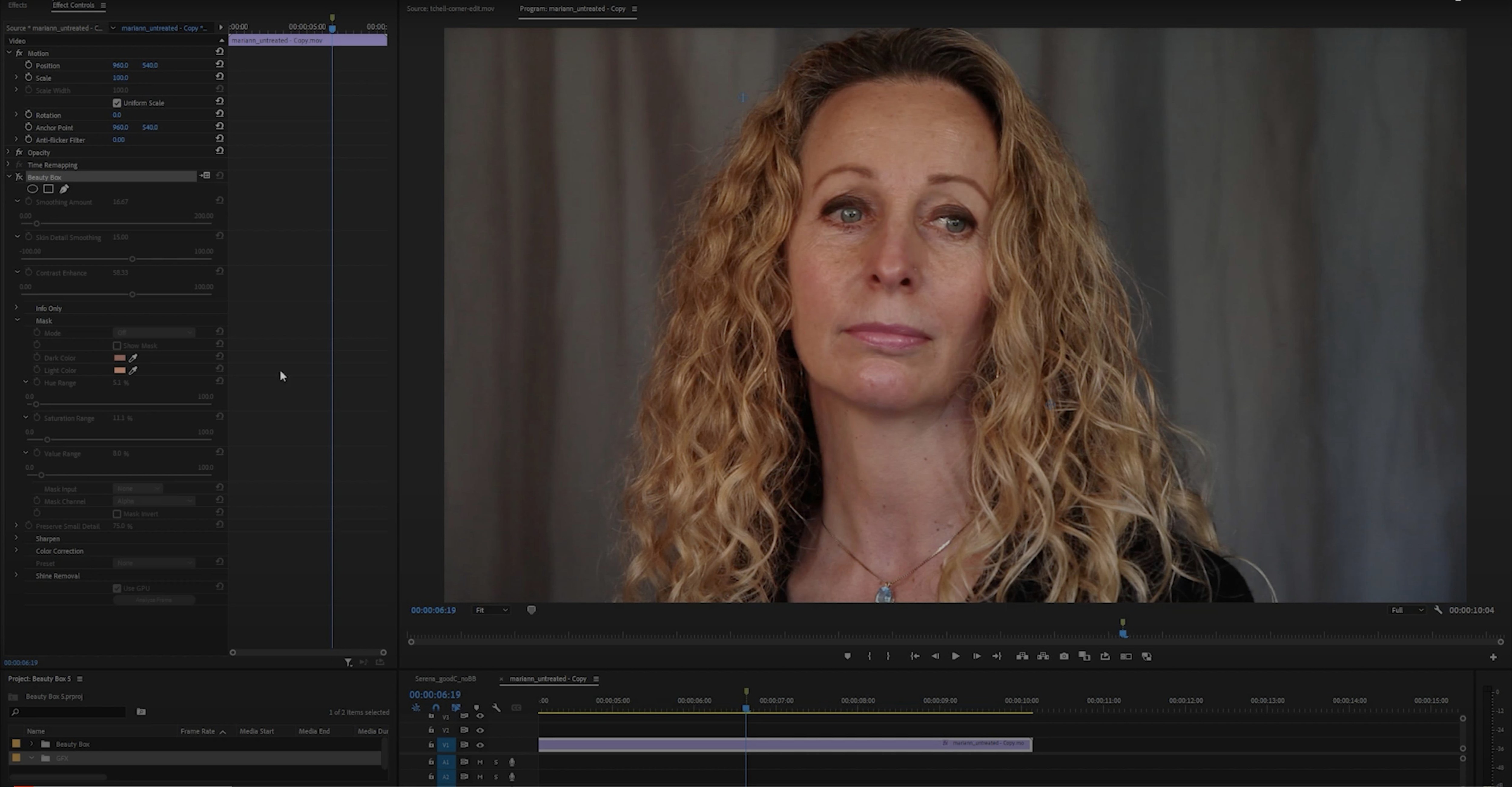
Mask spill onto clothing or background. Beauty Box's skin detection is solid on warm tones, but it gets confused by beige walls, tan leather jackets, or sand. Click the Mask tab and use the Eyedropper to subtract those colors from the detection range. You can paint a quick mask overlay to see exactly where the effect lands, then refine with the plus and minus droppers. Saves redoing passes.
CUDA not engaging. The plugin defaults to CPU if it doesn't spot a compatible GPU. On a Mac, check Photoshop's Performance preferences — if "Use Graphics Processor" is unchecked, Beauty Box won't touch it either. Re-enable it there, restart Photoshop, and the real-time preview should snap back to responsive. On Apple Silicon machines, this is less of a headache because the integrated GPU shares the unified memory pool.
Installation clears previous presets. Upgrading from an older version sometimes wipes custom presets. Before you run the installer, dig into ~/Library/Application Support/Digital Anarchy/Beauty Box Photo/ and copy the Presets folder somewhere safe. Drop it back in after the new version is running and everything reappears.
Watch the Automatic Mask Grab a Mixed-Light Portrait
Start with a portrait that has mixed lighting — window light on one side, a warm lamp on the other. Open the plugin and don't touch a slider yet. Just watch how the automatic mask grabs the face. Toggle the mask overlay on and off. Notice where it misses: ears often read as too cool, hands sometimes don't register at all. Those are the spots you'll train yourself to check on every pass.
Build one preset for "editorial light" and one for "beauty heavy" right away. Name them something obvious — not "Preset 3." The editorial one should sit around 25% Smoothing with Texture at 70%. The heavy one can push Smoothing to 50% with Sharpen at maybe 15%. Switch between them on the same image to feel the range. You'll use those two as starting points for almost everything.
Record a Photoshop action that applies your editorial preset to a flattened layer. Assign it to an F-key. Now you've got a one-button pass for proofing. When a client is looking over your shoulder during a tethered shoot, that speed buys you breathing room.
Finally, test the batch processing on a folder of ten throwaway images before you trust it with paying work. Set the output destination to a different folder, apply your preset, and let it run. Check the edges on varied skin tones and lighting angles. Make your mask refinements from that test batch, save a revised preset, and only then point it at the real job folder.
- macOS (Intel and Apple Silicon)
- Adobe Photoshop
- Interface language: English
Questions I actually get
Does Beauty Box Photo work in Premiere Pro on Mac?
No, this is an Adobe Photoshop-only plugin. There is no Premiere Pro or Final Cut build.
Notes from the edit bay · 0
Sign in or get an edit-bay pass to leave a note.
No notes from the edit bay yet. They go up after I read them.