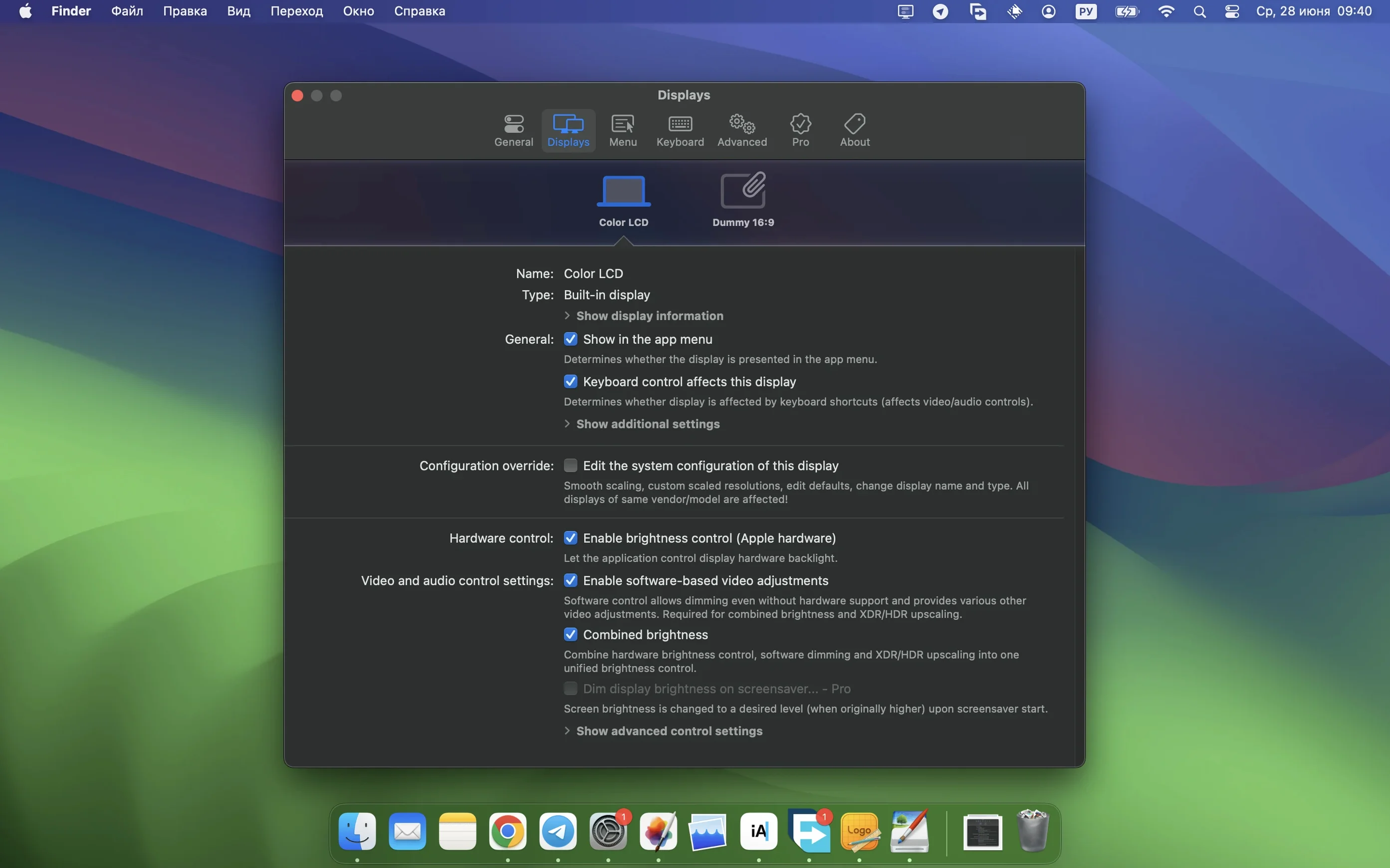
BetterDisplay Pro is a macOS display manager that gives you control over scaling, brightness, color, and virtual screens from the menu bar. If you've just grabbed version 5.0.6, a few settings deserve your attention before anything else.
The Menu Bar Icon That Replaces System Settings
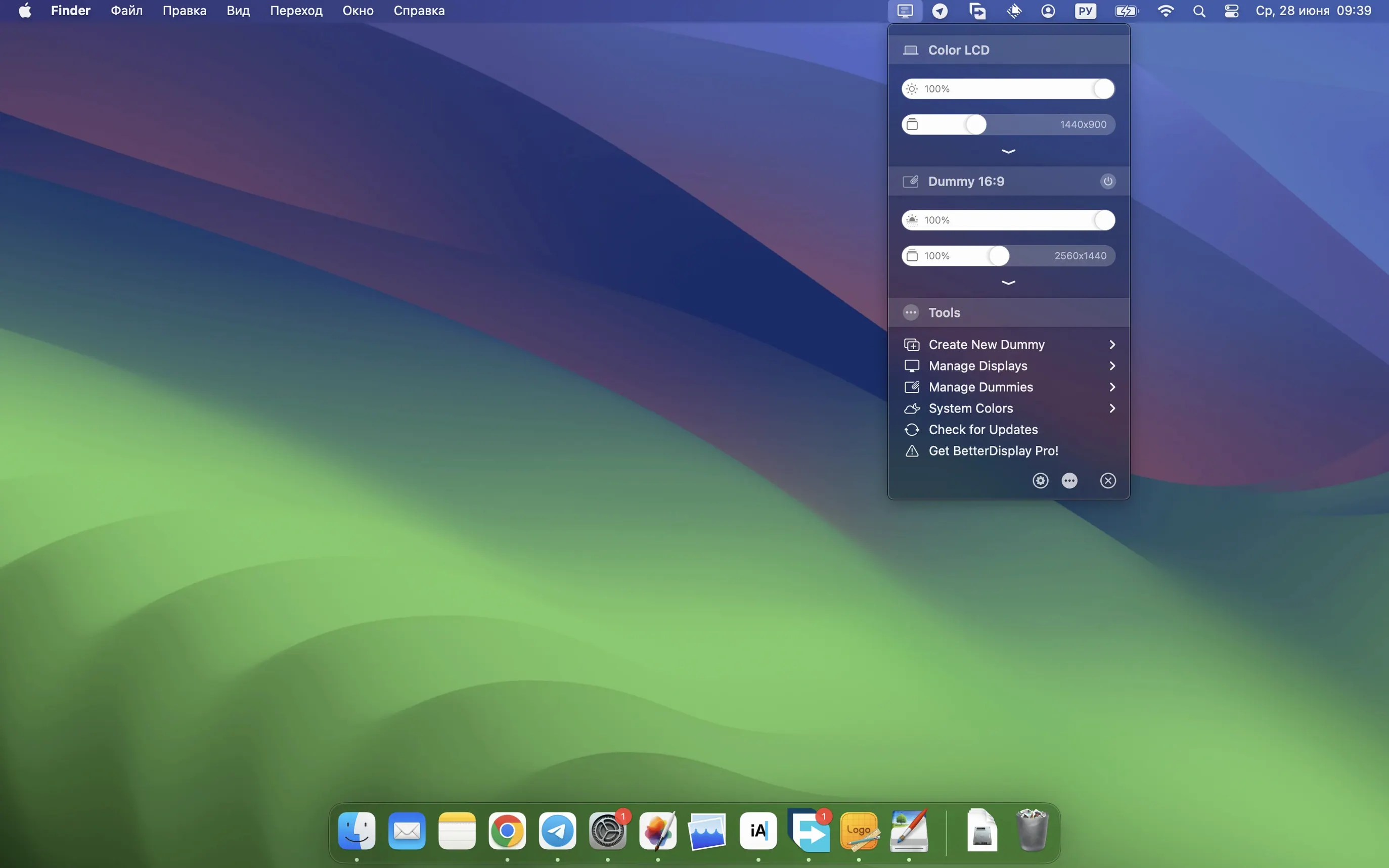
Open the app and look for the display icon in your menu bar. That's where most of the action lives. Click it, and you can change resolution, rotation, and brightness without digging through System Settings. The scaling options are the real highlight — the app lets you treat any display as a fully scalable screen, so a 1080p panel can behave like a Retina display with finer UI sizing. On an Apple Silicon or Intel Mac, the controls feel immediate. Try dragging the brightness slider for an external monitor; the app uses DDC and HDMI-CEC, so it works on displays that macOS normally ignores. Version 5.0.6 also made multi-display DDC control noticeably faster.
Virtual Displays and Color
Next, create a virtual display. This gives you extra desktop space without plugging in another monitor — useful for screen sharing, recording, or running reference resolutions. For color work, the app offers per-display color adjustments and stronger sharpening effects in the current release. The device control configuration got simpler too, so setting up custom hotkeys or per-app display profiles takes less fiddling.
Imagine a motion designer who splits the day between a MacBook Pro and a desk setup with two mismatched externals — a 4K Dell and an aging 1080p Asus. The Dell looks crisp at 1440p HiDPI, but the Asus is a blurry mess at its native resolution, and macOS refuses to offer sensible scaled options for it. BetterDisplay Pro steps in right there. The designer opens the menu bar dropdown, selects the Asus, and enables a HiDPI scaled resolution that matches the UI density of the Dell. Suddenly both screens feel like they belong to the same setup. For color-critical afternoon work, they load a custom 3D LUT that nudges the Dell toward a warmer white point, then turn on XDR brightness upscaling on the MacBook's built-in display to check HDR grades without an expensive reference monitor. One app, three displays, zero trips to System Settings.
0.3% Idle CPU with Three Displays
On an M1 Max MacBook Pro with three screens active, BetterDisplay Pro sits at around 0.3% CPU while idle and barely nudges 2% when you're dragging sliders or swapping virtual displays. Memory use hovers near 220 MB — modest for what it juggles. The app hasn't caused a single window server hiccup across weeks of daily plug-and-unplug cycles, and version 5.0.6 seems to have ironed out the brief menu bar freeze that would occasionally hit when waking from sleep on earlier builds. Multi-display DDC commands now fire in parallel rather than sequentially, so brightness changes hit all externals at once instead of one after another. On Intel machines, the experience is equally stable, though XDR brightness upscaling remains an Apple Silicon exclusive. The only real resource spike comes when running a picture-in-picture window at 60 fps — that'll grab a slice of GPU, but closing the window drops it back to nothing.
Drag Thumbnails to Fix Flipped Arrangements
You sit down with coffee, plug in two monitors, and notice the arrangement flipped overnight. macOS does that sometimes. Rather than open System Settings, you click the BetterDisplay menu bar icon and drag the display thumbnails into the correct order right in the dropdown — the change applies instantly. Next, the LG UltraFine on your left needs a brightness bump. A quick two-finger swipe on the menu bar slider adjusts it via DDC without touching the monitor's physical buttons. Now you need a virtual display for a clean screen recording: you hit the shortcut you assigned weeks ago — ⌃⌥⌘V — and a 1440p virtual screen appears. You set it to mirror your main display with a different color profile, open OBS, and the stream picks up the virtual screen instead of your cluttered desktop. Later, for a head-down editing session, you switch to a dark color preset you saved for the side monitor, one that dims black levels aggressively so the bezel blends into the wall. By the time the render finishes, you've adjusted five settings and never once opened System Settings.
Small Details Worth Finding
A few features hide in the app's preferences that make daily use smoother. Under the Controls tab, you can set the menu bar icon to show the current resolution for each display — handy when you're jumping between layouts. The Automation section lets you tie display profiles to specific apps, so launching DaVinci Resolve can trigger your grading monitor's color preset and brightness level automatically. If you use a Stream Deck, BetterDisplay exposes AppleScript commands for brightness, virtual display toggling, and preset switching. Hold the Option key while clicking a resolution in the menu bar list, and the app reveals low-level display overrides that are usually hidden. The picture-in-picture window has its own set of tricks: right-click it to lock the aspect ratio or toggle click-through mode, which lets you keep a full-screen timeline visible on one monitor while a tiny preview floats over your editing workspace. The stronger sharpening effects added in 5.0.6 live under the color adjustments panel — they're subtle on a 4K panel but genuinely useful on a 1080p display running a scaled HiDPI resolution, where text can occasionally soften. It's the kind of app where poking through every preference pane pays off by the end of the first week.
Version 5.0.6 focuses on speed and simplification. Multi-display DDC control is faster, and device control configuration no longer buries options in nested menus. Sharpening effects got stronger, and there's new stream video filter automation for content work. Also fixed: the usual round of small DDC quirks.
- macOS 26 or later
- Apple Silicon or 64-bit Intel Mac
- Activation not required
Questions I actually get
Does BetterDisplay Pro work on Intel Macs?
Yes, version 5.0.6 supports both ARM and 64-bit Intel Macs.
Can BetterDisplay Pro control external monitor brightness?
It can, using DDC and HDMI-CEC control for displays that support those protocols.
Notes from the edit bay · 0
Sign in or get an edit-bay pass to leave a note.
No notes from the edit bay yet. They go up after I read them.