When Every Mask Point Needs Its Own Mind
Motion designers and compositors who build complex, animated mattes get the most out of this. When you need a mask point to drift independently or a tangent to ease with its own curve, Mask Avenger puts every vertex and handle under your control.
Per-Point Finesse Inside AE's Native Mask System
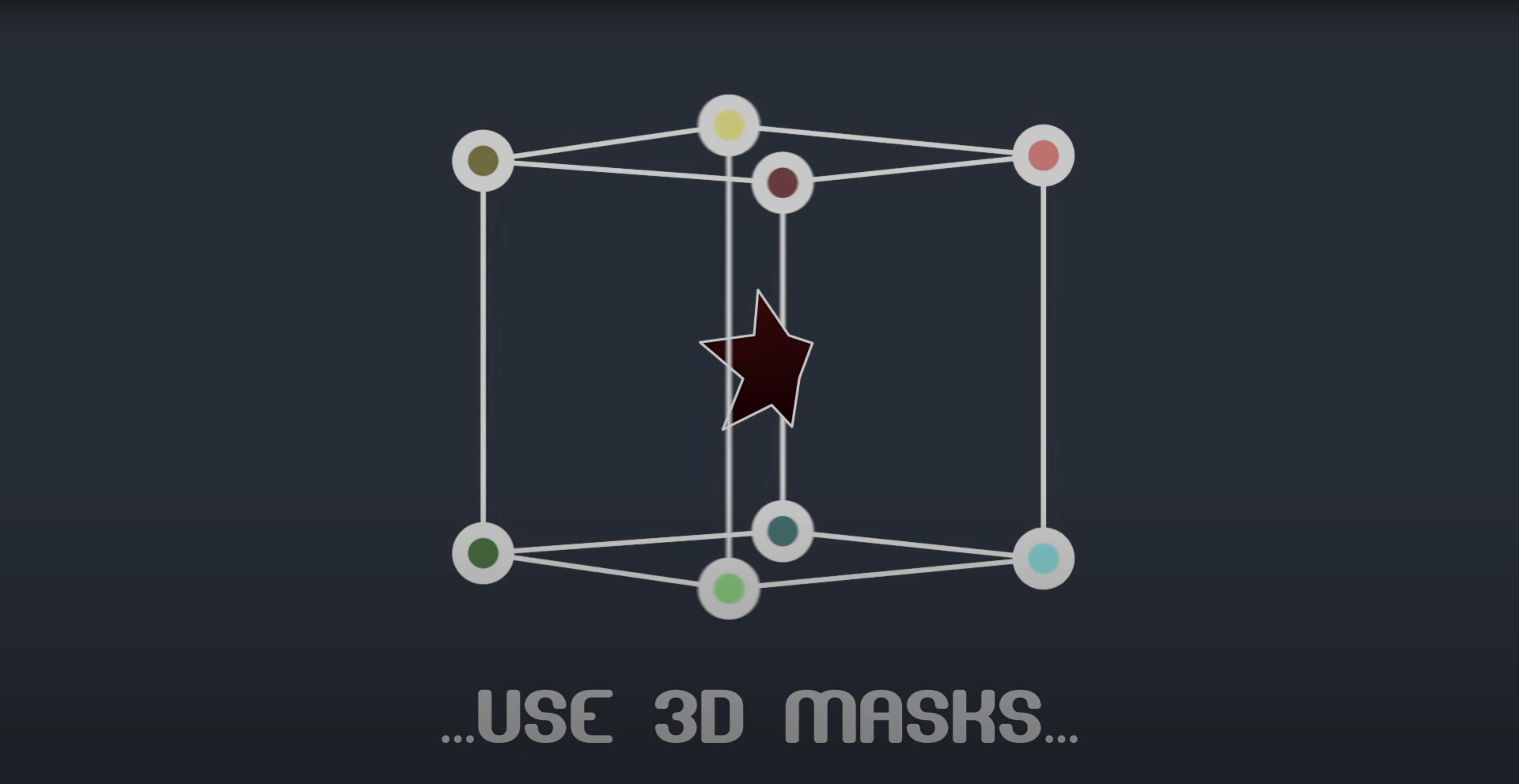
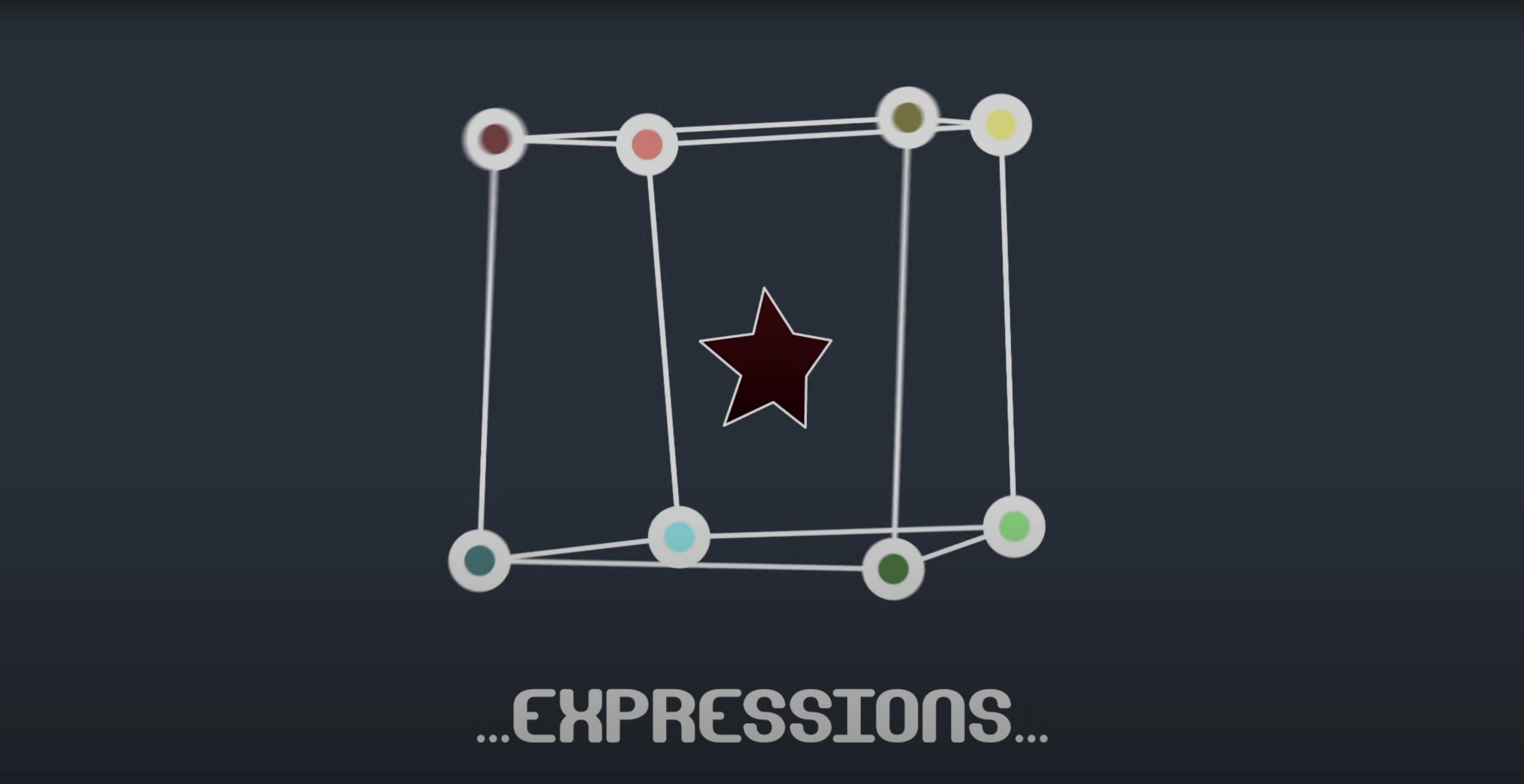
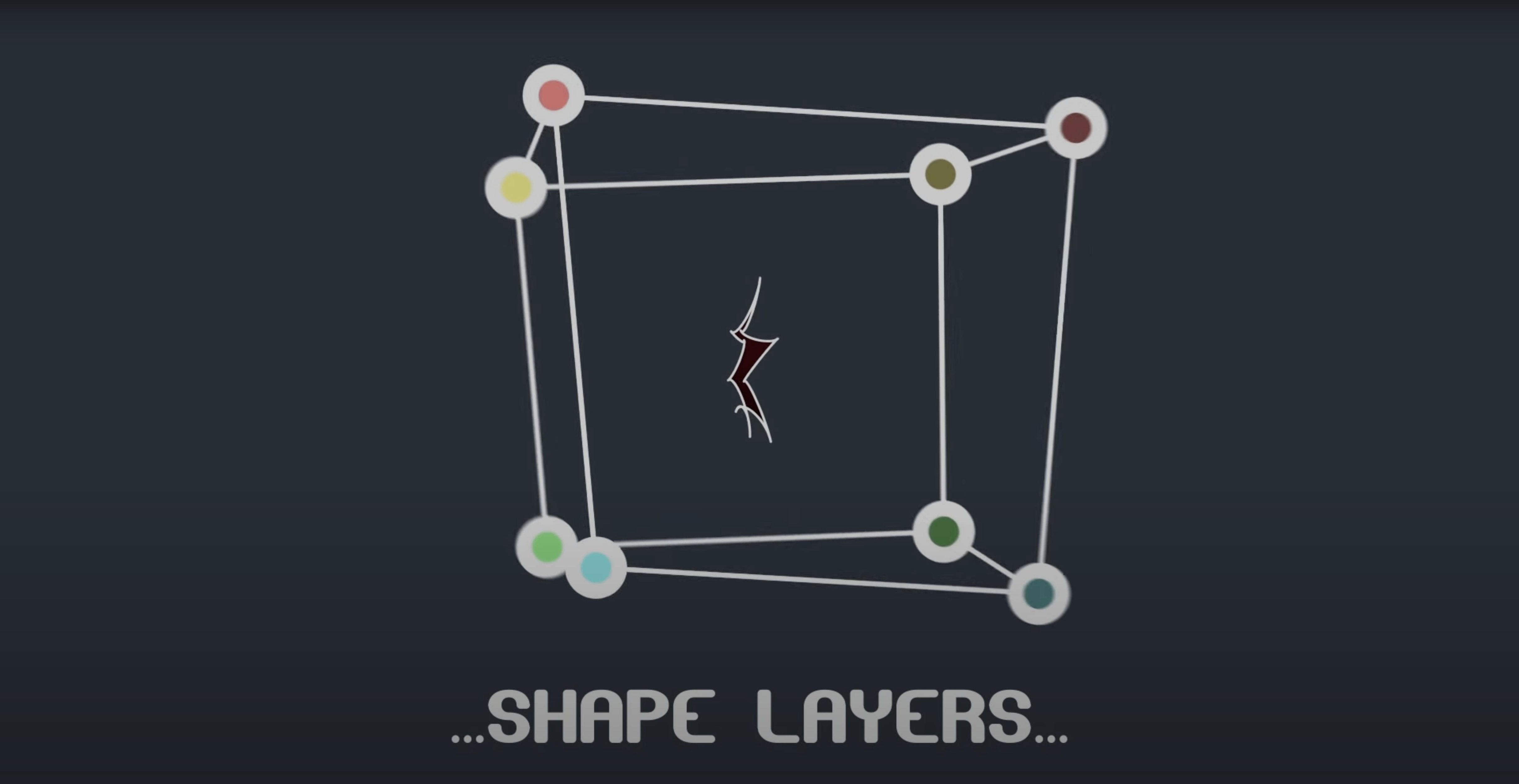
It sits right inside the native After Effects masking system. You can keyframe, add expressions, and work in 3D space with the same mask you would have drawn with the pen tool—just with per-point finesse that the stock engine doesn't offer. Shape layers are fair game too.
Freeze Mode Shares Projects Without the Plugin
A freeze mode lets you share projects with anyone who doesn't own the plugin, and integrated scripts speed up linking masks to nulls. It also replaces the need for the old Mask Renderer workflow in a lot of shots.
Your Mask Lives in Layer Space, Not Comp Space
The first thing that trips people up is expecting Mask Avenger to behave like a shape layer path. It doesn't. You're still working inside the AE mask system, so the coordinate space belongs to the layer, not the comp. If a vertex keyframe suddenly jumps to a weird spot, check whether the layer has been parented or moved—the mask moves with it, but the values you see in the timeline are local.
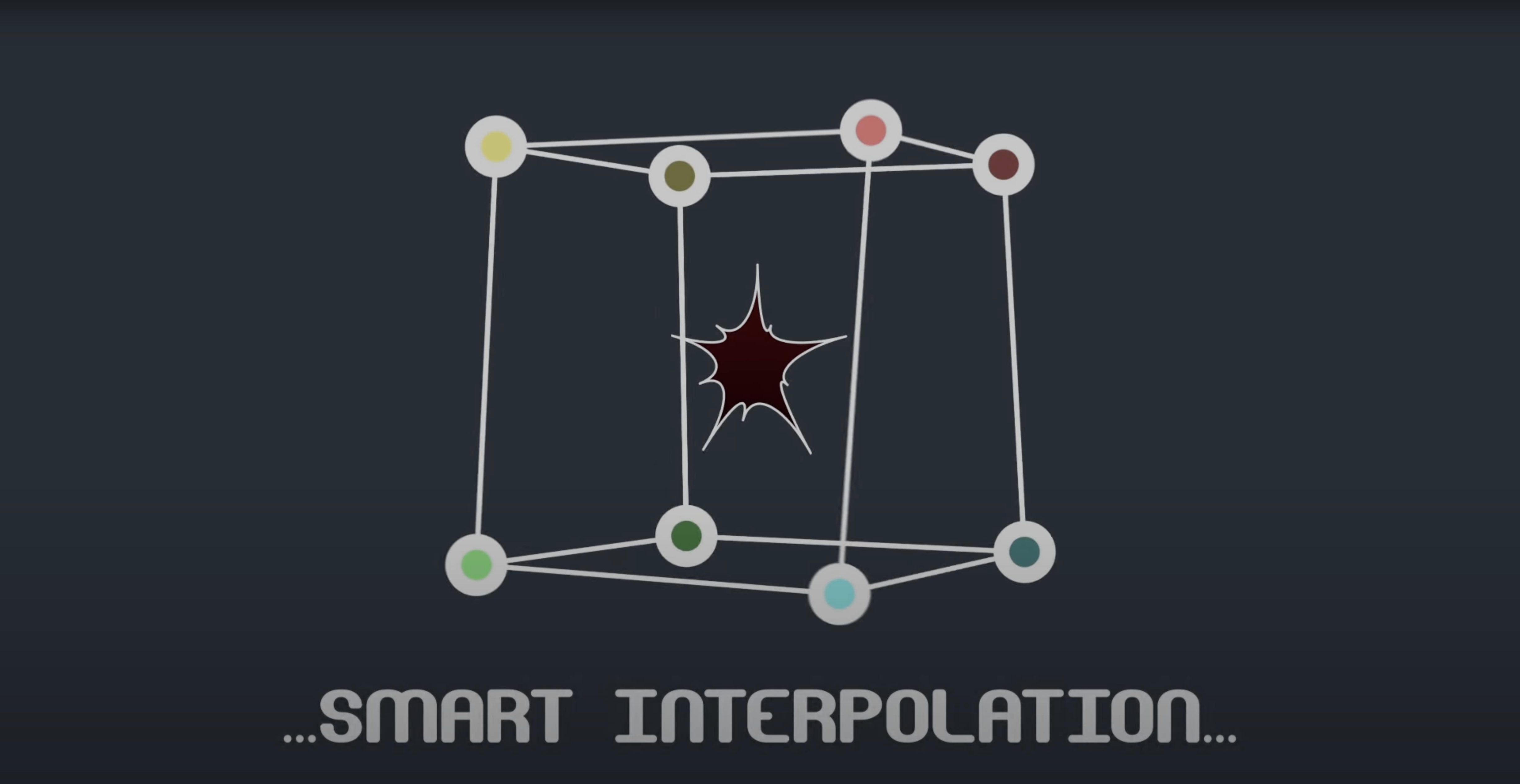
Another classic: you apply the plugin, set a few tangent keyframes, and the motion comes out looking like a drunk spider. Nine times out of ten, it's the interpolation mode. Mask Avenger defaults to a center-of-gravity calculation that works beautifully for organic drifting but confuses anyone expecting linear paths between keyframes. Jump into the effect controls and switch to the independent key anchor point mode when you need predictable, straight-line interpolation between vertex positions.
On the M1 compatibility fix in version 2.7.5—if you were holding off on updating macOS because of that crash-on-launch bug, it's sorted. The plugin loads cleanly under Rosetta and native ARM now. If you're still seeing a flicker during RAM previews, toggle the Free Transform mask tool off and back on. That forces a redraw of the tangent handles and usually clears it up.
Expression pick-whipping from a tracker to a mask vertex sometimes refuses to connect. The script expects a point control, not a null's position. Drop a point control onto the null, expression-pickwhip that to the tracker data, then pick-whip the mask vertex to the point control. Works every time.
Rigging Mouths and Eyes with Independent Easing
Character animators rigging mouths and eyes with masks, not shape layers, will wonder how they ever did without this. The ability to ease a lip corner independently from the chin point means you can rough out a full mouth-shape set from one base mask instead of duplicating and tweaking a dozen variations. Save the expression setup once, and every new character just needs the vertex links reassigned.
Compositors doing beauty work or object removal get a quieter but equally real boost. Tracking a blemish or a logo with a single mask is straightforward; keeping eight vertices locked to eight different tracking points usually meant eight masks and a pile of track mattes. Mask Avenger condenses that into one mask with per-vertex pick-whip links. The timeline stays readable, and adjusting the feather on a single mask is faster than chasing eight.
Motion graphics artists who build intricate matte reveals will lean heavily on the intelligent interpolation. When you want a mask to collapse toward a specific anchor point rather than its geometric center, that option saves you from pre-composing and counter-animating a null just to shift the pivot. It's a small thing until you're on a tight deadline and the client wants the iris to close from the subject's eye rather than dead center.
Attach a Layer to Any Point Along a Curved Segment
You can read position and orientation data from any point along a mask path, not just the vertices. That means you can attach a layer to the midpoint of a curved mask segment and have it follow the path as it deforms. Open the integrated script panel, sample the path percentage you want, and the expression writes itself.
The freeze mode is more than a compatibility crutch. I use it as a bake function. When a mask animation is locked and I don't want anyone—myself included—to accidentally nudge a tangent, I freeze it. The project still renders everywhere, and the animation becomes a standard mask keyframe stream that you can hand off without notes.
Holding Shift while adjusting a tangent handle constrains it to 45-degree increments. Holding Command breaks the tangent so you can create a sharp corner without switching tools. Neither is documented prominently, but both are baked into the plugin's interaction model and feel natural once you discover them.
If you work with the vps avenger 2 torrent crowd who are pulling the plugin into heavier VFX pipelines, the null-linking script works across multiple masks on the same layer simultaneously. Select all the vertices you want to drive, run the script once, and point them all at the same null or at a set of point controls—no repetitive pick-whipping needed.
A Practical Workflow: Tracking a Face for Digital Makeup
Start with a clip where you need to attach a digital element to a moving face—say, a glowing sigil on a performer's forehead that needs to follow skin deformation, not just head position. Track four points: temples, bridge of nose, and chin. AE's point tracker handles this quickly.
Draw a loose mask around the forehead area on a solid layer. Apply Mask Avenger. You now have individual control over every vertex. Place four vertices at roughly the positions of your track points, then use the pick-whip in the effect controls to link each vertex to its corresponding tracker's point control. The mask deforms with the skin.
Switch the interpolation to independent key anchor point so the vertices move linearly between tracked frames—no organic drifting here, you want the data to follow the tracker exactly. Add a fifth vertex at the center of the forehead and link it to an average expression of the four outer points; that one becomes the anchor for your sigil layer. Parent the sigil to a null that reads its position from that central vertex at 50% path length, using the path position script. Now the sigil moves and deforms with the skin, and you never touched a mesh warp.
When you hand the project off, freeze the mask. The animator downstream sees a standard mask with keyframes and gets on with their day. You've just replaced a half-hour rigging session with four track points and a plugin.
- macOS (Apple Silicon & Intel)
- Adobe After Effects CS6 through 2024
Notes from the edit bay · 0
Sign in or get an edit-bay pass to leave a note.
No notes from the edit bay yet. They go up after I read them.