
You’ve just downloaded a folder of RAR files from a client and macOS Archive Utility throws up its hands. Double-clicking does nothing. You need something that just opens the damn things, fast. That’s where Bandizip fits.
Drag single files out of giant archives without unpacking
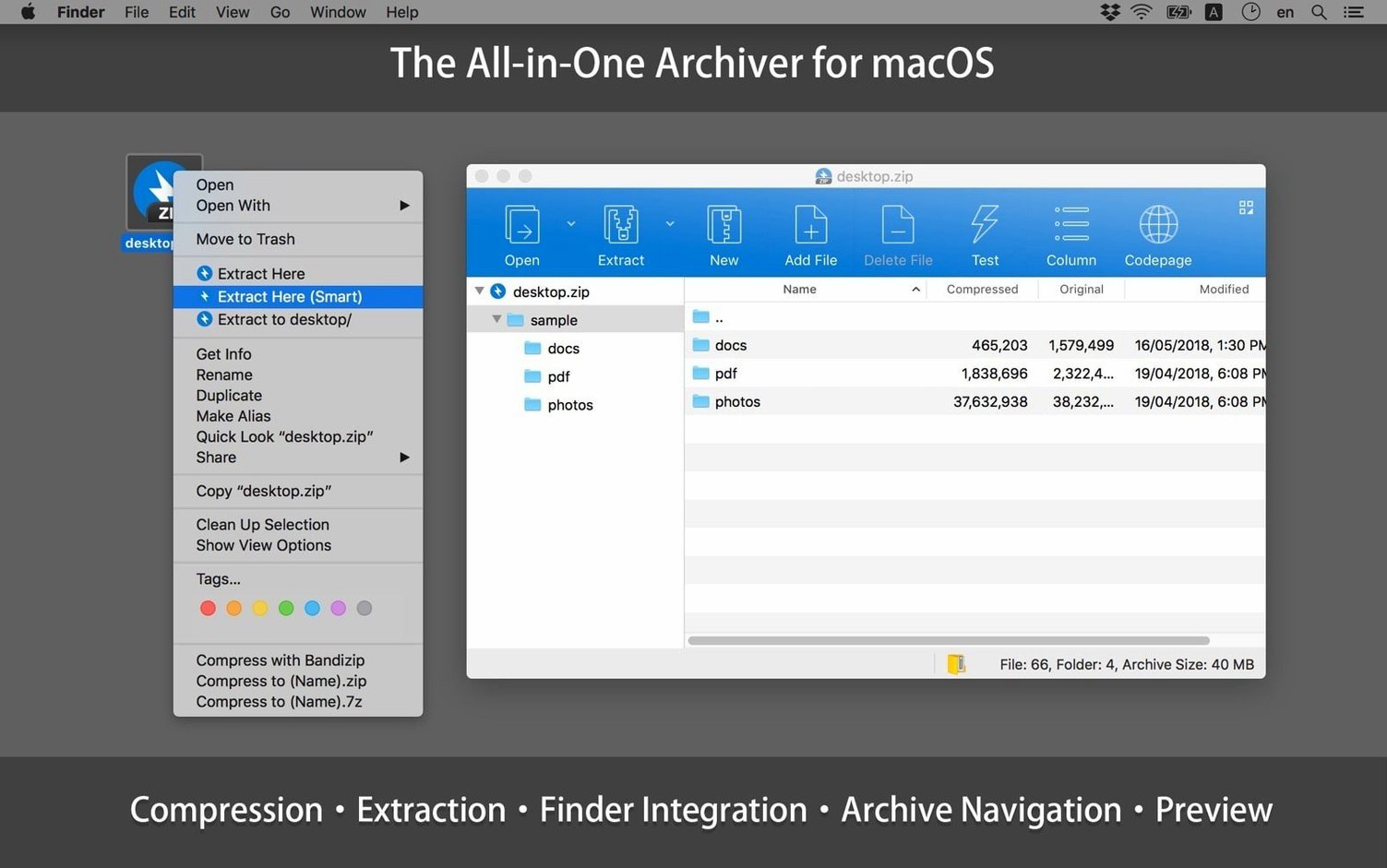
- Preview an archive without unpacking it. Double-click a ZIP or RAR in Bandizip’s main window. It browses like a Finder folder. I use this daily — drag a single file out of a 20-gig archive instead of waiting for the whole thing to decompress.
- Edit a ZIP in place. Right-click any ZIP and choose Bandizip from the Services menu. You can add files, delete junk, or rename entries without re-compressing the whole thing. Saves a ton of time when a client asks for “one more logo” after you’ve already zipped the delivery.
- Compress to 7Z with a right-click. Select a folder, right-click, Services → Compress with Bandizip. Pick 7Z for tighter compression on large project folders. The multi-volume option is right there for splitting big archives across email attachments.
The RAR and 7Z gap that Quick Look leaves behind
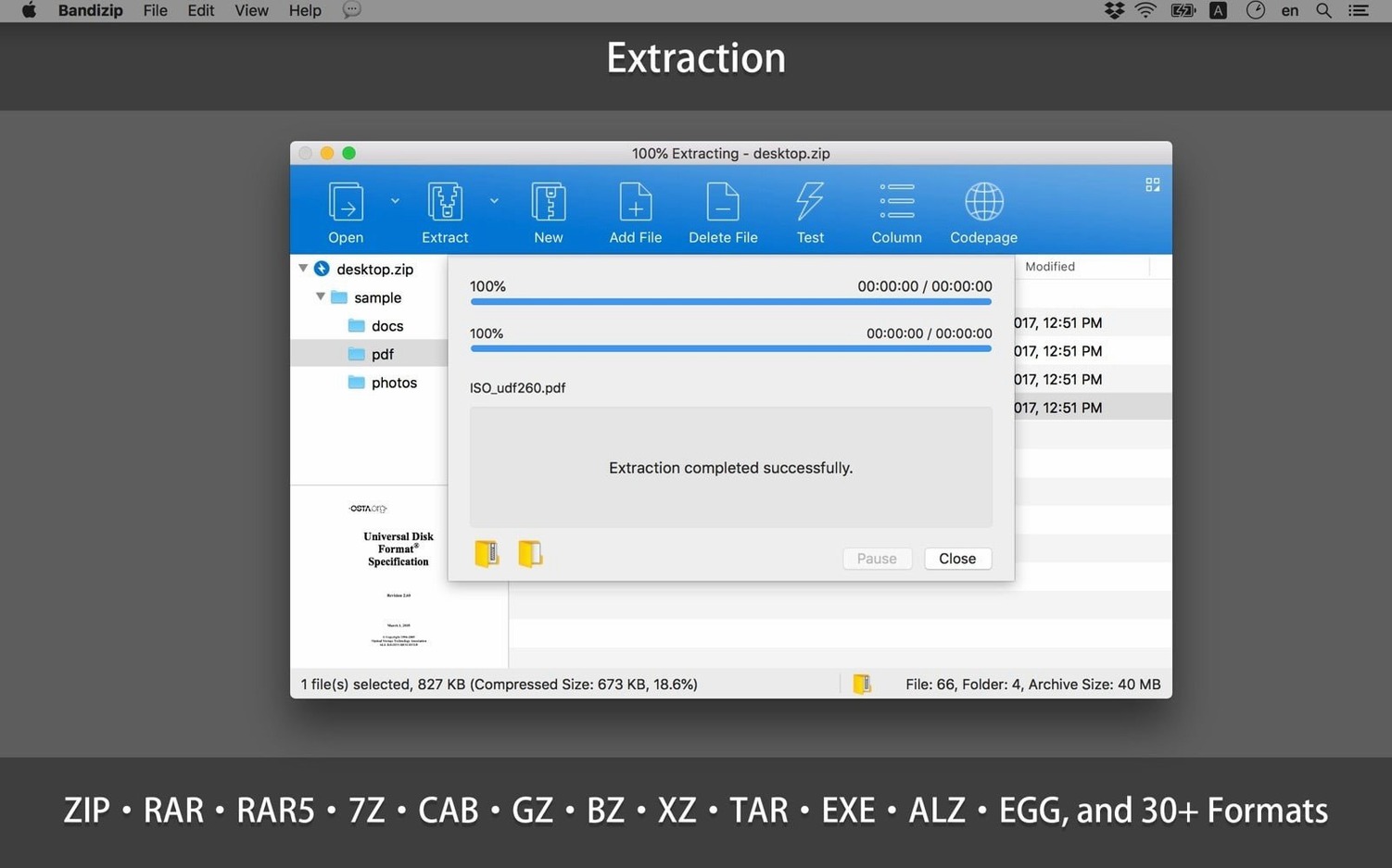
Bandizip isn’t trying to replace your entire toolset. It sits in the Finder Services menu and handles the formats Quick Look ignores — RAR, RAR5, 7Z, and about 27 others. It compresses to ZIP, 7Z, TAR, GZ, and TGZ, with proper Unicode support for filenames that won’t garble on a colleague’s Windows machine. Archive comments on ZIP and RAR files come in handy for noting version numbers or client instructions directly inside the file. The interface switches cleanly between nine languages, and it runs natively on both Apple Silicon and Intel Macs back to macOS 10.13. No bloat, just a sharp tool for the moment macOS says “I can’t open this.”
Prune the Services menu to show only formats you use
Out of the box, Bandizip works. But two preferences make it feel native.
Open Preferences → Context Menu and prune the clutter. I uncheck every format I never touch — TAR, TGZ, GZ — so the Services menu shows only “Compress with Bandizip” and a clean shortlist. Next, flip to the General tab and tick Open extracted folder automatically when complete. Without it, you finish extracting a big 7Z and stare at nothing. With it, the folder pops open in Finder, ready to work. That one checkbox saves me five seconds of hunting per extraction, and those add up on deadline days.
If you deal with password-protected archives from colleagues, check Save passwords temporarily so you don’t retype the same key five times when opening a multi-part RAR set.
How it slots into the right-click alongside macOS Compress
Bandizip doesn’t fight your existing workflow. It fills the gap between Archive Utility’s ZIP-only world and the Finder’s tar limitations.
From Finder: select a folder, right-click, and Bandizip lives in the Services menu alongside macOS’s built-in “Compress.” If you use a launcher like Alfred or Raycast, trigger the same action from keyboard — the Services entry appears there automatically. For Final Cut editors, I archive old libraries to 7Z with AES256 encryption before moving them to cold storage. The unicode handling means project names in Chinese, Korean, or Cyrillic don’t break. When a client sends a RAR from a Windows box, Bandizip extracts it preserving the original folder structure, so the Premiere project re-links without drama. It’s the app I reach for when Archive Utility shrugs, and it never asks to become my default for ZIPs — it just handles the edge cases.
Is the free edition enough for everyday archiving?
Runs natively on M1 through M4, no Rosetta required
Yes, natively. The build is universal, so you get full-speed performance on M1, M2, M3, and M4 Macs without Rosetta overhead. Intel machines are supported too, back to macOS 10.13.
Can it open password-protected RAR files?
Absolutely. Enter the password when prompted on extraction. Bandizip handles RAR and RAR5 encryption without additional plug-ins. For archiving your own sensitive data, you get AES256 encryption on 7Z and ZIP containers.
Does the Services menu integration slow down Finder?
Not in practice. The right-click entry loads on demand. If you have dozens of archiving apps installed, the Services list can get long — but that’s a macOS thing, not specific to Bandizip. The fix is the Context Menu preference pane I mentioned earlier.
Is Bandizip a replacement for Keka or The Unarchiver?
It overlaps, but plays differently. Keka leans harder into compression profiles and windowless extraction. Bandizip’s in-place ZIP editing and archive browser are the standout features the others don’t match. If you regularly peek inside archives or tweak ZIP contents, it earns its keep. If you only ever unpack RARs, they all work — pick the one whose interface you tolerate at 2 a.m.
Version 7.39 closes multiple security vulnerabilities — always a priority for a tool that handles files from who-knows-where. Also fixed: file size updates when selecting a folder now behave correctly, the compression format dropdown order got a sensible re-sort, and a handful of UI tweaks keep things snappy.
- macOS 10.13 or later
- Apple Silicon or Intel 64-bit Mac
Questions I actually get
Can Bandizip modify an existing ZIP without recreating it?
Yes. You can add, delete, and rename entries inside a ZIP archive directly through Bandizip’s interface or the Finder Services menu.
Notes from the edit bay · 0
Sign in or get an edit-bay pass to leave a note.
No notes from the edit bay yet. They go up after I read them.