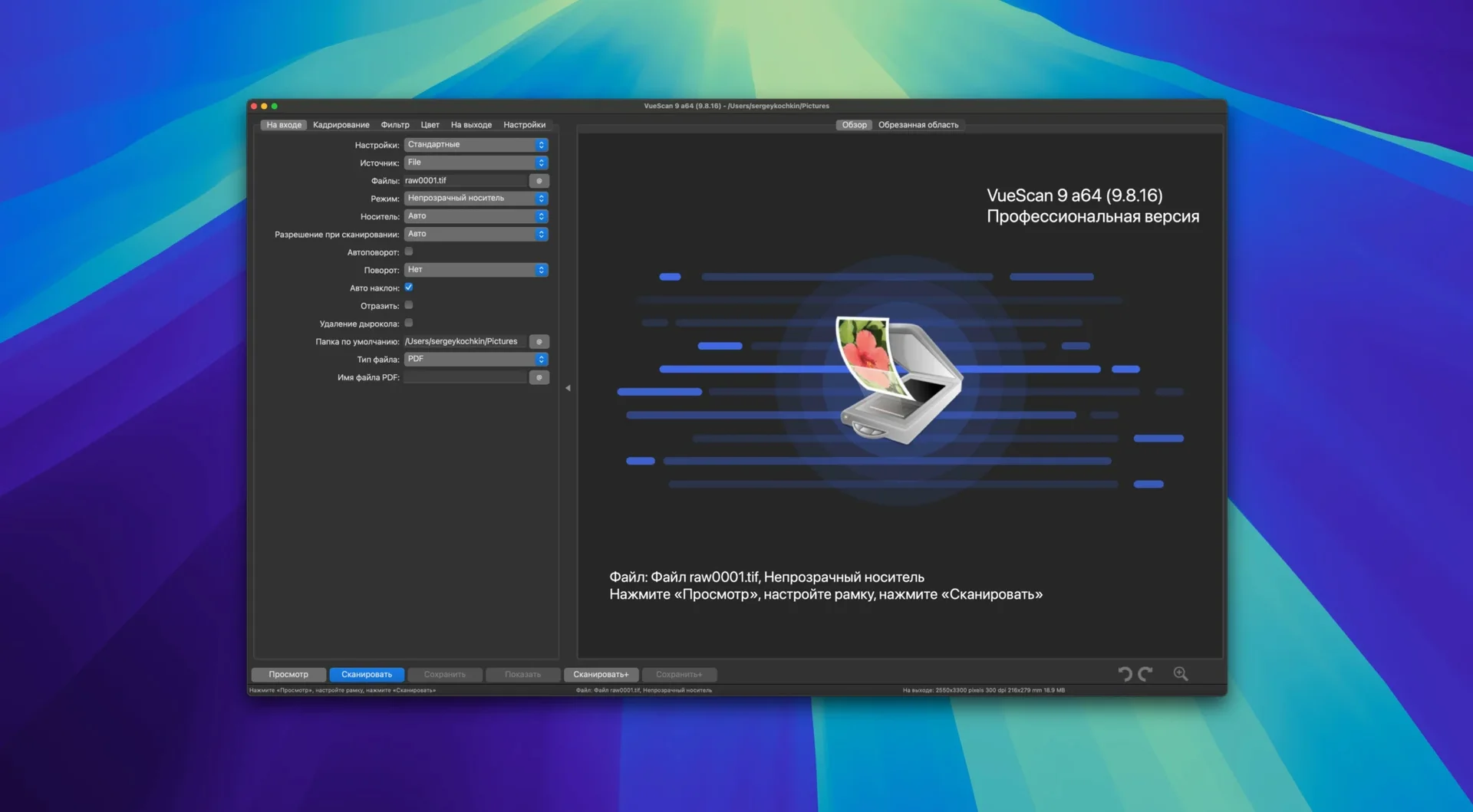
You plug in a perfectly good scanner that macOS no longer sees. The manufacturer dropped driver support three OS versions ago. That's the problem VueScan solves. It talks directly to the hardware, bypassing the need for official drivers, and keeps thousands of old and new scanners useful.
Where Do I Even Start?
Plug in the scanner, launch VueScan, and hit the big Preview button. The software auto-detects the model and grabs a quick low-res scan. From there, you're already in control—crop, set resolution, and decide whether you're scanning a print or a negative.
What About Color and Exposure?
Head to the Color tab. You can pull color casts out of faded prints with a single click, or get surgical with manual control over the dynamic range for each red, green, and blue channel independently. It's a fast way to fix a whole roll of film that's shifted toward magenta.
Can I Save a Scan and Edit It Later?
Absolutely. Save the scanner's raw data to a file. You can process it hours later with the scanner unplugged, trying different film profiles or the grain-reduction filter without needing to re-scan the physical photo.
Archivists Keeping One Scanner Alive Across Decades
Archivists dealing with shoeboxes of family prints. They're not buying a new scanner every three years—they want the one in the closet to work until the job is done. VueScan gives them consistent output across decades of hardware, with batch scanning that chews through stacks of 4x6s while they label folders.
Film photographers hunting a specific look. The raw-scan workflow means they can pull a flat, unprocessed file from their Nikon Coolscan and develop it later like a digital negative. No scanner software ties them to a single interpretation of the frame.
Office managers with a fleet of mismatched scanners. One app, one interface, same settings file dropped onto every Mac. No retraining people when the accounting department's Epson is older than the receptionist's Canon.
Anyone who grabbed a VueScan Pro torrent Mac download because their scanner's official software looked like Windows 95 and crashed on launch. The interface isn't flashy, but it loads every time and doesn't fight the user.
A Negative Scan from Start to Finish
Say you've got a strip of 35mm Kodak Portra that's drifted blue after sitting in a drawer. Here's the flow that turns it into corrected, archive-ready TIFFs.
1. Set the hardware. Slide the negative into the holder, fire up VueScan, and let it detect the scanner. On the Input tab, switch from "Flatbed" to "Transparency" and pick "Negative" as the media type. The software now expects light coming through film, not bouncing off paper.
2. Lock exposure. Before the real scan, preview one frame. Use the lock exposure button so the scanner lamp doesn't adjust between frames. Inconsistent exposure across a strip is a headache to fix later, and locking it takes two seconds.
3. Scan raw. Set Output to "Raw file." Choose 48-bit RGB. Hit Scan. What you get is pure sensor data—no white balance, no gamma curve baked in. Ugly to look at, but malleable.
4. Process offline. Eject the negatives, unplug the scanner. Open the raw file in VueScan's scan-from-file mode. Now you can cycle through film profiles, pull the blue cast out with the Color tab's white-point picker, and apply just enough grain reduction to smooth the sky without smearing eyelashes.
5. Output. Switch the Output tab to "TIFF" and render. The processed file lands in your chosen folder, named with whatever increment scheme you set—portra_001+2.tiff gives you file001, file003, file005 if you're scanning every other frame. Repeat for the rest of the raw batch.
Why Your Preview Edits Vanish at Full Resolution
Chasing the preview. The preview scan is low-res and auto-exposed. Beginners tweak contrast and color on the preview, then get a full-res scan that looks completely different. Lock exposure, scan a small crop at final resolution as a test, and judge from that.
Ignoring the infrared channel. If a scanner has an IR channel, VueScan uses it for dust and scratch removal. But it only works on color film and some black-and-white stocks that don't use silver halide. Running it on traditional silver-grain black-and-white produces a soft, artifact-riddled mess. Turn it off for those rolls.
Over-filtering before saving the raw. Grain reduction, sharpening, color correction—if you bake those into the raw file, you've lost the untouched data. Apply filters only on the processing pass. The raw should stay raw.
Not saving settings as a profile. You spend ten minutes dialing in white balance and resolution for a batch of Kodachrome. Then you close the app. File > Save Options writes a profile you can reload next time. Skipping this step means reinventing the wheel every session.
Assuming the vuescan crack free download route solves everything. Getting the software running is step one. Step two is learning the scanner's quirks. A Canon flatbed might need the "Auto focus" option toggled off for film holders; an old HP might require a specific USB port. The app won't guess that for you.
Name Your Profiles by Film Stock and Output Now
Make a profiles folder. Create one profile per film stock, per scanner, per output type. "EpsonV550_Portra400_raw" and "EpsonV550_Portra400_TIFF" sound fussy, but muscle memory on day three will thank you. The profile loads, you scan, you move on.
Sort out your file naming early. The new date-and-time substitutions in folder names are genuinely useful. Set your default folder to something like Scans/2026-08-23_Portra_Roll3 and let VueScan stamp it automatically. Changing naming schemes mid-project creates a rat's nest of half-named files.
Test the multi-pass feature on a dark slide. If the scanner supports it, multi-pass scanning averages several passes to lower noise in shadow areas. Run a two-pass scan of a dense transparency and compare it to a single pass. The difference in the grain of the blacks tells you whether it's worth the extra scan time for your particular hardware.
Check the "Lock film base color" setting. For color negatives, this is the single biggest timesaver. With it on, VueScan samples the unexposed orange mask at the start of the roll and corrects for it across every frame. Without it, you're manually fighting an orange cast on every shot.
Plug directly into a Mac port. The improved USB support in version 9.8.57 is solid, but an unpowered hub between the scanner and the Mac can still cause dropouts during long batch jobs. Cable straight into the machine, especially for older bus-powered scanners.
Version 9.8.59 lands with the developer’s latest fixes and improvements across the scanning pipeline.
- macOS 10.15 (Catalina) or later
- Apple Silicon native, Intel compatible
Questions I actually get
Does batch scanning work for multiple photos?
Yes. You can lay several prints on the flatbed, and VueScan will save each one as a separate file automatically, making quick work of a shoebox full of old pictures.
How do I keep settings for different film types?
You can save your dialed-in adjustments—exposure, color balance, resolution—as a reusable profile file. Load it next time you start a similar project.
Notes from the edit bay · 0
Sign in or get an edit-bay pass to leave a note.
No notes from the edit bay yet. They go up after I read them.