Most note apps live in a window you have to summon. That tiny friction—the pause to switch spaces or hunt the dock icon—is enough to lose a thought. SideNotes fixes that by living at the edge of your screen, ready but out of the way.
Sliding Panel for Fleeting Thoughts
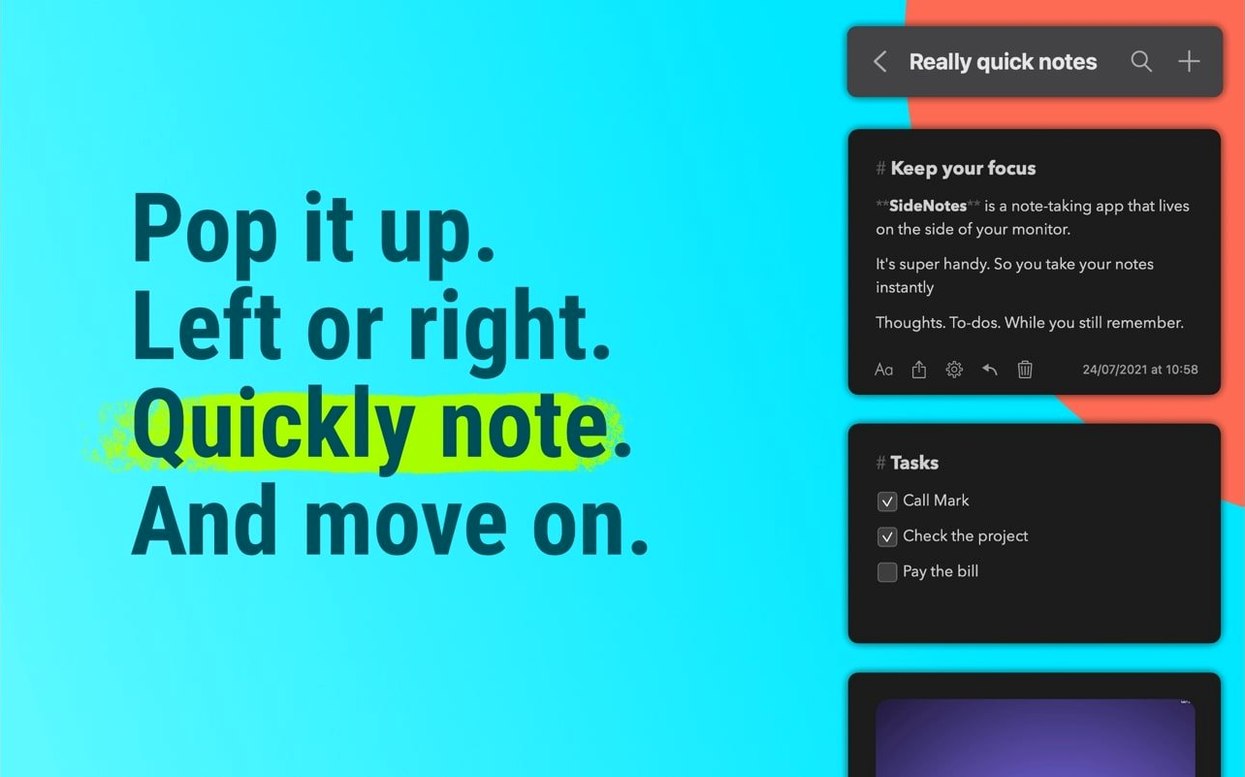
Anyone who juggles quick ideas, code snippets, task lists, or research links during a work session. The panel slides in from the right side of the screen, so you can capture a thought and slide it back out without ever leaving your main app.
The Space Between Scratchpad and Library
Between a scratchpad and a proper notes library. It does Markdown, stores text, code, and images, lets you add task checkboxes, and lets you organize notes into custom folders. It is not a full document editor—it is the place ideas land before you lose them.
How Does It Get Things Out?
Notes do not get stuck in the panel. You can share straight to Reminders, Messages, Apple Notes, or Dropshare, so a quick task or link ends up where it actually belongs.
Versus Unclutter and Yoink in Practice
A panel that peeks from the screen edge is not a new idea, but the implementations differ wildly. Unclutter and Yoink both use slide-in drawers and overlap with SideNotes in certain workflows, yet they target different habits.
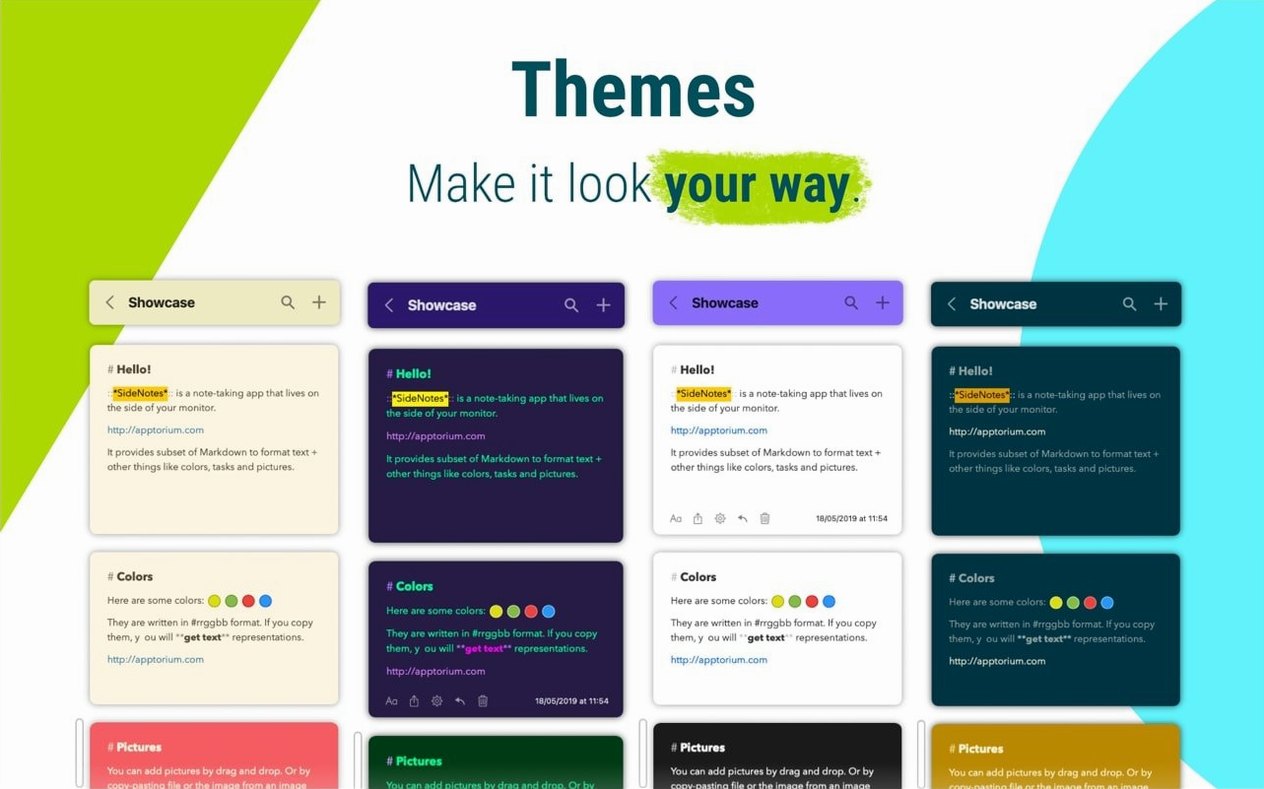
Unclutter is three zones stacked vertically: clipboard history, a file shelf, and a scratchpad. The scratchpad handles plain text, no images or code formatting. If your panel is mostly for stashing project files and dragging recent clippings, Unclutter makes sense. For color-coded, folder-organized notes that look good and support Markdown and code, SideNotes leaves it behind. Unclutter feels like a utility shelf; SideNotes feels like a lightweight knowledge base.
Yoink is a file and snippet tray, pure and simple. You drag text, images, and documents onto it, then drag them out later. It does not let you write a checklist, assign a color, or flip through folders. SideNotes stores notes; Yoink stages transfers. A video editor might use both—Yoink to gather assets, SideNotes to keep client revision notes on the edge of the timeline monitor—but they are not direct substitutes.
Flicker-Free Light-to-Dark Switching
The 1.6.6 release tightened up the spots where the panel could feel slightly loose. Switching between a light and dark note background used to flicker when the panel overlapped certain apps; now the transition holds steady. If you keep the panel open on a secondary display, SideNotes remembers its position more stubbornly than before—no more fishing it back from a disconnected monitor’s coordinates after unplugging.
Also fixed: Markdown lists that mixed dashes and asterisks no longer break live rendering mid-note, and sharing a note to Reminders while the panel is on the left side no longer sends an empty title.
Local Storage Without iCloud
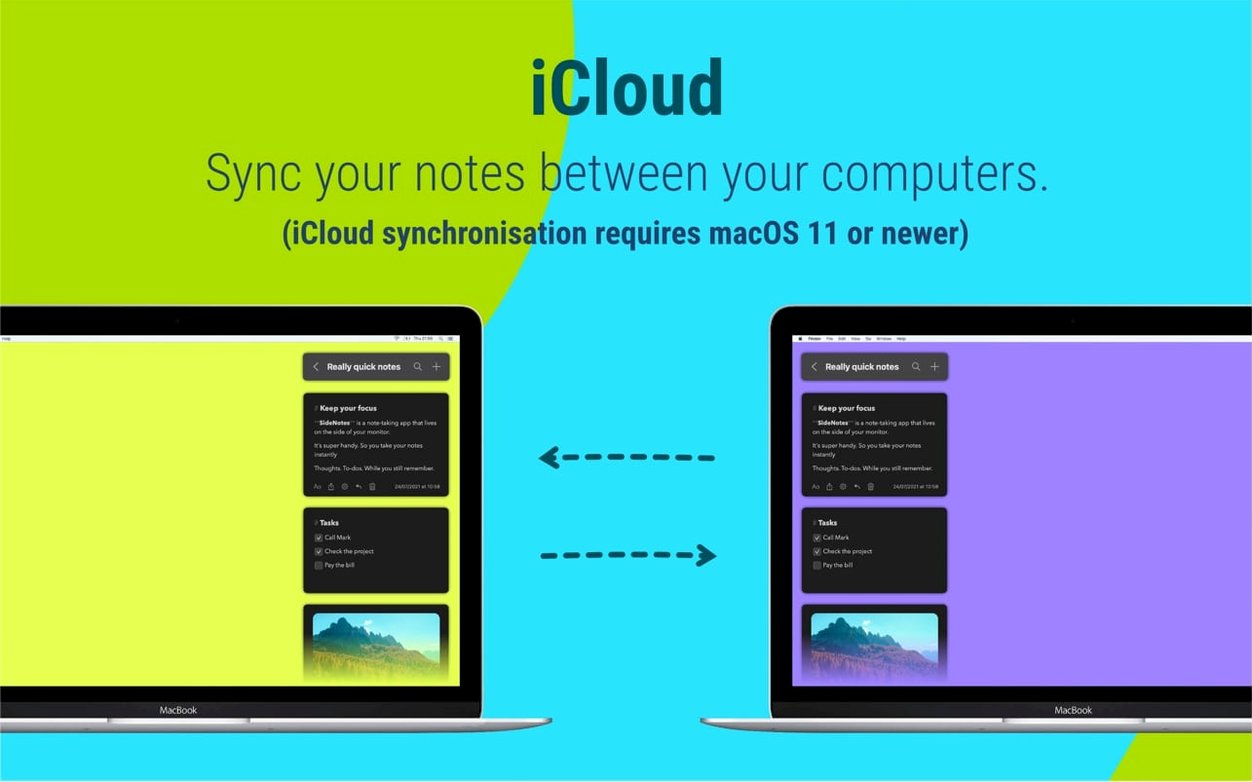
Does it need iCloud? No. The app stores everything locally by default. Turn on iCloud sync only if you want notes to appear on other Macs or the sidenotes macos mobile companion. Plenty of users treat it as a strictly local scratchpad and never sign in.
Will it fight with Stage Manager or Magnet-style window managers? It coexists, but with a small asterisk. When you assign SideNotes to appear on the left, some tiling utilities will briefly resize a full-screen app to make room. The fix is assigning the panel to the right, where macOS expects slide-over content. The keyboard shortcut to show and hide the panel works fine regardless.
Can it handle images, or is it text-only? It eats images happily. Paste a screenshot and it renders inline. You can mix a screen grab, three lines of Markdown, and a checklist inside one note. The panel stores them at their original resolution, so exporting to Dropshare or Messages does not downsample.
What about code blocks? Toggle monospace for any note, or write fenced blocks in Markdown. Syntax highlighting is not built in, but the fixed-width treatment keeps indentation and alignment intact. Developers who want the full sidenotes mac full version for snippet storage often pair it with a dedicated snippet manager, using SideNotes for the ideas and context around the code rather than a replacement for SnippetsLab.
- macOS 13 or later
- Apple Silicon or Intel Mac
Questions I actually get
Does SideNotes support Markdown?
Yes, it supports Markdown formatting so you can write with headers, bold, links, and lists right in the side panel.
Can I add tasks inside a note?
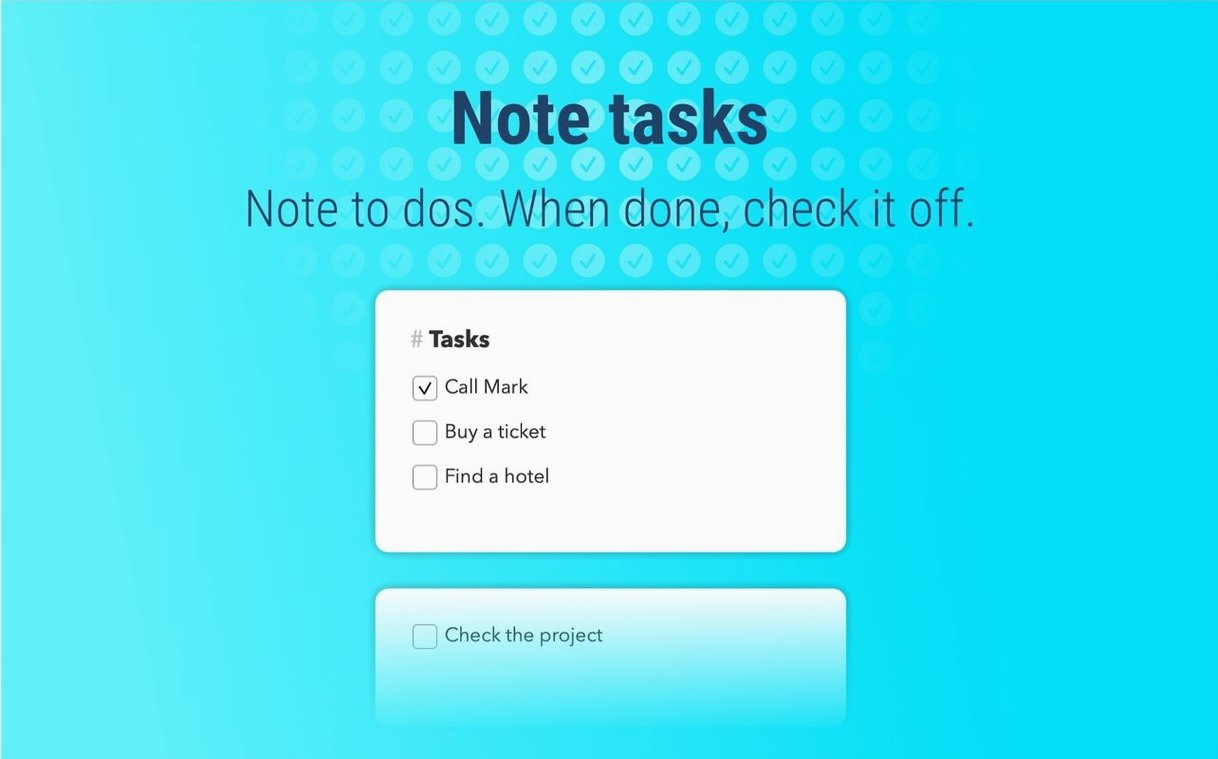
Task checkboxes can be added to any note, which is handy for quick to-do items alongside your write-ups and links.
Which languages does the interface use?
It ships in Russian, English, German, Spanish, Italian, and Portuguese.
Notes from the edit bay · 0
Sign in or get an edit-bay pass to leave a note.
No notes from the edit bay yet. They go up after I read them.