This is the editor you hand to someone who already knows their way around a document workflow—an assistant editor prepping exhibits, a paralegal reviewing discovery, a researcher pulling quotes from scanned journals. The tools they lean on aren't the basics; they're the ones that keep a project moving when the source material is a mess.
Run OCR on a 200‑page Scan
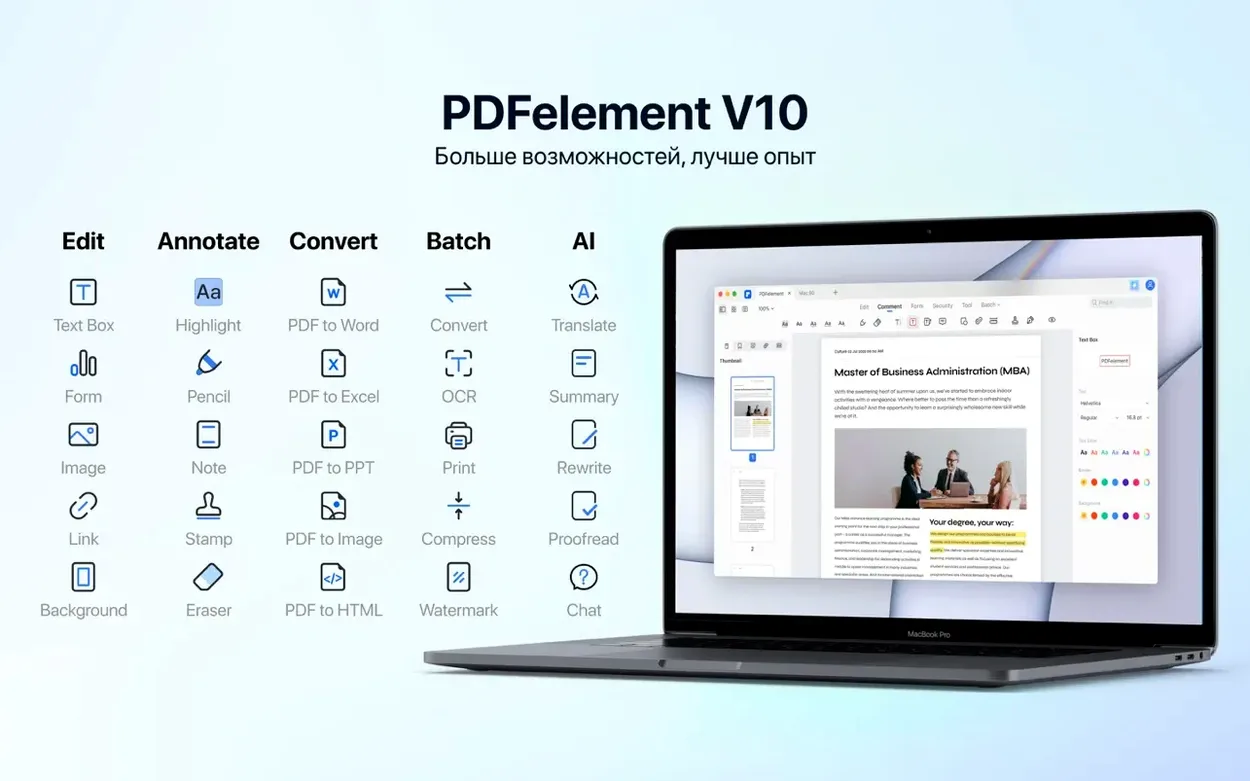
Open the flat image dump, set the language to German or Japanese from the 29 available, and let it build a searchable text layer. No re‑typing, no waiting on another department.
Redact Before It Leaves Your Desk
Mark a name, an account number, or a face in an embedded photo and burn the removal into the file itself. The tool handles both text and images, so the exported version carries nothing hidden in a selectable layer.
Export a PDF/A for the Archives
When the deliverable needs to look identical in a decade, a standard PDF won't cut it. Convert to PDF/A right in the save dialog and attach the compliance report without opening another utility.
Is the OCR Actually Any Good?
Short answer: yes, once you set the language correctly. A lot of people leave it on English and wonder why the German legal document comes out as gibberish. Pick the right language from the 29 available and the recognition is solid—clean scans come through with only the occasional stray character, and even photocopied pages with skewed text usually survive. The real test is searchability. Run OCR on a 200-page contract and then search for a clause. If the result pops instantly, the engine did its job. The build that includes OCR baked in makes this a single-pass operation, not a two-step export-and-reimport dance.
Can It Handle Forms Without Breaking Them?
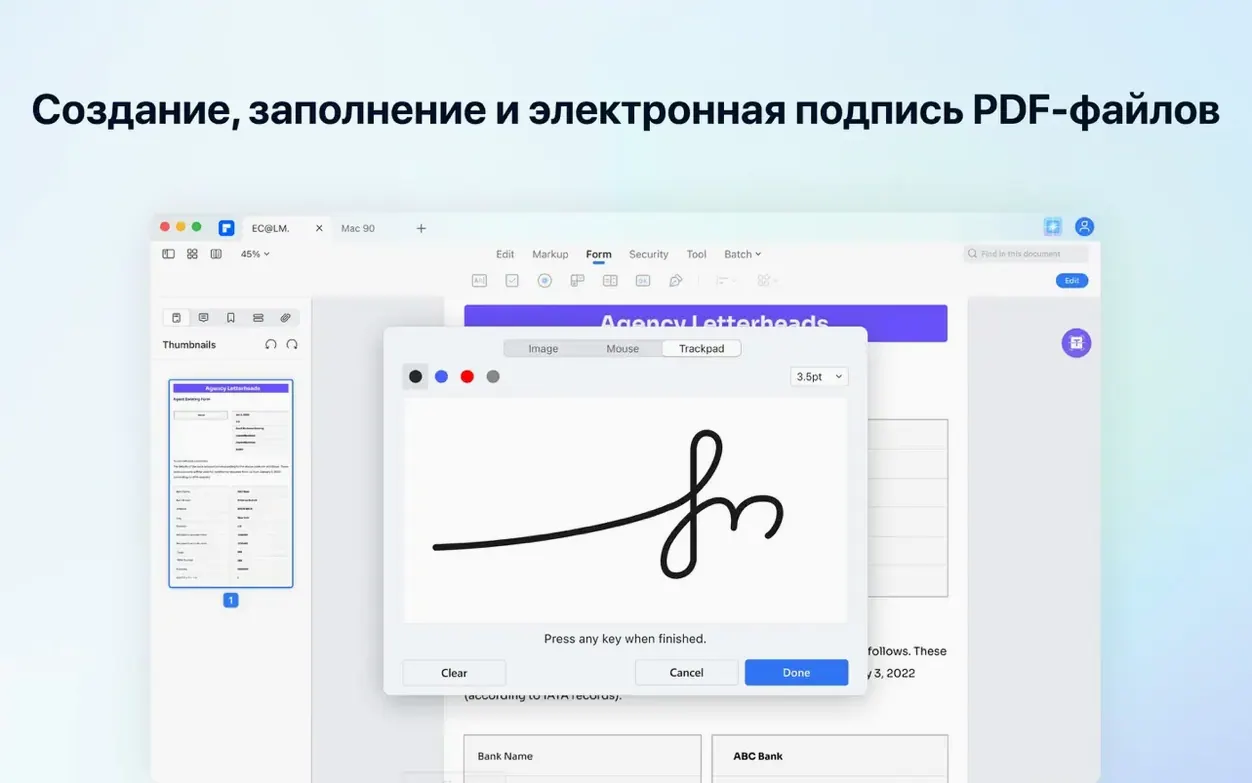
Yes, and that's the part that surprises people coming from simpler editors. You can open a non-fillable form, drop in text fields, checkboxes, radio buttons, and dropdowns, then save it as an interactive PDF that someone else can fill out in Preview or Acrobat Reader. The form logic stays intact. Digital signatures go on top without flattening the fields underneath. For anyone who has ever received a "please print, sign, and scan back" email, this alone changes the afternoon.
What About the AI Features?
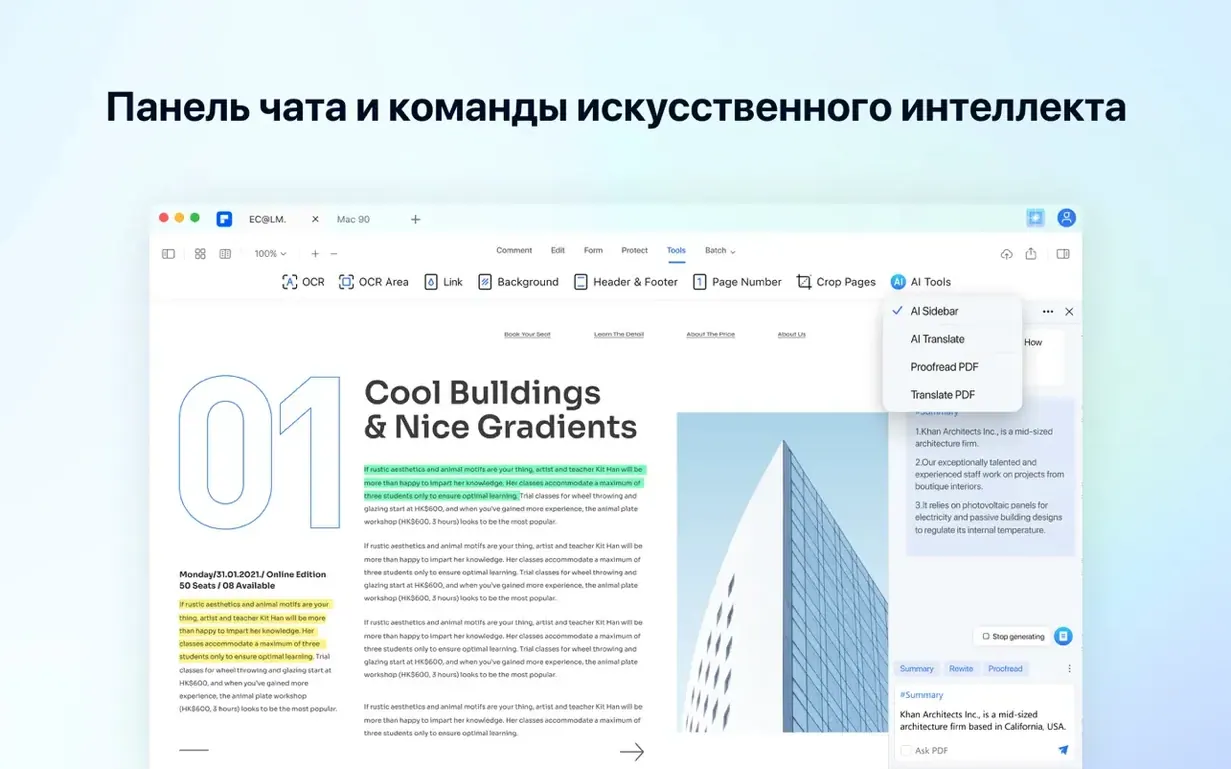
The AI tools sit in a sidebar and do what you'd expect: summarize a lengthy report into three bullet points, translate a paragraph, explain dense legalese in plain words. They're not magic—don't ask them to interpret a scanned handwritten margin note—but for text-heavy PDFs they cut reading time. The summarizer is the one I reach for most often. Feed it a 40-page white paper and you get a half-page digest before your coffee gets cold.
Where OCR Still Stumbles or Skews a Scan
Gatekeeper Blocks the App on First Launch
macOS sees an app that didn't come from the App Store and throws a warning. The fix is quick: mount the disk image, run Open Gatekeeper friendly, press Enter in Terminal when prompted, drag the app to Applications, and launch it from there. That sequence matters—skipping the Terminal step leaves you staring at a "damaged" error that isn't actually true.
OCR Language Mismatch
The most common support ticket disguised as a bug. Someone runs OCR on a French contract with the language set to English, and the output is word salad. Before you assume the scan failed, double-check the language dropdown. It defaults to whatever you used last, not to the document's actual content.
Redacting Without Flattening
Drawing a black box over text does not redact it. Someone can still select the text underneath, copy it, and paste it elsewhere. Use the dedicated Redact tool, which burns the removal into the file. After exporting, try selecting the redacted area—if the cursor picks up anything, you used the wrong tool.
Flat Annual Pricing vs. the Subscription Competition
PDFelement Pro vs. Adobe Acrobat Pro
Acrobat Pro is the reference implementation. It handles every edge case in the PDF spec, renders complex forms flawlessly, and integrates with every other Adobe tool. PDFelement Pro doesn't match that depth—obscure prepress settings and intricate JavaScript form logic are Acrobat territory. But for the work most Mac users actually do—editing text, running OCR, building forms, redacting, exporting to PDF/A—the gap shrinks considerably. The interface is cleaner, the OCR pipeline is faster on older hardware, and the app doesn't install half a dozen background services that launch at login.
PDFelement Pro vs. PDF Expert
PDF Expert feels like a Mac app in a way neither Acrobat nor PDFelement quite manages. It's fast, the annotation tools are a pleasure, and reading a PDF in it is genuinely enjoyable. Where it falls short is OCR and batch work. PDF Expert can recognize text, but it's not as accurate across multiple languages, and it doesn't offer the same batch processing muscle. If your workflow is mostly marking up documents and filling forms, PDF Expert is lighter on its feet. If you're processing stacks of scanned paperwork or building interactive forms from scratch, PDFelement Pro covers more ground.
PDFelement Pro vs. Apple Preview
Preview is free, built-in, and surprisingly capable for basic markup and form filling. But it can't OCR a scanned document, can't redact properly, can't create fillable form fields, and can't export to PDF/A. That's where PDFelement Pro steps in as the upgrade path. Think of Preview as the reading room and PDFelement as the editing suite downstairs.
Why Treating It Like a Word Processor Breaks Layouts
Treating the app like a word processor. PDF text editing is surgical, not free-flowing. You're adjusting words inside existing text blocks, not writing a novel. Trying to add three paragraphs to a single-page flyer will break the layout. Type your changes, watch the reflow, and keep a backup of the original open in Preview for reference.
Skipping the OCR step entirely. Someone opens a scanned contract, sees an image of text, and starts highlighting and underlining. Those annotations sit on top of an image—they're not searching the underlying words. Run OCR first, even if you don't think you need it. The searchable layer is what makes everything else work.
Exporting without checking the output format. The default save might not be what the recipient needs. A collaborator expecting PDF/A for compliance gets a standard PDF and has to follow up. A client wanting a Word file gets a PDF and can't edit it. Glance at the format dropdown before you hit save—it takes two seconds and saves an email thread.
Using the annotation tool for redaction. I see this at least once a week in forums. Someone draws a black rectangle over sensitive information and sends the file. The recipient opens it, drags the rectangle aside, and reads everything underneath. The redaction tool exists for exactly this reason. Use it, then test the export by trying to select the hidden content.
From Crooked Scan to Signed Shoot Agreement Before Lunch
Tuesday morning, inbox has a request from the production office: prep the location agreement for tomorrow's shoot. The file is a scanned PDF from legal—ten pages, slightly crooked, no selectable text.
I drag it into PDFelement Pro and the first thing I do is open the OCR panel. The document is in English, so I leave the default and let it run. Twenty seconds later the text layer is built and I can search for "indemnification" to jump straight to the clause I need to review.
The clause references an address that changed last month. I switch to Edit mode, click into the text block, and type the new street number. The surrounding text reflows cleanly—it's a short edit inside a single paragraph, so the layout holds. I save a snapshot of the original page to my desktop just in case.
Now the form fields. This agreement leaves blanks for the shoot date, location contact, and insurance certificate number. I drop three text fields onto the blanks, set the date field to a date format, and add a dropdown for the location contact with the two names who might sign. The insurance field gets a validation rule: numbers only, eight digits. I test each field by tabbing through them, then save.
Before it leaves my machine, I check the redaction tool. The document includes the property owner's personal phone number in the footer—something that should not go to the crew. I select the number with the redaction tool, apply it, and watch the black block appear. I export the file and immediately try to select the redacted area in Preview. Nothing. Good.
Last step: the archive copy. The production manager wants a PDF/A version for their records. I hit Save As, pick PDF/A-2b from the format dropdown, and export. The app attaches a small compliance report to the file metadata. I drag the working PDF into a shared folder and reply to the email. Total time: under eight minutes, with coffee in one hand.
OCR is baked right into this build—no separate plugin, no extra download. Point it at a scan and you're off.
- macOS 11 or later
- Intel processor
Questions I actually get
Does PDFelement Pro handle batch OCR on a Mac?
Yes, the Pro version includes batch operations that apply text recognition across multiple documents in one pass.
Can I redact images and not just text?
The redaction tool works on both text and embedded images, permanently removing the selected area from the exported PDF.
Notes from the edit bay · 0
Sign in or get an edit-bay pass to leave a note.
No notes from the edit bay yet. They go up after I read them.