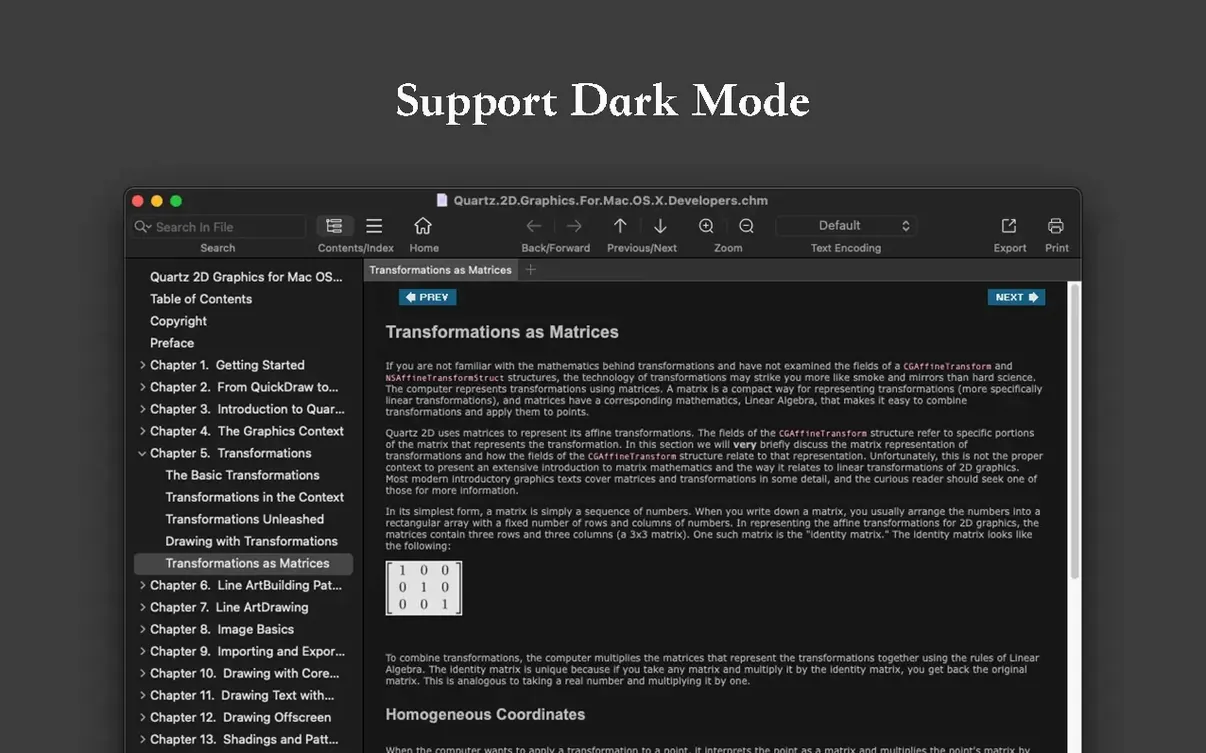
OmniReader Pro 3.4.4 lands as a stable, uncluttered reading bench for anyone juggling ebook formats that Finder can't touch. EPUB, CHM, Kindle—the app opens them without ceremony, leaving you to focus on the page, not the file type.
Collapse the chrome and run a full-text search
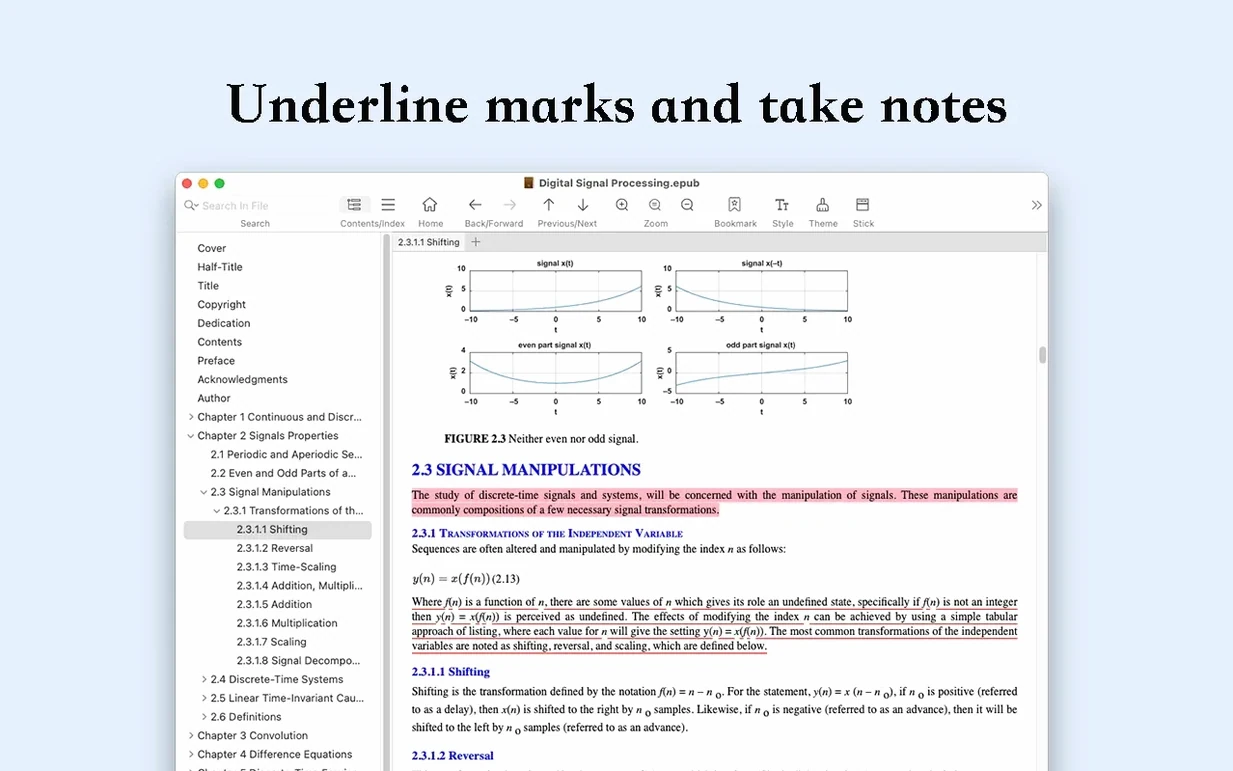
- Collapse the sidebar and flip pages. The reading view shrinks the interface to just the text. Swipe through pages or use the keyboard; the zoom is fast enough that you stop thinking about it.
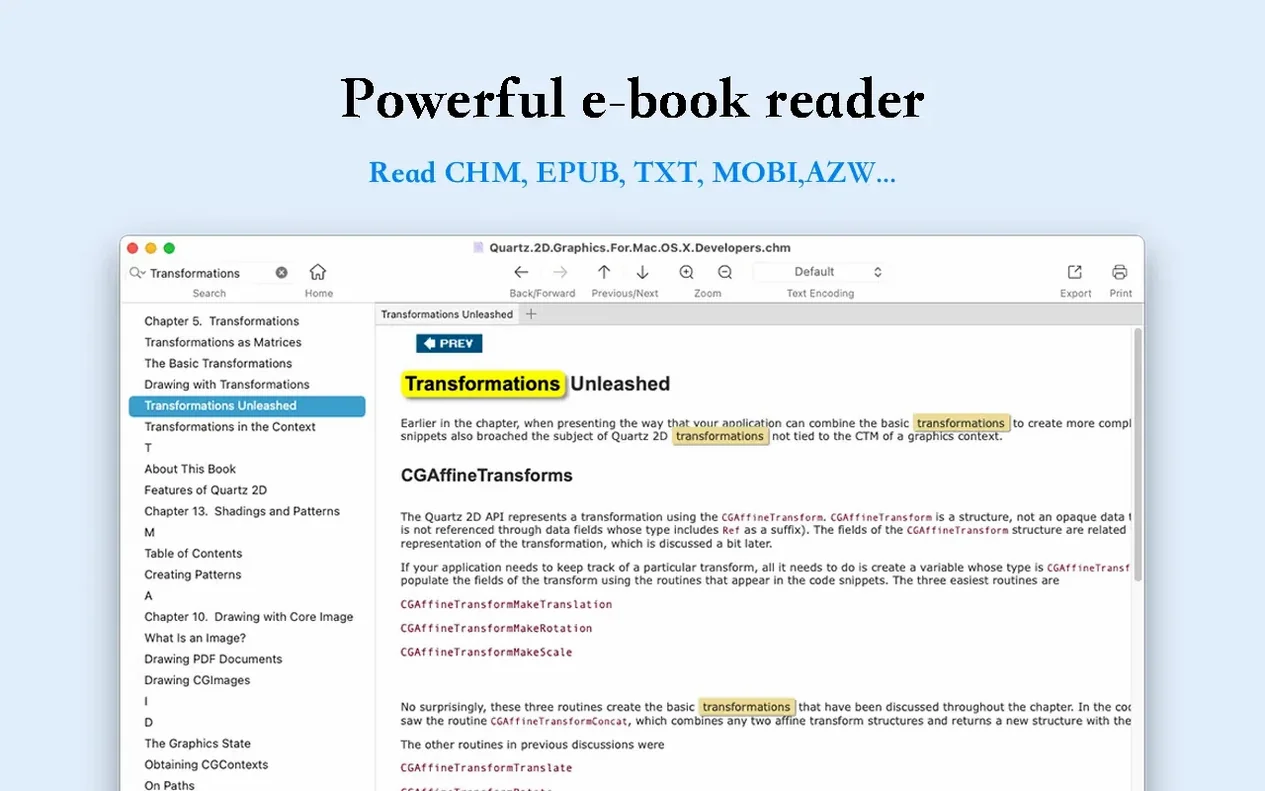
- Run a full-text search. Type a phrase and watch the highlights pile up across chapters. It's the fastest way to treat a reference book like a database.
- Extract the images. Right-click to pull every figure and photo into a folder. If you're collecting assets from a technical manual, this alone saves an afternoon.
A single-window reader that prints and gets out of the way
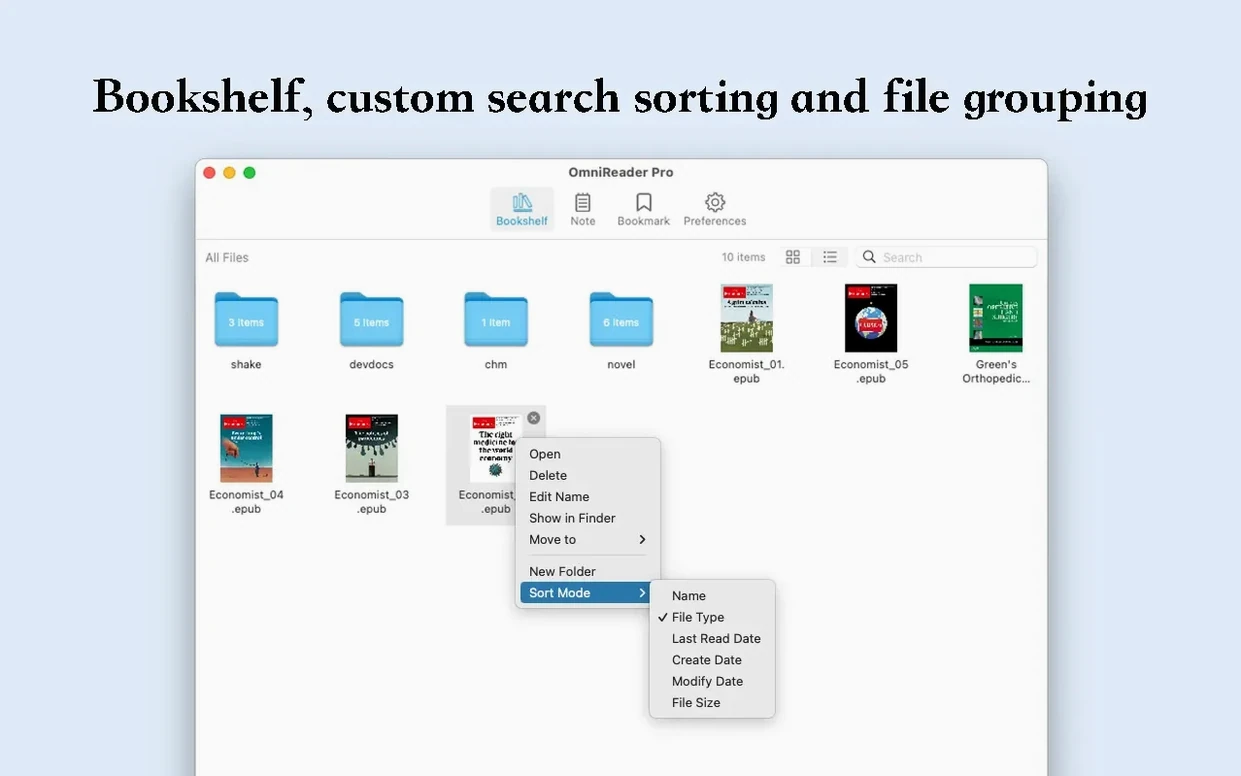
OmniReader Pro isn't a library manager with ratings and smart collections. It's a sharp, single-window reader that respects page layout and lets you print directly. Search results glow, page-turning feels immediate, and the sidebar gets out of the way when you need to read. For a freelancer who lands reference files in three different formats by lunchtime, that's enough.
First days with OmniReader Pro
Don't treat it like a library app. That's the fastest way to get frustrated. OmniReader Pro is a reading tool first—a clean pane for what's in front of you. Drop files in, read them, export what you need, and close the window. The app remembers your last page and search history across sessions, so you can pick up exactly where you left off without saving anything manually.
Sort out the encoding early. If you open a CHM file and the text looks like alphabet soup, head to the file encoding menu. Switching from UTF-8 to a Chinese or Cyrillic encoding usually clears it in one click. Once set, the app remembers the choice for that file. Do this before you start highlighting passages, or you'll be scrubbing markup from garbled text later.
Print a test page. The print output respects the reading view—what you see in the window is what lands on paper. Zoom to your preferred size first, then hit print. If you're working through a long technical EPUB, printing one chapter to mark up by hand is faster than juggling annotations on screen.
Image extraction as an organizing step. Before you read a dense manual, pull all the images into a folder. You get a numbered sequence of every figure, diagram, and photo in the file. Skim those first to build a mental map of the document. It's a trick that turns a 400-page reference into something you can navigate by sight.
It skips DRM, but devours your unencrypted pile
Does it replace Apple Books or Kindle? Not for store-bought books with DRM. OmniReader Pro doesn't handle FairPlay or Amazon's encryption. It steps in for the unencrypted files that pile up—documentation bundles, research papers saved as EPUB, CHM reference manuals from open-source projects, Kindle files you've generated yourself. Think of it as the reader for everything that isn't locked to a platform.
Will it slow down with a thousand-page file? Search and page-turning stay responsive even on larger EPUBs. The app doesn't pre-render every page at once, so the initial file load is quick and memory usage stays reasonable. A 700-page technical manual opens in a few seconds on Apple Silicon and navigates without stutter. On older Intel machines, the experience is still solid—just expect a slightly longer wait for full-text search indexing on very large CHM files.
Can I move files between computers? Reading history and search highlights live inside the app's local data, not in the files themselves. If you copy the EPUB or CHM to another Mac, you start fresh. That's not a flaw—it means the original files stay untouched, which is exactly what you want when sharing documents with a team.
What about PDF export—does it mangle the layout? The EPUB-to-PDF conversion preserves paragraph flow and chapter breaks. Complex tables with merged cells sometimes shift, but straight prose, code blocks, and image placement translate cleanly. It's reliable enough that I use it to create print-ready copies of documentation for markup sessions.
From a coarse 300-page CHM index to targeted codec notes
Picture a 300-page CHM file—API documentation for a camera system. You need specific codec parameters across five chapters, and the file's own index is too coarse. Here's the route in OmniReader Pro:
- Open and encode. Drag the CHM in. If text shows garbage characters, switch encoding until it renders clean. The app remembers this setting for the file.
- Full-text search for keywords. Type "bitrate mode" and let the highlights spread across the entire document. Every match glows—you can see at a glance whether a chapter is relevant.
- Navigate by search result. Click any highlighted passage to jump there. Use the back button to return to your previous spot. Repeat for "GOP structure" and "H.264 level." The history stack holds every jump; you can step backward through all of them without losing your place.
- Extract the relevant pages. Once you've mapped the sections you need, export the whole file to PDF. Print only the chapters that matter. Or extract images to grab every diagram of the encoder pipeline for your own notes.
- Collapse and read. Hide the sidebar. Zoom to a comfortable size. Read the filtered material straight through without the interface competing for attention.
The whole process—from garbled CHM to a folder of targeted PDF pages and extracted diagrams—takes under ten minutes. No conversion tools, no online uploads, no command-line fiddling.
Sidebar collapsed, page layout intact, images scaled to fit
It's 9:30 AM. A client sends over a Kindle file with product photography guidelines and an EPUB of their brand manual. The Kindle file opens first—page layout intact, images scaled to fit the window width. I collapse the sidebar, zoom in on the color calibration section, and print those three pages directly. They land on my desk while the EPUB is still loading.
The brand manual is thicker: 200 pages with an embedded logo library. I hit full-text search for "logo clearance," find the section in two seconds, and note the page number. Then I extract all images to a folder on the desktop. The logo files appear as a numbered sequence, ready to drop into a Premiere timeline. The search highlights stay visible as I scroll, so I can bounce between "clearance" references and other sections without losing my thread.
By 9:50, I've printed the specs I need, pulled the logos into my project folder, and closed the app. The reading history sits quietly until the next time I open that brand manual—OmniReader Pro remembers exactly which page I left on, no bookmarks required. That's the rhythm: open, search, extract, print, close. No library to maintain, no metadata to curate, just a fast path from file to finished asset.
- macOS 10.13 or later
- Apple Silicon or Intel 64-bit
Questions I actually get
Which file formats does OmniReader Pro open?
It handles EPUB, CHM, and Kindle files natively on the Mac.
Can I search across an entire book?
Yes. Full-text search highlights every match and page search jumps to individual results.
Does the app let me print my books?
Absolutely. Page printing is built in, so you can send chapters straight to a printer.
Notes from the edit bay · 0
Sign in or get an edit-bay pass to leave a note.
No notes from the edit bay yet. They go up after I read them.