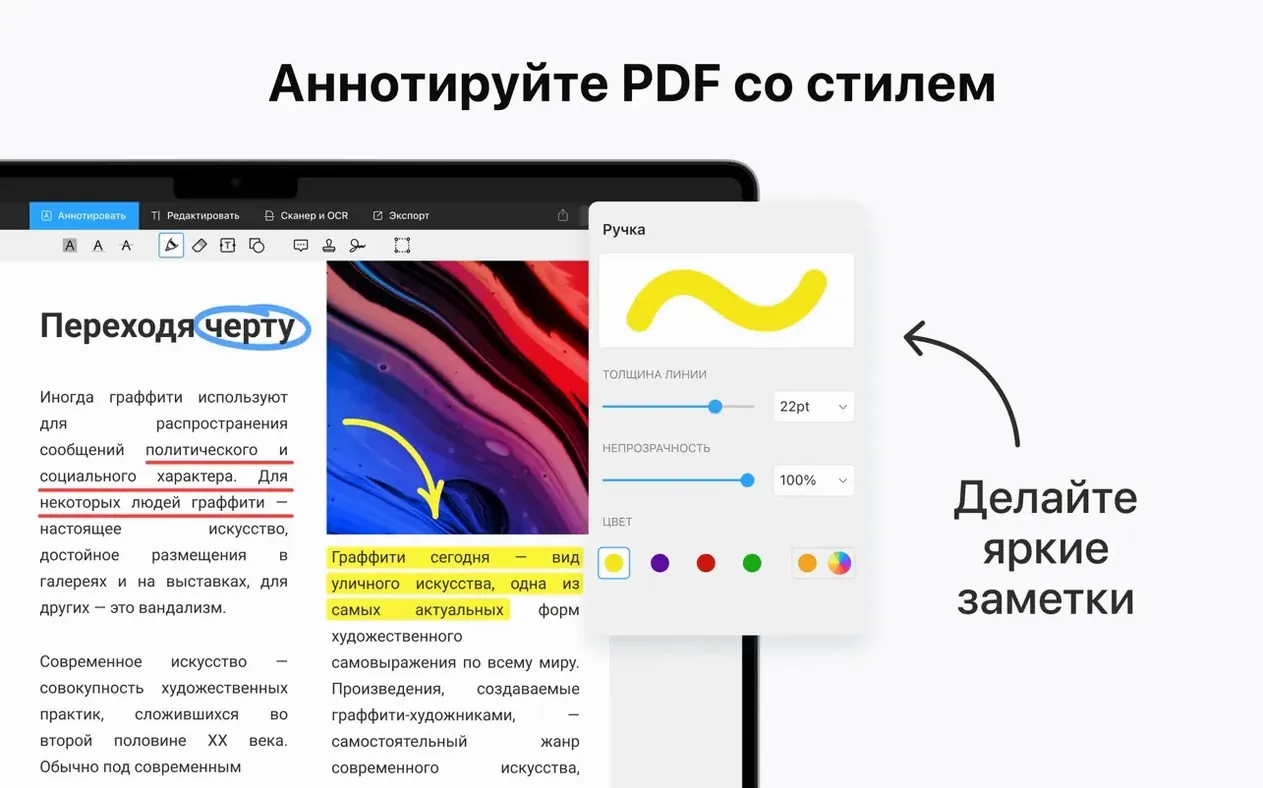
Annotate mode — that's where I spend most of my time. The toolbar stays out of the way until I select something, then it surfaces exactly the right markup tools.
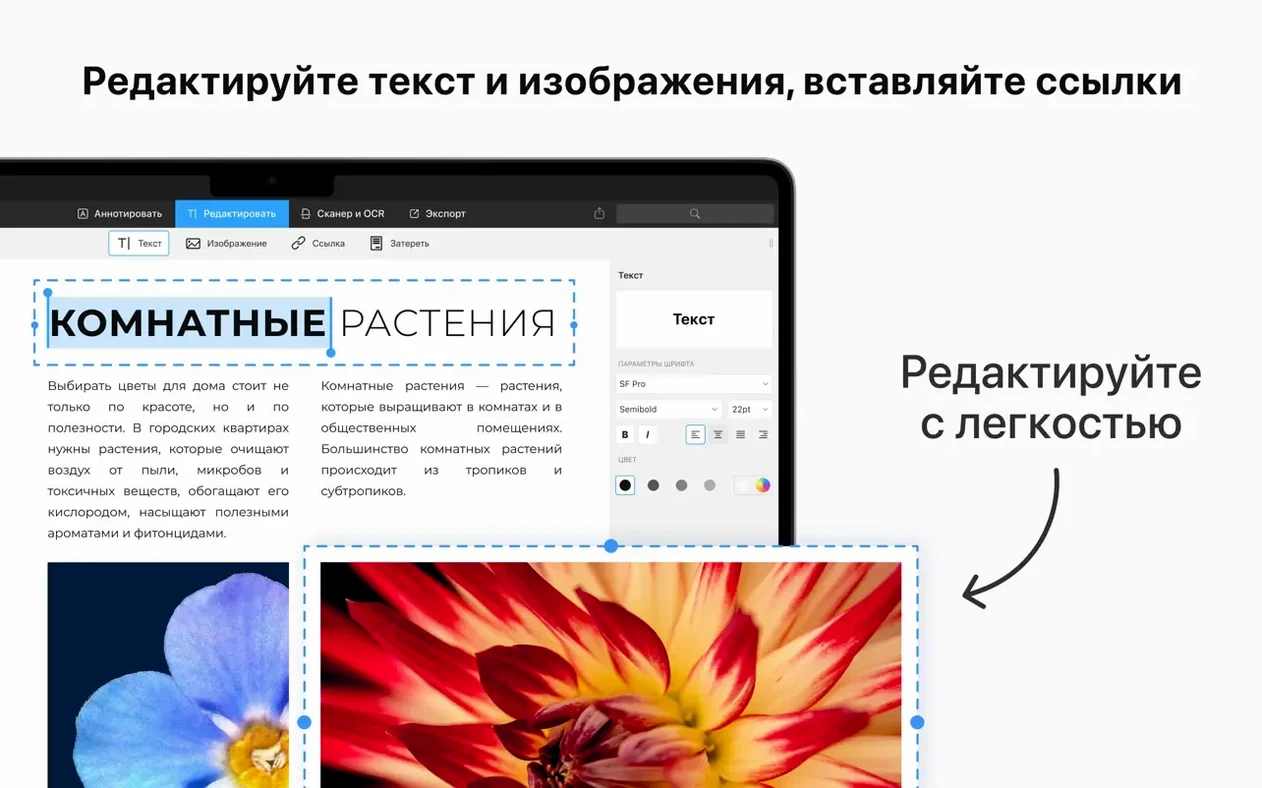
Text editing — tap a paragraph and the text reflows naturally. No jumping to a separate line editor. It handles fonts and spacing well enough that a quick fix doesn't look like a ransom note.
Sign & fill — drop a saved signature onto any form field. The app remembers multiple signatures and auto-sizes them. Forms that trip up Preview work here.
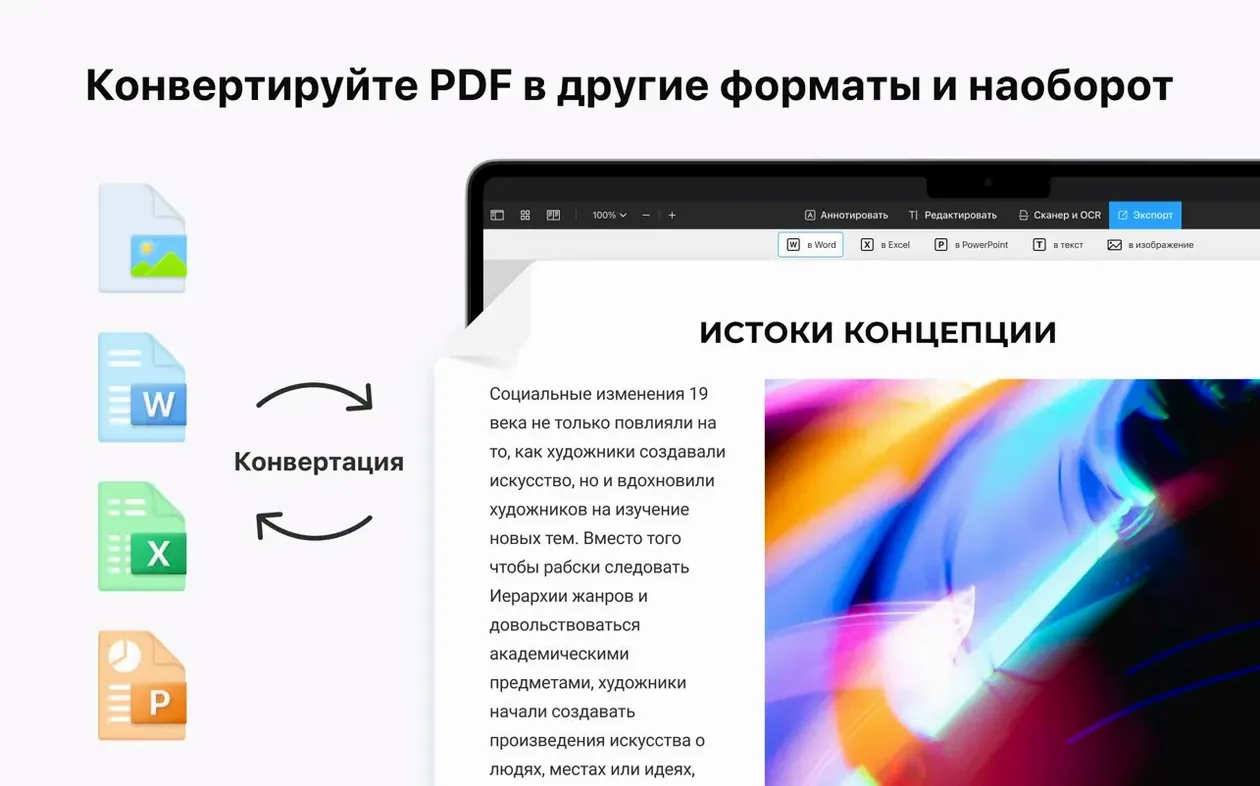
Merge — drag pages between thumbnails or pull in whole files. Page order, rotation, extraction — all in the sidebar without opening a separate organizer.
Password lock — set an open password on a contract or rate sheet straight from the File menu. Quick, no dialog maze.
Handoff — start a markup on the iPad, pick it up on the Mac. The document state syncs without me thinking about it. Works across iPhone too.
Will It Replace Apple Preview?
Will this replace Apple Preview? For reading and light markup, Preview still works. PDF Expert steps in the moment you need to edit text, merge files, or fill a form that makes Preview choke. I keep both. Preview opens a receipt in half a second; PDF Expert opens the contract I actually need to change.
Does it phone home? The app asks for a sign-in on first launch. Close that window. Next time it opens without a peep. No accounts, no cloud sync unless you turn on Handoff yourself.
What's the footprint like? The download is compact. It launches cold in about a second and a half on Apple Silicon, maybe three on an older Intel machine. RAM usage stays modest even with a hundred-page document open — nothing like a full creative suite eating gigabytes in the background.
Can it handle scanned documents? It reads them fine. OCR isn't built in — you'll need a separate tool for that — but marking up a scanned page with highlights and notes works exactly like a digital original.
Will my signatures carry over from Preview? They won't import automatically. You create a fresh signature once inside PDF Expert — trackpad, camera, or stylus on iPad — and the app saves it permanently. Takes thirty seconds.
Kill the Welcome Screen First
Out of the box, the app makes a few choices I always tweak before starting real work.
Turn off the welcome screen. Under Preferences > General, uncheck "Show Welcome Window." You're here to open a PDF, not browse a feature tour every launch.
Switch the default view mode. I prefer continuous scroll for long documents — contracts, scripts, manuals. Horizontal page flipping feels wrong when I'm scanning. View menu > Continuous Scroll, then close and reopen the app to make it stick.
Customize the annotation toolbar. Right-click the toolbar area and pick "Customize Toolbar." Drag in only the tools you use. I keep Highlight, Underline, Note, and Strikeout visible; everything else sits in the overflow menu. Fewer buttons, faster decisions.
Set your default signature. Open any form, click the Signature tool, create one, and tick "Save signature." Name it — I use "Theo Blue Ink" and "Theo Initials." The app auto-selects the last one used on future forms.
Adjust the sidebar behavior. I keep the page thumbnail sidebar collapsed by default. I only need it when merging or rearranging. View > Hide Sidebar sets this per-document, and the setting persists for new files.
Filling a Scanned Form in Under a Minute
Yesterday a client sent me a release form for footage shot in Dallas. Two pages, a scan, fields everywhere. Here's exactly how it played out.
I dragged the PDF onto the dock icon. The document opened in about a second — continuous scroll, no sidebar. Page one had the usual boxes: name, date, project title, signature.
I clicked the first text field. The app recognized it as fillable, highlighted the area, and dropped me into typing mode. Name, date — both autofilled from the keyboard without hunting for a text tool. The project title field needed a longer string, and the text shrank slightly to fit. No manual resizing.
Page two had a signature block. I clicked the Signature tool in the toolbar, selected "Theo Blue Ink" from the saved list, and dragged it into position. The signature scaled to the available space — about 40% of its original size — and the app placed it cleanly without stretching or pixelation.
The client had also left a blank checkbox for "Model Release Included." I grabbed the Rectangle tool from the annotation set, drew a thin border around it, and dropped a small checkmark from the Stamp menu. Not a real form field, but it read clearly on screen and in print.
Before sending it back, I merged the signed form with the actual model release — a separate two-page PDF sitting on my desktop. I opened the sidebar, dragged the release file into the thumbnail panel between pages two and three, and saved. One four-page document, no export step needed.
Password went on last. File > Set Password, typed it twice, saved. Whole process from drag-in to encrypted send-off: maybe four minutes.
Why Your Paragraph Just Jumped Off the Page
Text editing breaks the layout on a complex PDF. Some documents use embedded fonts or weird kerning tables. If a paragraph jumps after editing, undo immediately. Try editing smaller chunks — a single word instead of a full sentence. For heavily designed pages, switch to the text box tool in annotate mode and overlay your correction instead of editing the original text flow.
A form field won't respond to clicks. PDF Expert detects interactive fields automatically, but scanned forms rely on visual placement. If clicking does nothing, the form was probably printed and scanned flat. Use the Text tool in the Annotate tab to place a text box over the field manually. It's slower, but it works every time.
The signature comes out too large or too small. Saved signatures auto-scale to the field they're dropped into, but they guess based on available space. If the size looks off, undo, grab a corner handle, and resize manually. The signature stays crisp because the app stores a vector version.
Merged documents have inconsistent page sizes. One contract at letter size, another at A4 — after merging, the app preserves each page's original dimensions. That's usually fine on screen, but it looks messy when printed double-sided. Use the Crop tool on the offending pages to match sizes, or reprint the odd-sized file to a uniform PDF first.
Handoff stops working between devices. Check that both Mac and iPad are on the same Apple ID and have Bluetooth on. The document needs to be open on at least one device. If the handoff icon doesn't appear in the dock, close the file on both devices and reopen it. That resets the sync handshake.
Password-protected files won't open on someone else's machine. Some older PDF readers don't support the AES-256 encryption PDF Expert uses by default. When setting a password, click the dropdown and switch to AES-128 for broader compatibility. The difference matters mostly for government or legacy corporate setups.
Script Notes, NDAs, and a Cue Sheet Before Coffee
Monday morning, I get three emails before coffee. A director wants script notes on his locked cut. A corporate client needs a signed NDA returned. And the music supervisor sent a cue sheet as a spreadsheet — but accounting wants it as a PDF.
Script notes first. I open the locked-cut script PDF, switch to continuous scroll, and start reading. Every time I hit a line that needs a trim, I highlight it in yellow and drop a sticky note with the suggested edit. The highlight tool is set to yellow by default, so it's a single click, drag, release. The sticky note appears inline — no popup window, no modal dialog. The director sees my note right next to the highlighted text when he opens it later.
By page twelve, I've got seventeen annotations. I hit Cmd-S and close the file. No export, no "save as" dance. The annotations live in the PDF data.
NDA next. Two-page form, fields already tagged. Name, company, date — all typed in under a minute. Signature tool, pick "Theo Blue Ink," drop it on the line. The app sizes it to fit the field width. I want the client to see everything filled cleanly, so I flatten the annotations under File > Flatten before saving. Now the signature and form fields are baked into the document — no accidental edits downstream.
The cue sheet is trickier. It arrived as an Excel file, and the music supervisor doesn't own a PDF tool. I open the spreadsheet in Numbers, check the layout, then hit Print > Save as PDF. But the column breaks split across pages awkwardly. Instead, I copy the table into a blank Pages document, set the page to landscape, paste, and export that as PDF. I open the result in PDF Expert, confirm all columns fit one page wide, and send it. The merge tool stays idle this time, but I know it's there when I need to append the signed NDA to the contract later.
Three tasks, one app, no file format detours. That's the workflow this thing slots into — not as a centerpiece, but as the utility that connects cleanly to everything else.
- macOS 12 (Monterey) or later
- Apple Silicon or Intel 64-bit
Notes from the edit bay · 0
Sign in or get an edit-bay pass to leave a note.
No notes from the edit bay yet. They go up after I read them.