A contract lands in your inbox that needs a signature, or a scanned report has to be searchable text in five minutes. That’s the moment a browser-based viewer falls apart. PDF Reader Pro steps into that gap as a full-on editor built for reading, marking up, converting, and signing documents right on the Mac desktop.
Native Apple Silicon Support, No Rosetta Guessing
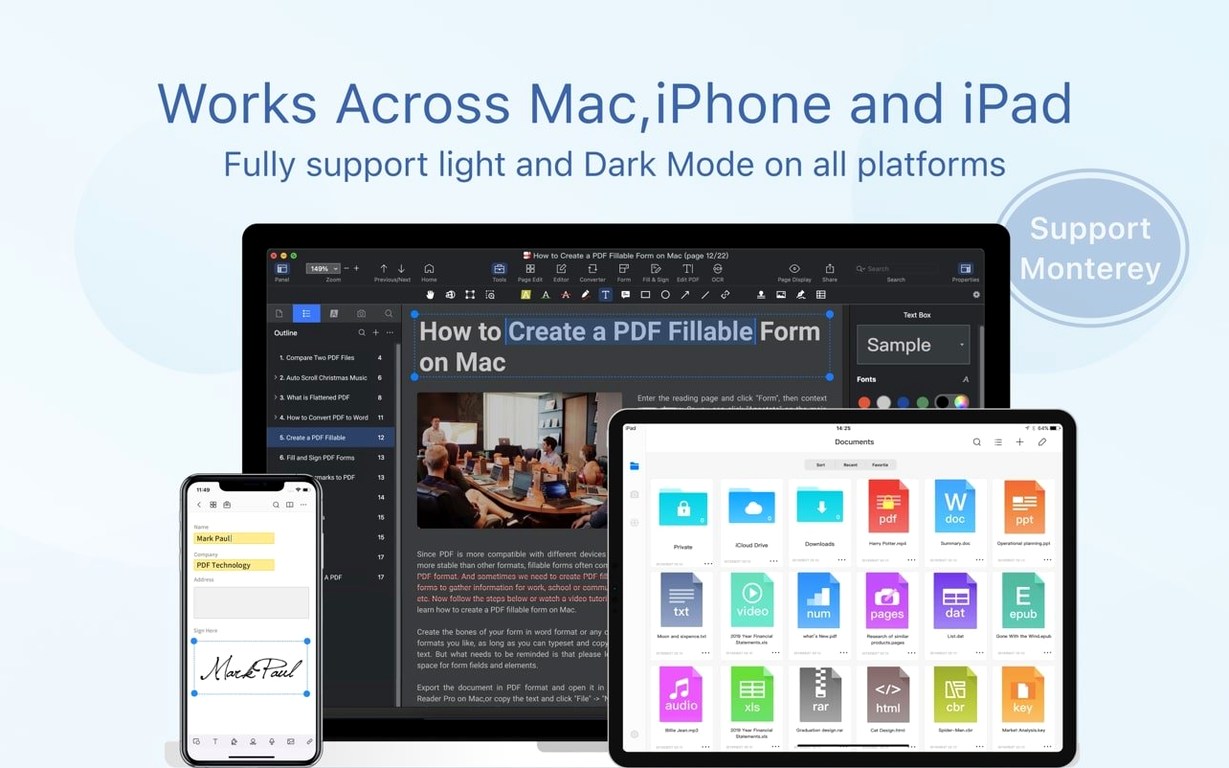
Compatibility comes first. The app requires macOS 11 or later and runs natively on both Intel and Apple Silicon hardware—no Rosetta guessing games. When you fire it up, the interface switches to whichever you need from eleven languages, including German, Japanese, and Simplified Chinese. Connection-wise, Dropbox sync is baked in, so grabbing a contract from the cloud and sending it back signed keeps a straight line in the workflow.
Highlights and Notes That Stay Out of Your Way
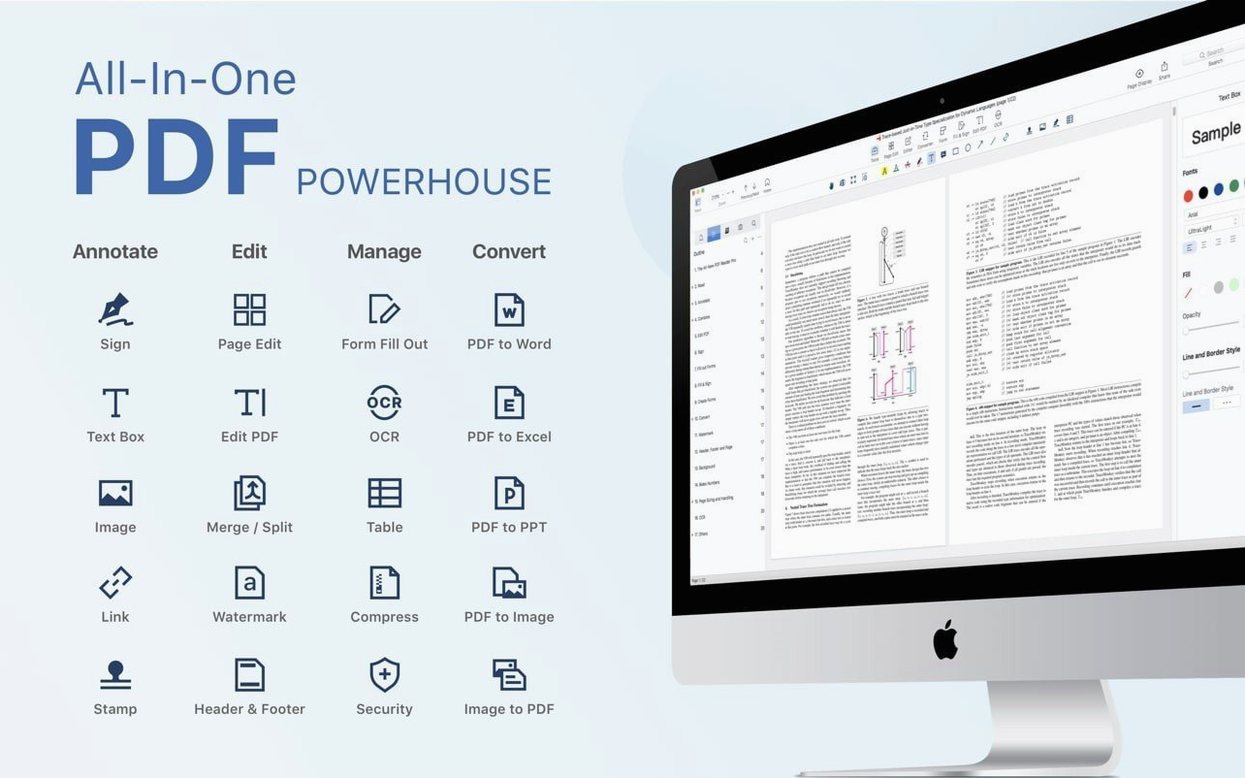
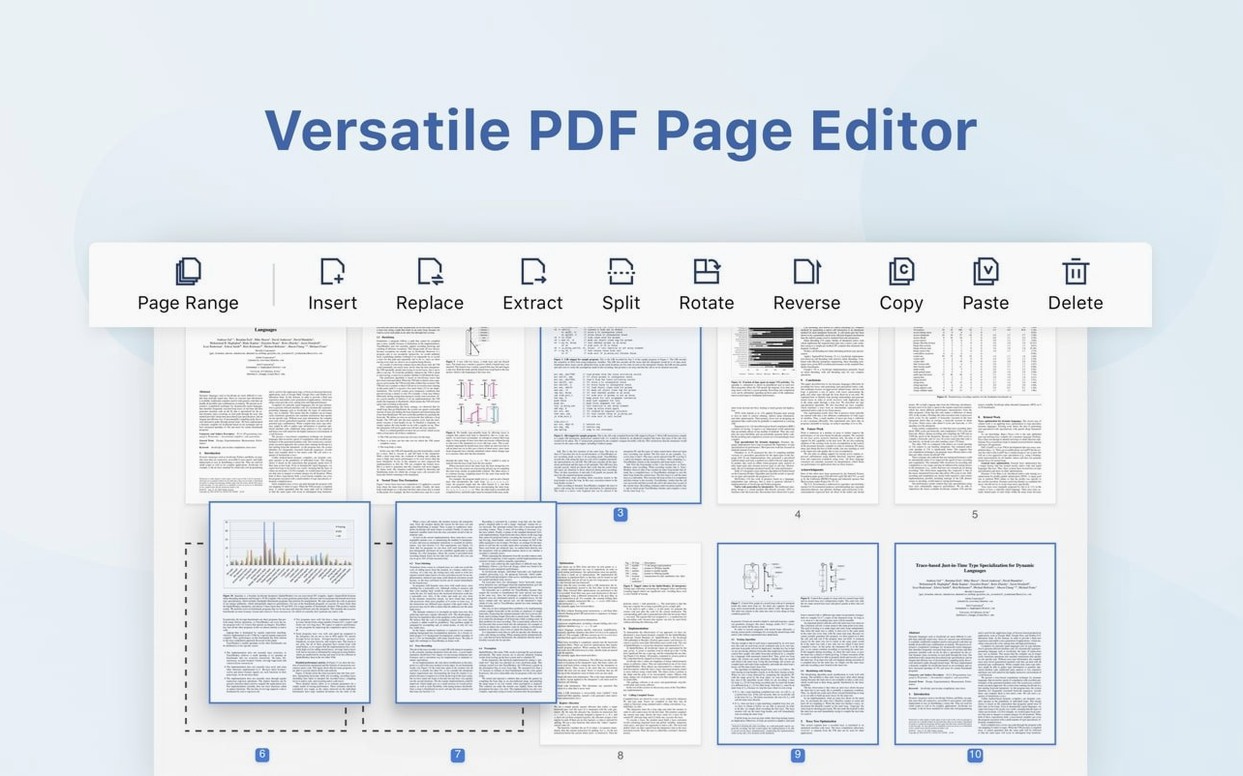
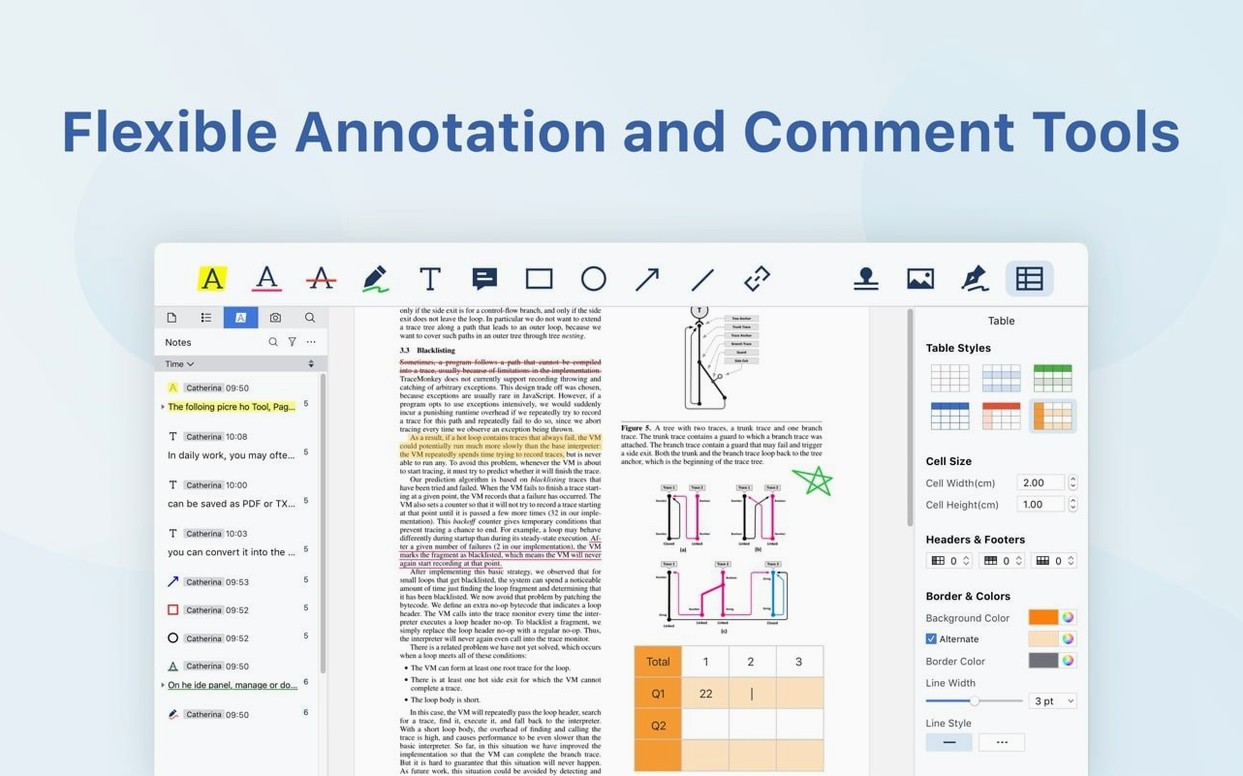
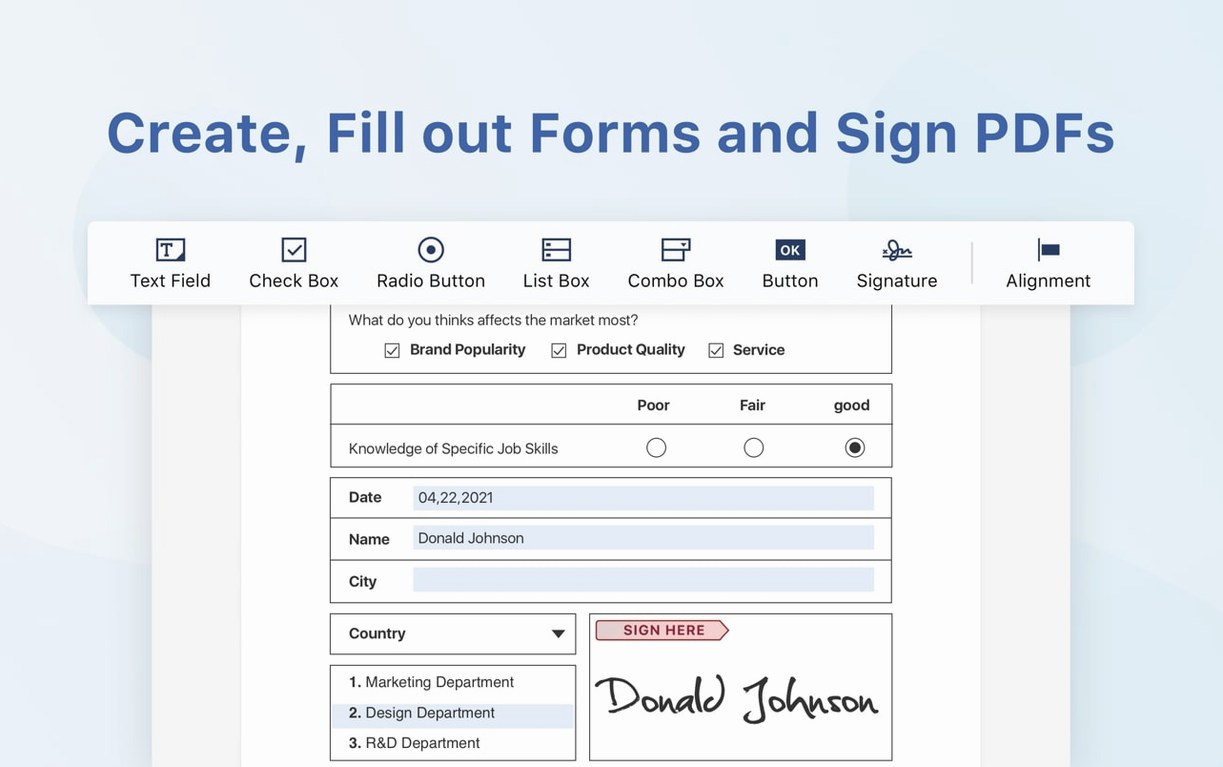
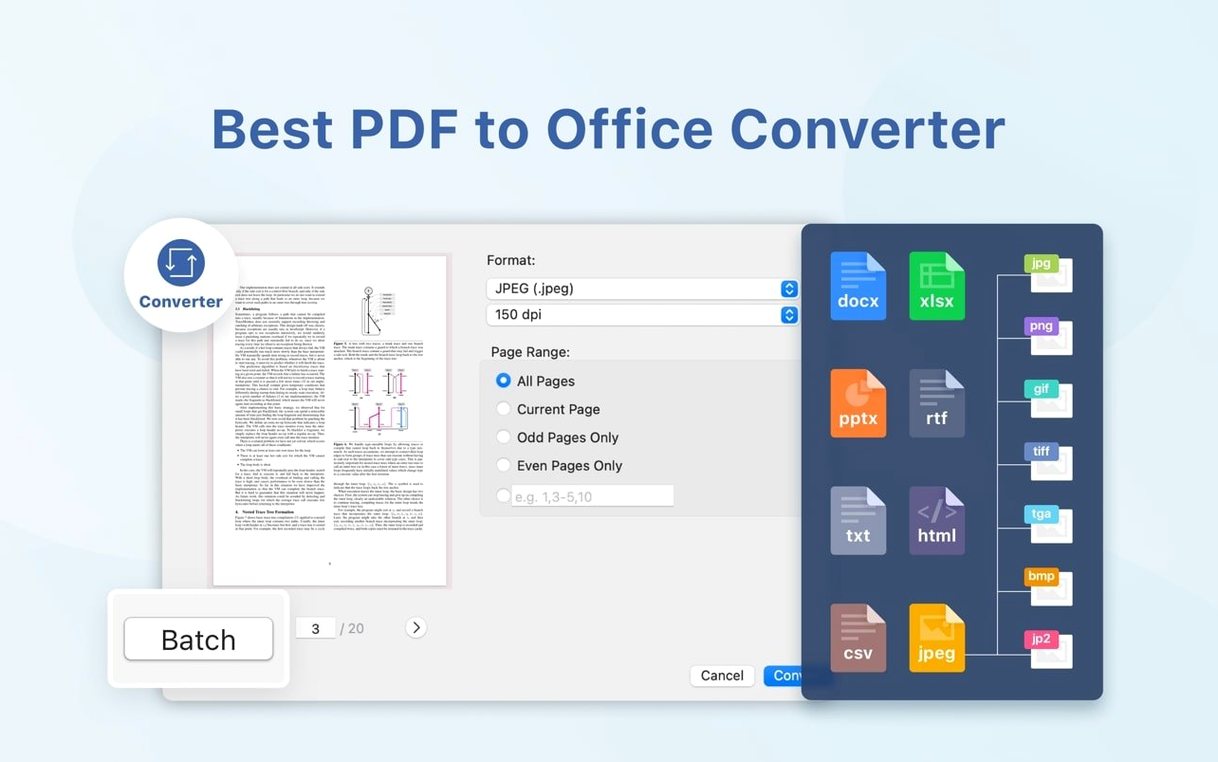
Annotation is the daily driver here: highlights, notes, and shapes sit on top of the page without fighting the toolbar. Form filling feels snappy, and the signature tools let you drop in a saved scrawl or draw one with the trackpad. On the heavy-lifting side, the converter pushes content out to Word, Excel, PowerPoint, or plain text and CSV. You can split a bloated PDF into single pages or merge several documents into one binder, plus insert fresh pages from another file. The text-to-speech engine reads aloud while you keep your eyes on something else.
Snappy Under Load
Nobody wants to watch a beach ball while a 200-page contract redraws. In daily use, PDF Reader Pro 6.0.0 keeps the interface fluid even when I toss a layered architectural plan or a 150 MB scanned book at it. Page rendering leans on the GPU where it makes sense, so continuous scrolling through a dense document feels more like flicking through a photo library than wrestling with vector math. Memory pressure stays reasonable: I've kept it open alongside Final Cut Pro and a dozen Safari tabs on an M1 machine without the system hitting swap. That matters when a render is churning in the background and you still need to grab a page count from a PDF bid.
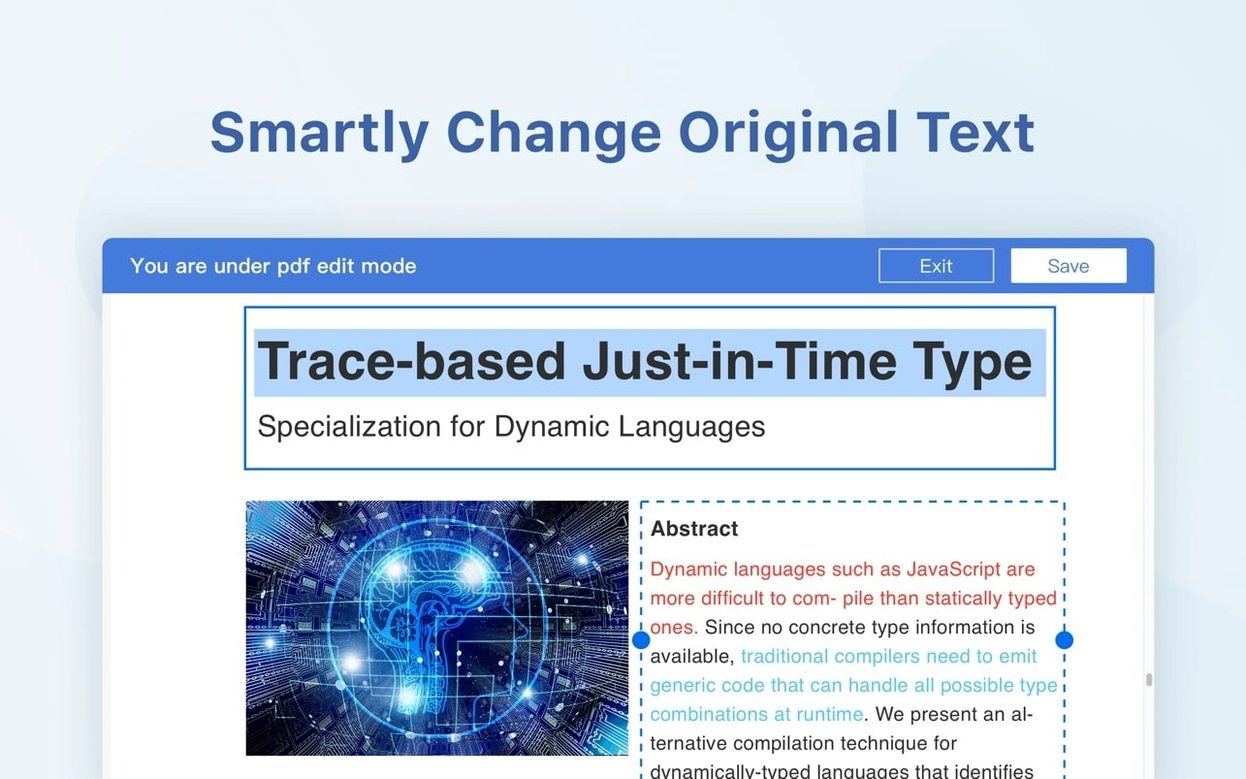
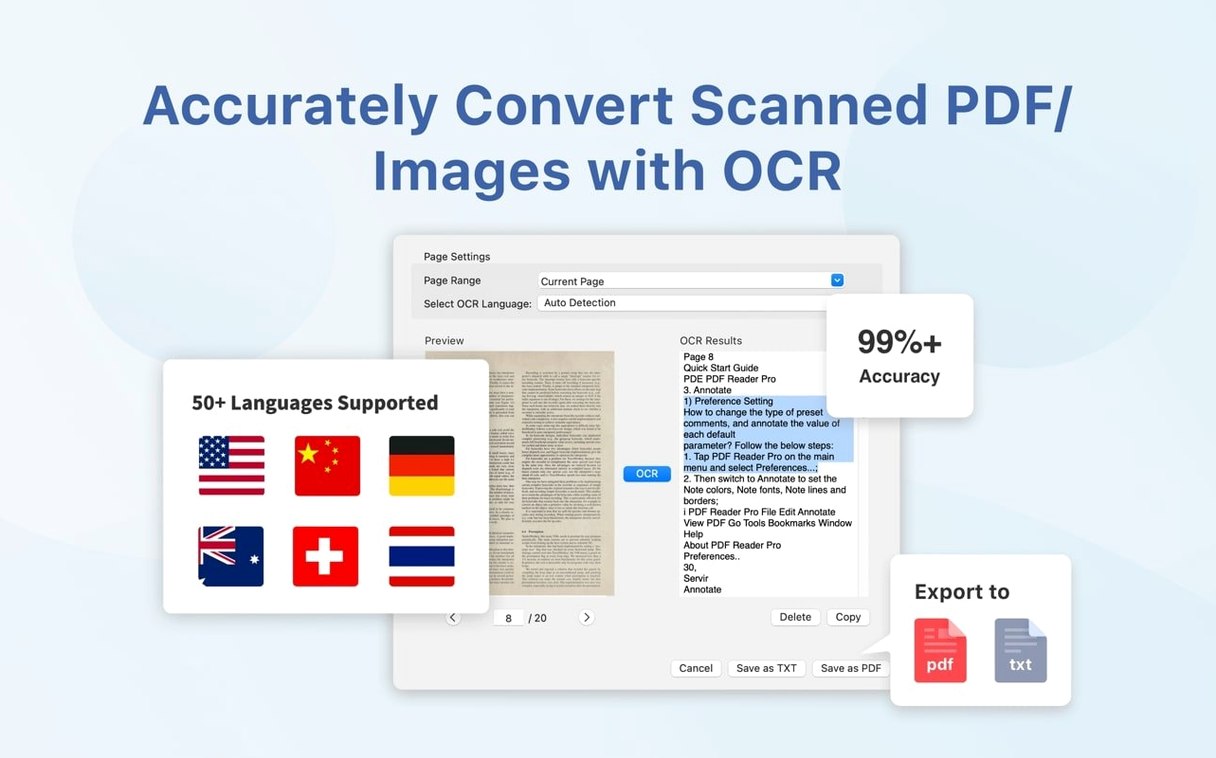
OCR is the real stress test. Running text recognition on a 40-page scanned contract—the kind where every page is a slightly crooked TIFF—takes about fifteen seconds before the text layer snaps into place. Highlighting and searching that OCR'd text afterward carries zero lag. The converter is similarly quick. A 50-page report pushed to a formatted Word doc lands with tables and headers intact in under ten seconds, and the app doesn't lock up while it works. Stability-wise, I haven't seen a crash during a batch merge or an export sprint, which is what you hope for when a client is waiting.
Auto-OCR Hits a Flat Scan at 2 p.m.
A project manager pings me at 2 p.m. with three PDFs attached: a site survey, a change order form, and a marked-up floor plan. The survey is a flat scan, so I open it first. The OCR prompt appears automatically—one click, a short progress bar, and suddenly every dimension callout is selectable text. I drag through the critical paragraphs with the highlighter, then drop a sticky note on a questionable measurement. The note stays collapsed as a small icon until someone clicks it. Clean.
Next, the change order form. The app detects the fillable fields instantly, outlined in light blue. I tab through client name, project number, and cost codes, then tap the signature tool. I've already stored a signature from a previous job, so I select it, position it over the line, and flatten it into the document. No print-scan-email loop. I export the signed form as a new PDF and drag the original survey pages into the same binder using the insert-pages command, then save the merged set to a Dropbox folder so the architect sees it within seconds.
The marked-up floor plan comes last. I split out the three revised sheets into separate files, convert one to a high-res PNG for a quick Slack post, and use the text-to-speech engine to read the accompanying notes aloud while I clean up my desktop. Twenty minutes from ping to delivered package.
Playing Nicely With the Ecosystem
Where PDF Reader Pro clicks into place is how it shares the sandbox. Quick Look integration means I can hit the spacebar on any PDF in Finder and get the same crisp rendering the editor provides, without launching the full app. When I drag a PDF into Apple Mail, the annotation layer travels with it—no flattened surprises on the recipient's end. The app registers as a system-wide PDF viewer, so double-clicking a receipt in Messages or a bank statement in Downloads opens it here, not in Preview, if that's how I've set it.
Dropbox sync is the quiet hero. I keep a client folder structure in Dropbox, and from the file browser inside PDF Reader Pro, I pull contracts, mark them up, and save back in place. There's no export-then-reupload dance. For teams that live in shared folders, that alone cuts a dozen clicks per document. And because the app speaks RTF and HTML export alongside the Office formats, I can paste cleanly into Notes or Bear without carrying over a mess of invisible spans and inline styles. The clipboard also gets a plain-text path: copy a page of OCR'd text, paste into a code editor or a script, and it lands as readable ASCII, not a single garbled string. Small things, but they stack up when you bounce between six apps in an afternoon.
- macOS 11 or later
- Intel or Apple Silicon Mac
Questions I actually get
Can PDF Reader Pro fill out forms?
Yes, it supports filling interactive form fields and lets you add a signature with a saved image or by drawing it on the trackpad.
Does it work on older Macs?
It requires macOS 11 or later and runs natively on both Intel and Apple Silicon machines.
Can I export a PDF to Word?
Absolutely. The converter exports to Word, Excel, PowerPoint, RTF, HTML, text, images, and CSV.
Notes from the edit bay · 0
Sign in or get an edit-bay pass to leave a note.
No notes from the edit bay yet. They go up after I read them.