
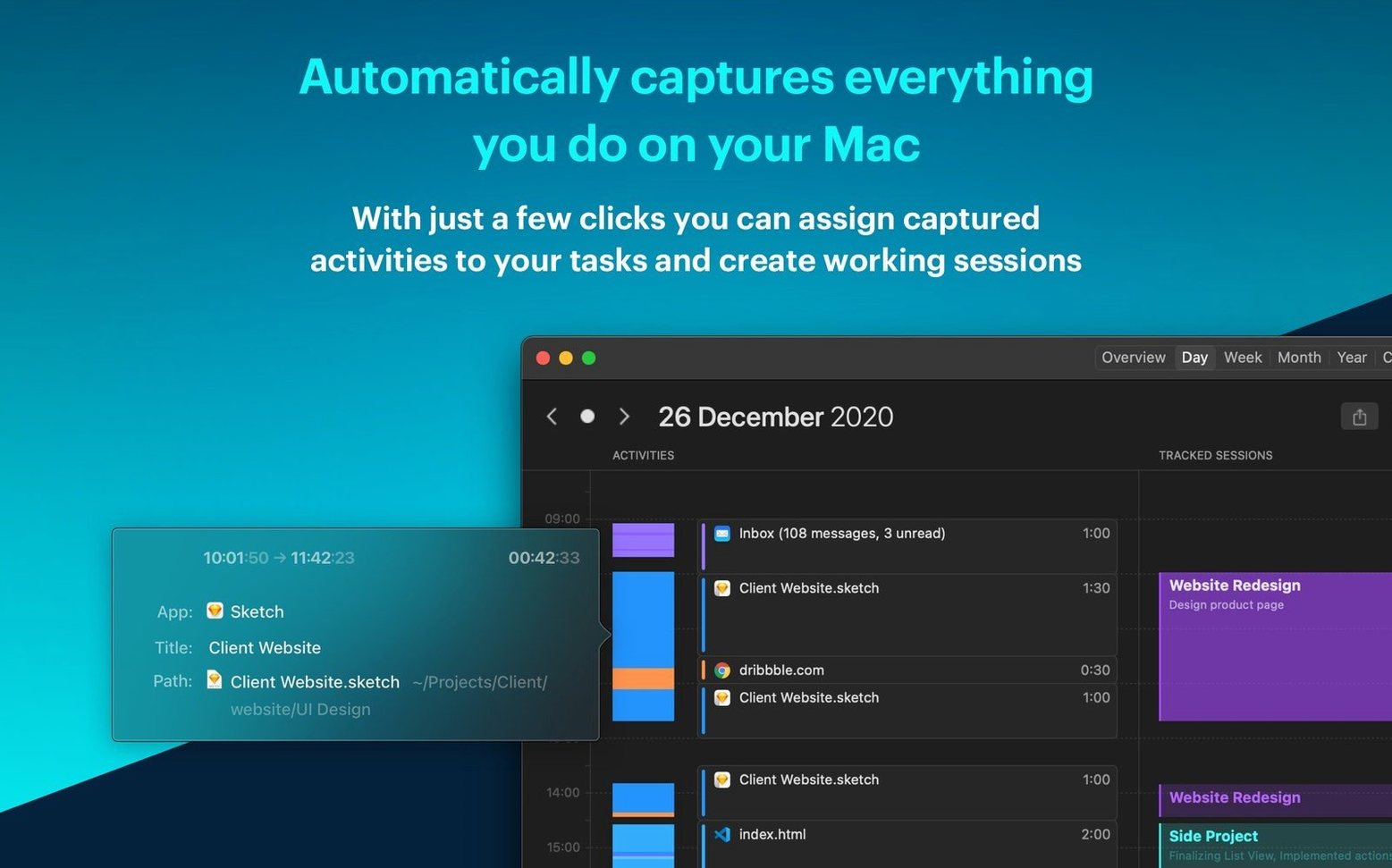
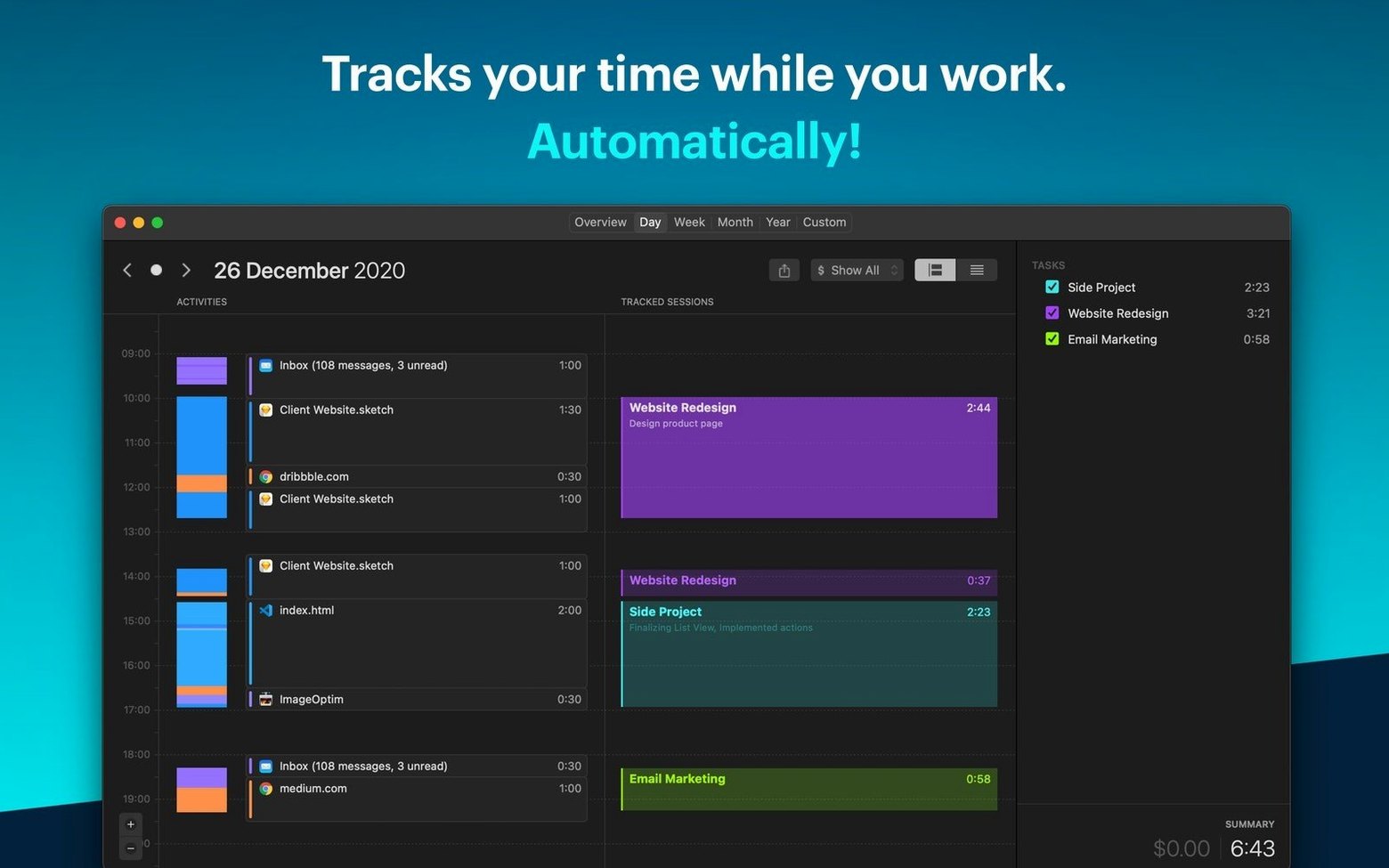
Freelancers, contractors, and anyone who bills by the hour knows the pain of reconstructing a day. Timemator skips the stopwatch guilt entirely. It watches what you do on your Mac — which app, which file, which website — and builds a private timeline you can assign to projects later.
- Drag a timer entry onto a project to log it; the activity timeline never judges, it just records.
- Set an hourly rate per project and watch the earnings tally update as you assign time.
- Day view shows a clean, chronological feed of recent activity — no digging through menus.
- Manual start/stop controls are still there for the old-school among us, sitting right beside the automatic capture.
- Detailed reports break down billable hours so an invoice is just a glance away.
The 3.2.2 release keeps the engine running smooth with a round of bug fixes. Under the hood, the same Mac-only timeline hums along, tracking locally with an interface that speaks English or German. Everything stays on your drive — just a timeline that knows where the morning went.
The Menu Bar Trick That Reveals Your Session Total in One Click
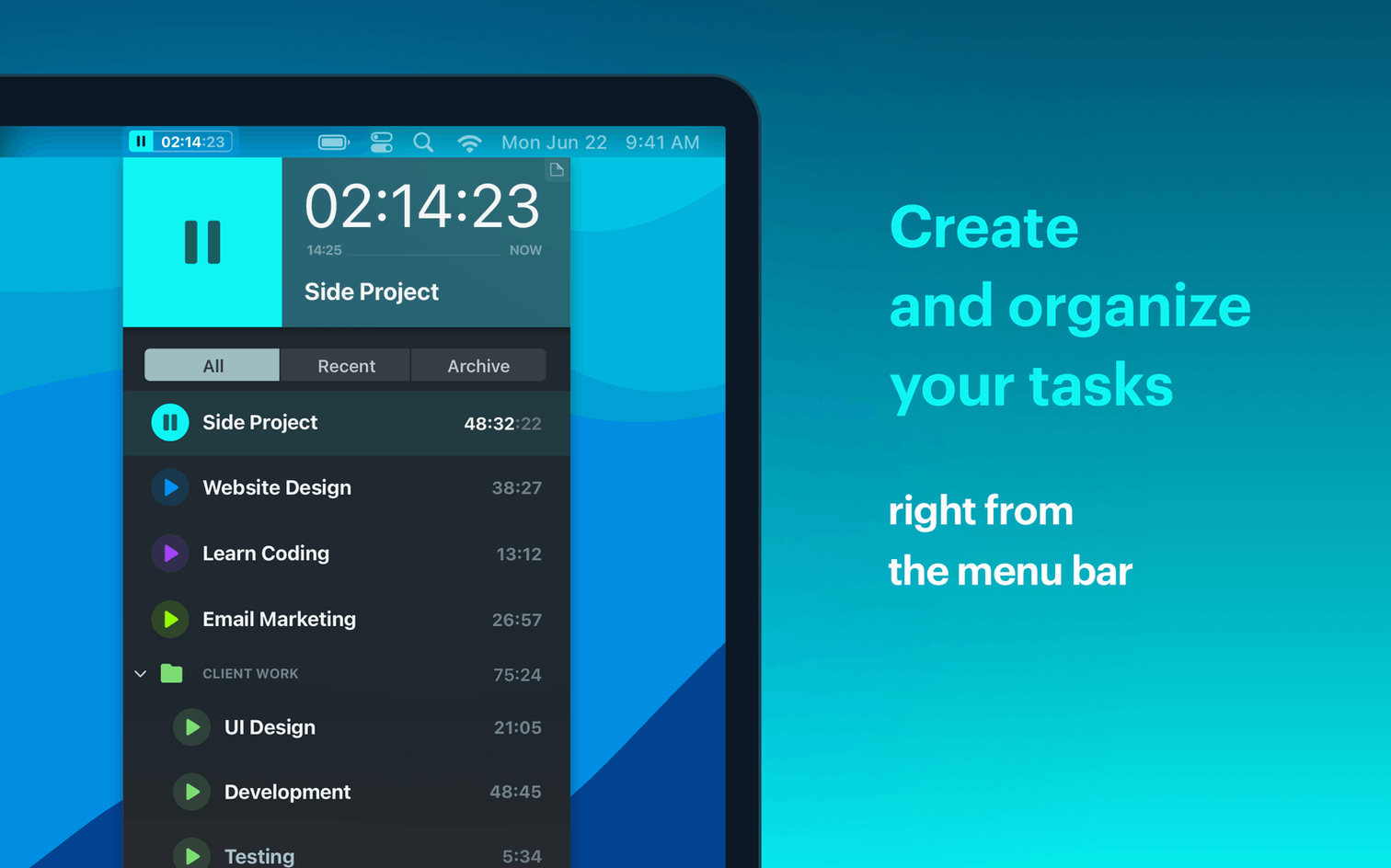
A few conveniences sit just below the surface, and they're the kind of thing you stumble into after a week. The menu bar icon holds more than a simple timer. A single click reveals the current session's running total, and a right-click lets you pause tracking without bringing the full window forward. If you're deep in a render and don't want the distraction, that's a tiny gift.
The timeline itself responds to drag-and-drop in ways the manual doesn't spell out. You can select a block of time in the day view and assign it to a project in one motion. Splitting a recorded session is just as fluid — grab the edge of an entry and drag inward. No dialogue boxes, no confirmation clicks. It feels like editing a clip in a timeline, which makes sense given the audience.
Another quiet feature: holding Option while clicking a project in the sidebar expands every task inside it. Useful when you're hunting for a specific sub-project and the collapsed list isn't giving you enough to scan.
Start With Rules for Just Two Daily Projects
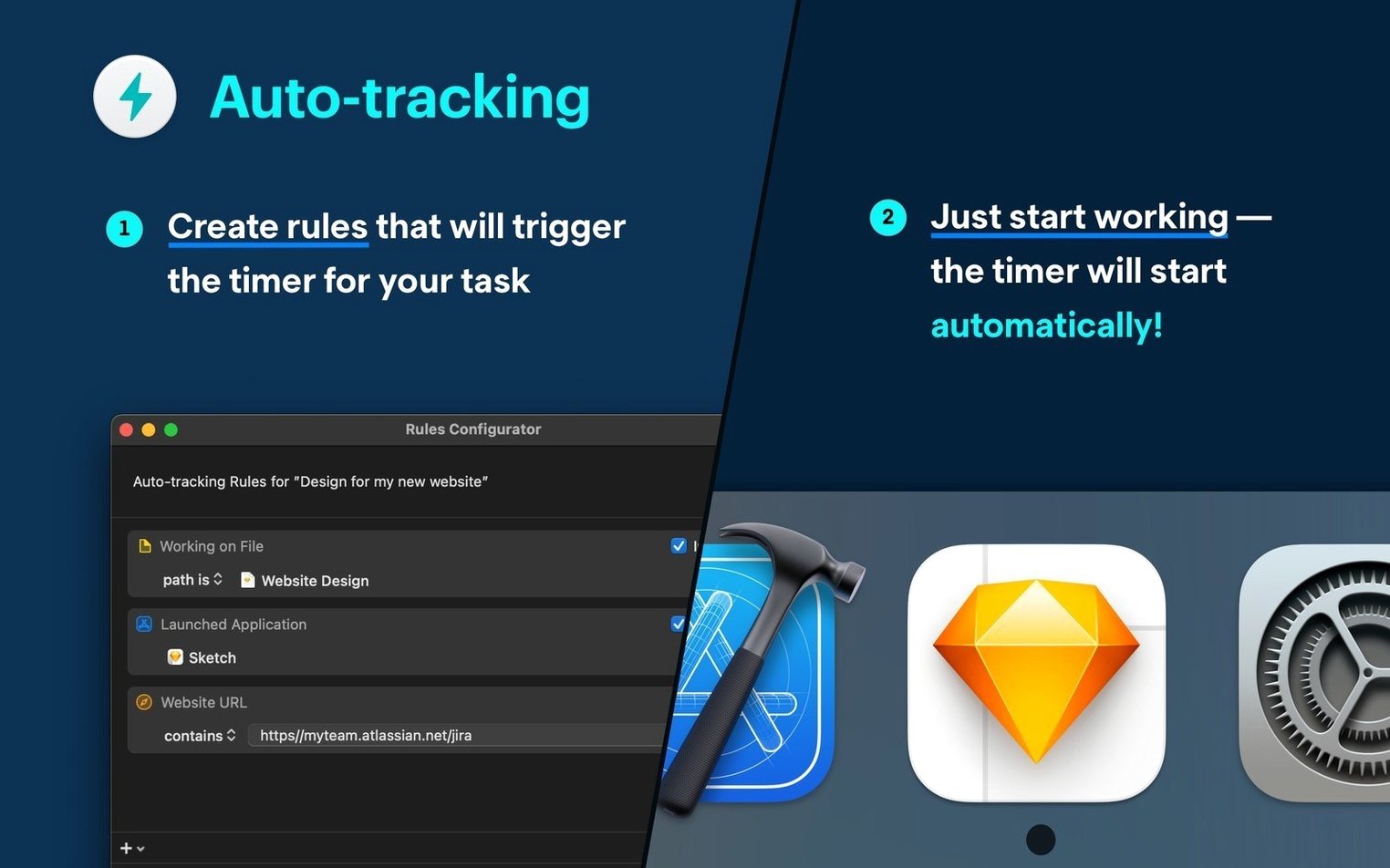
The auto-tracking rules are what make the app hum, but the temptation is to over-engineer them on day one. Don't. Pick two or three projects you touch daily — maybe a retainer client and an internal project — and build rules around the apps they live in. Sketch files for the branding gig, Xcode for the side project. Let those run for a couple of days before adding anything else.
Also worth doing early: set your hourly rates, even if you're not invoicing from the app yet. The earnings counter in the project sidebar is a quiet motivator. Watching it tick up while you edit makes the abstract feel concrete. And if you grab the timemator mac full version build, all of this stays local — no account, no cloud sync to second-guess. Your timeline never leaves the Mac.
One more ritual that pays off: at the end of the first week, spend ten minutes in the Reports tab. Drag the date range over those seven days and look for patterns. Chances are you'll spot a project that's eating more hours than you thought. The rules can tighten later; right now, just seeing the raw data is the lesson.
Scrolling Through a Full Month No Longer Hitches
The update notes say "bug fixes and improvements," and in practice that means the timeline feels snappier when scrolling through dense days. Earlier builds could hitch when you pulled up a month of activity at once; that's gone now. The auto-tracking rules also fire more reliably after waking the Mac from sleep — a small fix that eliminates the "where did the morning go?" gap that used to appear in the timeline.
Under the hood, the Apple Silicon binary got attention in this release. The app was already native, but the 3.2.2 build trims idle CPU use noticeably on M-series machines. If you run Timemator alongside Final Cut or After Effects, the background draw is now low enough that you won't feel the need to quit the tracker during heavy renders. That's the kind of polish that doesn't make release notes but changes whether the app stays open all day.
- Bug fixes and stability improvements across the timeline and reporting views.
Also fixed: a handful of smaller quirks that could slow down the day view after long tracking sessions.
- macOS 10.15 or later
- Runs on Intel and Apple Silicon Macs
Notes from the edit bay · 0
Sign in or get an edit-bay pass to leave a note.
No notes from the edit bay yet. They go up after I read them.