
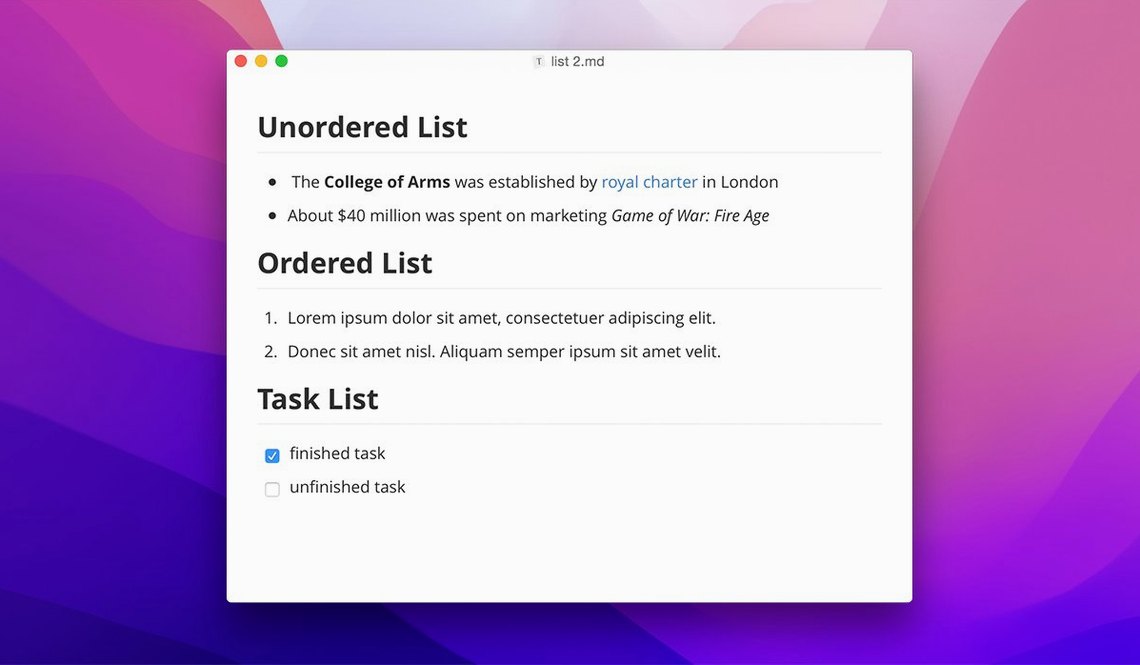
Live rendering kicks in the moment you type a hash and a space. No switching tabs, no guessing whether a link works — Typora strips away the source-to-preview dance and renders Markdown inline, right in the document. It feels closer to a word processor than a code editor, and that's exactly the point.
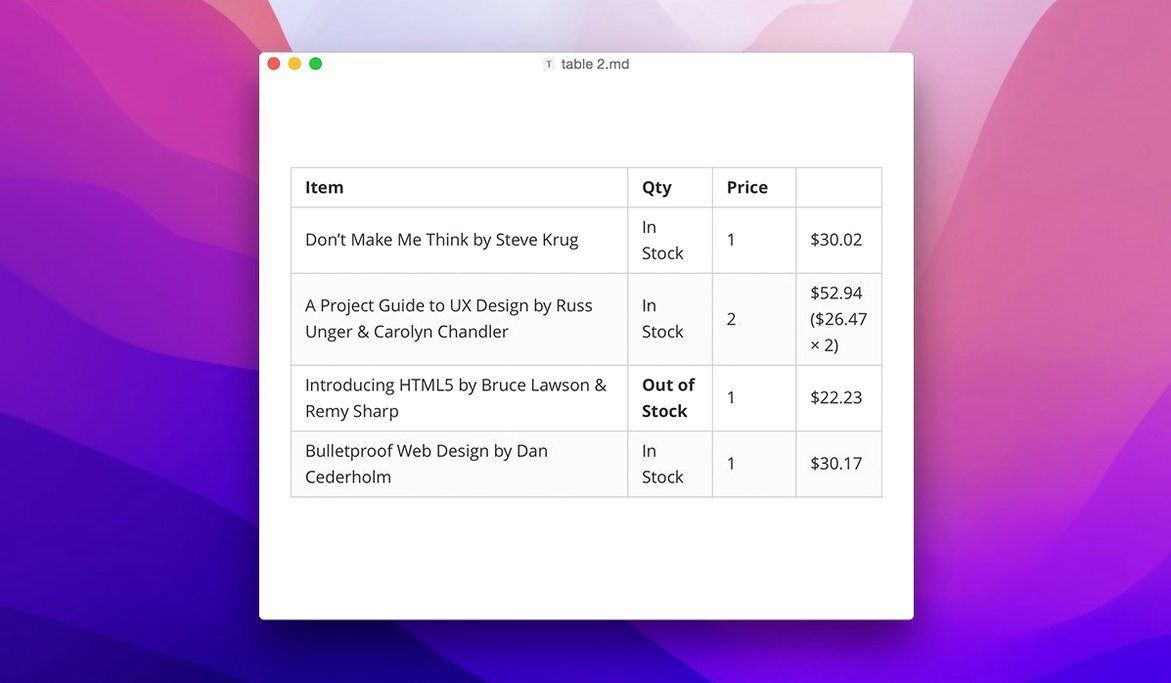
- Tables that behave. Add a pipe and a new row appears. Resize columns by dragging. No manual alignment fiddling — the editor handles it.
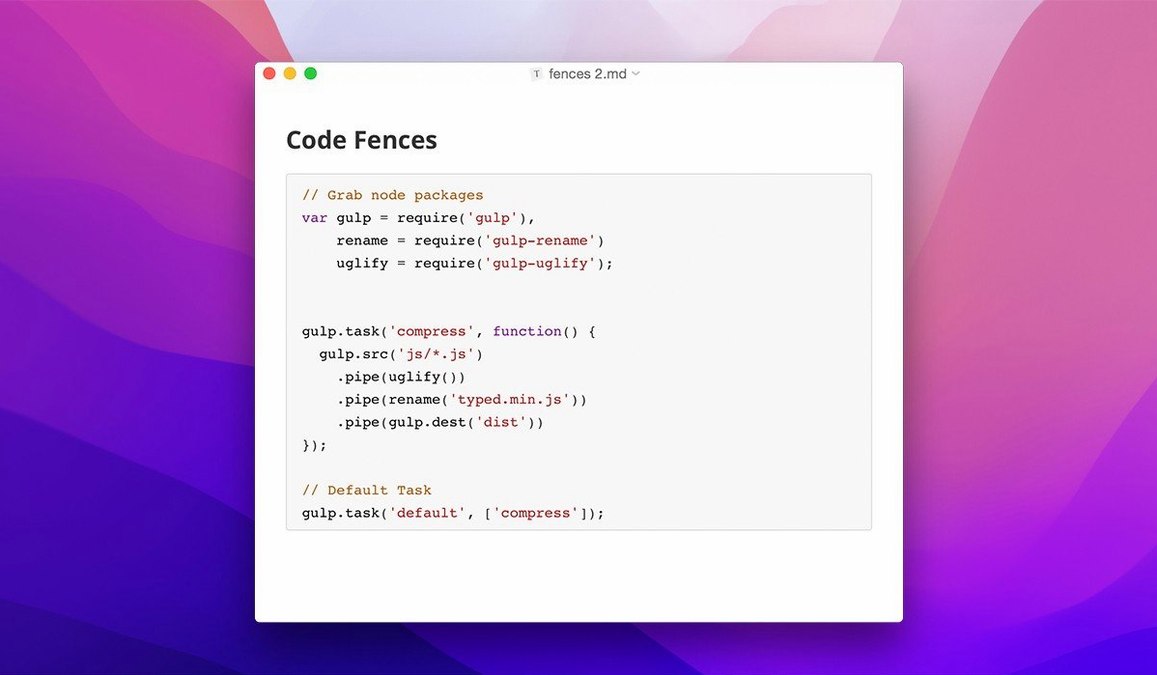
- Code fences with teeth. Wrap a block in backticks, pick a language, and syntax highlighting paints it before you finish typing. Great for technical notes or README drafts.
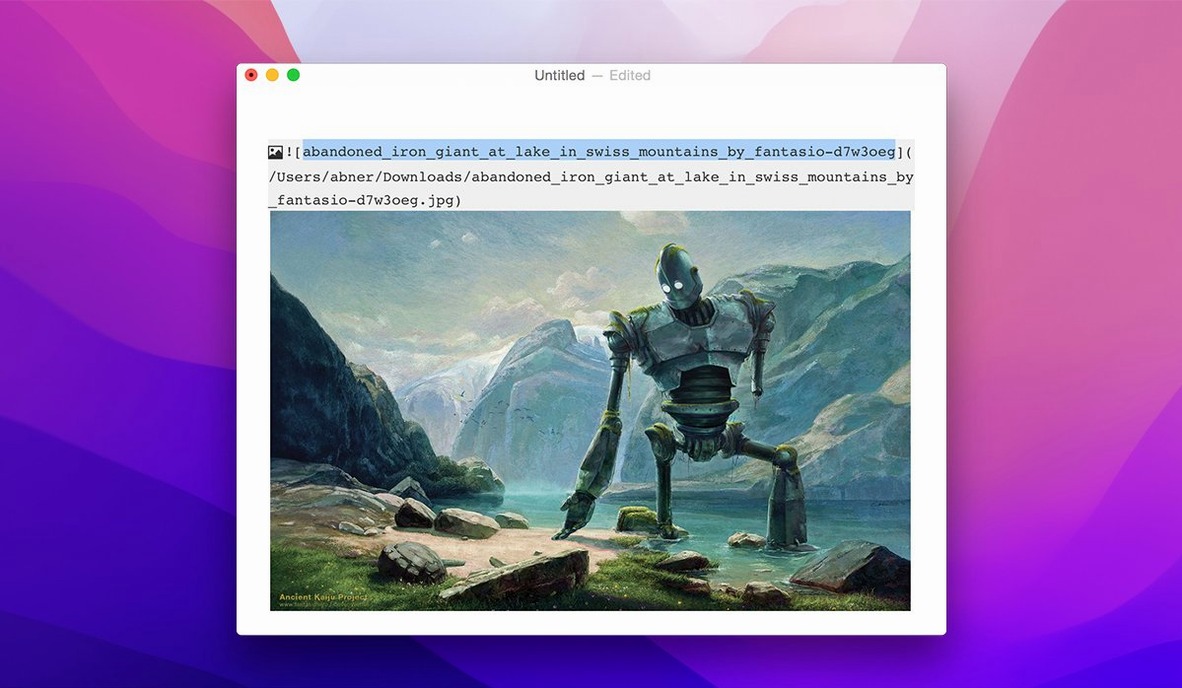
- Images and LaTeX, live. Drag a screenshot in and it shows up. Inline math renders as you write, so an equation never sits half-baked.
- Outline on demand. The table of contents auto-populates from your headings. Click a heading, jump there. Long documents suddenly feel short.
- Focus mode. Dim everything except the current paragraph. Useful when a draft hits four thousand words and you need to finish one section.
Custom CSS themes let you dial in a writing environment that matches your lighting, taste, and caffeine level. The sidebar now shows hidden files and supports keyboard navigation through the file tree — small touches that keep hands on the keyboard. Typora won't replace a full IDE, but for fast drafts, documentation, and notes that need to look good the first time, it earns its spot in the dock.
A Year of Polish — What the 1.14 Cycle Changed
The jump to version 1.14 brought a floating editor toolbar, and for anyone who prefers a trackpad to memorizing keyboard shortcuts, it removes half the friction of formatting on the fly. Bold, italic, lists, and headings now sit a click away without a toolbar bolted to the top of the window. It appears near your text, then vanishes when you keep typing. Low profile, high utility.
Two sidebar additions quietly reshaped my work. Showing hidden files and folders means dotfiles, .gitignore notes, and draft configs are no longer invisible inside a project folder — the editor stops pretending they don't exist. The option to display non-Markdown files in the same tree turns Typora into a light document browser. A folder full of .txt logs and .md summaries now reads as one coherent stack instead of a half-empty list.
Context-menu style settings for macOS put theme tweaks a right-click away, and keyboard navigation in the file tree lets you arrow through a project without touching a mouse. Version 1.14.10 cleaned up two sharp edges: the welcome panel no longer clips its content when the window is narrow, and pandoc export from source mode actually works again — a fix that saves anyone converting to .docx or PDF from shouting at a blank output.
First Days — A Setup That Sticks
Pick a theme before you write a word. Typora ships with several, but the real gems live in the community theme gallery. A dark background with amber text cuts eye strain during late-night drafting, and switching takes five seconds: drop a CSS file into the theme folder, then select it from the menu. Do this once and you'll never see the default again.
Turn on typewriter mode. It keeps the active line vertically centered, so your eyes never drift to the bottom of the screen during long stretches. Combine it with focus mode — which dims everything outside the current paragraph — and a 27-inch monitor suddenly feels like a typewriter platen.
Set up a custom export preset early. The default PDF and HTML outputs are clean, but adding your own CSS to the export folder means every document that leaves your machine carries your font choices, link colors, and margin preferences. Write it once, ship it forever. If pandoc is installed, wire up a .docx export that a client or professor won't need to reformat. The first time you send a perfectly styled document with zero post-processing, the fifteen minutes of setup pay for themselves.
Where Typora Fits Among Mac Editors
Next to iA Writer, the difference is philosophy. iA Writer locks you into one font and hides everything except the sentence you're writing. It's a cathedral of minimalism. Typora gives you a live-rendered document that looks finished while you draft, and it lets you style it. If you want a clean room where nothing distracts, iA Writer wins. If you want to see rich text bloom as you type and still have a file tree and a table of contents visible, Typora makes more sense.
Ulysses is the elephant in the room — a library-based writing environment with built-in organization, word count goals, and publishing tools. Typora doesn't manage a library. It opens files from Finder, works on them, and gets out of the way. That's a strength when you already have a folder structure and version control, and a limitation when you want a single app to organize everything you've ever written. Ulysses bundles; Typora points at your disk and stays silent.
Marked 2 isn't a writer at all — it previews Markdown files after you've written them in another editor. Typora eats that workflow entirely. Why keep a separate preview window open when the editor itself renders everything live? Marked still pulls ahead for heavy-duty export validation and custom processor chaining, but for daily drafting, Typora collapses two apps into one.
The welcome panel no longer clips content at smaller window sizes. Pandoc export from source mode is fixed, so tables and citations land in Word or PDF without extra cleanup.
- macOS 10.13.6 or later
- Apple Silicon and Intel Macs
Notes from the edit bay · 0
Sign in or get an edit-bay pass to leave a note.
No notes from the edit bay yet. They go up after I read them.