
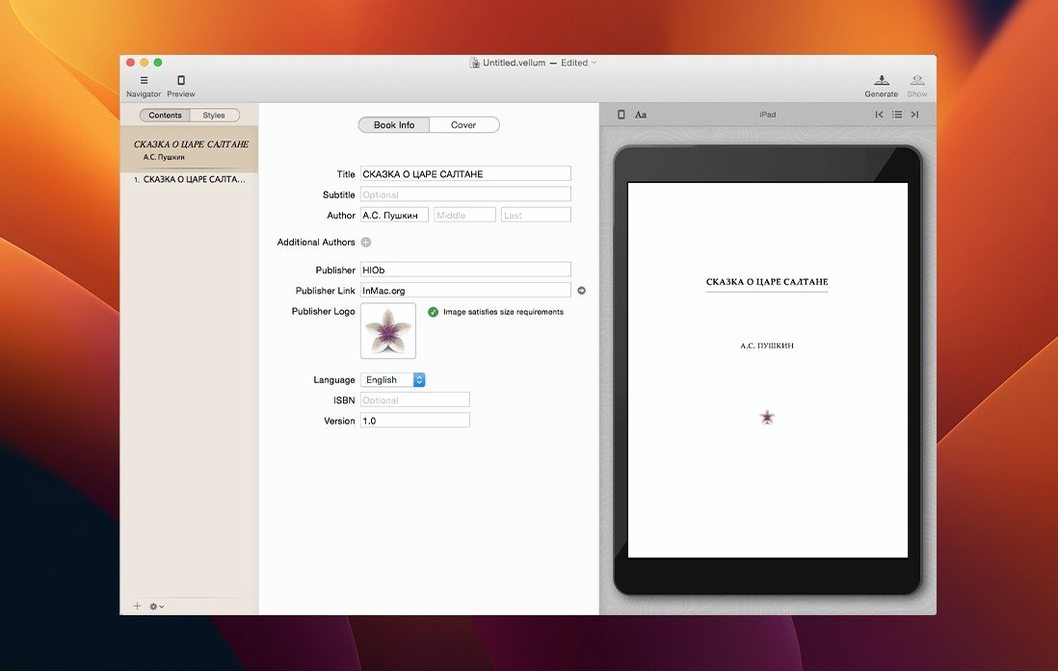
Six formats, one manuscript. That’s the premise you walk into when you first launch Vellum. You drop in a Word doc or start typing in its native editor, and the app immediately builds a full book — chapter headings, drop caps, ornamental breaks — styled consistently from page one. No template hunting, no CSS tinkering.
First thing to try: open a book and hit the Preview button. You can flip through your title on an iPhone, a Kindle Paperwhite, a Nook, and a large-print hardcover, all from the same window. Each preview is live-rendered, so you catch widow lines or weird spacing before they become someone else’s one-star review. The print preview alone saves a small forest of test pages.
Next, head to the Styles tab. Pick a different look — say, Classic instead of Contemporary — and watch every chapter absorb the change, including any you add later. That single-action styling is where Vellum earns its keep for anyone juggling a series. You can even bundle multiple books into a boxed set and format the whole thing as one edition. Output covers Kindle, Kobo, and Apple Books, plus the print-ready PDF.
From Messy .docx to Finished Trilogy Before Lunch
It’s 8 a.m. and a writer wrapping up a trilogy has just finished the final chapter of book three. The manuscript is a messy .docx, full of scene breaks marked with asterisks and chapter titles that don’t match the first two books. She drags the file into Vellum and watches it parse every heading, generating a clean table of contents in seconds. She’s not thinking about code — she’s already flipping through the Kindle preview, spotting a widow line on chapter seven, and hopping back to tighten the prose. By 8:25, she’s regenerated ebook files for all three platforms and dropped a fresh print PDF into her proofreader’s inbox. The series stays visually consistent because she saved the same Style across all three books. That’s the rhythm Vellum inserts into a workflow: write, import, preview, tweak, ship.
Installing Without Breaking Your Current Workflow
Your Original .docx Sits Untouched on the Drive
No. Vellum imports a copy of your .docx or .txt file and leaves the original untouched on your drive. All the formatting, chapter breaks, and style decisions live inside the Vellum project file. If you need to go back to the raw text for a developmental edit, your manuscript sits right where you left it.
Reformat a Previously Published Book in Minutes
Yes, and that’s a common path. Paste plain text or import a clean Word file, then let Vellum rebuild the structure. The automatic chapter detection usually nails it, and you can correct any misreads before applying a Style. Authors moving away from hand-coded EPUBs or template-based tools often do this once and never look back.
Print-Only Projects with Live Trim-Size Previews
Vellum handles print-only projects just as smoothly. You set the trim size, and the app recalculates margins, headers, page numbers, and footers on the fly. The print preview panel shows exactly how pages will land, including spread balancing across facing pages. No need to generate an ebook if you don’t want one.
Does the preview actually match what readers see?
It’s close enough to catch problems before they ship. The device previews render with the same layout quirks you’d encounter on a real Kindle, iPhone, or Kobo. Font sizing, drop cap offsets, and image placement all show up faithfully. The print preview respects your chosen trim size and shows realistic page spreads, which beats squinting at a word-processor approximation.
First-Time Stumbles Worth Skipping
Dumping in raw text without cleaning up chapter markers. Vellum reads headings by looking for consistent patterns — all-caps lines, numbered breaks, or phrases like “Chapter One.” If your manuscript uses inconsistent markers (mixing roman numerals with spelled-out numbers, or burying chapter titles in body text), the auto-detection will miss a few. Spend five minutes standardizing those cues before import, and the table of contents builds itself correctly on the first pass.
Ignoring the Style picker until the end. Some new users format every chapter manually, then discover the Styles tab two days later. Applying a Style retroactively can shift margins and ornament placement, which means re-checking pages you thought were finished. Pick a Style early — even if you tweak it later — and let the app handle consistency while you focus on content.
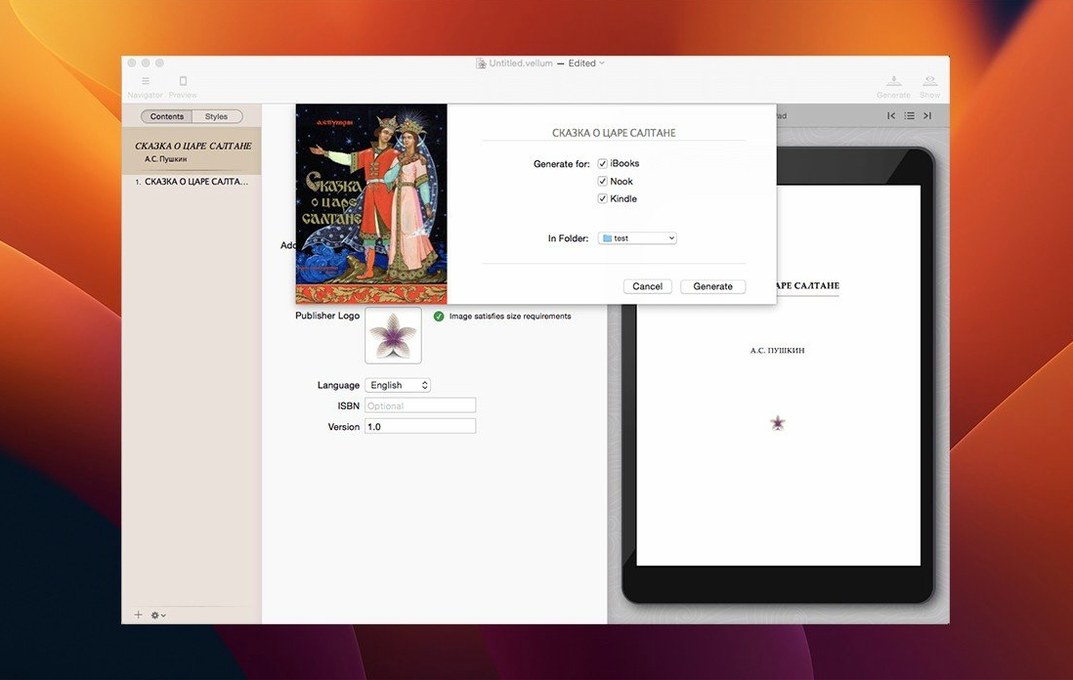
Forgetting to regenerate after a last-minute text change. You fix a typo in the Vellum editor, close the project, and email yesterday’s .mobi to a reviewer. That typo is still in the file because you didn’t regenerate the output. Vellum’s live preview updates instantly, but the exported ebook files are snapshots. Hit Generate every time you finish a round of edits, especially if someone’s waiting on a review copy.
Overlooking the boxed-set feature early in a series. Authors who plan a trilogy often format each book individually, then try to bundle them afterward by starting a new project and re-importing everything. That works, but it’s extra labor. If you know a boxed set is coming, keep each book’s Vellum file handy and use the built-in bundle tool — it pulls them together without redoing chapter styles or front matter from scratch.
- macOS 11 or later
- Apple Silicon or Intel 64-bit
Questions I actually get
Can Vellum create print and ebook editions at the same time?
Yes, Vellum can generate both print and ebook editions from a single manuscript, keeping the formatting consistent across outputs.
What Mac does Vellum need?
Vellum requires macOS 11 or later and runs natively on both Apple silicon and Intel 64-bit Macs.
Notes from the edit bay · 0
Sign in or get an edit-bay pass to leave a note.
No notes from the edit bay yet. They go up after I read them.