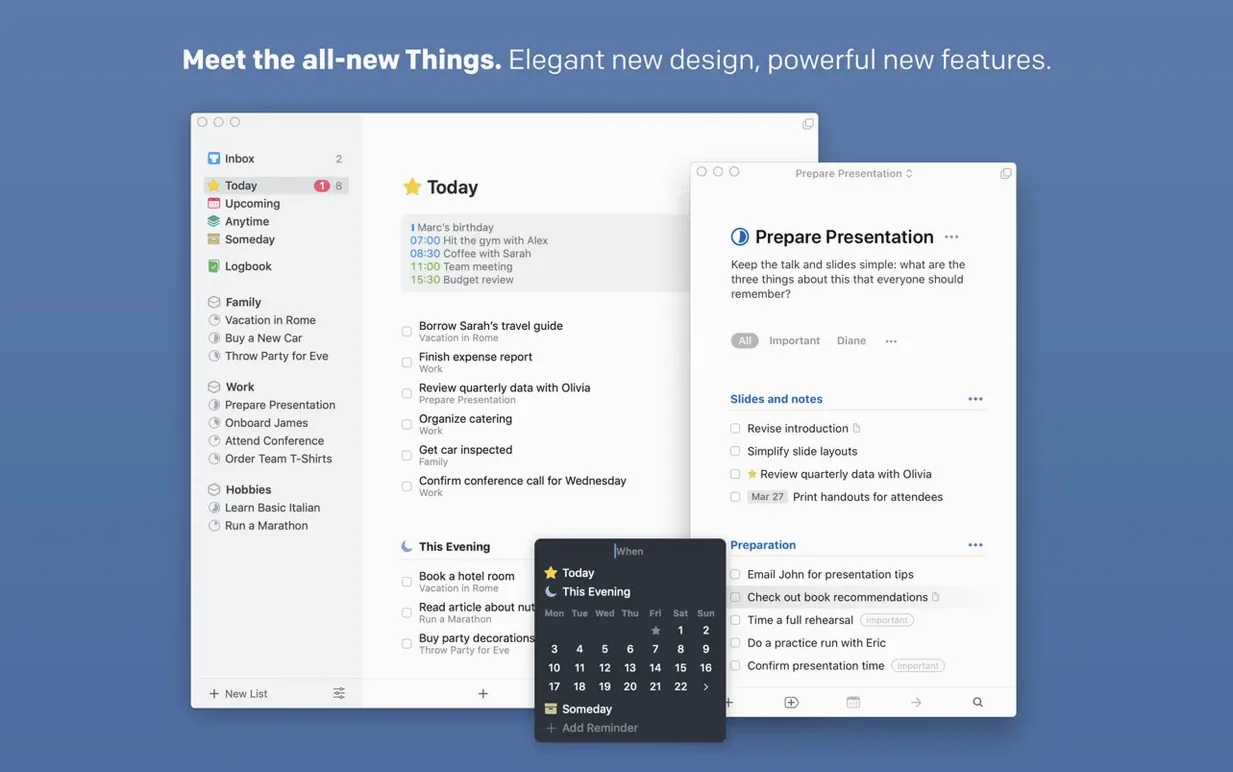
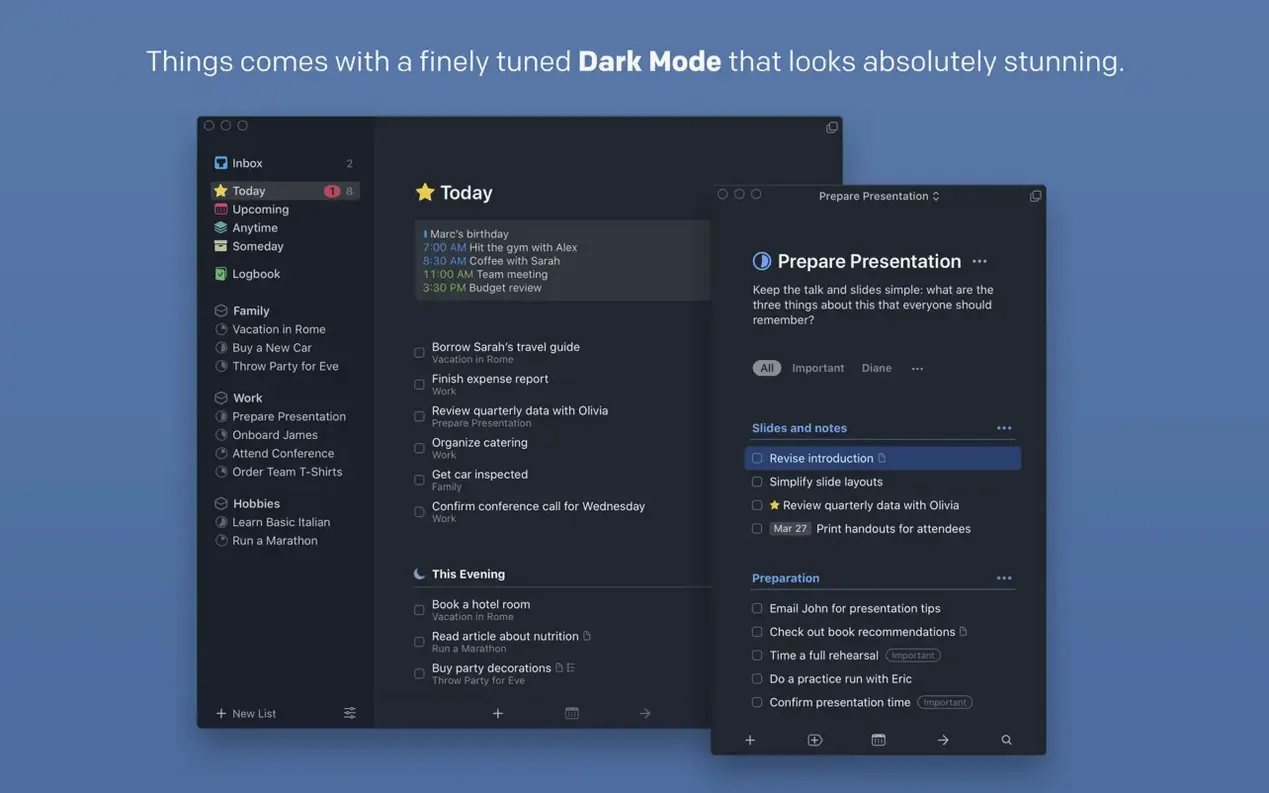
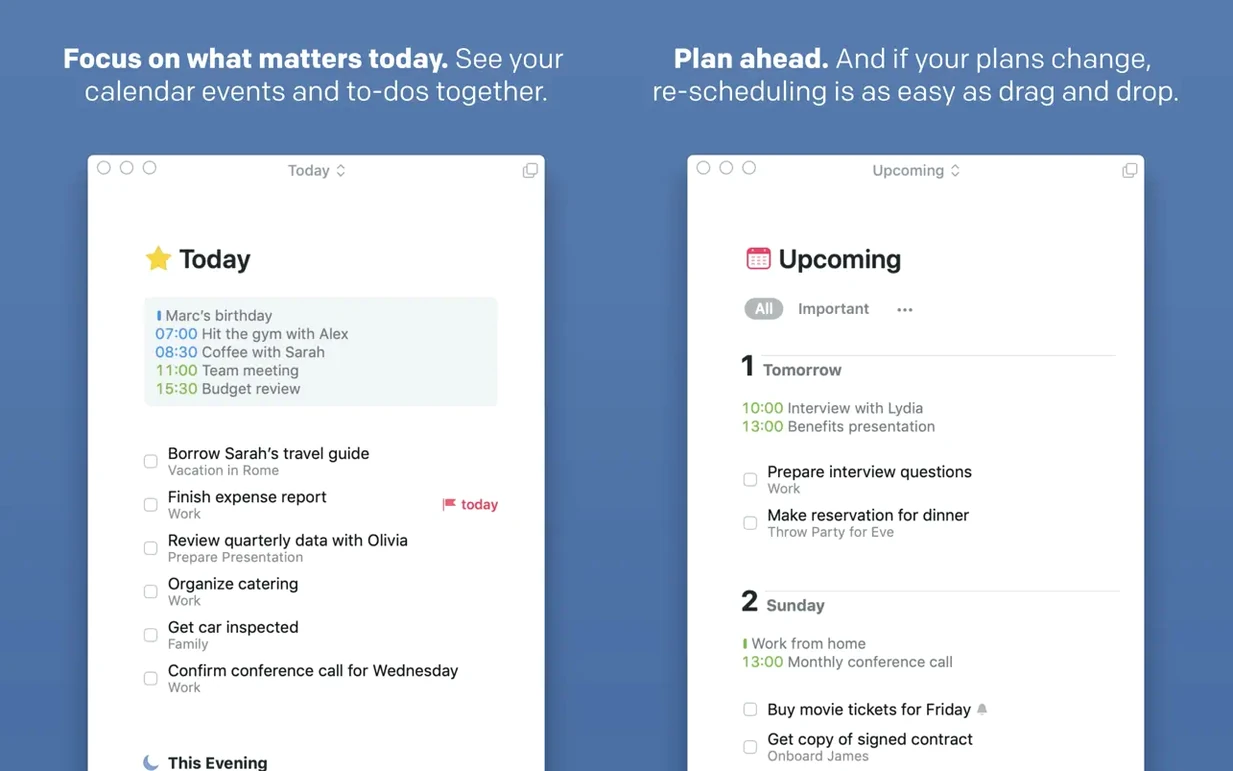
10.15. That's the macOS version you need to run Things 3, and it's been the floor for a while — which tells you something about how stable this task manager is. The latest 3.24 build layers Spotlight and Siri AI support onto a structure that hasn't needed reinventing: Inbox, Today, Upcoming, and Areas.
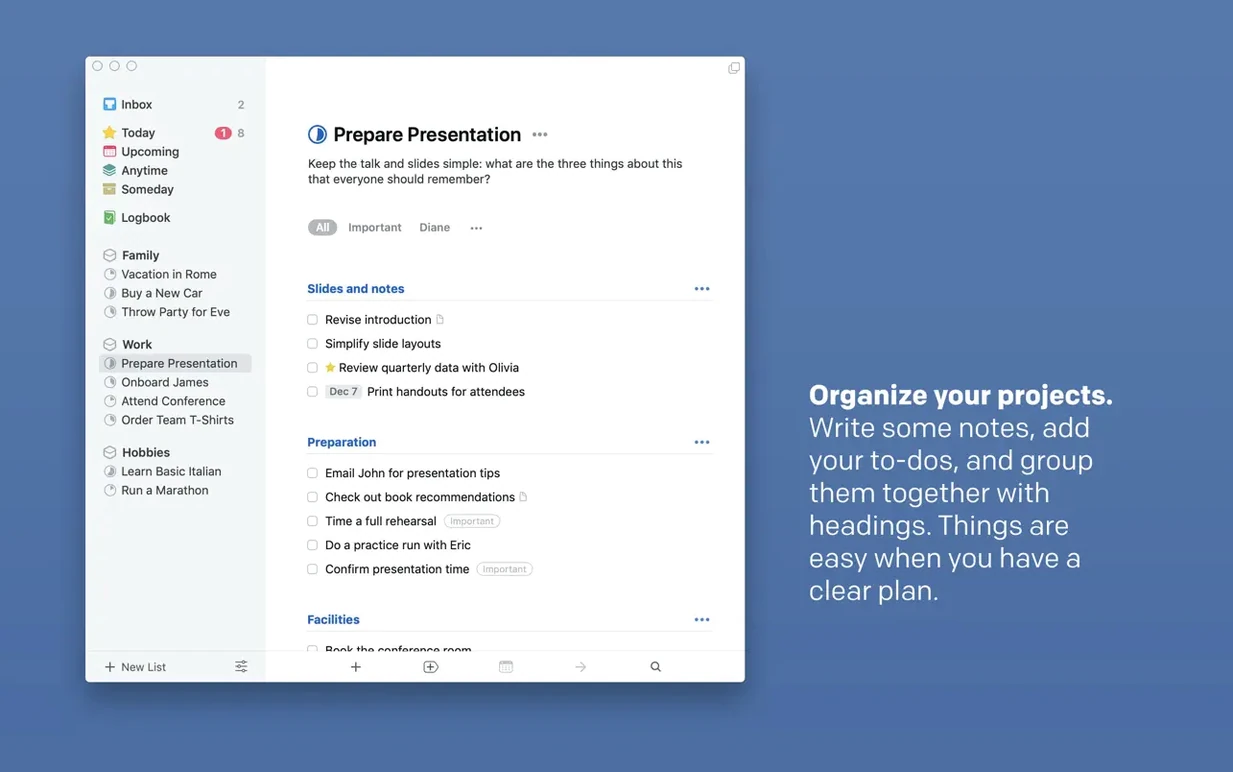
Projects as the Real Engine
| What | Detail |
|---|---|
| Current version | 3.24.0 |
| Developer | Cultured Code GmbH & Co. KG |
| Sync | Things Cloud |
| Requires | macOS 10.15 or later |
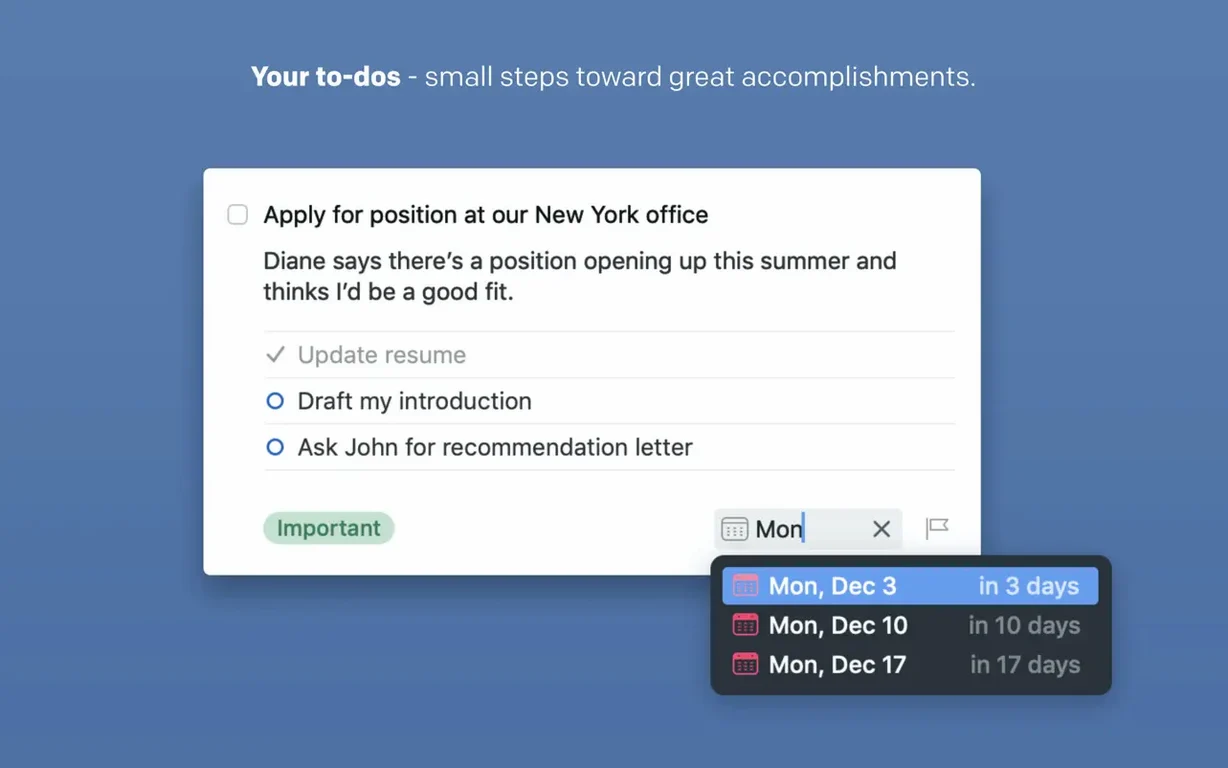
Projects are where Things earns its keep. A project holds the moving parts of a larger goal, and each task inside it can carry notes, subtasks, deadlines, and reminders. That's the job: not just listing what needs to happen, but keeping the context attached so a task doesn't float free of why it exists.
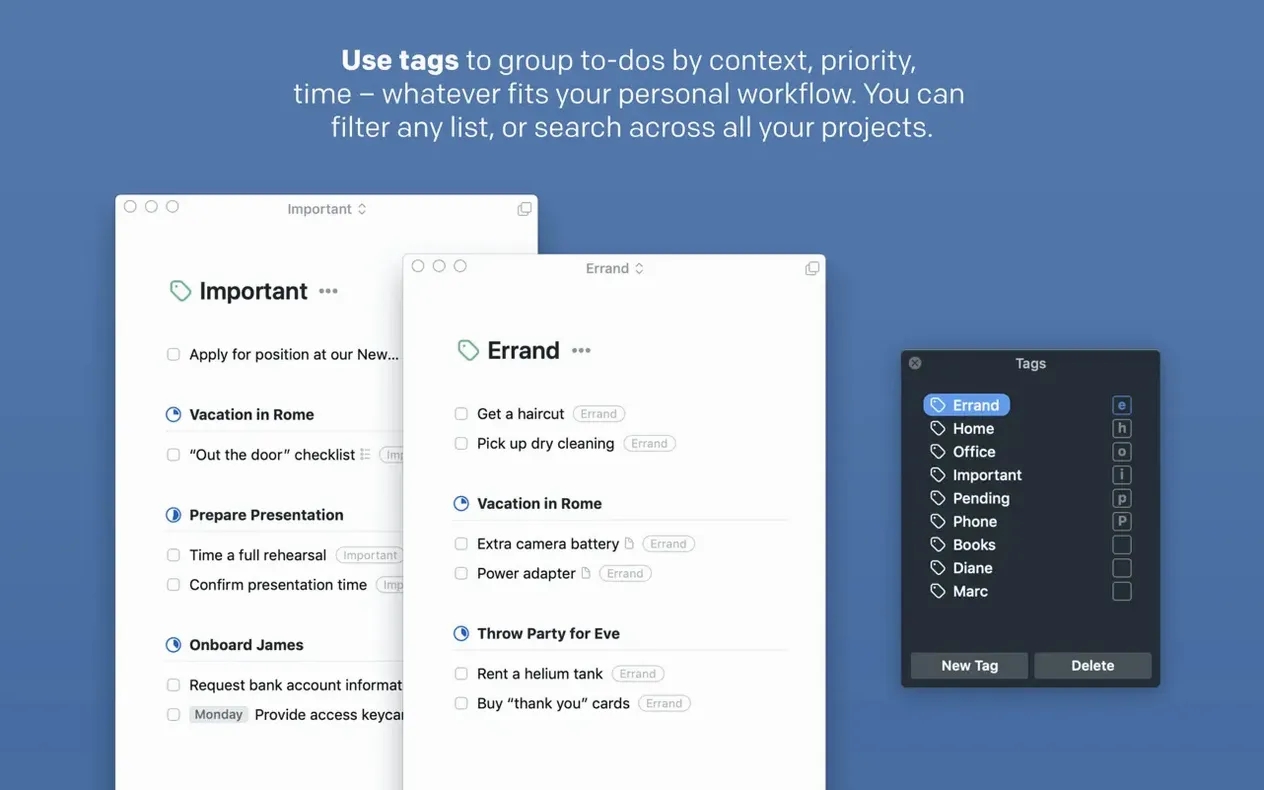
Tags do the filtering work. Toss a few on tasks across different projects and you get a quick way to pull up everything tied to a client, a location, or an energy level. Repeating tasks handle the rhythm stuff — the weekly review, the monthly invoice chase — without you rebuilding them every time.
Things Cloud keeps the Mac in step with the phone and iPad. Siri can drop tasks into the Inbox while your hands are busy, and Notification Center widgets push Today or Upcoming where you'll actually see them.
Evening Triage for the Unmanaged Freelancer
Freelancers who juggle multiple clients without a project manager watching over their shoulder. The Inbox catches stray thoughts throughout the day, and by evening you sort them into projects or tag them for later. Nobody's building Gantt charts here — it's the person who needs to see today's five actual priorities without scrolling past yesterday's debris.
Writers and creatives running long-form projects with dead threads. A book chapter, a video series, a rebrand — each becomes a project with research tasks, draft deadlines, and review rounds nested under one roof. The notes field on a task holds the brief, the feedback link, the one thing the client said at minute 37 of the call.
Students who treat a semester like a collection of projects. Each class gets an Area, each paper becomes a project, and the Upcoming view surfaces what's due next without the calendar noise. Tags like library or group-work pull related tasks across courses.
Anyone who tried a collaborative task app and realized most of their planning is solo. Things doesn't do team assignments, comments, or shared boards — and for a solo operator, that's the point. Less interface, less waiting, less permission-checking.
Start with Three Areas, Not Twenty
Set up three Areas on day one — not twenty. Work, Personal, and one more that reflects something recurring (Health, Side Projects, Home). Over-structuring early leads to a taxonomy you'll ignore by Thursday.
Point the quick-entry shortcut at your muscle memory. The default Control-Space competes with Spotlight on most Macs, so I remap it to Control-Option-Space immediately. From any app, the shortcut opens a floating entry window — type a task, hit return, and you're back in your timeline without switching context.
Dump everything into the Inbox for the first three days. Don't sort, don't tag, don't date. Just collect. On day four, sit down and process the pile: what's a project, what's a one-off, what needs a deadline, what was just noise. The Inbox works best when you treat it as a holding pen, not a permanent exhibit.
Enable the Today widget in Notification Center and try the extra-tall version that shipped with 3.24. It shows more tasks without scrolling, which sounds trivial until you realize you actually read a widget you can scan in one glance.
Why Headings and Today Beat a Smart List
Things vs. Apple Reminders. Reminders gained tags and smart lists in recent macOS releases, and it's a competent free option. Where Things pulls ahead: projects with headings, a proper Today view that isn't just a filtered list, and the way deadlines and due dates coexist without confusion. Reminders also lacks the quick-entry autofill that grabs the selected text or a link from your browser — small friction that adds up when you capture a dozen tasks a day. If you only keep a grocery list and three errands, Reminders is plenty. Once you're tracking client deliverables across weeks, the structure gap widens fast.
Things vs. Todoist. Todoist wins on cross-platform reach — Windows, Android, web — and its natural language parsing is genuinely good. But on a Mac, Todoist feels like a web app wrapped in Electron, because it is. Things is Cocoa through and through: share sheets work, Handoff works, the Touch Bar shows your Today list, and the app respects every macOS text behavior without a beat of hesitation. Todoist's free tier also locks collaboration features behind a subscription; Things is solo-only, which is either a dealbreaker or completely irrelevant depending on your setup.
Things vs. OmniFocus. OmniFocus is the power tool. Custom perspectives, review intervals, scripting depth — it's a task management engine. But the interface makes you pay a cognitive tax every time you open it. Things strips that down: fewer knobs, faster decisions. For someone running 80 projects with dependencies and review cycles, OmniFocus earns its weight. For the rest of us, Things answers the question "what should I do right now?" without a tutorial.
Settings to Flip Right Away
- Calendar events in Today. Under Preferences > General, toggle "Show Calendar Events." The Today list now mixes your tasks with calendar appointments, so you see a seven-hour block of meetings before committing to three hours of deep work. Turn it on for a week, then decide — most people keep it.
- Upcoming view range. The default shows the next seven days. If your projects stretch further, bump it to two weeks or a month. The view stays clean either way, but a longer horizon reveals the quiet weeks where a big deadline suddenly appears.
- Reminders time. Things defaults to 9:00 AM for all-day reminders. If your morning starts earlier or later, shift it — a 5:00 AM reminder for an 8:00 AM prep task is useless if you roll out of bed at 7:30.
- Tag-based filtering in the sidebar. Drag a tag to the sidebar to pin it. Clicking that tag now shows every task across every project with that label — handy for
phone-callorwaiting-fortags that span your entire setup. - Turn on Things Cloud if you haven't. Sync requires a free account, and without it you're marooned on one device. The sync is fast, silent, and has never corrupted a database in my experience — set it and move on.
Things 3.24.1 rolls out the latest round of bug fixes and polish across the app.
- macOS 10.15 or later
- Apple Silicon or Intel 64-bit Mac
Questions I actually get
Does Things 3 support repeating tasks?
Yes, it supports repeating tasks so routine work reappears on schedule without manual rebuilding.
Notes from the edit bay · 0
Sign in or get an edit-bay pass to leave a note.
No notes from the edit bay yet. They go up after I read them.