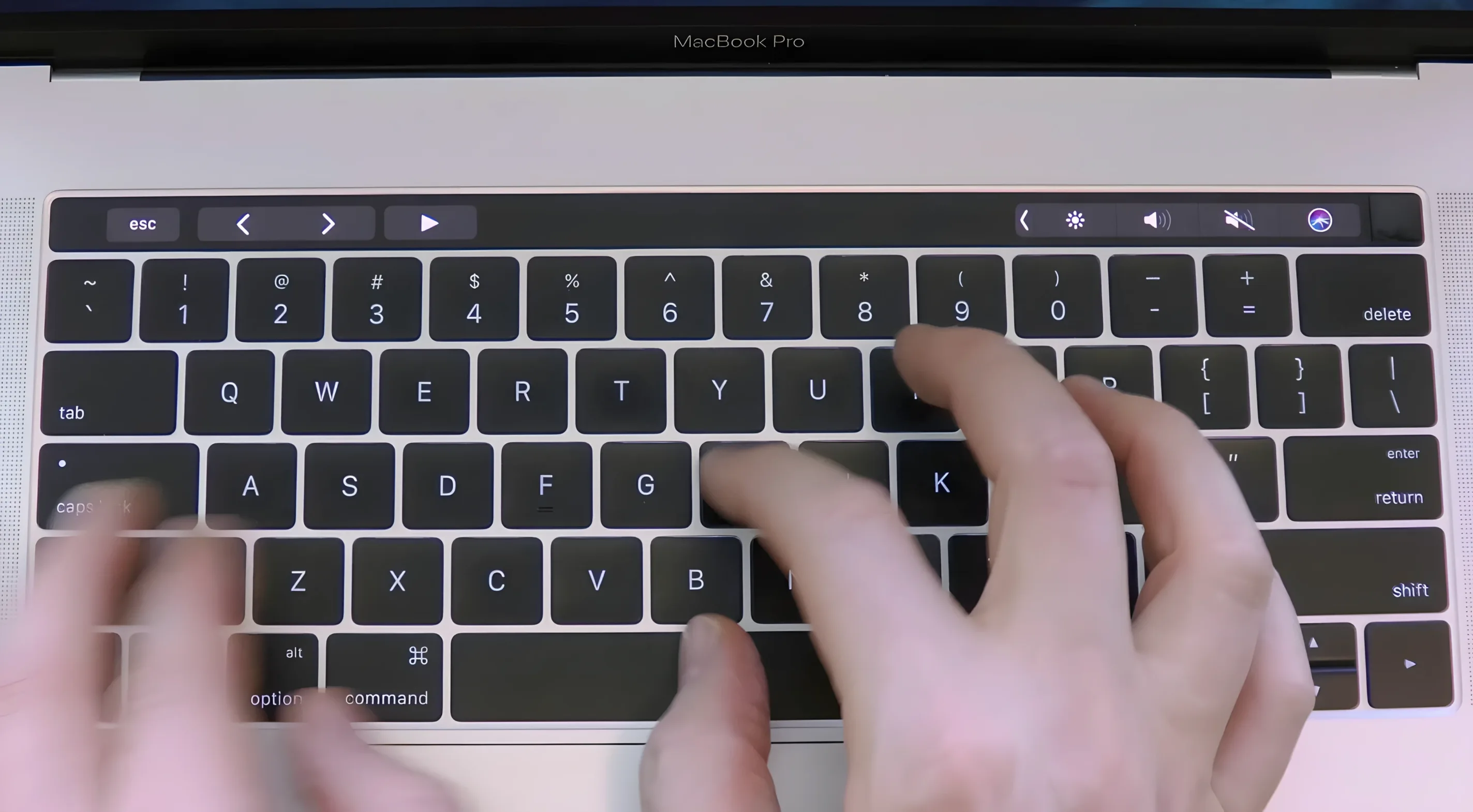
Haptyk runs on MacBooks with Apple Silicon M2 Pro or later and macOS 13 or newer. The 13-inch MacBook Pro M2 is officially on the list. It works with the built-in keyboard, so no external hardware is involved.
- Sound intensity changes with how hard a key is pressed, which makes the built-in keyboard feel like a mechanical-style sound board.
- The interface language is English.
- Version 2.0.2 is the current release and carries no listed changes from the developer.
- Installation is a simple drag into Applications, then launching from Launchpad.
For editors who spend long stretches in Final Cut or Premiere, typing feedback is usually an afterthought. Haptyk is not a productivity fix, but it gives the MacBook keyboard a tactile-sounding response that some people find satisfying during long caption entries or metadata passes. It stays out of the way and only changes what you hear, not what you type.
First Days: Tame the Sensitivity Curve
The moment Haptyk 2.0.2 lands in your menu bar, the default sound profile can feel a little theatrical. Don't judge it by the first five minutes of enthusiastic clacking. Spend your first session in a text-heavy app — Notes, Slack, a script in Writer — and listen for what's useful versus what's distracting.
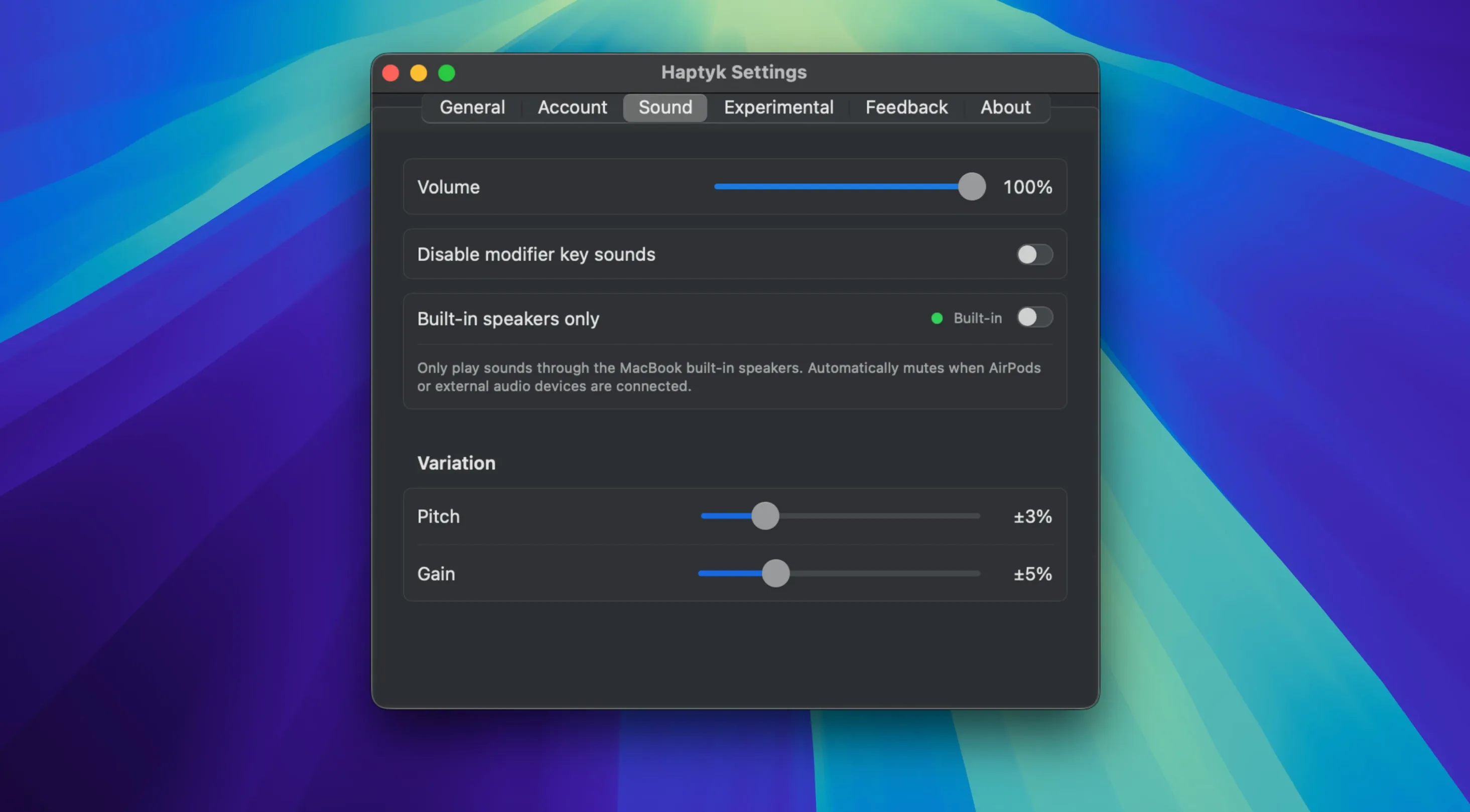
Open the app's preferences from the menu bar icon and find the force-response slider. It is easy to miss because it's labeled plainly. Slide it down about 20% from the midpoint, then type a paragraph. The goal is a sound that registers without demanding attention. For most people, that sweet spot sits around 60–70% intensity. Leave it there for a full workday before tweaking again. Your ears need time to recalibrate.
Also: test across your usual apps. Final Cut's timeline text entry, After Effects expression fields, a browser URL bar — each has a slightly different typing rhythm, and what feels right in Bear might feel aggressive in a spreadsheet. You can't save per-app profiles, so find one setting that doesn't annoy you anywhere.
Menu-Bar-Only Design Keeps It Off Your Recordings
Haptyk lives in the menu bar and comes with no dock icon unless you drag it there yourself. That's a deliberate choice, and it keeps the app invisible during screen recordings — the sound plays, but nothing appears on the capture. Video people recording tutorials or client walkthroughs will appreciate that.
A few details that are easy to overlook in the first week:
- Mute toggle via keyboard — There is no global hotkey by default, but you can add one through System Settings > Keyboard > Keyboard Shortcuts > Services. Once set, a quick chord kills the sound before a call starts without hunting for the menu bar.
- Sound falloff — The accelerometer reads force, not travel. Light taps land quieter; palm rests and accidental brushes barely register. You can type softly during late-night sessions and the output follows. No checkbox needed.
- Zero CPU drama — On an M2 Pro machine, the app's energy impact in Activity Monitor stays under the "low" threshold. It is safe to leave running during renders. I've had it active through a 45-minute 4K export without a single frame drop or thermal throttle warning.
Tapping Through Three Hours of Raw Interview Audio
Picture someone cutting an interview in DaVinci Resolve Fairlight. The timeline is dense with clip gain adjustments and crossfades. They are tapping through three hours of raw audio, marking sync points, typing clip notes into markers. The built-in keyboard is silent, as always, and the waveform display gives visual feedback — but the editor's ears are already fatigued from monitoring dialogue at reference level.
With Haptyk running, each marker keystroke lands with a short, percussive tick. It is not a musical experience; it is a confirmation signal that doesn't require looking down. The editor notices they type marker names faster because the auditory cue replaces the split-second glance at the screen to confirm a key registered. By the end of the session, the sound has become part of the editing rhythm rather than a novelty. That is the scenario where Haptyk earns its place: not as a toy, but as a subtle layer of feedback for people whose hands and ears are already the primary tools.
It Maps Accelerometer Force, Not Mechanical Switches
The top error is expecting a mechanical keyboard replica. Haptyk does not simulate Cherry MX switches or Topre domes. It maps force data from the accelerometer to a sound library, and the result is closer to a textured key-click than a full switch emulation. Users who chase a specific switch feel end up frustrated; users who accept the app on its own terms settle in faster.
Another common stumble: installing on unsupported hardware. The M1 MacBook Air and 13-inch M1 MacBook Pro lack the sensor Haptyk relies on. The app may launch but won't produce sound, and no preference toggle can fix that. Check the developer's compatibility list — MacBook Pro 14-inch and 16-inch with M1 Pro or later, MacBook Air M2 and later, MacBook Pro 13-inch M2. If your machine is not on that list, Haptyk will sit silently in the menu bar.
Finally, some people assume the app needs to be running in the foreground. It does not. Launch it once, set the sensitivity once, and let it live in the menu bar. Quitting and relaunching between tasks just adds friction. The haptyk macos workflow is genuinely set-and-forget — treat it that way.
- macOS 13 or later
- Apple Silicon or Intel 64-bit
Questions I actually get
Which Macs can run Haptyk?
It requires a MacBook with Apple Silicon M2 Pro or later and macOS 13 or higher. The 13-inch MacBook Pro M2 is officially supported.
Does Haptyk work with external keyboards?
The app focuses on the built-in MacBook keyboard, adding typing sounds that vary with keypress force.
Is the interface available in multiple languages?
No, the interface language is English only.
Notes from the edit bay · 0
Sign in or get an edit-bay pass to leave a note.
No notes from the edit bay yet. They go up after I read them.