
Three dozen PDFs hit the Downloads folder every week and they all sit there until you play drag-and-drop roulette on a Friday afternoon. The problem isn't filing—it's deciding to file. Hazel handles that gap by turning a few conditions into a silent, always-on assistant that sorts while you keep working.
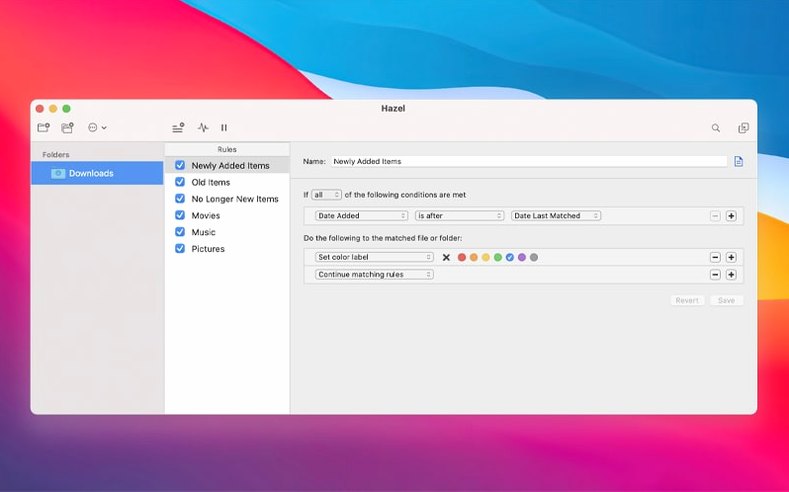
- Watch a single folder. Point Hazel at Downloads and tell it to look at PDFs only.
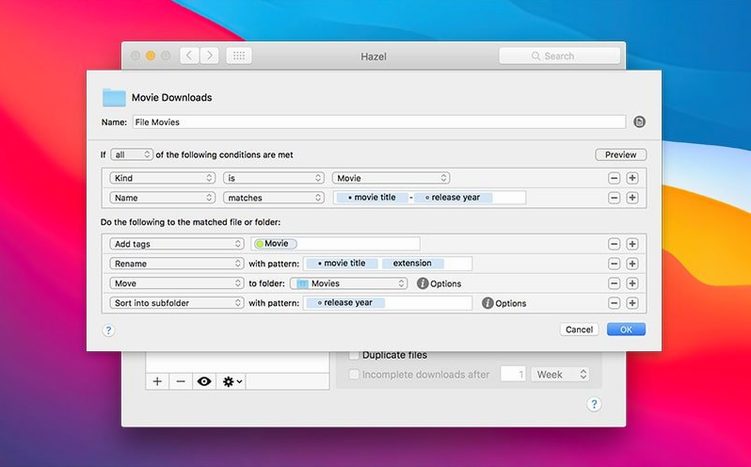
- Build a simple rule. If the file name contains “invoice” and the date created is older than one day, move it.
- Sort into themed subfolders. Send every matched invoice straight into a “Bills/Unpaid” folder on the desktop.
- Add a tag for good measure. Append a red “finance” tag as the file moves, so it stands out in Finder.
- Let stale files surface. Flip the logic for another rule—flag any screenshot untouched for 30 days and suggest trashing it.
That one rule keeps running every time a download finishes. Hazel watches subfolders too, so you can nest logic without opening Automator. It’s a preference pane that feels more like a smart filter than a scripting tool. Set it, minimize it, and find your Desktop still clean tomorrow.
Where Hazel Fits in the Mac Ecosystem
Hazel doesn't replace Finder tags or Spotlight—it feeds them. A rule that appends a keyword like “tax-receipt” makes Spotlight searches sharper without you ever opening the Info panel. Combined with macOS Quick Actions, you can have Hazel rename and move a batch of screenshots, then right-click to convert them to JPEG on the spot.
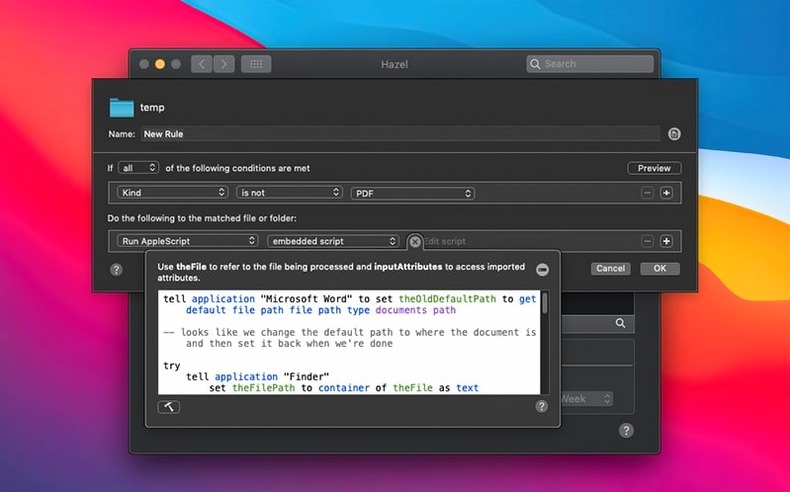
For anyone who already uses a hazel for mac setup alongside Shortcuts or Automator, the trick is letting Hazel do the grunt work and the other tools handle the final touch. Hazel watches a folder, Shortcuts picks up the file and fires off an API call. No scripting, just daisy-chaining what’s already on the Mac.
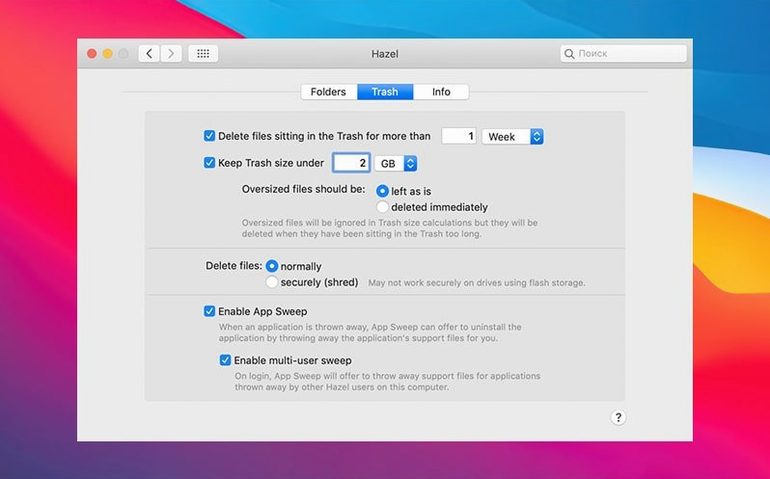
It also plays well with cloud-synced folders. Dropbox and iCloud Drive folders behave like any other location on disk, so a rule that moves finished exports into a shared client folder keeps everyone current without a single manual upload. And since Hazel respects the Trash, its cleanup suggestions hit the Bin instead of vanishing, giving you a safety net the built-in storage management tools never offered.
A Photographer’s Sunday Evening Cleanup
A wedding photographer dumps three memory cards onto the Desktop after a Saturday shoot—around 1,800 raw files and sidecar XMPs. Instead of building folders by hand, a single Hazel rule kicks in:
- Watch the Desktop for .CR3 files.
- Group them by capture date and camera serial number, pulling metadata straight from the file.
- Move each group into a folder named
YYYY-MM-DD_CAMERAinside an “Ingest” drive. - Color-tag any file shot at ISO 6400 or above so the culling pass starts with potential noise problems already flagged.
While the rule runs, the XMP sidecars follow because Hazel’s “sibling file” condition drags them along. By the time coffee is ready, the Desktop is empty, the backup NAS has a copy (handled by a second rule on the Ingest folder), and the photographer opens Lightroom to a neatly pre-sorted catalog. That’s the difference between starting an edit and starting a filing job.
Three Mistakes That Trip Up New Users
Watching the wrong folder level. Pointing Hazel at your home directory with recursive rules sounds powerful until it starts matching system files. Start shallow—Downloads, Desktop, a single project folder—and add depth only after you’ve seen the rule behave for a week.
Forgetting the order of rules matters. Hazel processes rules top to bottom in the list. A common stumble is placing a broad “move all images” rule above a narrower “move only screenshots” rule. The wide net catches everything first, and the screenshot rule never fires. Drag conditions into the right sequence and test with a single file before trusting the full folder.
Ignoring the preview pane. The rule status window shows exactly which files match and what action Hazel will take—before anything actually happens. Users who skip this and let a fresh rule loose on a thousand files often spend an hour undoing moves. Run the preview, eyeball the matches, then flip the rule live.
Version 6.1.2 leaves older macOS releases behind and plants its feet firmly on Ventura and later. Tag colors that vanished on Tahoe snap back into view, and the ssh/scp port field in the server connection window finally stretches wide enough to read a full number. Also fixed: jagged window animations on Tahoe, editing custom table attributes that refused to stick, and the remote server file browser upload view got a visual refresh. The resume/pause icon in the menu now matches what you clicked.
- macOS: 13 Ventura or later
- Architecture: Apple Silicon and Intel
- Languages: English
Questions I actually get
Does Hazel work on files buried inside subfolders?
Yes. You can set a rule to run on a top-level folder and tell Hazel to descend into every subfolder, applying the same logic across the whole tree.
Can Hazel help me find files I haven't used in months?
Absolutely. A rule can check the “date last opened” or “date last modified” attribute and suggest moving or deleting files that have been untouched for a period you specify.
Notes from the edit bay · 0
Sign in or get an edit-bay pass to leave a note.
No notes from the edit bay yet. They go up after I read them.