If you've ever nudged bezier curves in Illustrator, you already understand half of Glyphs. The other half is where it gets interesting: this is a type design studio built entirely around how letters actually work. Instead of drawing one shape at a time, you're building a system of components, smart corners, and reusable parts that stay consistent across an entire typeface. It's the difference between drawing twenty-six individual 'a's and designing one that behaves correctly in a thousand different contexts.
- Draw and edit outlines with tools that feel familiar if you've used any vector app, but are tuned specifically for letterforms
- Build a font once with smart components — change a serif in one place and watch it update across every character that shares it
- Script repetitive tasks or add custom tools through the built-in Python interface module
- Preview your work in real time with the Glyphs Viewer companion app, showing live text as you edit
- Generate production-ready OpenType files with automatic hinting, kerning, and feature code
Glyphs runs natively on Apple Silicon and Intel Macs with macOS 12 or newer, and speaks eleven interface languages including Russian, Japanese, and Czech. It's not a typography toy — it's a serious production tool that happens to stay out of your way.
Where It Drags (And Where It Doesn't)
Speed is mostly a non-issue. On an Apple Silicon Mac, Glyphs launches in about three seconds and stays responsive even with a thousand-character family open. The bezier drawing engine feels as snappy as Illustrator's, and switching between masters in a variable font rebuilds previews almost instantly. Where you'll feel the weight is in Python script execution and big batch exports. Generating a 12-weight family with small caps and alternates can tie up the render bar for a solid minute. The app doesn't beachball during that — it just gets quiet, which is somehow worse when you're on a deadline.
RAM usage sits around 400 MB for a modest project, but climbs past 2 GB with multiple masters and a full glyph set. Not bloated by any standard, but enough that you'll notice if you're also running After Effects in the background. The autosave system saves your skin regularly without stuttering the interface — a small detail that matters when you've spent three hours on a single ampersand. Stability-wise, I've only seen it crash twice, both times involving third-party plug-ins that hadn't been updated for version 4.1.
First-Timer Fumbles
The biggest rookie mistake is treating Glyphs like a drawing app. New users drag points around for hours, manually tweaking every curve, unaware that the real power sits in the Components panel. If you're adjusting the same serif shape across twenty glyphs without linking them, you're doing it wrong. Stop, open the component list, and build it once.
Another classic blunder: ignoring the sidebar metrics. Beginners obsess over outlines and forget that spacing between letters matters as much as the shapes themselves. A beautifully drawn 'f' that crashes into every following character is useless. Set your sidebearings early, test with real words, and adjust before you finalize outlines. Also, skipping the Font Info panel entirely — that's where OpenType feature code, naming, and vertical metrics live. A font that looks perfect in the edit window but exports with broken line spacing usually has a bad value buried in that dialog.
Lastly, newcomers often miss that Glyphs speaks Python. You don't need to be a developer — even a two-line script that renames glyphs or adjusts anchors can save an afternoon of clicking. The scripting panel sits right there under the Window menu, ignored by most until their third project.
Drafting a Condensed Width, from Grid to Interpolation
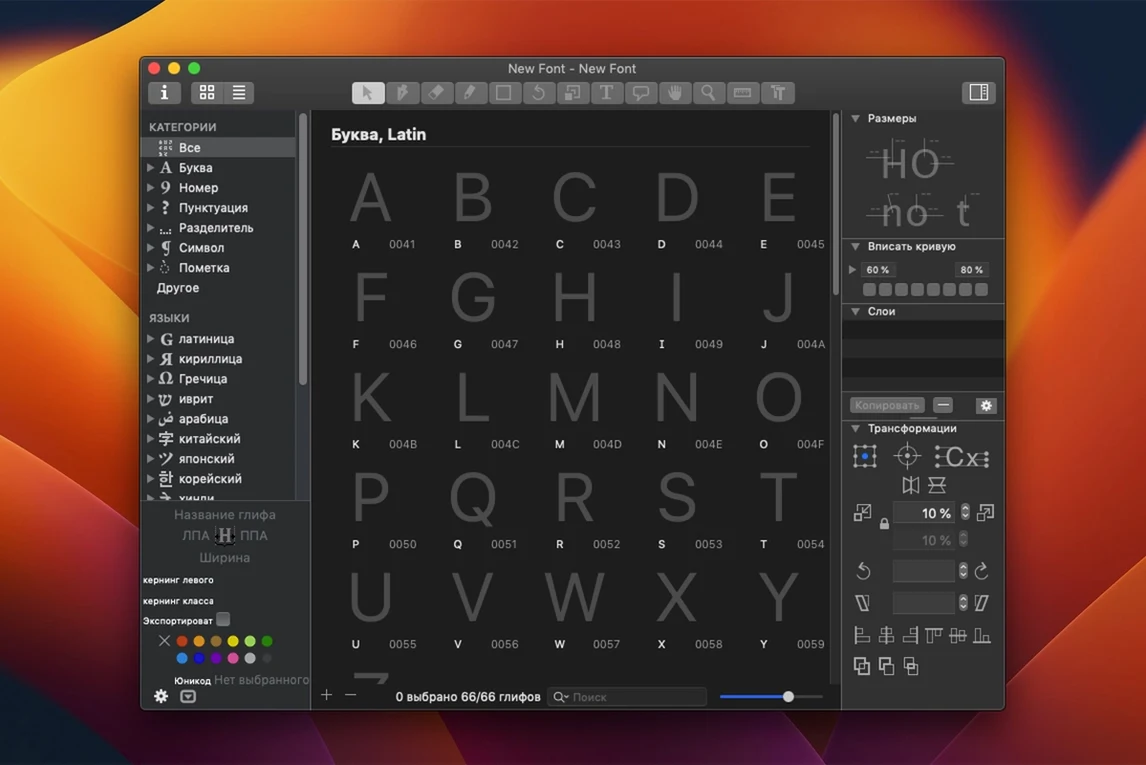
Imagine Tuesday morning, coffee cooling on the desk. I open Glyphs and a client's font file — a sans-serif that needs a condensed width added to the family. The glyph window shows a clean grid of characters, each one a separate tab. I hit Cmd+F and type "a" to jump straight to the lowercase.
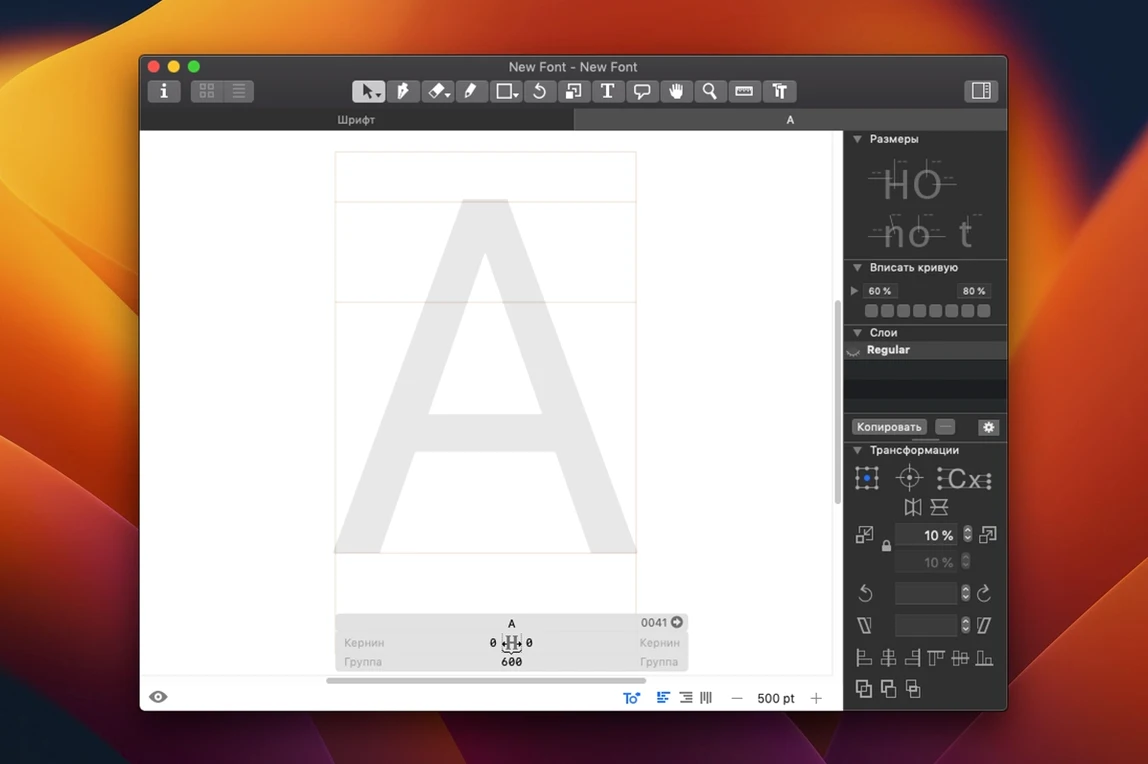
Before touching a single node, I go to File > Font Info > Masters and add a new master with a narrower width value. The existing outlines don't change, but now I've got a slider that can interpolate between the regular and condensed extremes. I select the lowercase "n" — the backbone letter that sets rhythm for the entire font — and switch to the condensed master tab. The outline looks stretched, so I select the stem nodes and nudge them inward. Twenty seconds of work, and the "n" already reads tighter.
Next I drag through a test string in the preview panel: "Handgloves, Hamburg, nunnery." The spacing is off — the "n" and "u" are practically touching. I pop open the metrics sidebar, increase the right sidebearing on the "n" by 15 units, and the preview updates in real time. Better. I copy those metrics to "m" and "h" through the context menu because they share similar rhythm.
The client wants tabular figures too, so I open the "one" glyph, check that its width matches the "zero" from the font's number set, and adjust with the Transform panel. I'm building a component-based ampersand now — the top loop reuses the bowl from "e", so I drag that component in from the palette and rotate it. The whole thing takes maybe forty minutes, including a quick Python script I copied from the Glyphs forum to check for duplicate anchors across the entire character set.
Before exporting, I open Font Info one last time, verify the vertical metrics match the original weight, and hit Cmd+E. The .otf lands on my desktop a minute later, ready to test in InDesign. That's the rhythm of Glyphs — not frantic, not precious, just a steady flow from idea to usable output.
No big features, just a round of stability fixes and smaller improvements that make the app feel tighter.
- macOS 12 or later
- Apple Silicon or Intel 64-bit
Notes from the edit bay · 0
Sign in or get an edit-bay pass to leave a note.
No notes from the edit bay yet. They go up after I read them.