
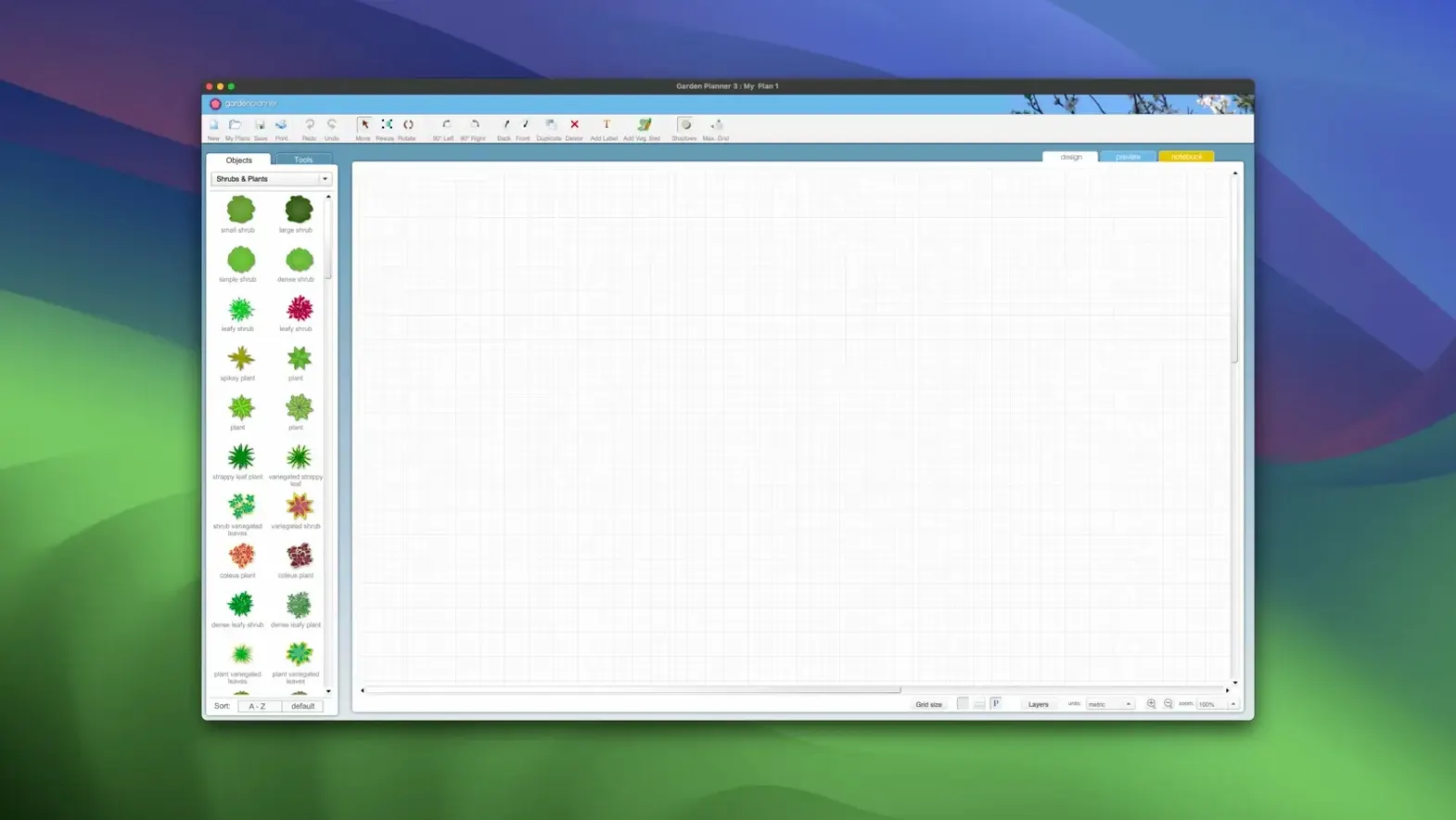
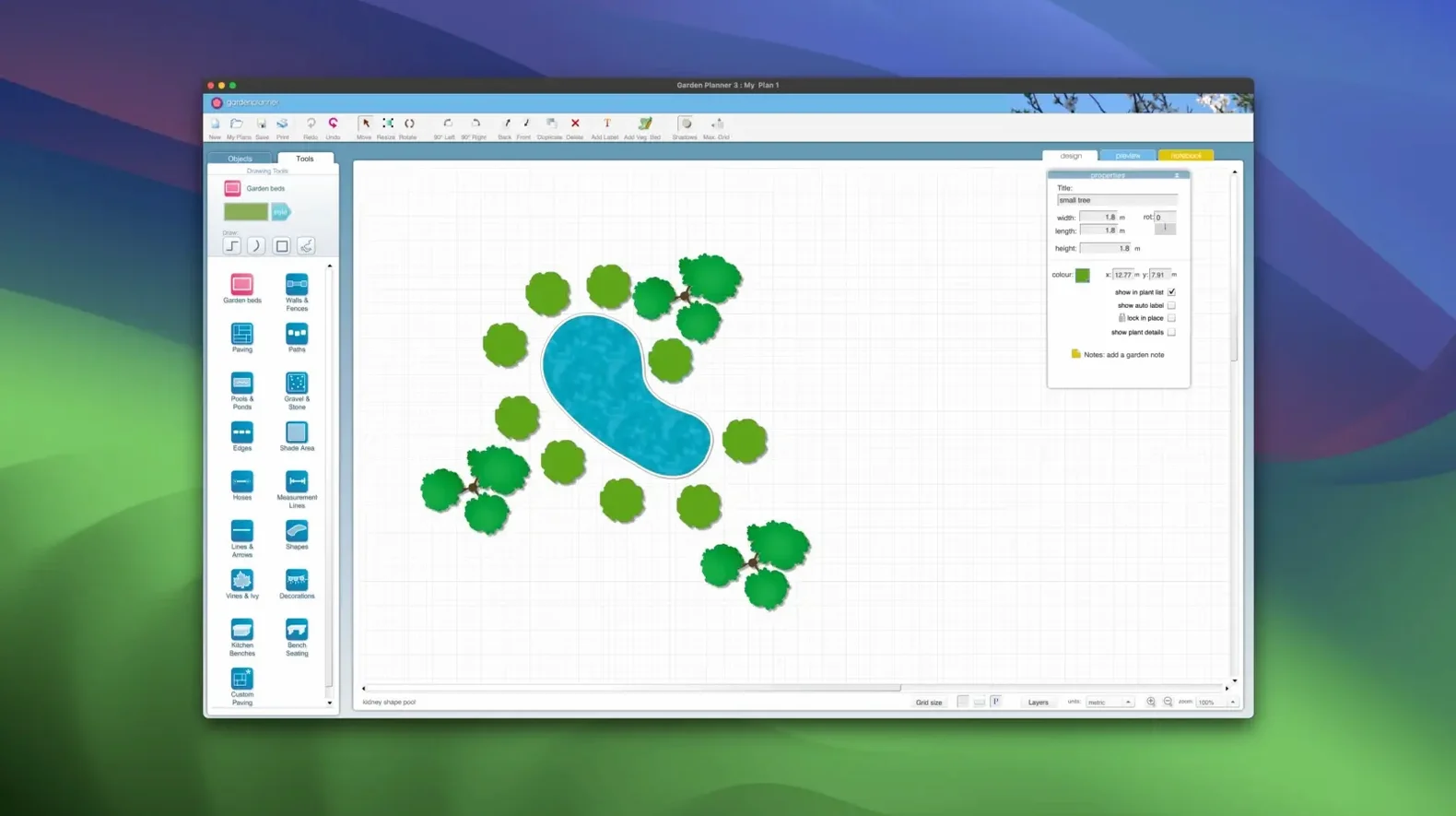
You just dropped a patio onto the drag-and-drop grid, spun a maple tree 90 degrees, and hit the 3D view to see it all from ground level. That’s the first five minutes in Garden Planner, and it already looks like something you’d scribble on a napkin—except this one prints a report.
Drag-and-Drop Layouts on a Blank 2D Canvas
- Dragging plants, trees, fences, and buildings straight onto a 2D canvas without hunting through menus.
- Tweaking every object: rotate it, scale it, duplicate it, or reshape it until the layout feels right.
- Switching to the 3D view for a quick walkaround before you dig a single hole.
- Attaching text notes to beds or shrubs so you remember why you put the hydrangeas there.
- Running an object report—print it or save it as a CSV or TXT file to hand off to a nursery or crew.
- Saving your own tweaks as library presets, so every new project starts with your go-to spacing or stone path.
English-Only Interface and Legacy macOS Support
- The interface is English only, so non-English plant names or notes stay in your own vocabulary.
- Version 3.8.86 added fresh path styles, but the tool still runs on macOS as far back as 10.7—great for older machines, less so if you crave a modern UI.
- The 3D view gives you a quick sense of scale, not a photorealistic render. It’s for checking proportions, not impressing clients.
- It’s a standalone Mac app from smallblueprinter, not a web service—everything lives on your drive.
Blocking Out a Client Backyard in Two-Foot Grid Snaps
I open a blank plot and set the dimensions to match a client's backyard—forty feet wide, thirty deep. The grid snaps to two-foot squares. First drag: a rectangular lawn, dropped dead centre. I pull the corners until it leaves roughly five feet on each side for beds. Three shrubs from the library land along the north edge—hydrangea, boxwood, a dwarf spruce I've never used before. Each one rotates with a two-finger spin on the trackpad; I nudge the spruce fifteen degrees so it doesn't look like a soldier.
The path tool comes next. I draw a curved gravel walkway from the back door to a small patio area, then swap the surface to one of the new path styles that shipped in 3.8.86—a staggered flagstone pattern that actually reads as stone at print size. A quick switch to 3D view shows the patio sitting too high relative to the lawn. Back in 2D, I drop the elevation half a foot and check again. Better. Before closing the file, I select every plant and run the object report. It spits out seventeen items with quantities and descriptions. I save it as a CSV and attach it to an email for the nursery. Total time: twenty-two minutes, and I went down exactly one rabbit hole—deciding between two nearly identical ornamental grasses.
Tighten Grid Snap for Planting Beds First
The defaults are sensible, but a handful of tweaks save repetitive work later:
- Grid spacing. The default snap is generous. For planting beds, I tighten it to six inches. For hardscape, I leave it at a foot. You switch this in the canvas preferences, and it sticks per document.
- Default plant label size. The standard text is fine on screen but can vanish at print scale. Bumping the font up two points and switching to bold makes the report and the preview screen far more readable.
- Library favourites. The built-in library holds over 1,200 objects, which is great until you spend ninety seconds searching for the same birch every project. Drag your twenty most-used items into the Favourites tab. Do it once, curse yourself for not doing it sooner.
- Export resolution. The JPEG and PNG export defaults to screen resolution, which looks soft in a printed proposal. I set mine to 300 dpi and leave it there.
One thing I don't touch: the 3D view's walk speed. It's calibrated for a slow stroll, and that's exactly how you catch proportion mistakes.
Cold Launch in Under Three Seconds on Apple Silicon
On an Apple Silicon Mac, the app launches in under three seconds with a cold disk. On an older Intel machine running El Capitan, it takes about seven—still quick enough that you're not reaching for your phone. The canvas redraws instantly when you drag a tree across thirty feet of beds. Even projects with over a hundred objects stay responsive; the 3D view drops a few frames when you spin a complex scene, but it never beachballs.
Memory usage idles around 180 MB with a moderate project open. I've seen it climb to 400 MB after a long session with multiple exports, which is reasonable for a design tool that keeps undo history. The app hasn't crashed on me once across about forty projects. Autosave works quietly—I've force-quit twice out of curiosity, and both times the document reopened with everything intact down to the last rotated shrub. The trade-off for that stability is the interface: it uses older Cocoa widgets that look out of place next to a modern Mac app, but buttons are exactly where you left them and they do exactly what the label says.
Rough Concept Here, Then Export JPEG for Markup
Garden Planner doesn't try to replace CAD software or photo editors. It slots into a workflow like this: rough concept here, then over to something like Preview or a markup tool for adding dimensions and callouts. The JPEG export at 300 dpi drops straight into a Pages or InDesign document when a proposal needs a polished site plan. The CSV object report opens cleanly in Numbers or Excel—I've handed those lists to landscape crews who don't own a Mac, and they read them on an Android phone without fuss.
macOS integration is straightforward but not fancy. Quick Look previews work on saved project files, so you can tap the spacebar in Finder and check a plan without launching the app. The print dialogue hooks into the standard macOS panel, meaning any printer your Mac knows, Garden Planner knows. No cloud sync, no account, no export to some proprietary format. That's a feature, not an omission—files stay local, file names make sense, and a .gdn document from five years ago opens without drama. If you're hunting around for a planner 5d mac crack or a 5d planner torrent, you're looking for a different category of tool entirely; this one draws garden beds and prints plant lists, and it does that without pretending to be a home-design suite.
Path styles got a refresh in version 3.8.86—more options for gravel, stepping stones, and paved looks when you drag them out. Also fixed: a handful of stability improvements and edge-case bugs that could trip up larger layouts.
- macOS 10.7 or later
- Runs on Intel and Apple Silicon Macs
Questions I actually get
Can I export the plant list to share with a landscaper?
Yes. The object report prints directly or saves as a CSV or TXT file, so you can hand off a clean list of every element in your design.
Does the app include a 3D walkthrough?
It includes a 3D view for checking scale and placement alongside the 2D plan, but it's not a full walkthrough renderer.
Notes from the edit bay · 0
Sign in or get an edit-bay pass to leave a note.
No notes from the edit bay yet. They go up after I read them.