Is My Mac Ready for It?
It runs on any Mac from macOS 10.15 Catalina onward, with native support for both Intel 64-bit and Apple Silicon chips. No Rosetta workaround needed — it launches straight into ARM mode on M-series machines.
A Pattern-Based Sequencer Built for Beatmaking Speed
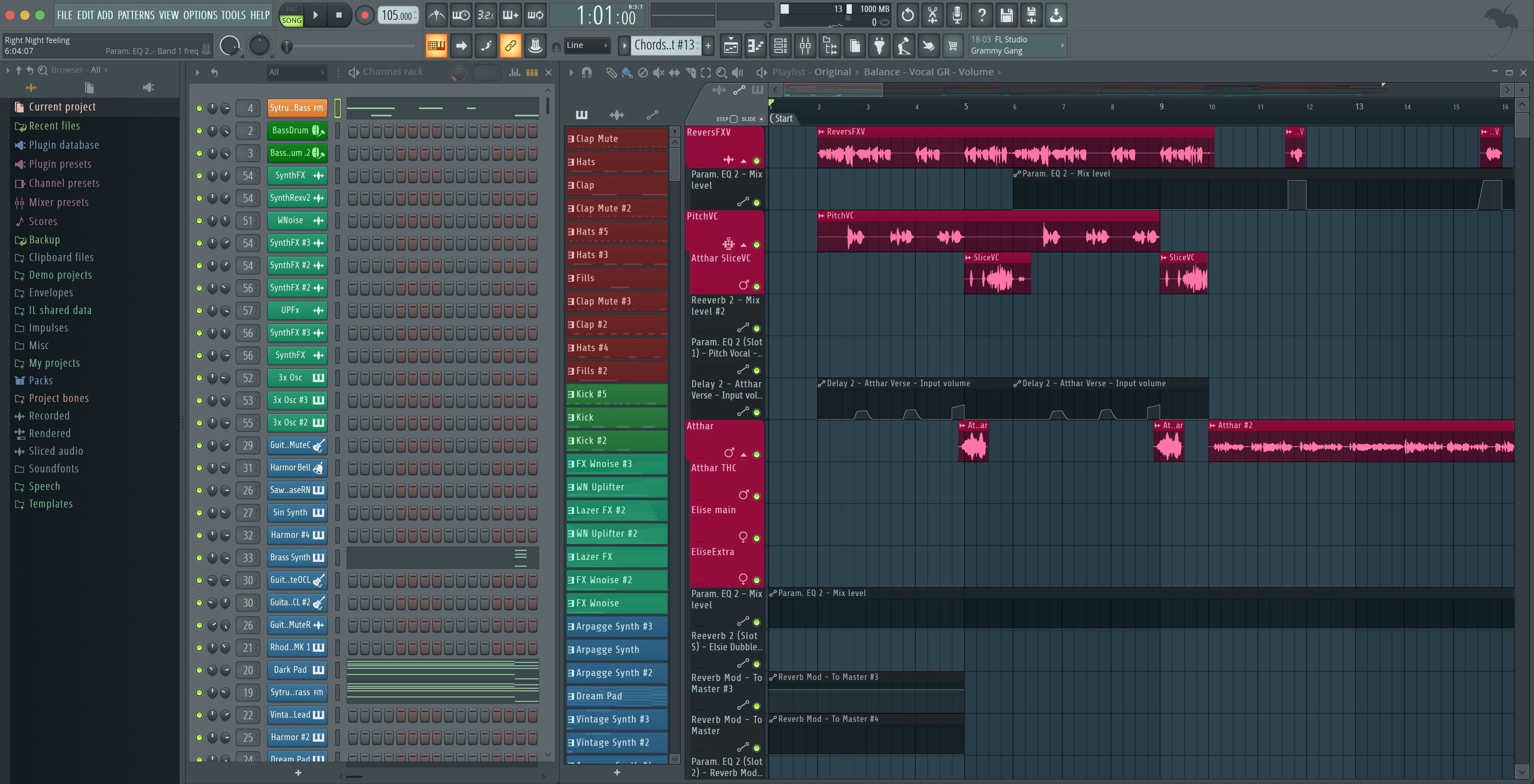
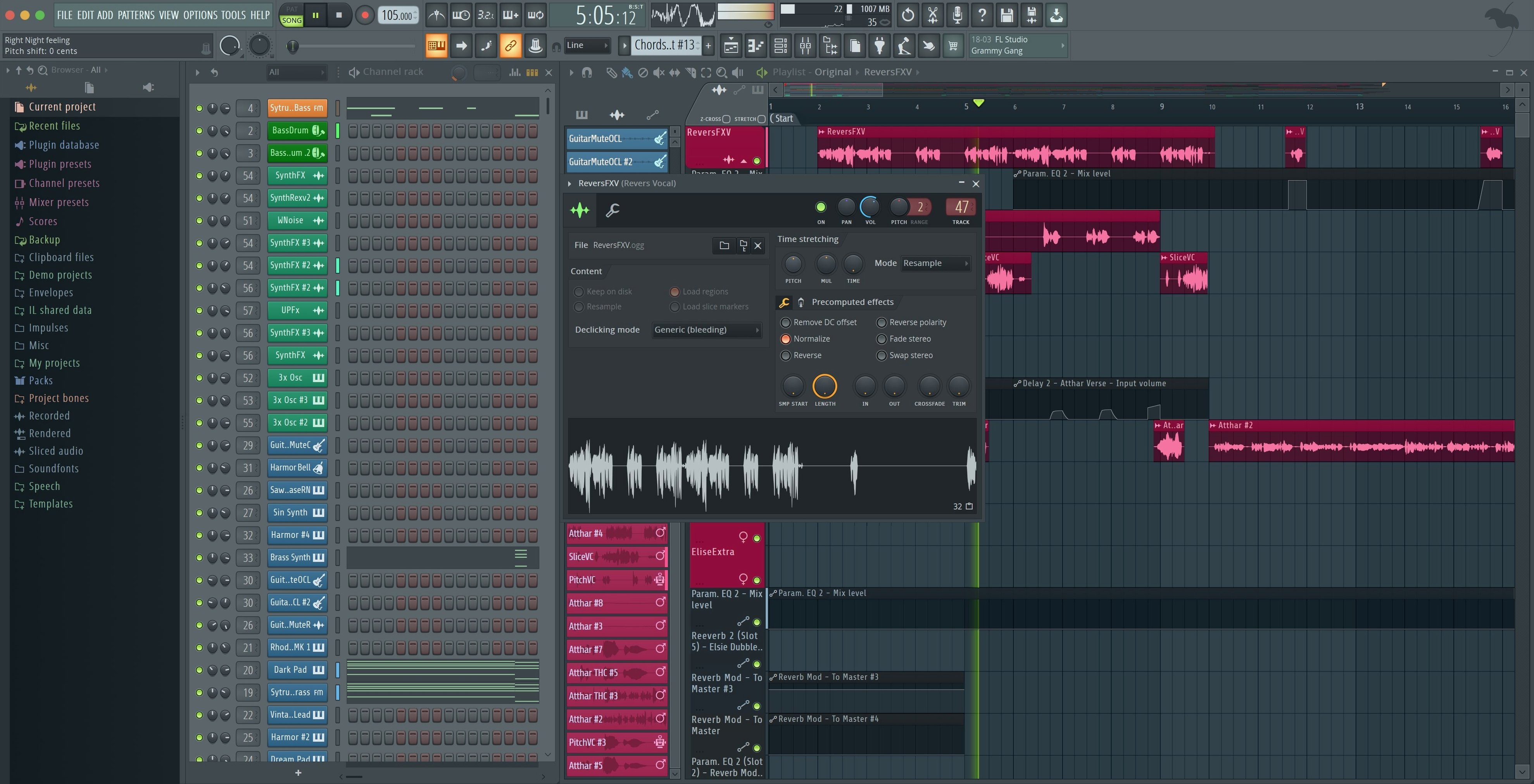
Think of it as the pattern-based sibling. GarageBand gets you started; Logic goes deep into linear tape-machine thinking. FL Studio builds around a step sequencer and a channel rack that make beatmaking and electronic production feel fast and tactile, but it still records and mixes full live takes when you need it.
Fractional CPU Readouts Arrive in the Plugin Monitor
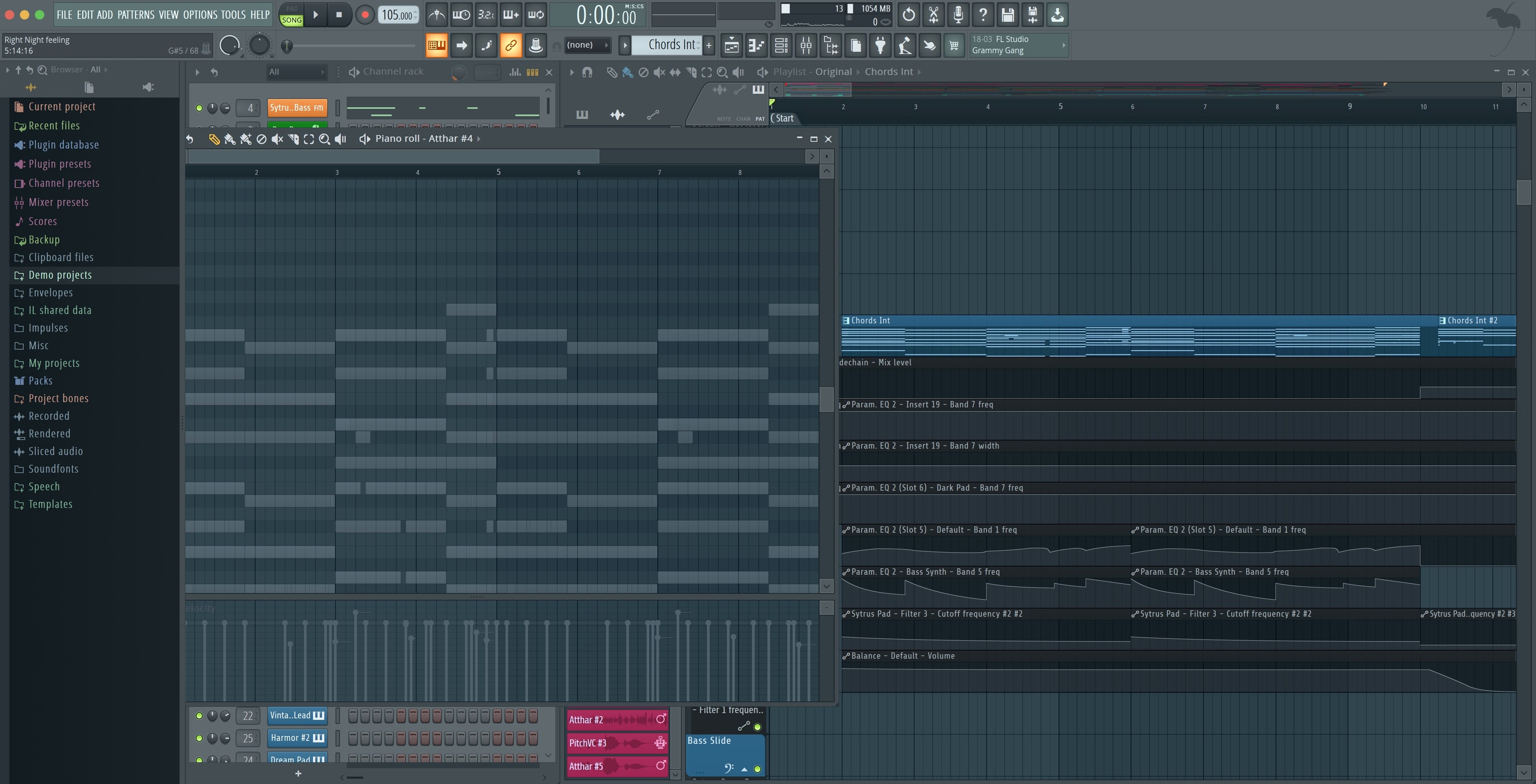
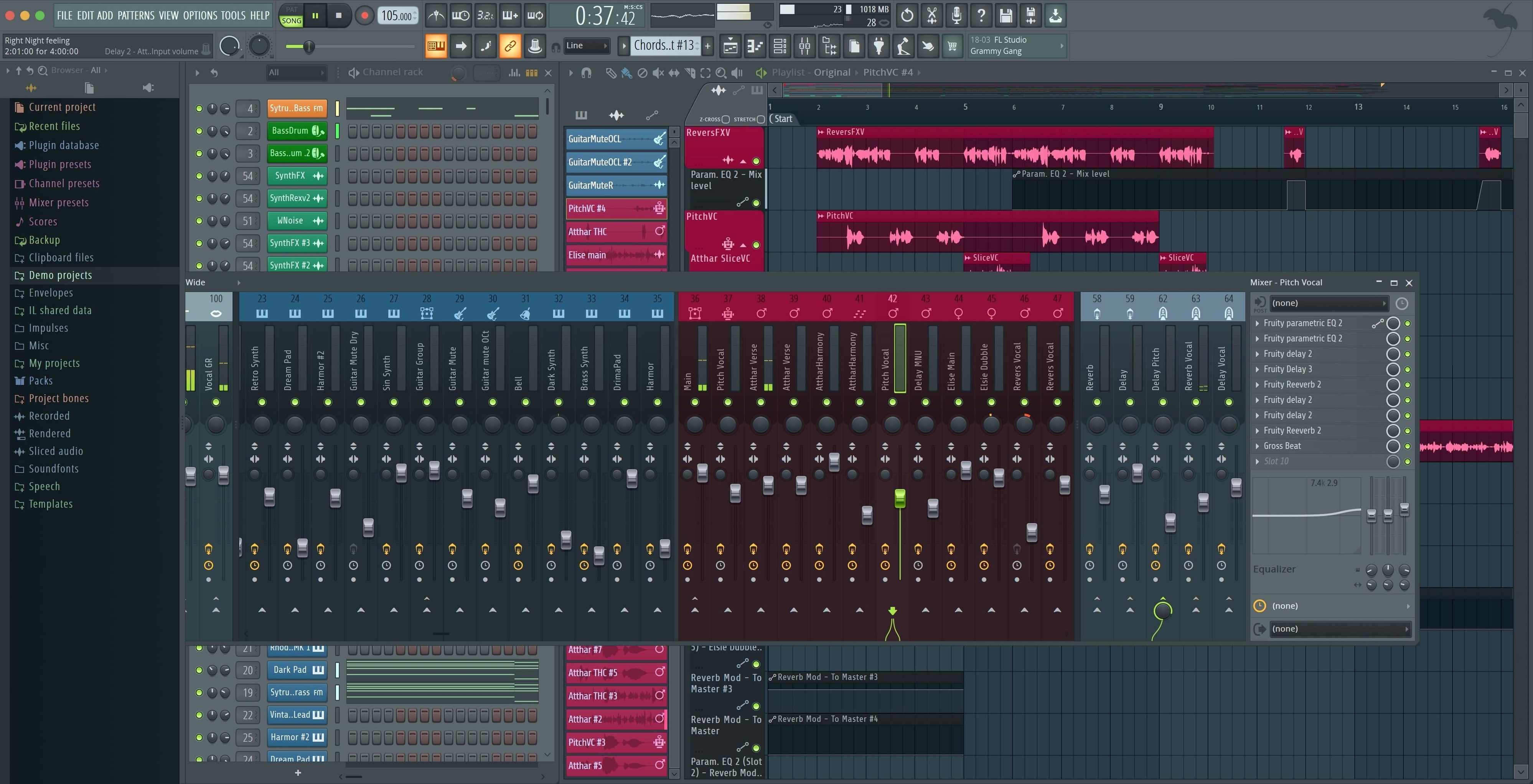
A full mixer with effects, automation clips you can draw across any parameter, and the standard arrange window sit right next to the piano roll. The 2026.1.6 update tightened up the Plugin Performance Monitor to show fractional percentages, so you know exactly how hard a synth is hitting your CPU mid-session.
One-Click MIDI Enable from a Pop-Up Notification
Plug in a new controller and a notification pops up with a one-click enable option — added in this maintenance cycle alongside a more legible Tuner interface that stays readable from across the desk.
Match Your Interface Sample Rate Before You Start
Out of the box, FL Studio works. But a few tweaks make the first session feel less like a demo and more like your room. Open Options > Audio Settings first. Set the sample rate to match your interface — 48 kHz is a solid default for most work — and pick your dedicated audio driver instead of the built-in output. Buffer size is the one knob that changes everything: 128 or 256 samples for tracking, 512 or 1024 when a mix gets heavy. If you hear clicks and pops during playback, that buffer is too tight for the project, not the computer failing.
Next, head to Options > General Settings. The "Auto save" section deserves more than the default. Turn on "Frequently (every 5 minutes)" and set the maximum backups high. A crashed plugin or a wrong click should cost minutes, not an evening. While you're there, disable "Show startup splash screen" if you want to get in faster. Small thing, but it adds up when you're opening the app six times a day.
One more habit: set your project template. Build a session with your usual mixer routing, a few empty playlist tracks, and a limiter on the master, then save it as a template in File > Save as template. Every new project starts from your layout, not Image Line's. That's ten minutes saved before you even write a note.
Your First Week: Practical Moves
Don't try to learn everything at once. FL Studio rewards a specific path: make a beat in the channel rack, shape it in the piano roll, arrange it in the playlist, mix it in the mixer. Spend the first day just on the channel rack. Click a few built-in drum sounds into a pattern, switch to the piano roll, drag notes around. Get comfortable with the Browser on the left — that's where every sound, sample, and plugin lives. Drag a kick from Packs > Drums straight onto a channel. It just works.
Day two belongs to the piano roll. Right-click a note and explore the chop, strum, and arpeggiate tools. Hold Ctrl and drag to select, Shift and drag to clone. The piano roll is where FL Studio separates itself from most other DAWs on Mac, and it's worth the time.
By day three or four, start touching the mixer. Route channels to mixer tracks, add an EQ and a compressor, and watch the Plugin Performance Monitor while you do it. The fractional percentage readout added in 26.1.6 is genuinely useful here — you'll see a synth jump from 4.2% to 11.8% when you turn on a reverb, and that tells you more than any vague "high CPU" warning.
Keep a notebook or a plain text file open. Write down the keyboard shortcuts you actually use: F6 opens the step sequencer, F7 the piano roll, F9 the mixer, F5 the playlist. That's the whole navigation model in four keys. You'll memorize them naturally by the end of the week, but writing them once helps.
Point the Browser at Your Cloud Sample Library
FL Studio isn't an island. The Browser can point to any folder on your Mac, so a Samples folder in iCloud Drive or Dropbox becomes a shared library across projects and machines. If you use Splice or a similar sample manager, add that folder to the Browser and drag from there like it's built in. Cloud project backup in the 2026 version fits right in — save a project to a synced folder and it follows you to another Mac without any special export step.
On the recording side, it works with whatever macOS sees. A USB microphone, an aggregate device, a multi-channel interface — set it in Audio Settings and route the inputs to mixer tracks. The new MIDI controller notification plays well here too: plug in a controller while a project is open, and FL Studio both sees it and asks if you want it enabled. No restart, no digging through menus.
For bouncing ideas out, the render dialog is easy to ignore until the first deadline. When you split mixer tracks on export, the new checkboxes for Master and Current in 26.1.6 remove a step that used to require careful selection. It's a small change that shows the developers thinking about actual bounces instead of hypothetical ones. That's a good sign for a workflow tool.
Templates That Preload Your Drum Routing and Limiter
Here's the shape of a real session. Say it's 10 p.m., you have an idea, and you open FL Studio. The template loads — your drum routing, your limiter on the master, a few empty patterns. You set the tempo to 92 BPM.
You start with a kick and a snare in the channel rack. Four clicks later, there's a pattern. You clone it for a variation, add a hi-hat from the Browser, and use the piano roll to nudge a few hits off the grid. The pattern starts to breathe.
Then a chord idea. You pull up a built-in synth, place a MIDI clip in the playlist, and paint chords in the piano roll. It sounds static, so you open the synth's filter cutoff, right-click it, and create an automation clip. You draw a slow rise over eight bars. That one move changes the whole feel — and it's exactly the kind of thing that feels natural in FL Studio's automation system.
Now you route the kick to a mixer track, add a compressor, and dial in a little punch. The Plugin Performance Monitor shows the synth at a reasonable load. You notice the bass is clashing with the kick, so you add an EQ and cut a narrow band at 120 Hz on the bass. The mix opens up.
By midnight you have 16 bars that work. You hit Ctrl+Shift+S, save it, and let Auto save catch the next iteration. You bounce a quick MP3 to your Desktop to listen in the morning. The export takes under a minute. You close the lid knowing nothing was lost.
The Channel Rack Is the Core, Not a Quirk
The most common one: treating the playlist like a tape recorder and ignoring the channel rack entirely. FL Studio's pattern system is not a quirk to work around; it's the core. If you try to use it like Logic, you'll fight it for months. Learn the pattern-to-playlist flow first, and everything else follows.
Another classic: loading too many plugins before understanding gain staging. A synth at full volume into a compressor into a limiter sounds fine for five minutes, then the mix turns to mush. Pull each channel down, leave headroom on the master, and only then start adding effects. The mixer meters will tell you when you're wrong.
Here's a subtle one: forgetting that the Browser searches only what it has indexed. If you drop a folder of samples next to your project but never add it to the Browser, you'll wonder why nothing shows up. It's a simple fix — right-click, add folder — but it trips up people coming from other DAWs who expect a global media pool.
Watch out for over-automating too. Yes, automation clips are fun. Yes, you can automate everything. No, a hi-hat's pan position probably doesn't need six breakpoints per bar. Automate with intention, not because the right-click menu makes it easy.
And a practical note for Mac users: if you're searching around for help online, you'll see people mention things like FL Studio torrent, Mac torrent FL Studio, or FL Studio 20 Mac torrent. The version here is the full 2026 Producer Edition build, ready for Catalina and newer on both Apple Silicon and Intel. That's what matters for a working setup — just make sure you grab a complete bundle that includes all the stock plugins and content libraries.
The export dialog now lets you check 'Master' and 'Current' independently when splitting mixer tracks. The Plugin Performance Monitor got smarter too — percentages show fractional precision so you catch CPU spikes earlier. Also fixed: a fresh MIDI controller notification with an enable option, and a Tuner UI tweak that stays readable at a distance.
- macOS 10.15 Catalina or newer
- Intel 64-bit or Apple Silicon Mac
- No Rosetta required on M-series chips
Questions I actually get
Can I use FL Studio on an Apple Silicon Mac?
Yes. The app runs natively on ARM without Rosetta, alongside 64-bit Intel Macs.
What kind of projects does it handle?
It covers recording, arranging, editing, and mixing in one environment, with a pattern-based workflow that suits beatmaking as well as full song production.
What macOS version do I need?
macOS 10.15 Catalina or later. It supports both Intel and Apple Silicon architectures.
Notes from the edit bay · 0
Sign in or get an edit-bay pass to leave a note.
No notes from the edit bay yet. They go up after I read them.