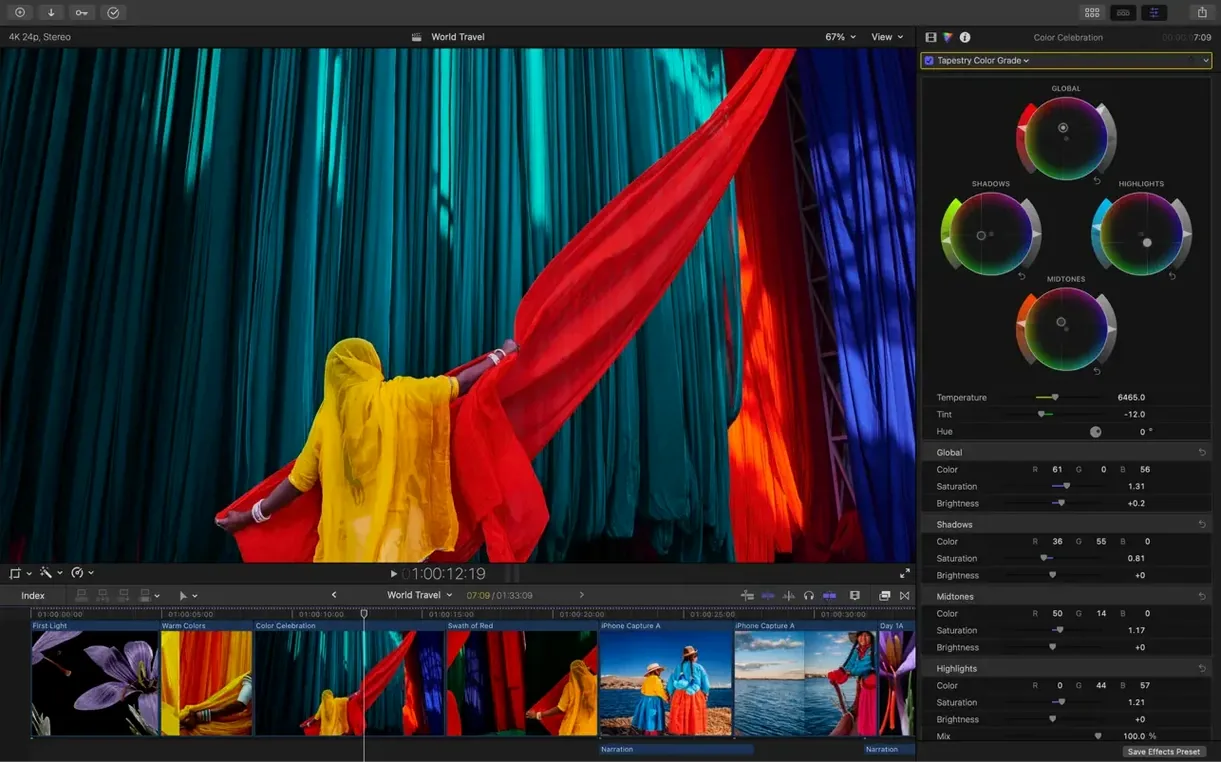
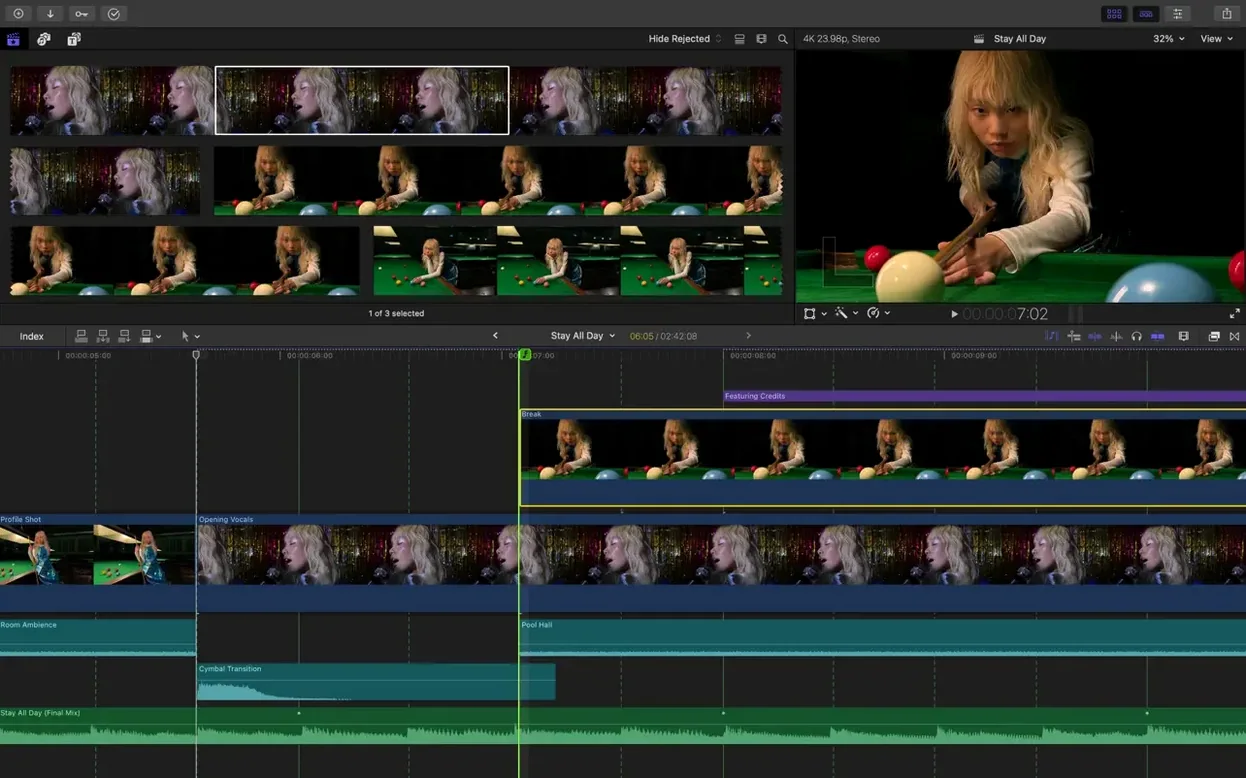
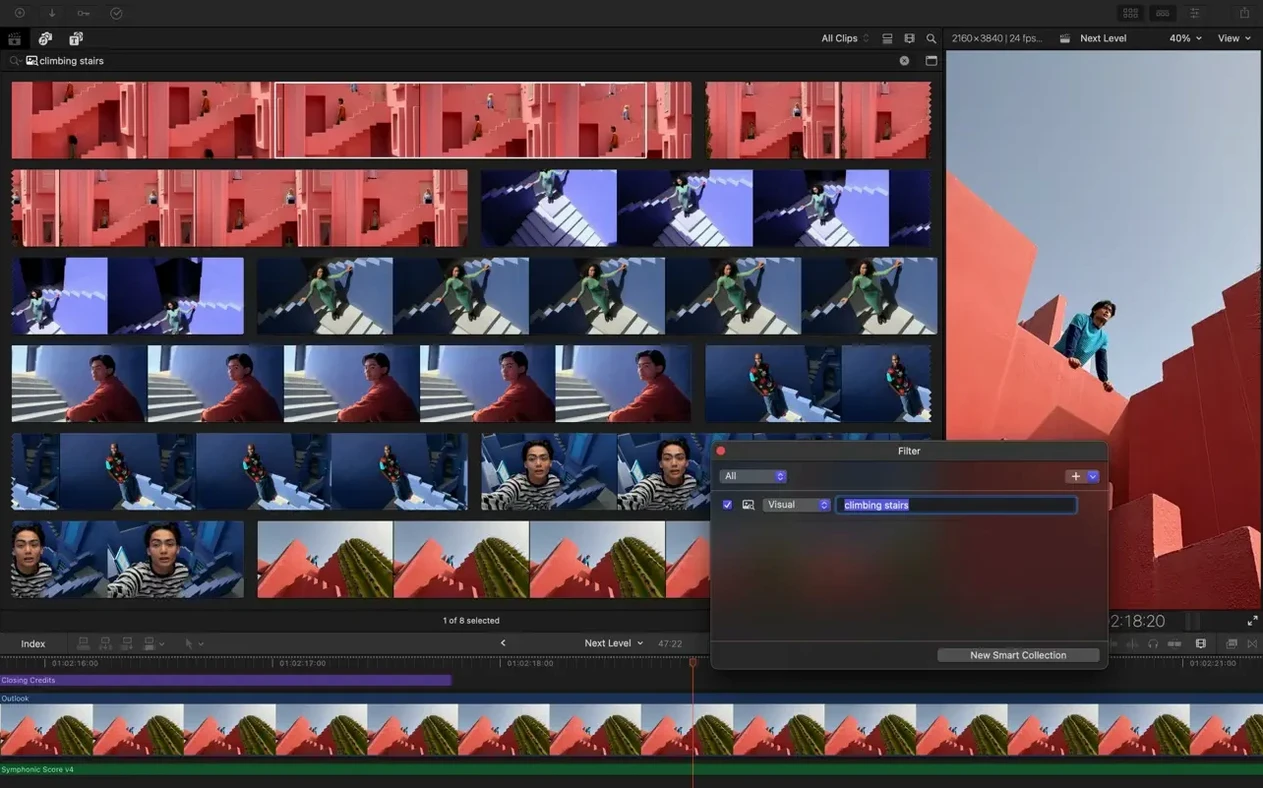
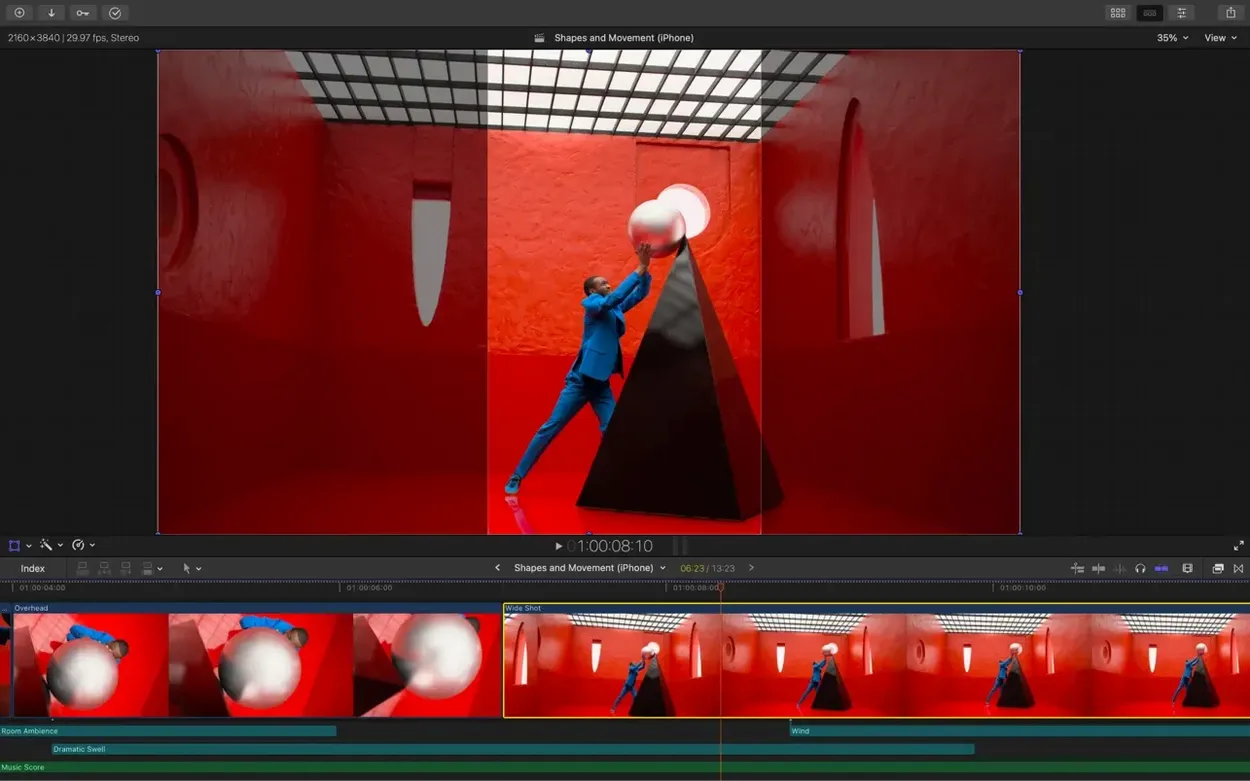
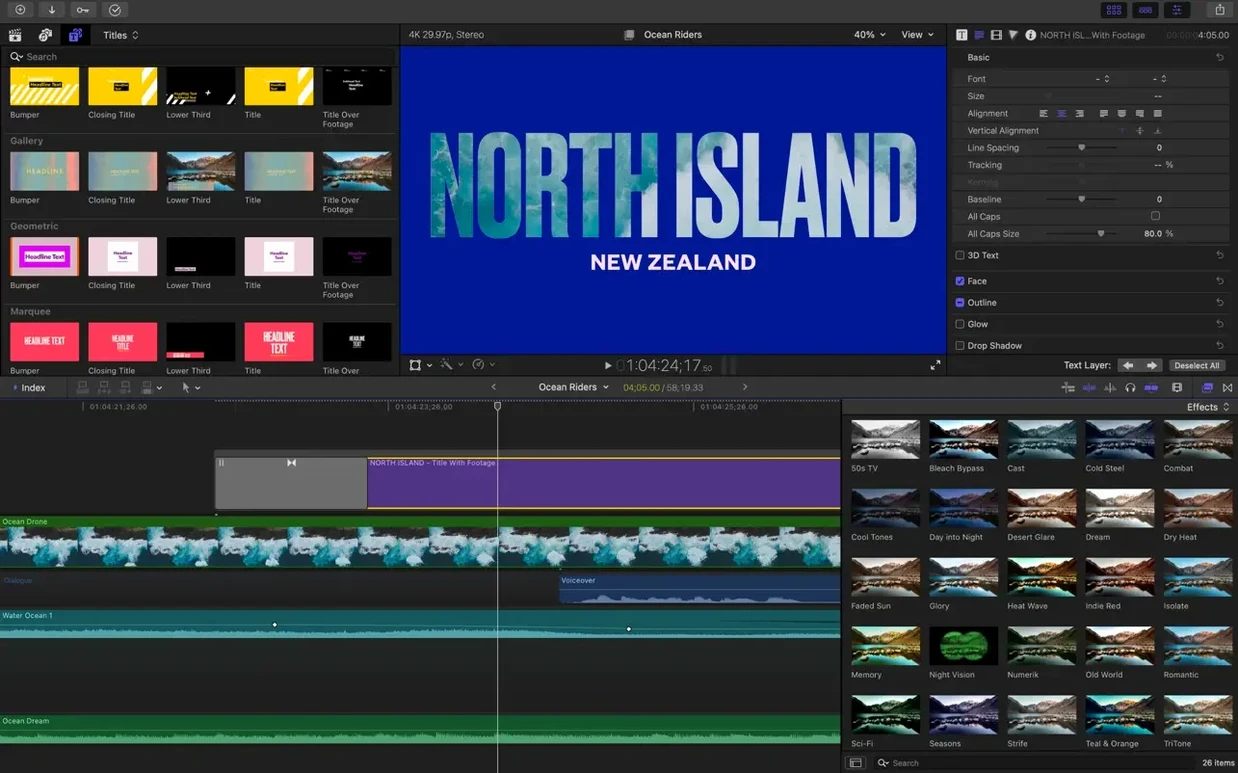
This thing screams on an M3 Max MacBook Pro, and it's just as comfortable on a decked-out Intel iMac with a Metal-capable GPU. Apple hasn't abandoned the Intel crowd for this release — you just need macOS 15.6, 8 GB of RAM, and a graphics card that speaks Metal. Some of the newer machine-learning tricks absolutely require Apple silicon, but the core cutting engine hums everywhere.
| Detail | Note |
|---|---|
| Version | 12.3 |
| Architecture | Universal (Apple silicon & Intel) |
| Disk Space | 5.8 GB |
| Key Plugin Format | FxPlug |
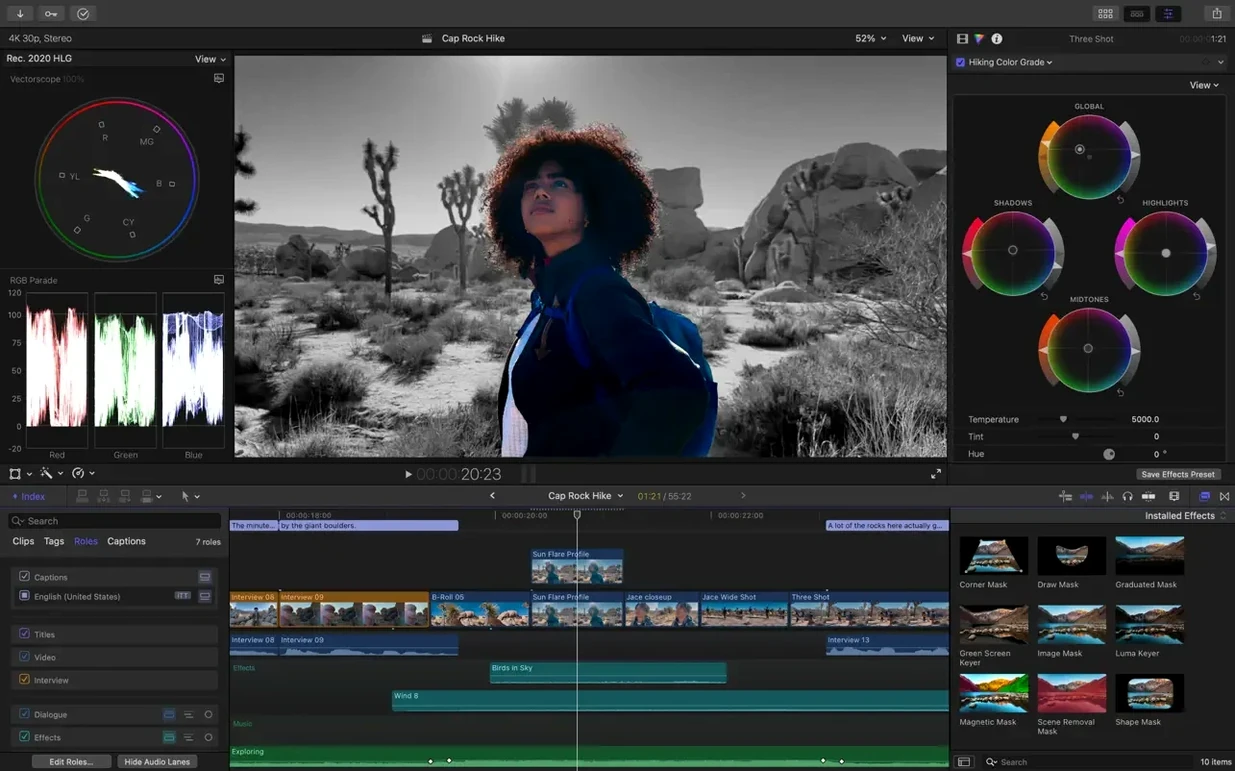
Experienced hands don't need a tour of the timeline, but the toolset you might be sleeping on is what makes this version dangerous in a good way. The Object Tracker isn't a toy — you attach a lower-third to a skater's shoulder and it sticks, no keyframing. You can manage hidden captions natively now, which means review and export strings don't have to bounce through a separate app. For the color nerds, the pipeline handles Rec. 2020 and HLG without flinching, and Smart Conform lets you repurpose a 16:9 master for Reels or vertical displays without trashing your framing. Smart Collections tied to custom keywords on clip ranges turn a messy event into a rough cut in seconds. If you're already deep in the Apple ecosystem, it ties into the Creator Studio workflow without stepping on your existing FxPlug extensions.
A Working Session, Shot by Shot
Friday afternoon. A client drops 40 minutes of interview footage, some B-roll, and a rough voiceover. You create a new library on the external SSD, set the storage location, and drag the card folder into the browser. Final Cut churns through the import while you make coffee — proxy copies get generated automatically because you checked that box once, months ago.
Back at the desk, you skim the clips with the skim tool, tap I and O to mark the good parts, and press E to append them to the timeline. The Magnetic Timeline snaps everything together, so when you lift a weak answer from the middle of the interview, the gap closes itself. You don't think about it; it's just gone.
The interview subject mentions a product demo, so you pull in the B-roll and connect it above the primary storyline. A little Q action, then you drag the connected clip to the exact frame where she talks about the dashboard. Later, when you trim the interview answer by two seconds, the B-roll stays glued to the right moment. That's the clip connection working for you.
Now the fun part. You select the talking head, open the Object Tracker, and draw a box around her face. The tracker analyzes the clip — on an M-series Mac, it's quick. You drop a title onto the track, type her name, and it follows her when she leans forward. No manual keyframes, no twitching.
The lighting between the two cameras is a little warm in one, cooler in the other. You grab a reference frame from the A-cam, head to the B-cam clip, and hit Match Color. Final Cut reads both and adjusts the B-cam so the skin tones sit in the same neighborhood. You nudge the strength to 70% because you don't want the B-cam to look artificial.
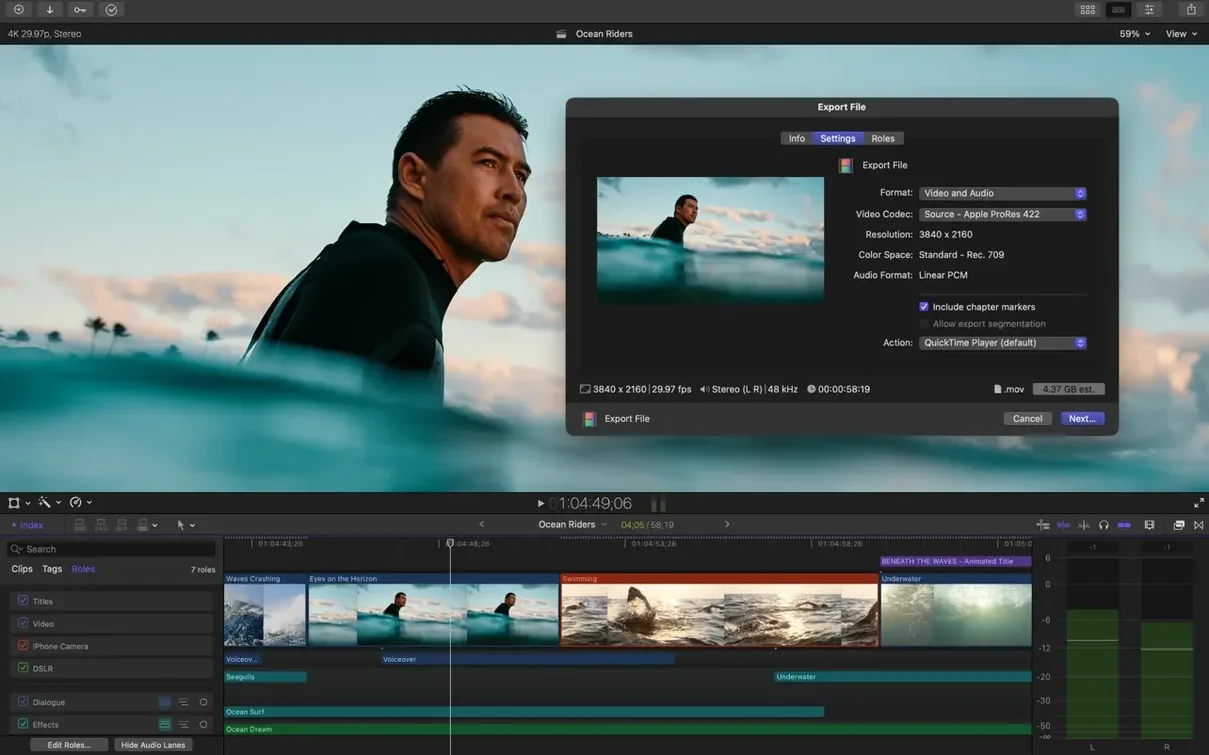
Before export, you run Generate Captions. The transcript appears under the timeline, already synced. You tweak a few words, adjust the caption style so the font matches the client's brand, and export a version with captions burned in for social. Then you export a clean ProRes master for their archive.
You look at the render bar. It's full green. You click Share, pick Master File, and write the destination. You don't watch it render; you open the next project.
Where People Get Stuck
Most problems in Final Cut Pro aren't bugs — they're workflow habits from other NLEs. If you come from Premiere or Resolve, you'll trip over the same three things.
"Why did my clip move when I dragged it?"
You're fighting the Magnetic Timeline. In other editors, a timeline is a free canvas; in Final Cut, the primary storyline is magnetic. Clips want to snap together and close gaps. The fix isn't a setting — it's a mental shift. Use the Position tool (press P) when you need to drop a clip at an exact spot without pushing neighbors. Or build your rough cut with the regular Select tool, then switch to Position for fine placement. Connected clips above the primary storyline don't fight the magnet the same way, so keep your music, B-roll, and titles up there.
"My library is 400 GB and my Mac is crying."
You imported everything at original resolution and let render files pile up. Open the library inspector, check "Create optimized media" and "Create proxy media" for the right jobs, and then run Delete Generated Library Files. Clear out render files, then switch the viewer to Proxy mode for editing. On an external SSD, this is the difference between a smooth skimmer and a beach ball. After a long edit, purge render files again — Final Cut regenerates them when needed.
"The tracker lost the face halfway through."
Object Tracking works best when the subject is clear and the motion is predictable. If the person turns away, leaves the frame, or crosses another person, the tracker can drift. Split the clip at the point where the track breaks, run the tracker again on the new section, and reattach your effect. Two short tracks beat one long failed one.
"My captions are perfect in the viewer but wrong after export."
Check the caption role. Hidden captions can be turned on or off at export, and if the role isn't assigned properly, they won't make it into the file. Select the captions in the timeline, open the Inspector, and confirm they're on the Captions role — not just a subtitle role you made for a previous project. Also check the export settings for the caption format; some destinations want burned-in, others want a sidecar.
Audio Skimming Lets You Hear Your Cut as You Drag
Every editor develops a private shortcut vocabulary. These are the ones that feel like cheating.
- Skim with audio: Press
Shift+Sto toggle audio skimming. When it's on, you hear the timeline as you drag across it. For music edits, this is faster than play-pause-play. - Range selection for keywords: Select a range inside a clip with
R, then pressCmd+Kto tag just that range. Smart Collections can then collect every range tagged "reaction shot" across an entire event — not just the clip, the exact frames. - Blade with precision: Press
Bfor the Blade tool, but holdShiftwhile clicking to cut all clips at that point — primary and connected. For clip-by-clip cuts, justBand click. - Match frame to source: Press
Fwhile a timeline clip is selected. The browser jumps to the exact source frame. You can then pull an extended handle or grab a reaction shot from the same take without hunting. - Video-only or audio-only edit: Drag a clip from the browser to the timeline while holding
Shiftto insert only the video, orCmdfor only the audio. No more unlinking after the fact. - Swap proxy and original instantly: In the viewer, the
Viewmenu lets you jump between Proxy, Optimized, and Original. You can edit all week on proxies, then flip to Original for a final color check — no re-linking, no relinking dance.
Magnetic Timeline Skips the Track Patching Ritual
If you're already on a Mac and you cut narrative, corporate, or social video, Final Cut Pro is the path of least resistance. That's not marketing; it's architecture.
DaVinci Resolve is a monster for color. The node-based grading, the scopes, the keyframe curves — nothing in Final Cut touches that depth. But Resolve asks you to learn its database, its delivery page, its sometimes-opaque Fairlight audio stack. For a two-minute sizzle reel with a hard deadline, Final Cut gets you from ingest to export in fewer decisions. If your work is 80% grading and 20% cutting, Resolve earns its place. If it's the reverse, Final Cut wins the day.
Premiere Pro has the ecosystem — After Effects linking, team projects, a decade of tutorials. But it shows its age in the timeline. The magnetic approach in Final Cut feels faster once you stop resisting it. Premiere also leans on subscriptions and cloud bits; Final Cut lives entirely on your drive. For solo editors who own their machine and their media, that's a meaningful difference. Collaboration features in Premiere are deeper, but if you're not sharing projects with a remote team every week, you won't miss them.
CapCut deserves a mention because everyone asks. It's quick, it's free, and its auto-captions are genuinely useful. But it's a mobile-first editor wearing desktop clothes. For a TikTok cut, CapCut is faster. For anything with multicam, graded color, or an actual sound mix, you'll hit its ceiling in an afternoon. Final Cut Pro is the tool you graduate to, not the tool you downgrade from.
Does My Intel Mac Survive the Leap?
"Will my old Intel Mac run this, or am I wasting my time?" It runs on Intel Macs with a Metal-capable GPU and macOS 15.6 or later. The timeline, editing tools, multicam, and most exports work fine. Some machine-learning features — the newer tracking and analysis tools — want Apple silicon. If you're on a 2019 iMac with a good GPU, you'll cut comfortably. If you're on a 2017 MacBook Air, it'll be a patience test.
"How much disk space do I really need?" The app itself wants 5.8 GB, but that's the smallest number in the equation. Media, optimized media, proxy files, and render files multiply fast. A 1 TB external SSD is the practical minimum for serious work. You can point libraries, cache, and media anywhere you like — the app doesn't force everything into your home folder.
"Can I bring a project from Premiere or Resolve over?" XML is the bridge. Export an XML from Premiere or Resolve, import it into Final Cut, and the basic edit structure carries over
The Generate Captions tool is the headliner — proper subtitles with customizable fonts and backgrounds, baked right in. Auto Mask grabs a recognized object and lets you push a grade or an effect onto just that shape. Match Color actually earns its name across mixed-camera shoots, and Edit Detection takes a flat rendered file and intelligently splits it back into cuts for re-editing.
Also fixed: the usual stability gremlins and a handful of rendering quirks with complex compound clips.
- macOS 15.6 or later
- 8 GB RAM minimum
- 5.8 GB free disk space
- Metal-capable graphics card (Intel Macs)
- Apple silicon required for certain machine-learning features
- Internet connection required for some features
Questions I actually get
Can Final Cut Pro generate subtitles automatically?
Yes, the current version can generate captions with customizable appearance right on the timeline.
Notes from the edit bay · 0
Sign in or get an edit-bay pass to leave a note.
No notes from the edit bay yet. They go up after I read them.