
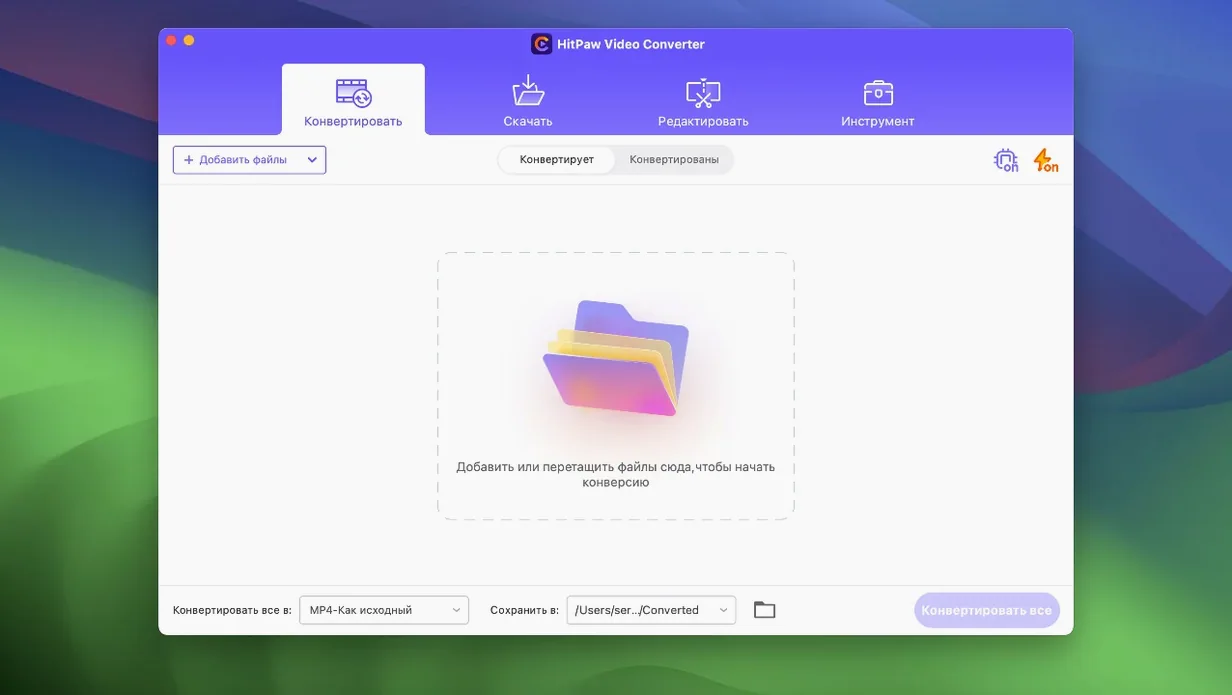
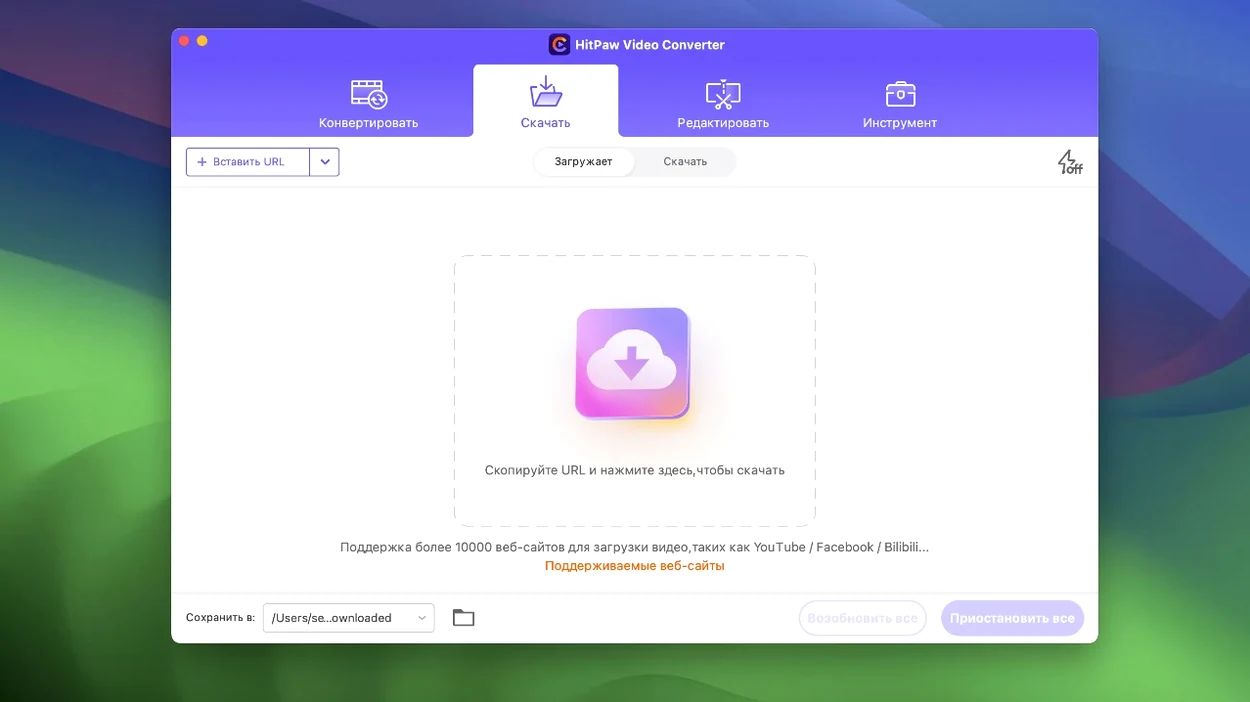
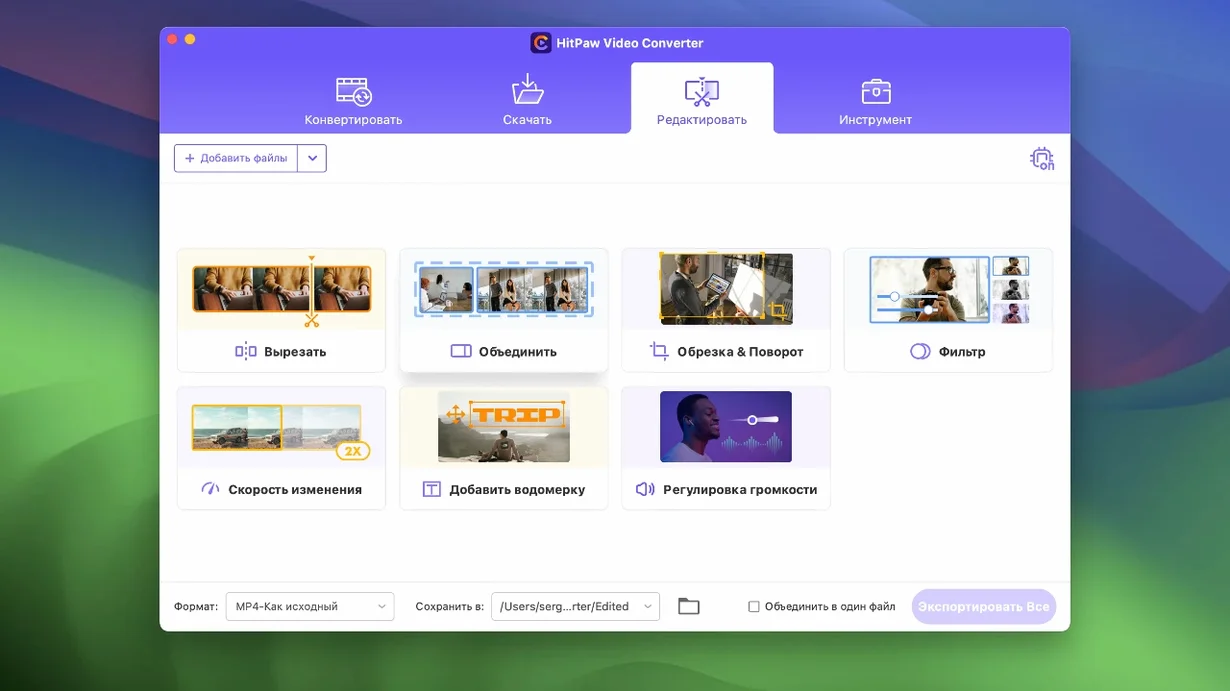
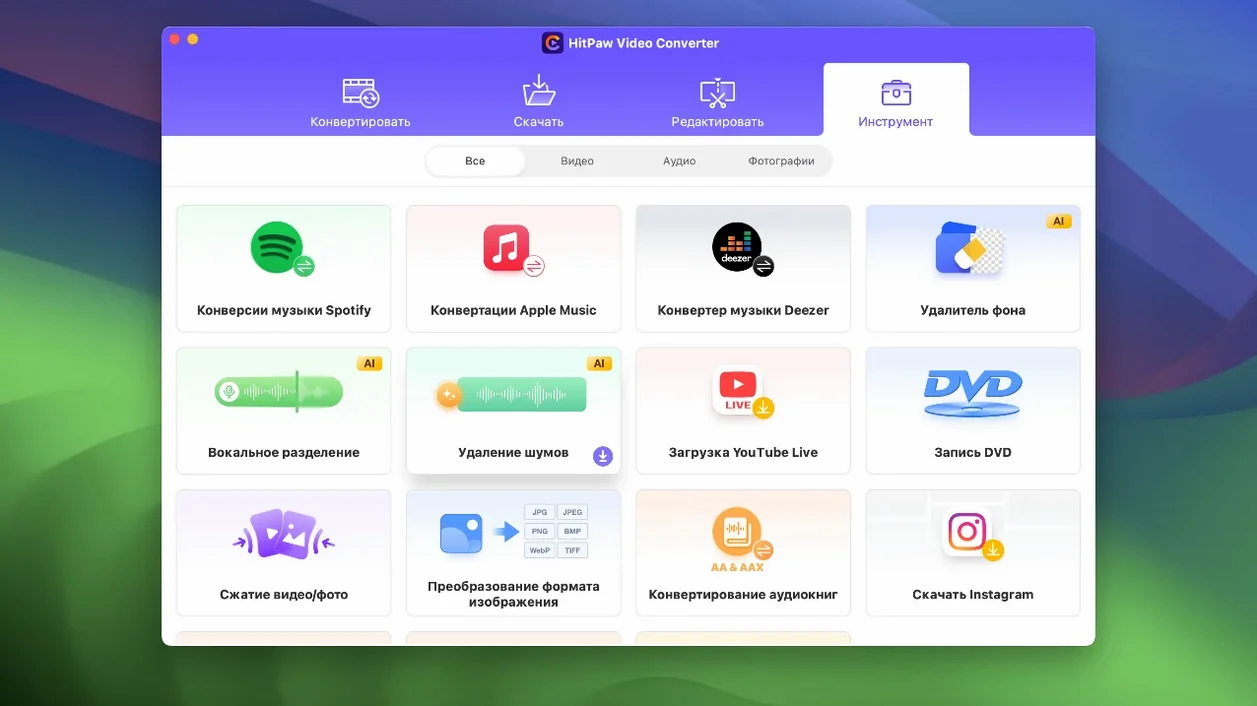
Over 1000 format targets sit inside this app — everything from MP4 and MOV to AVI, VOB, MKV, and MP3. That number tells you straight away that HitPaw Video Converter isn't picky about what you throw at it. It runs on macOS 10.15 or later, and only on Intel Macs. The app handles conversion, downloading, compression, and some light editing, with Apple Music, Spotify, and Deezer support baked in for grabbing audio.
Convert Without the Format Hunt
Pick your source, pick your output, and go. The app strips out the guesswork across video, audio, DVD, and image files, so you aren't cross-referencing spec sheets mid-deadline.
Compress When the File Size Fights You
Version 4.5.0 brought a reworked compression module. If you need a 2GB master cut down to something email-friendly, that's the tool you'll reach for first.
Download From Streaming Services
HitPaw vs. the Mac Conversion Crowd
Three names keep popping up next to HitPaw: Permute, HandBrake, and VideoProc Converter. They occupy the same shelf but prioritize very different things.
Permute aims for minimalism. Drag, pick a format, done. It handles batch jobs beautifully and rarely asks you a question. But it won't touch copy-protected DVDs, won't download from YouTube, and has zero interest in Spotify or Deezer. If your workflow ends at "make this MP4 into a ProRes MOV," Permute is faster to launch. HitPaw stretches further — compression module, AI reframing, built-in downloading — and that gap matters the moment a client DMs you a YouTube link fifteen minutes before the render deadline.
HandBrake is the free, open-source workhorse. Its encode quality is superb, its presets are deep, and it runs on every Mac architecture you can name. The trade-offs: no downloading, no music service integration, a UI that assumes you already understand B-frames and rate control. Beginners hit HandBrake and stare at the advanced tab. HitPaw front-loads simplicity — one window, fewer decisions — while still letting you grab online media without launching a separate tool.
VideoProc Converter comes closest feature-wise. It converts, downloads, compresses, and records screen activity. VideoProc leans harder into GPU acceleration claims and throws in a basic screen recorder. HitPaw counters with the music streaming converters and the newer AI tools. In everyday use, the choice often hinges on which interface you find less cluttered and whether Apple Music support matters to your daily work.
Forgotten Merge Toggles Ruining Timeline Exports
The first error: not checking the merge settings before hitting Convert. HitPaw can combine multiple files into one output, and a surprising number of people leave that toggle on from a previous session, then wonder why four separate interviews became one 47-minute blob.
The second: ignoring the compression slider. New users tend to drag it hard left, expecting a tiny file, and then get frustrated when the result looks like security footage from 2006. Compression in version 4.5.0 is smarter than it used to be — let it work near the middle of the range first, then dial down incrementally.
The third: assuming the downloader works for every website equally. It claims 10,000 sites, and that number is real, but region-locked content, login-walled platforms, and aggressively shifting DRM can still block progress. If a download stalls, try pasting the URL again after the page finishes loading.
The fourth: skipping the auto reframe feature because you assume it's a gimmick. It landed in 4.5.0 for a reason — social cuts in 9:16, 1:1, or 4:5 benefit from a sensible center-weighted crop before you start manual adjustments.
Auto Reframe That Feeds Three Social Cuts Before Lunch
Social media editors who juggle multiple aspect ratios will live inside the auto reframe and compression modules. One project spits out a landscape master, two vertical cuts, and a square loop — all from the same timeline, all before lunch.
Music video editors and podcast producers lean on the Apple Music and Spotify converters. Extracting a reference track or grabbing a clean instrumental for a rough cut stops being a multi-app scavenger hunt.
Corporate video people with long client review chains get the most from the compression piece. Sending a 720p review cut without needing a separate HandBrake session keeps the feedback loop tight. Add the format library — ProRes for the edit suite, H.264 for the client portal — and it's the one converter sitting in the Dock all week.
Beginners who need one app that answers "I have this file and I need it in that format" without a manual. The interface prioritizes big clear buttons over parameter tweaking, and for a surprising number of Mac users, that's exactly the right trade-off.
Compression Now Finishes in Under Two Minutes on Intel
The compression module optimization isn't marketing fluff — files that previously took three minutes now complete in under two on the same Intel machine. The editor module display got cleaner, with fewer overlapping panels when you open multiple tools back-to-back, which helps when you're switching between trimming a clip and re-encoding it.
The auto reframe feature is the headliner. Select a subject area once, and the app tracks it through the clip while cropping to the target aspect ratio. It's not a replacement for manual keyframing on a precision project, but for quick social deliverables it saves the ten minutes you'd spend nudging position handles. The feature integrates into the existing editor panel, so you aren't learning a new workspace — it's one additional checkbox next to the crop controls.
Also fixed: lingering display bugs from earlier 4.x builds where the compression preview window would occasionally draw the wrong frame during high-bitrate scans. That's gone now, and the preview updates reliably even on older MacBook Pros running Catalina.
The built-in Apple Music, Spotify, and Deezer converters pull audio straight into the library. No extra utilities, no patching together a separate workflow.
The compression module got a full optimization pass in 4.5.0 — cleaner results, smarter file-size decisions. The editor module display was also cleaned up, and a new auto reframe feature landed for cropping to different aspect ratios without manual keyframing.
- macOS 10.15 or later
- Intel processor (x86 64-bit)
Questions I actually get
Does HitPaw Video Converter work on Apple Silicon Macs?
The app is built for Intel architecture. It runs on Apple Silicon Macs through Rosetta 2, but native Apple Silicon support is not listed in the current version.
What's the newest macOS version HitPaw Video Converter supports?
The developer lists macOS 10.15 as the minimum, and the 4.5.0 update from October 2024 works on current macOS releases.
Notes from the edit bay · 0
Sign in or get an edit-bay pass to leave a note.
No notes from the edit bay yet. They go up after I read them.