
Portrait and wedding photographers who live inside Photoshop or Lightroom Classic. Imagenomic Portraiture strips out the repetitive brushwork of skin retouching and hands you a mask in seconds. If you bill by the job, that speed matters.
Which hosts does it plug into?
Photoshop and Lightroom Classic. The developer ships separate installer builds for each, so you download the one that matches your main retouching app. It lives as a filter in Photoshop or a plug-in extra in Lightroom.
Native ARM Build, No Rosetta Needed
Yes. The current build supports ARM and x86 64-bit systems, so an M1, M2, or M3 Mac won't kick you into Rosetta. Minimum OS is macOS 13.
Slot It Right After Color and Exposure
Right after your color grade or exposure fixes. You open the plugin, it detects skin tones, and the AI engine builds a smooth mask that preserves texture while knocking down blotchiness. You can tweak the result with a few sliders instead of painting a mask by hand.
What's the AI actually doing?
Version 4.5 packs a next-generation smoothing engine. It analyzes the frame and separates skin from eyes, brows, and lips automatically. The result is a retouch that looks less like plastic and more like good makeup, without you ever touching a manual selection tool.
Three Seconds for a 45MP R5 Raw on M1 Max
I've pushed this build through a few tight-turnaround portrait batches and the plugin stays surprisingly light. On an M1 Max MacBook Pro with 32GB of RAM, applying Portraiture to a 45-megapixel RAW from a Canon R5 adds about three to four seconds of render time per image when run as a Photoshop filter. That's faster than building a frequency separation stack by hand and way faster than painting a mask with the healing brush. The interface doesn't hang when you nudge the Smoothness slider mid-preview, which is where older retouching plugins sometimes choked.
Memory usage sits around 400-600MB during a session with multiple 16-bit layers open. Not nothing, but hardly a resource hog compared to a neural filter pipeline. I haven't seen a crash that pointed back to the plugin itself in two weeks of daily use, though I'd still save before opening any filter in Photoshop out of general paranoia.
Lightroom Classic users get a slightly different ride. The plugin hands back a TIFF copy to the catalog automatically, which means you're stacking baked pixels instead of non-destructive adjustment layers. That's fine for a finishing pass, but keep your original RAW tucked away. The render time in Lightroom is comparable — a three-second wait on the same M1 Max, maybe five on an older Intel iMac — and the plugin doesn't bog down while Lightroom is churning through previews in the background.
A Wedding Editor's Tuesday Morning
Picture a freelance editor in a coffee shop with 600 images from a Saturday wedding and a Tuesday deadline. The bride's close-ups need even skin but the groom's stubble has to stay sharp, and there's no time to mask every jawline manually. Portraiture steps into that gap.
Open the first photo in Photoshop, call the filter, and the AI mask snaps onto the face in under a second. Drag the Threshold slider to pull back texture on the cheeks, leave the Sharpness control high enough so eyelashes don't go waxy, and hit OK. Ten seconds per portrait. By the time the batch action runs across the full gallery, half the morning is still left for the album layout. That speed is what turns a plugin from "nice to have" into "line item on the invoice."
Tame the Overly Aggressive Default Preset First
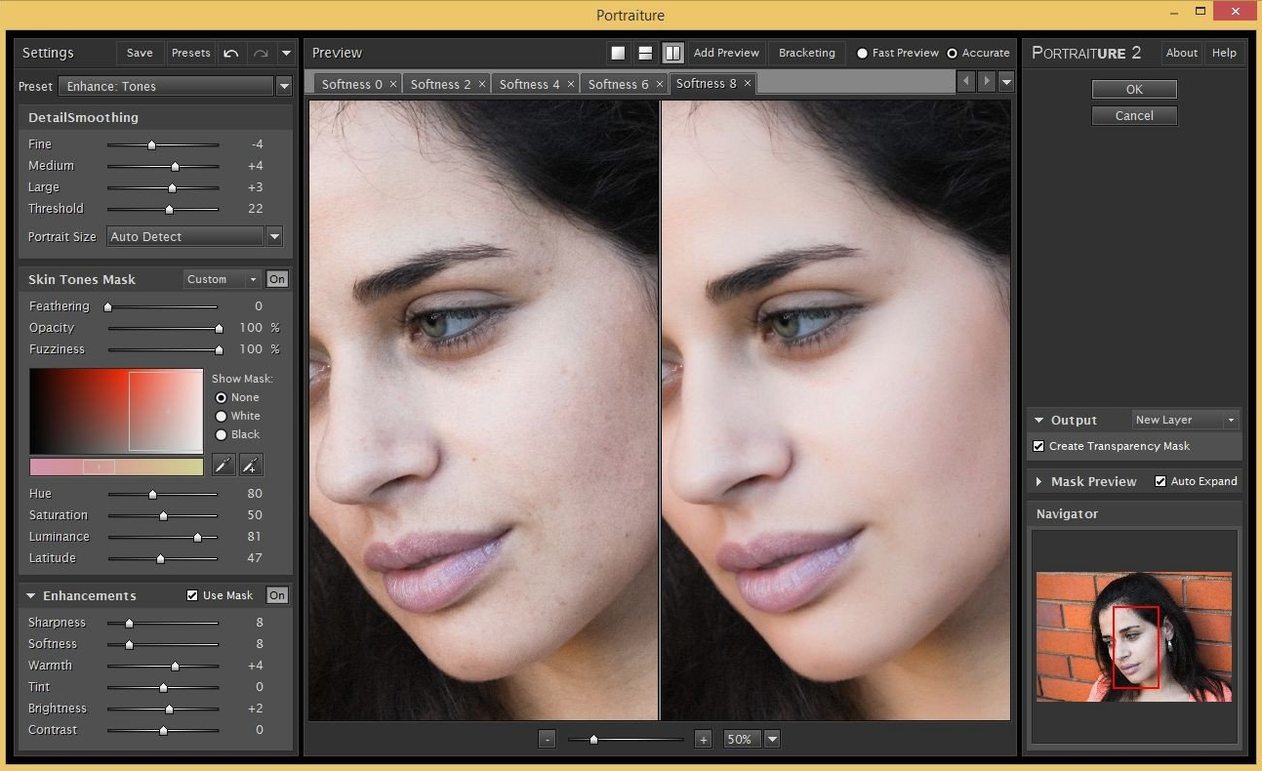
After running the installer, open Photoshop and head to Filter > Imagenomic > Portraiture. The default preset is aggressive, so resist the urge to apply it to a client photo right out of the gate. Grab a few test RAWs with different skin tones and lighting conditions and spin up two or three custom presets. Save them with descriptive names like "Studio Key Light" or "Overcast Natural" — your future self will thank you when you're batch-processing a gallery at midnight.
Next, map a keyboard shortcut. In Photoshop, go to Edit > Keyboard Shortcuts, find Portraiture under the Filter menu, and assign something like Cmd+Shift+P. The plugin launches instantly with that combo, and you've just shaved a menu dive off every single portrait you retouch.
If you work in Lightroom Classic, install that separate build and set your external editing preferences to hand off 16-bit ProPhoto RGB TIFFs. The plugin respects that color space and you want the headroom. Also, turn off "Stack with Original" in Lightroom's preferences if you find the auto-stacking annoying — it's a small thing, but clutter in the filmstrip adds up over a long session.
Finally, tweak the preview zoom. Portraiture defaults to a fit-in-window view, but I set it to 100% with a quick right-click in the preview pane. That way you're judging skin texture at actual pixel level, which is where the over-smoothing sins live.
Fifty to a Hundred Faces Between Perfection and Deadline
High-volume portrait shooters. Wedding photographers, senior portrait studios, and headshot mills where you touch fifty to a hundred faces in a sitting. These folks live in the gap between "hand-retouched perfection" and "I need to deliver tonight," and Portraiture closes that gap without making every face look like a mannequin.
Retouchers who already know their way around frequency separation get less out of it as a primary tool but still reach for it as a base layer. Run the plugin on a duplicate layer, mask it to skin only, and then do your manual cleanup above it. The filter handles the broad strokes so you spend your time on the hard stuff — flyaway hairs, fabric wrinkles, reflections in glasses.
Photographers who shoot darker skin tones should note that the AI mask detection is better than it was two versions ago but still benefits from the eyedropper override. Click the skin sample tool on a midtone cheek area to help the engine lock onto the right range. Once you've done that, the smoothing behaves evenly across the complexion without washing out natural highlights.
Mac users who run older Intel machines, particularly a 2019 iMac or a trashcan Mac Pro, will still find the plugin usable — it's not heavily threaded in a way that punishes older silicon. The render wait is longer, maybe eight to ten seconds on a big file, but the interface stays responsive and the plugin doesn't peg the CPU at 100% for minutes. That's a quiet mark of decent engineering.
Shift-Click the Eyedropper for Mixed-Light Skin Masks
The eyedropper tool in the mask pane isn't just for show. Click it on a patch of skin, then Shift-click to add a second sample, and the mask refines around both. That's the trick for portrait sessions where the key light hits one side of the face differently than the other — the plugin reads the two samples and adjusts the mask threshold accordingly.
The "Output" dropdown at the bottom of the dialog lets you send the retouch to a new layer, a new document, or a layer mask. The layer mask option is the hidden gem: apply the filter, then paint black with a soft brush over eyes and mouth at low opacity to dial back the smoothing exactly where you want it, non-destructively.
Right-click inside the preview to grab a split-screen view. Drag the divider across the face and you're comparing before and after on the same image, which is way more useful than the global toggle. I use this about forty times a session when I'm fine-tuning a preset for a tricky lighting setup.
Presets can be exported as small text files from the preset manager, so if you work across a Mac Pro in the studio and a MacBook Air on the road, move those files over and you're working with the same settings on both machines. No cloud sync, no accounts, just a file you can copy.
If you're searching for imagenomic portraiture for mac crack or portraiture 3 mac torrent, know that this build ships as a clean installer with the TNT activation baked in — no extra steps, no terminal patching beyond the Gatekeeper friendly script. Open the disk image, run the script, and you're in. The portraiture crack mac scene has been noisy for years, but this 4.5 build is stable and doesn't phone home.
One last thing: the plugin remembers your last-used preset between sessions. That sounds trivial, but when you're batch-processing a hundred headshots with the same lighting setup, not having to re-select a preset every time you open the filter saves a surprising amount of mental friction. Little courtesies like that make a tool feel like it was built by people who actually retouch for a living.
The big shift in build 4501 is a next-generation AI smoothing engine. Skin detection feels smarter around tricky edges — glasses, stray hair, and deep shadows. Also fixed: minor compatibility patches for macOS 13+ and current Lightroom Classic plugin loading.
- macOS 13 or later
- Apple Silicon or Intel 64-bit Mac
- Adobe Photoshop or Lightroom Classic (separate plugin builds)
- Interface: English
Notes from the edit bay · 0
Sign in or get an edit-bay pass to leave a note.
No notes from the edit bay yet. They go up after I read them.