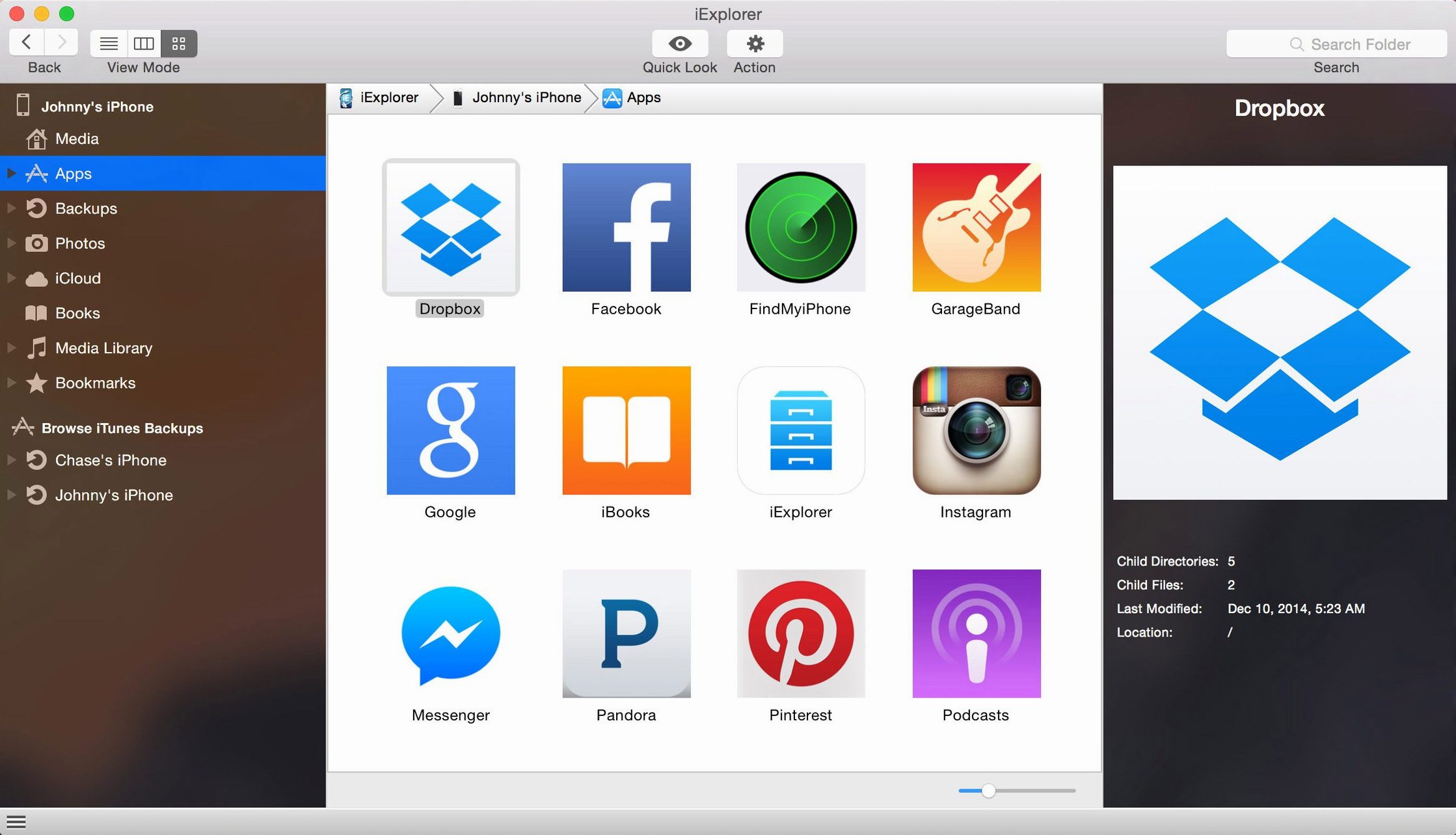
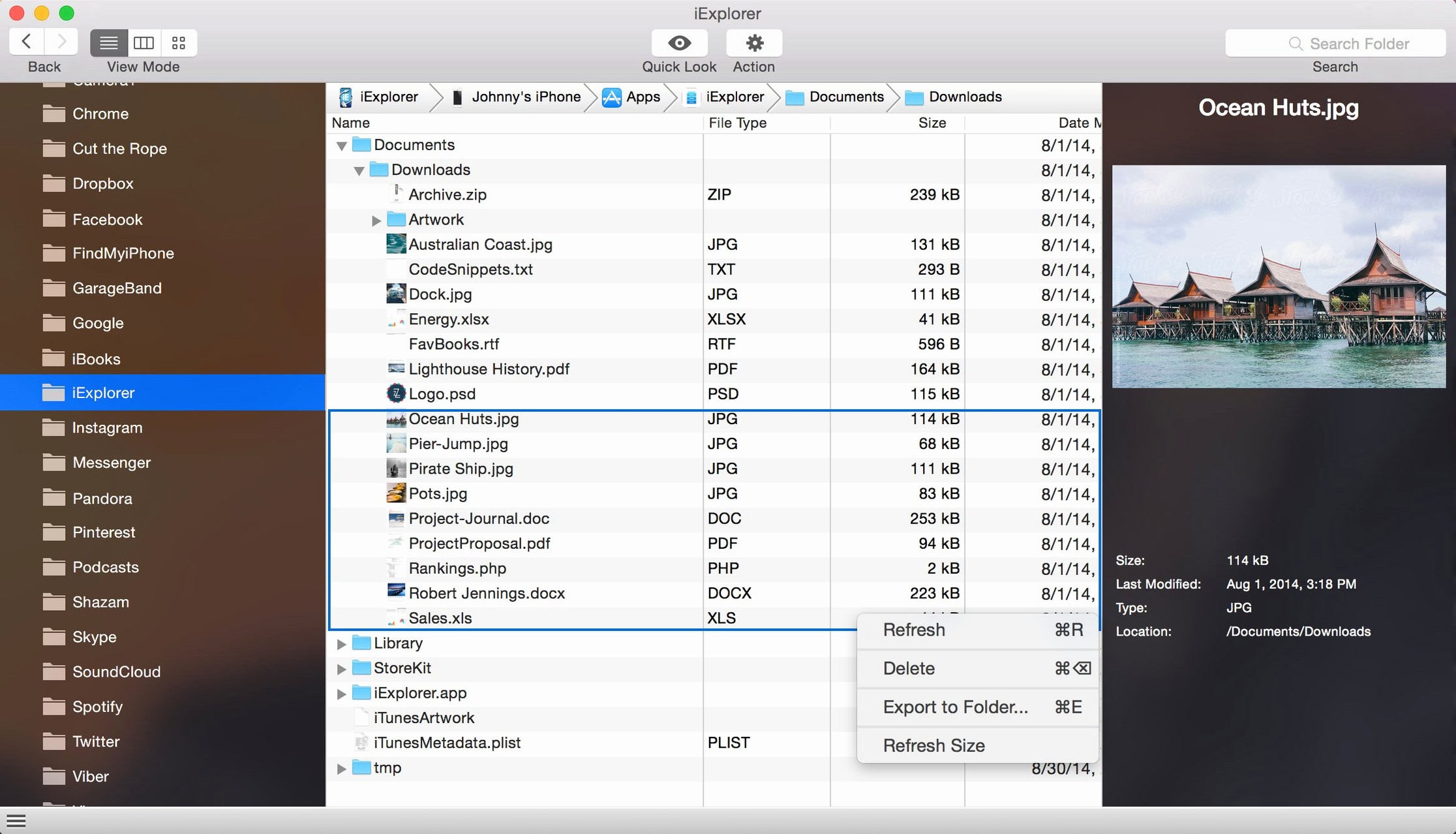
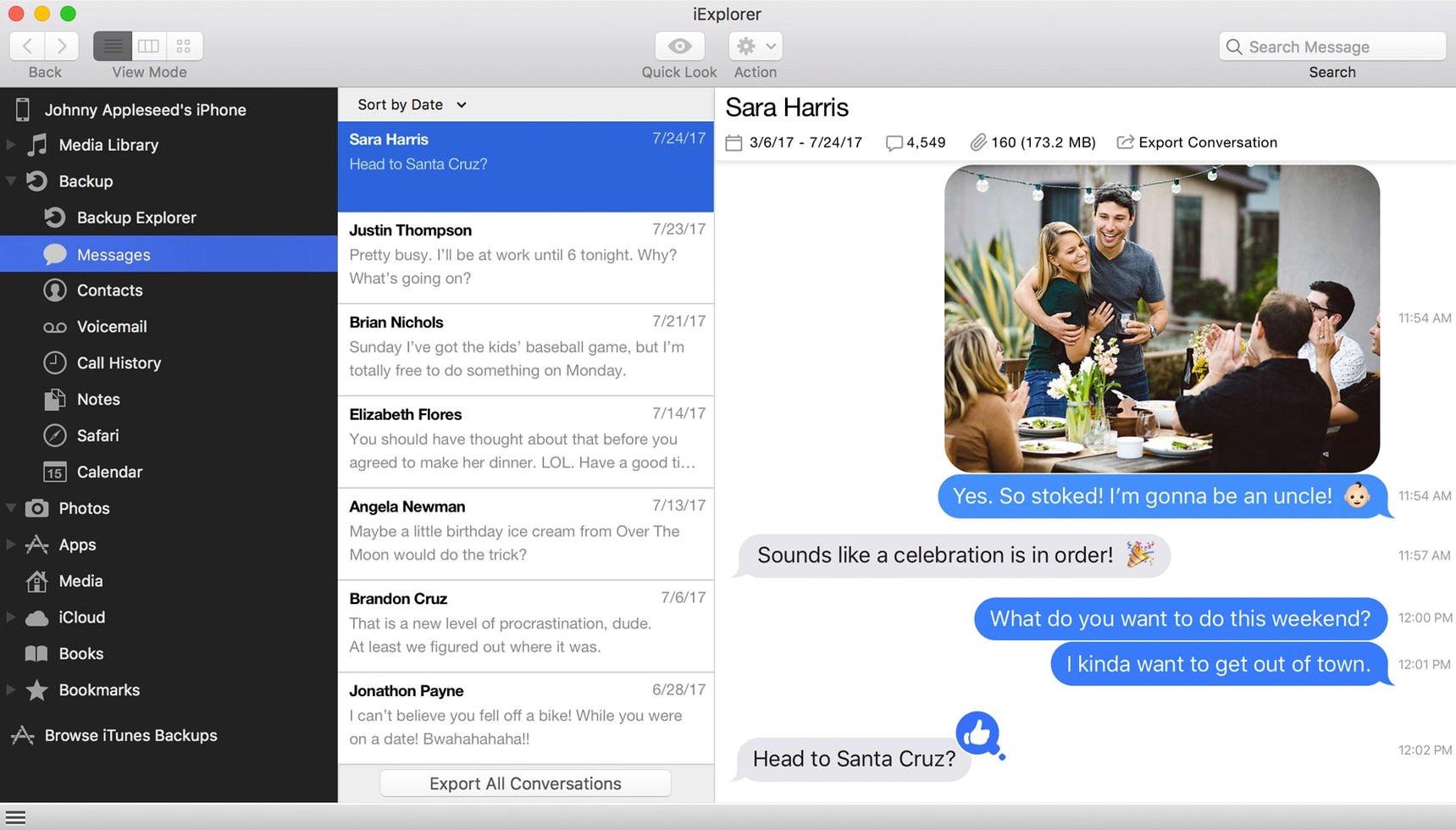
If the Finder feels too locked-down for browsing your iPhone's contents, iExplorer steps in with a familiar file-tree approach. It reads connected devices without a jailbreak, so you can poke around app data, photos, and backups like you would a USB drive.
iTunes Must Be Installed—Will It Run Otherwise?
You need macOS 10.10 or later on an Intel 64-bit Mac. Apple Silicon machines can run it through Rosetta 2. iTunes has to be installed—without it, the connection handshake never completes.
Peeking at iCloud Content Tied to Your Device
The app surfaces app files, icons, documents, and media that the stock macOS experience hides. You can open local backups stored on your computer and even peek at iCloud content tied to the device.
Where Does the Music Transfer Fit?
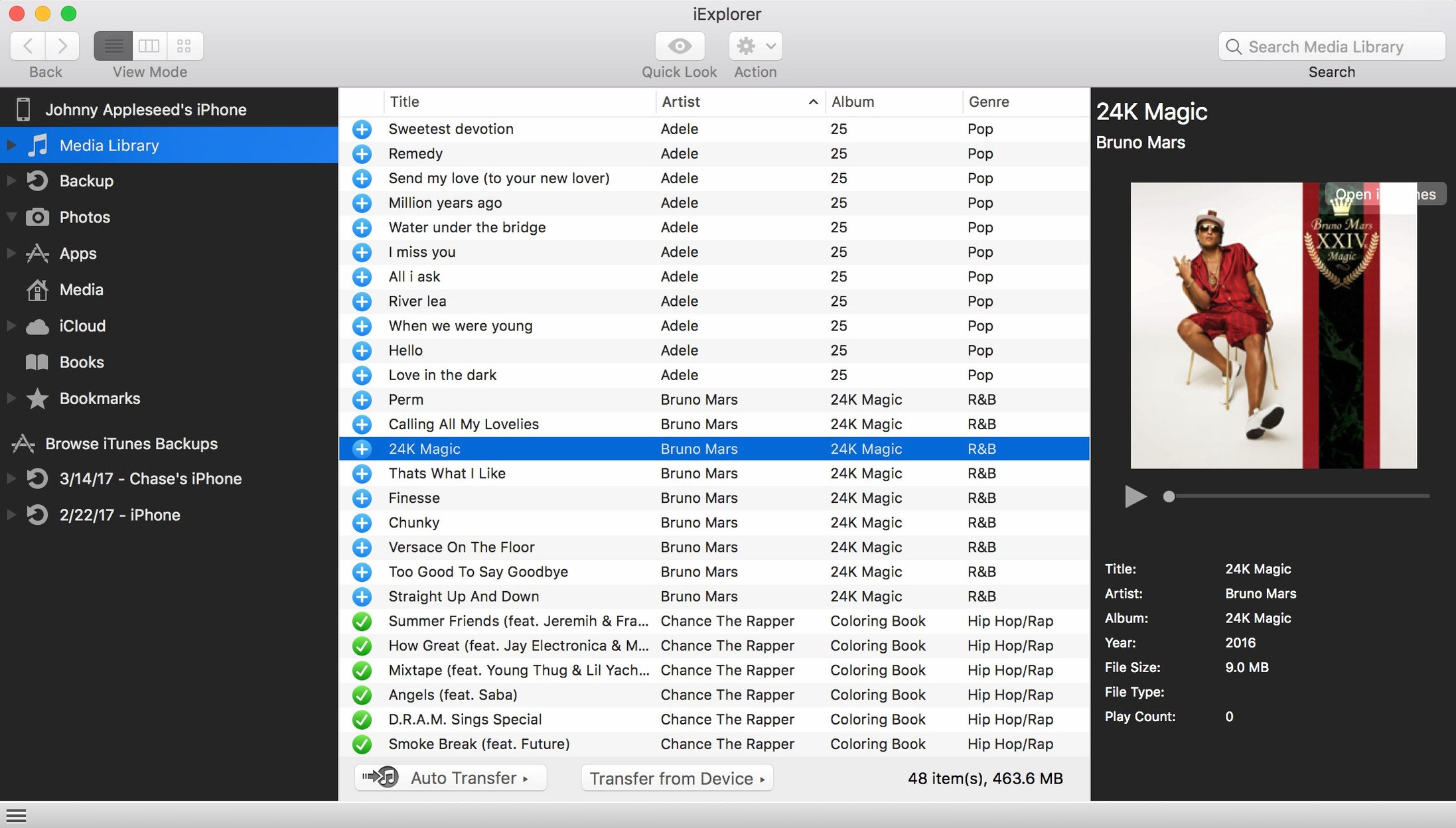
iExplorer pushes music and playlists from an iPhone, iPod, or iPad straight into iTunes. It's a targeted rescue tool when a library lives only on a pocket device and you need it back on the desktop.
Disable the Launch Daemon Before It Polls Your Peripherals
Out of the box, iExplorer auto-opens the last browsed folder and launches at login. I kill both immediately. The login helper adds a background daemon that polls for devices, and on an edit suite Mac with a dozen USB peripherals, extra polling is the enemy. Head to Preferences > General and uncheck Start iExplorer when my computer starts. While you're there, switch the startup behavior to Show Device Overview instead of reopening the last path—it saves you from staring at a stale directory when you plug in a different phone.
The real time-saver sits under the File System tab. Enable Show hidden files and folders. App sandboxes bury caches and temp data in dot-prefixed directories, and if you're hunting for a specific SQLite database or a misbehaving log, hidden visibility cuts the detective work in half. Also tick Use safe copy—it verifies every file after transfer, which matters when you're pulling project footage from a device and can't afford a corrupt byte.
One more thing: in the Backup section, switch the backup location to an external drive if you're on a laptop with a tight internal SSD. Backups of 256 GB iPhones balloon fast, and iExplorer respects the path change without complaint.
iMazing Polishes the UI, AnyTrans Handles Android—Where Does iExplorer Fit?
Three names come up when Mac users talk iPhone file browsers: iExplorer, iMazing, and AnyTrans. They overlap, but the differences show up in the first ten minutes of actual use.
iMazing polishes the experience with a guided UI and wireless connection support. It treats the device more like a managed library than a raw disk. That's great for someone who wants backup scheduling and message printing, but it adds a mediation layer between you and the file tree. iExplorer drops you straight into the raw app directories and trusts you to know what you're looking for. For extracting a single preference plist or dragging out a video file, iExplorer feels faster because it isn't trying to interpret what you're doing.
AnyTrans leans hard into content migration—moving WhatsApp histories, merging libraries, cloning a device to a new one. It's a migration tool first. iExplorer doesn't do the hand-holding device-switch wizardry; it gives you the filesystem view and a few targeted exports like contacts and call history. The trade-off is that AnyTrans sometimes stumbles on app sandbox permissions that iExplorer handles quietly, especially on older iOS builds.
If you grabbed the iExplorer torrent to troubleshoot a single app's data or rescue music from an old iPod touch, the app sits in a comfortable middle ground: less guarded than iMazing, less migration-focused than AnyTrans, and quicker to launch than either.
First Days: Three Moves That Save Headaches
Day one, make a full backup through iExplorer—even if you already have an iCloud or Finder backup. The app's backup browser reads the local copy directly, and having a fresh snapshot on your Mac means you can dig through old message attachments or app data without tethering the phone again. It also gives you a sandbox to test exports on without touching the live device.
Second, learn the right-click menu on any file. Where the Finder offers Open or Quick Look, iExplorer adds Export to Folder, Export to iTunes, and Delete. The delete function works on live device data—no confirmation dialog, no trash buffer. Treat it like rm in Terminal. I keep a scratch folder on the desktop called PhoneExports and always drag files there instead of deleting in-place until I've verified the export worked.
Third, test the disk-mount feature early. It treats the device as a regular volume in the Finder, which sounds convenient, but macOS Spotlight tries to index it unless you add the mount point to Privacy exclusions. If your Mac suddenly starts churning fans after you mount an iPhone, that's Spotlight chewing through the device's media directories. iExplorer's own browser doesn't trigger indexing, so for quick grabs I stick with the native interface and reserve disk mount for drag-and-drop batch transfers.
The iExplorer Mac crack build floating around is the full TNT release, so none of these features sit behind a gate. That means you can test all three workflows—backup browsing, raw filesystem access, and disk mounting—on the same afternoon and decide which one fits your muscle memory before you commit to a routine.
Version 4.6.0 tightens things up for iOS 16. If you ran into connection wobbles after updating your iPhone, this build should smooth them out.
Also fixed: a handful of smaller recognition hiccups with freshly updated devices.
- macOS 10.10 or later (Intel 64-bit; Apple Silicon via Rosetta 2)
- iTunes installed
- Interface language: English
Questions I actually get
Does iExplorer require a jailbreak?
No, it works with connected iPhone, iPad, or iPod devices without a jailbreak. You just need iTunes installed and a standard USB connection.
Notes from the edit bay · 0
Sign in or get an edit-bay pass to leave a note.
No notes from the edit bay yet. They go up after I read them.