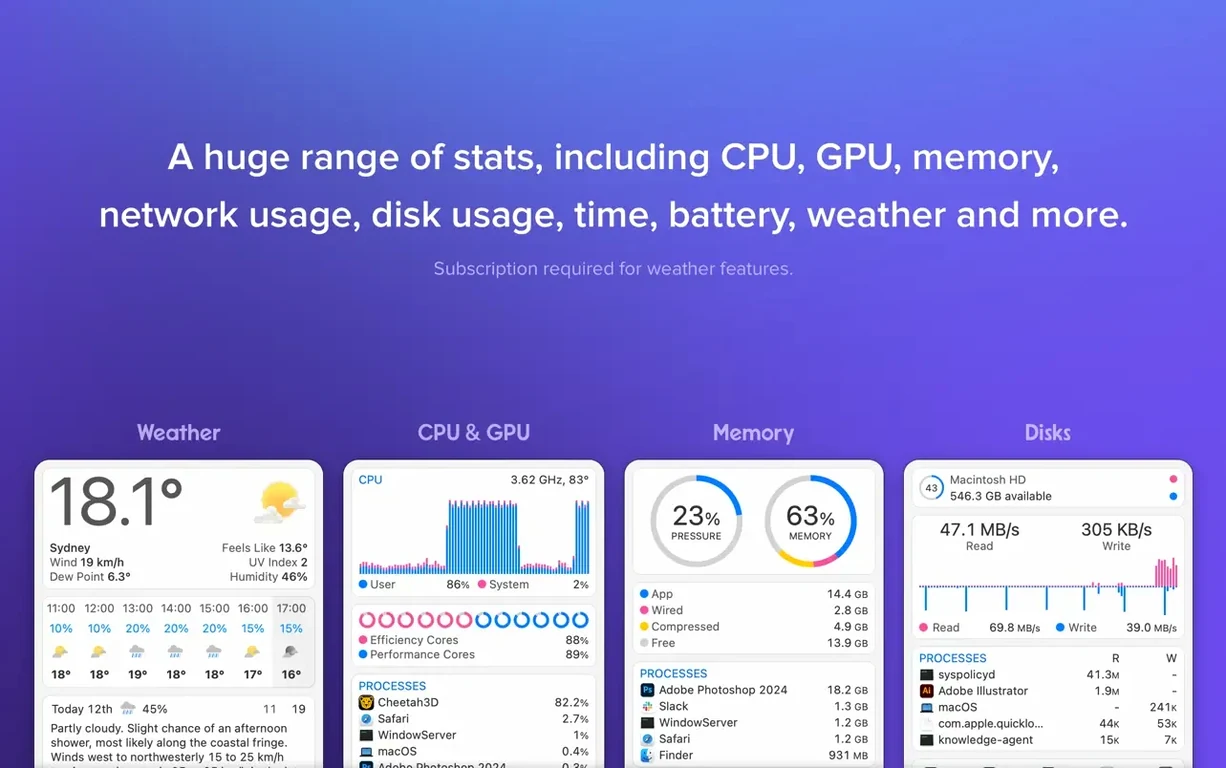
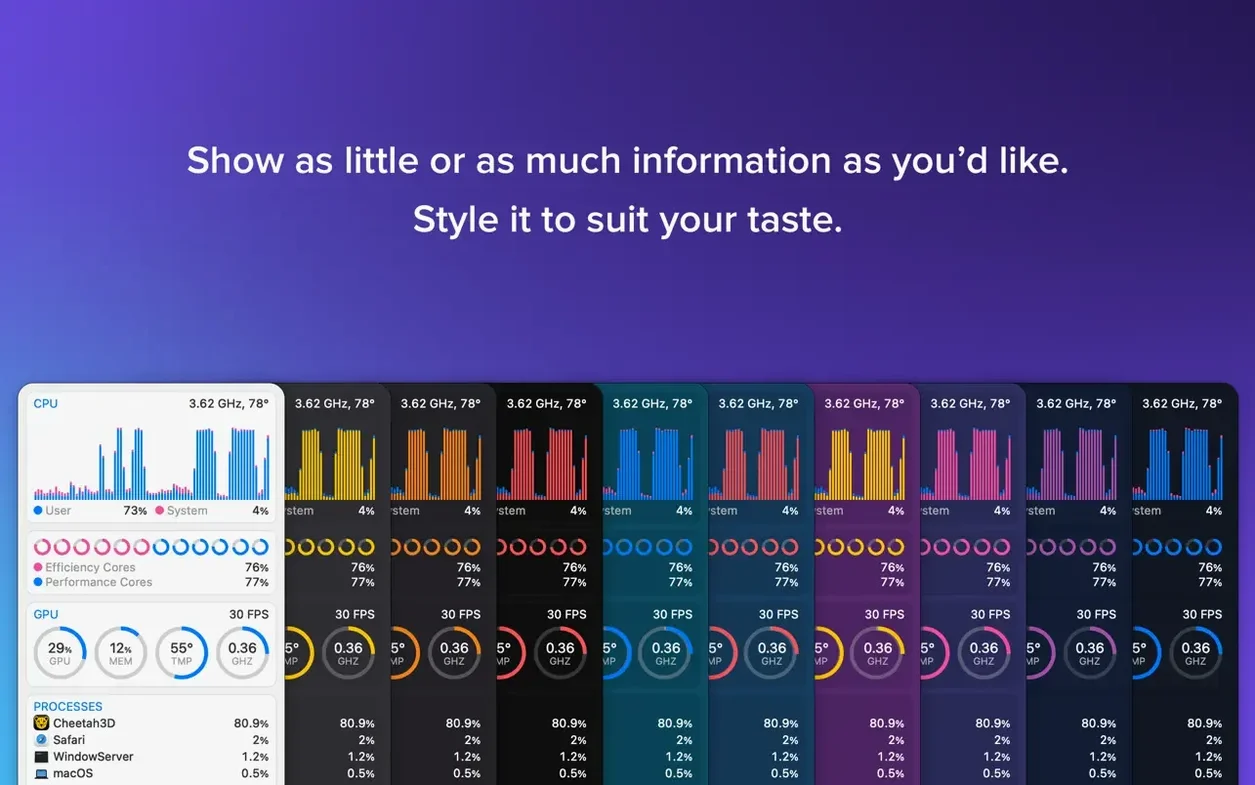
Weather is one thing—seeing conditions are something else entirely. The new Astronomy item in iStat Menus 7.50 doesn't just tell you the sun is out. It pulls in forecasts for transparency, cloud cover, and seeing, which matters if you're planning to point a telescope at the sky after sunset. It sits right in the menu bar alongside every other stat you already track.
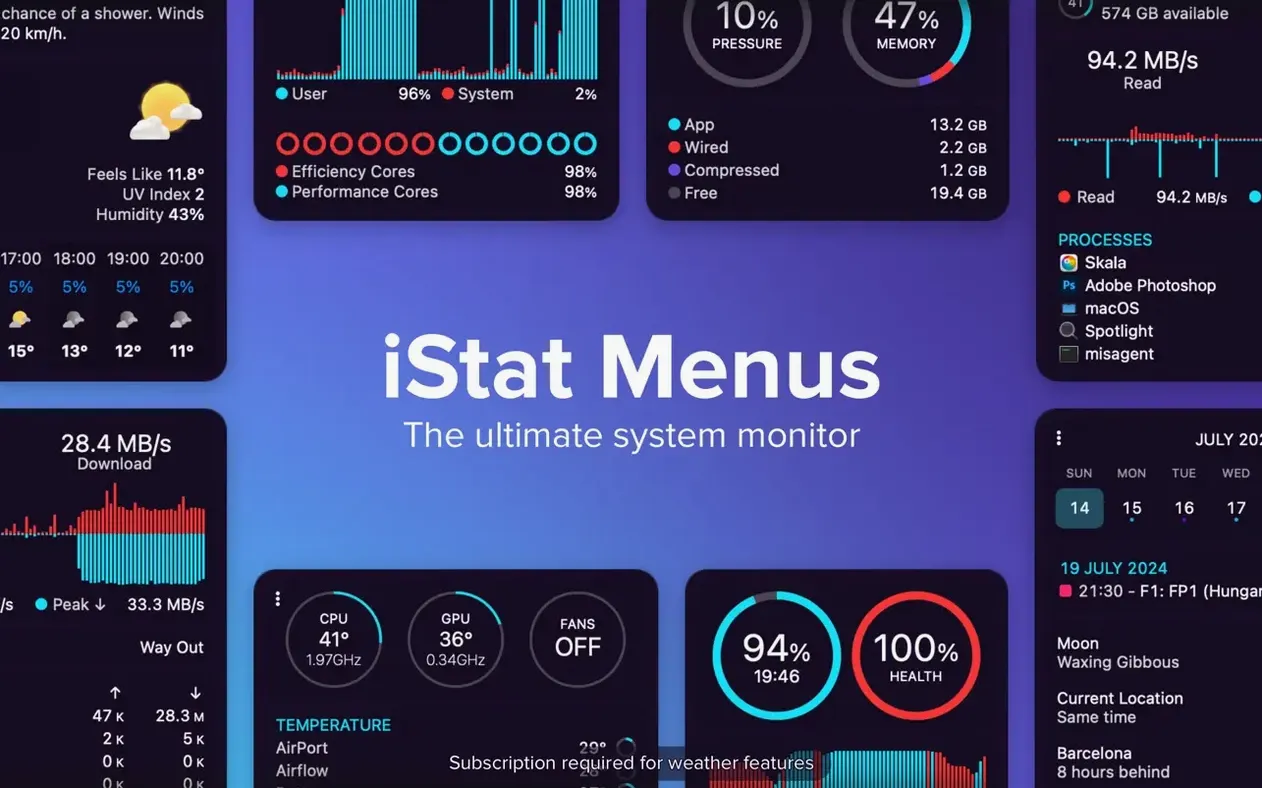
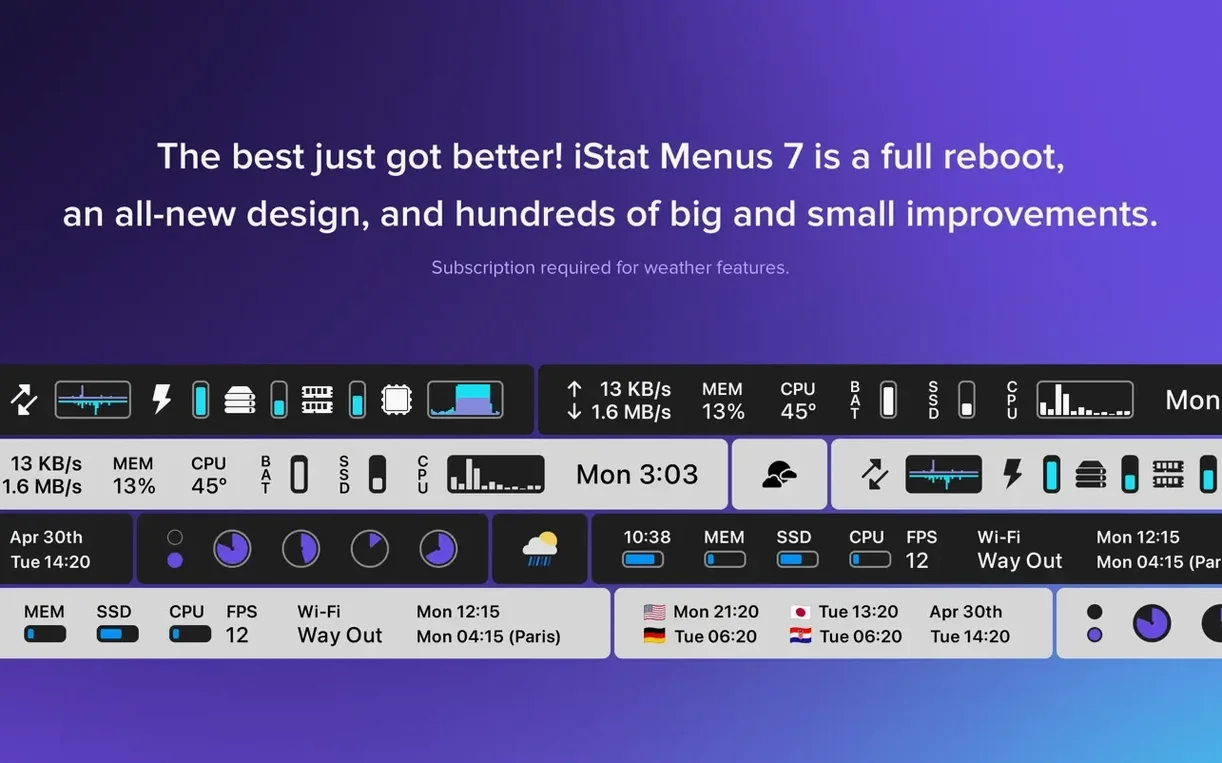
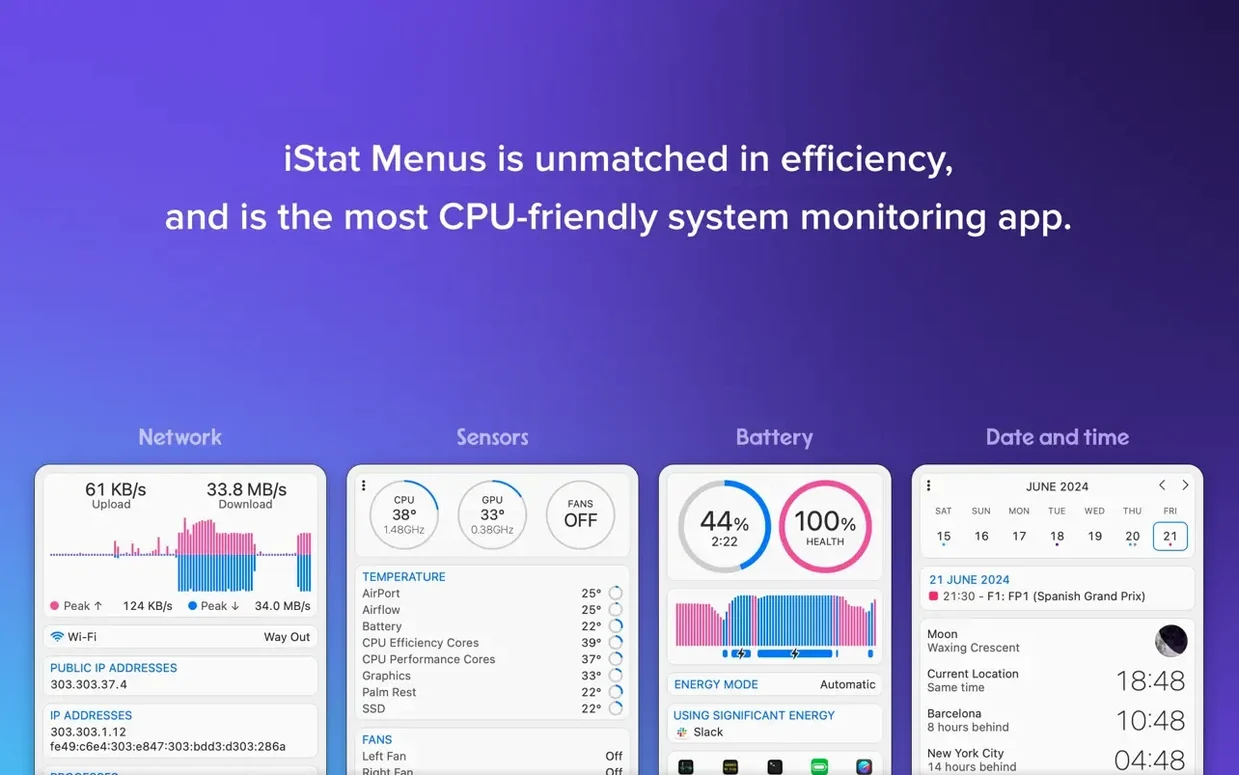
The workflow hasn't changed, which is a good thing. 1. You pick which meters live in your menu bar—CPU, memory, disks, network, battery, sensors. 2. You drag them into the order that makes sense for your eyeballs. 3. You click any icon to drop down a detailed panel. That panel is where you'll find the heavy data: network bandwidth broken out by app, the applications hogging memory right now, disk read/write speeds, and S.M.A.R.T. health for your drives. The helper utility still runs in the background to feed you temperatures and fan speeds, and everything still respects Dark Mode without a second thought.
Under the hood, the app runs natively on Intel and Apple Silicon Macs back to Big Sur. The interface speaks over thirty languages, from Arabic to Vietnamese, so the team at Bjango clearly builds for a global user base. If you live in the menu bar, version 7.50 is a tight release: one smart new module, zero bloat, and the same low-profile system monitoring that never gets in the way of a render.
Power Users Who Push Their Mac to the Limit
This isn't a tool that tries to please everyone, and that's its strength. The people who really click with iStat Menus tend to fall into a few camps.
Video editors and motion designers who push their Macs hard want the CPU and GPU history graphs visible at all times. When After Effects or DaVinci Resolve hits a thermal wall, the temperature readouts tell you before the fans even spin up. Audio engineers need a different view—they're watching memory pressure and disk I/O, because a sample library streaming off an external SSD can choke if the bus gets saturated. The disk activity graph catches that spike in real time.
Developers running Docker containers or local servers lean on the network meters. Seeing per-app bandwidth in the dropdown beats firing up Activity Monitor every time a build script hangs. System administrators who manage fleets of Macs use the sensor data to spot aging hardware: a fan that never ramps down, a battery that's cycling faster than expected. And astrophotographers just got a new reason to keep the app running—the Astronomy forecasts are genuinely useful if you're deciding whether to load the car at 3 a.m.
If you spend most of your day in a browser and a word processor, you'll still appreciate the clock and weather, but the full sensor suite might be more dashboard than you need. For everyone else, the menu bar becomes a second display for machine health.
Barely a Blip on Your CPU
Menu bar utilities have a reputation for being either invisible or bloated, and iStat Menus lands firmly in the first camp. On an M1 MacBook Air, the combined processes—the app itself plus the helper for sensor readings—rarely crack 1% CPU averaged over a day. Memory usage hovers around 120 to 180 MB depending on how many meters you've enabled and how often they refresh. That's less than a single Safari tab with a heavy page open.
The helper component handles temperature, voltage, and fan speed readings. It's a separate process that talks to the SMC, and in years of use across macOS versions, it hasn't been the source of kernel panics or sleep-wake issues. That's not a given with tools that poke at low-level hardware—Bjango clearly tests this across hardware generations.
Stability on Apple Silicon is solid. The app was native early, so there's no Rosetta translation overhead. On Intel Macs with T2 chips, the sensor readings are just as reliable. The only time you might notice a blip is during a major macOS upgrade—sometimes the helper needs re-authorization in Security & Privacy, and the app prompts you clearly when that happens. It doesn't silently fail and leave you with blank graphs.
One detail worth knowing: the polling interval affects battery impact on laptops. The default refresh of every few seconds is fine on AC power. If you're on battery and want to squeeze out another thirty minutes, bumping the CPU and disk meters to a slower poll rate in preferences makes a measurable difference over a long afternoon.
A Real Workflow: Diagnosing a Thermal Throttle During Export
Let's say you're exporting a 4K timeline in Final Cut Pro and the estimated time keeps climbing. The fans are loud, but you don't know if the CPU is actually throttling or if the encode is just heavy. Here's how iStat Menus turns that guess into data.
First, set up your meters before you start working. I keep CPU usage and temperature in the menu bar as text readouts—two numbers side by side. In the CPU dropdown, the history graph is set to a 30-minute window. In the Sensors dropdown, I pin the CPU die temperature and fan speeds to the top.
Start the export. Watch the CPU temperature climb. On an Intel MacBook Pro, you'll typically see it stabilize around 95–100°C under full load. If the CPU frequency line in the dropdown starts dipping while the temperature stays pinned at the ceiling, that's thermal throttling. The fans should be at maximum by then—if they're not, the fan speed rules in iStat Menus can force them to ramp earlier.
On Apple Silicon, the behavior is different but the diagnosis is the same. The efficiency cores pick up background tasks, and the performance cores stay hot. If the CPU history graph shows the performance cluster dropping frequency while the temperature graph is flat at the top, the SoC is pulling back to stay within its thermal envelope. The fix might be lifting the laptop off the desk for airflow, or just knowing that the export will finish—it won't be fast, but the data tells you it's working as designed, not failing.
After the export finishes, the temperature graph drops within seconds. That immediate feedback is what makes the menu bar placement superior to a windowed app. You see the cooldown in your peripheral vision while you move on to the next task.
Turning On Too Many Meters
The first mistake is turning on every meter at once. A menu bar crammed with twenty icons stops being glanceable and starts being noise. Pick three or four that answer questions you actually ask during the day—CPU, memory, and network cover most workflows. Add sensors only if you're debugging thermals.
Another common misstep: ignoring the dropdown customization. Each meter's dropdown panel can be rearranged, and sections you never use can be hidden. The disk dropdown defaults to showing every mounted volume, including tiny EFI partitions. Trim it to your actual working drives and it becomes useful instead of cluttered.
New users also tend to set fan speed rules too aggressively. Forcing fans to maximum at low temperatures makes your Mac loud for no benefit. The built-in Apple thermal management is smart—manual fan rules make sense as a temporary override during a known heavy workload, not as a permanent setting. If you forget to turn off a rule, you'll wonder why your laptop sounds like a wind tunnel during a Zoom call.
Finally, don't skip the notification triggers. You can set thresholds for CPU temperature, disk S.M.A.R.T. warnings, and network activity. A notification when a drive hits 80°C or when free disk space drops below 20 GB catches problems before they become emergencies. Most users install the app, set up the meters, and never touch the notifications pane—that's leaving half the tool on the table.
Version 7.50 brings a brand-new Astronomy item to the menu bar, complete with forecasts for seeing, transparency, cloud cover, and other observing conditions.
- macOS 11 or newer
- Apple Silicon or Intel 64-bit Mac
Questions I actually get
What does the iStat Menus Helper do?
The iStat Menus Helper is a background utility that enables temperature and fan speed readings for the app.
Notes from the edit bay · 0
Sign in or get an edit-bay pass to leave a note.
No notes from the edit bay yet. They go up after I read them.