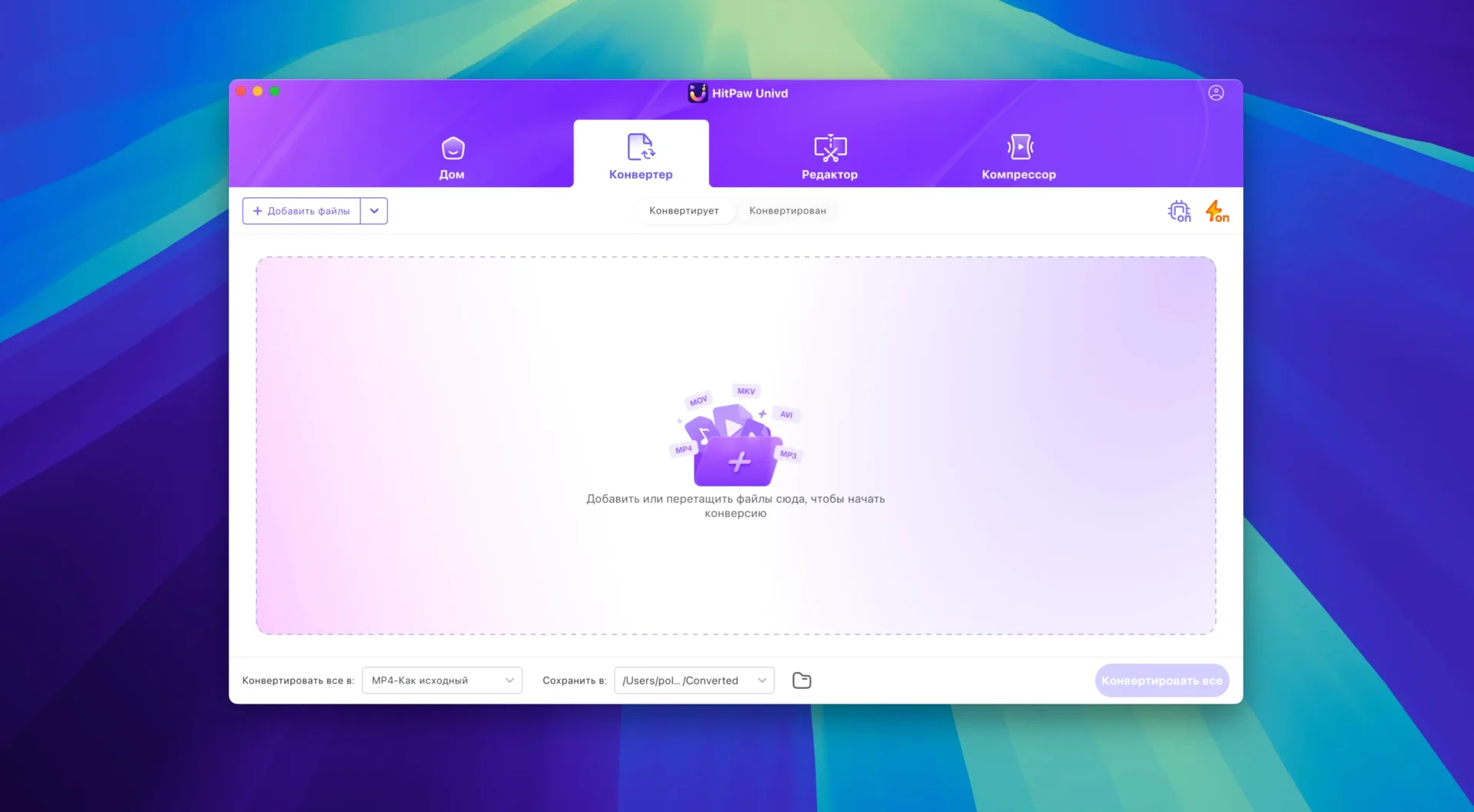
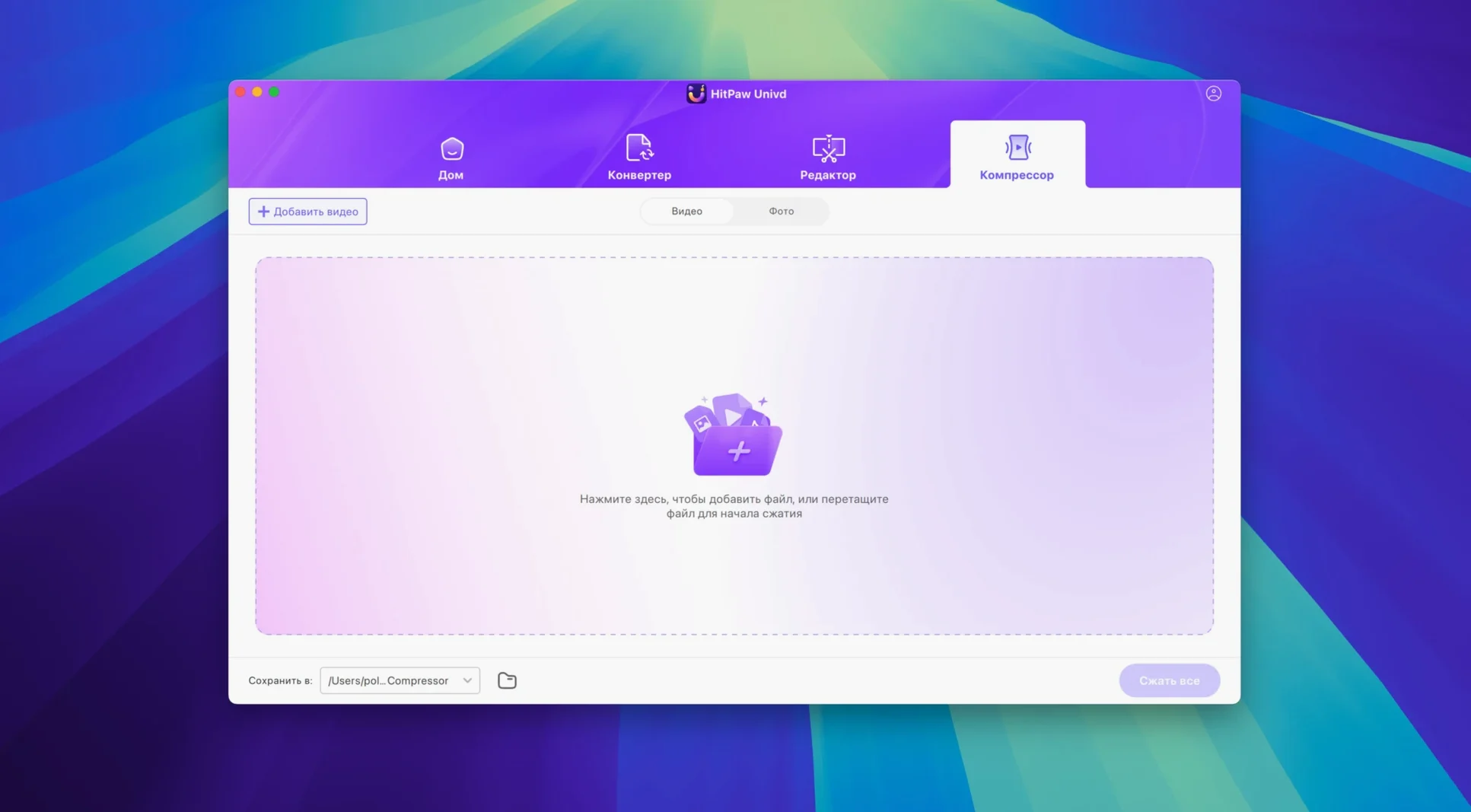
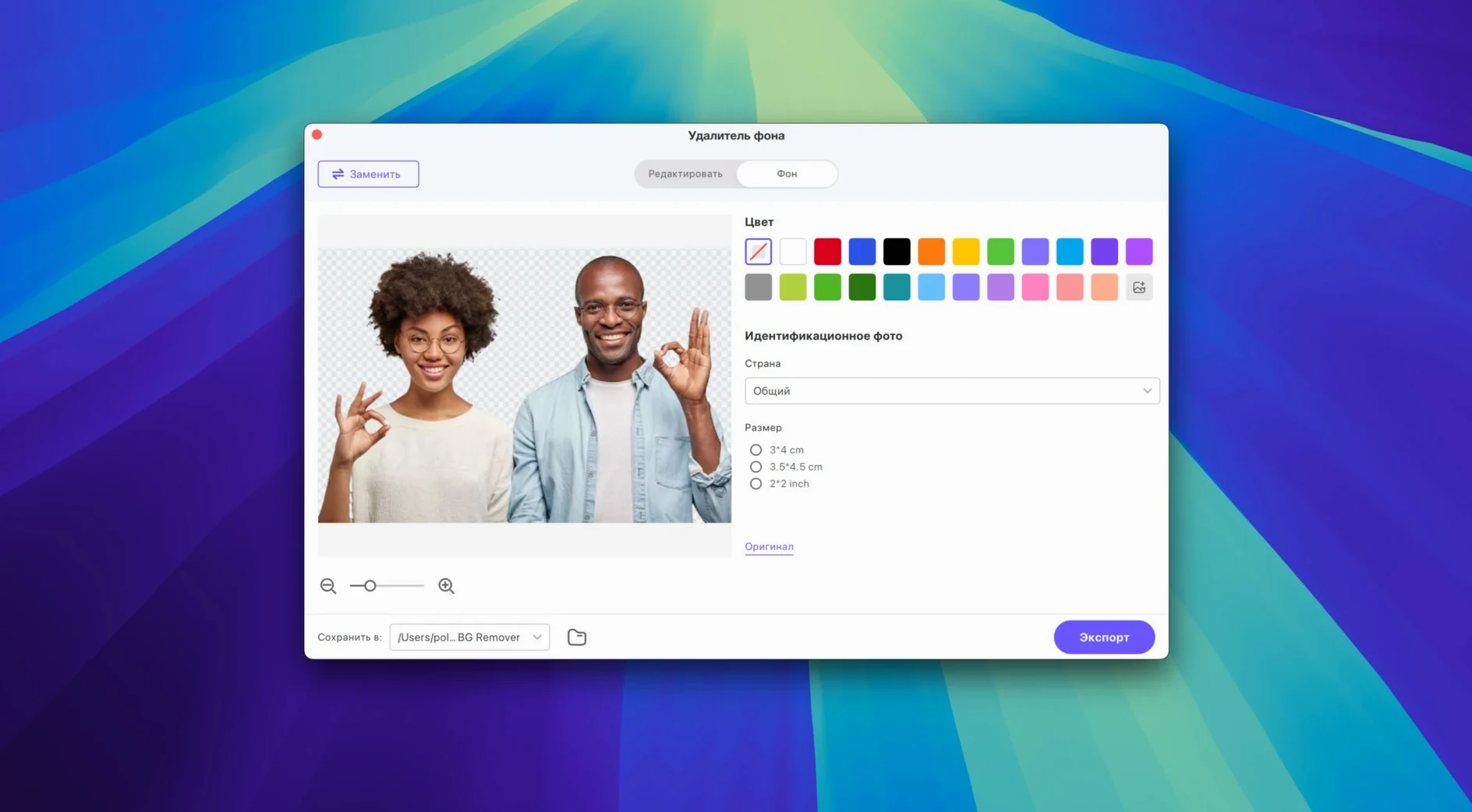
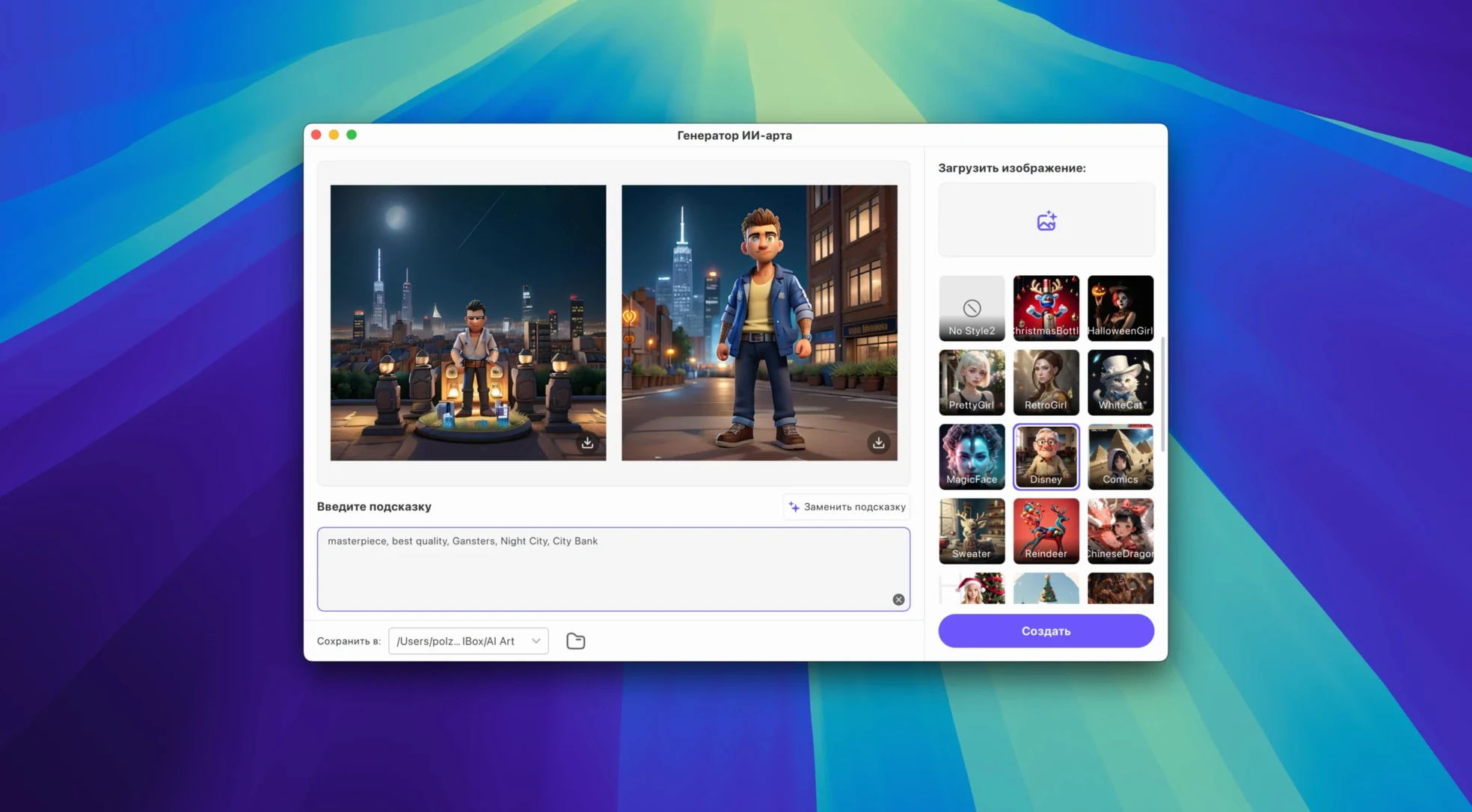
If you've ever leaned on Permute for quick format shuffles, you know the comfort of a converter that just works. HitPaw Univd enters that conversation but swings wider — it wants to handle the download, the conversion, and a handful of AI clean-up tasks in one go. For an editor who lives in a timeline, that's fewer handoffs between tools.
Where the Deeper Tools Live
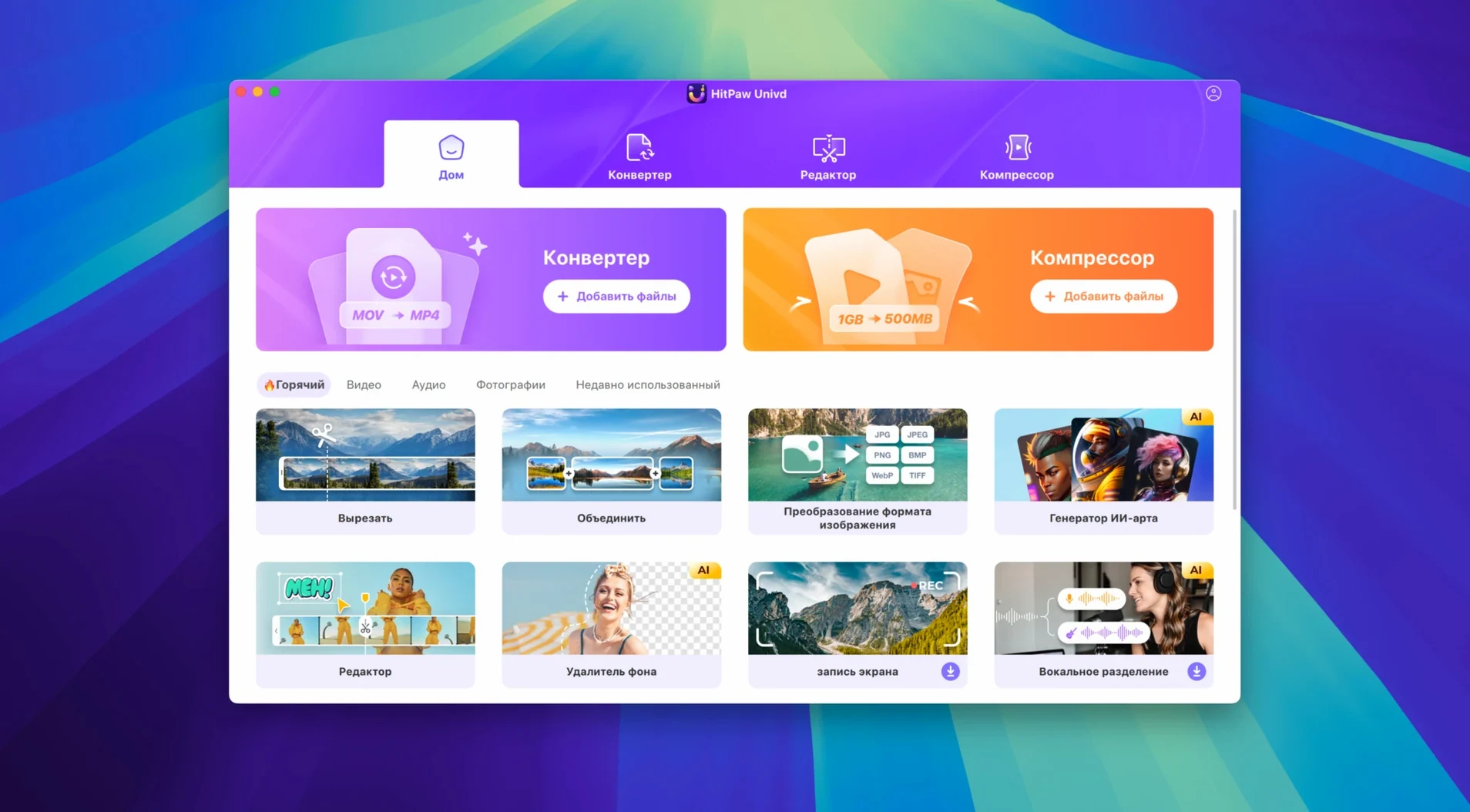
The format list is huge — MP4, MOV, MKV, VOB, AVI and more than a thousand others — but the callouts for an experienced user are elsewhere. The lossless music converter grabs tracks from Apple Music, Spotify, TIDAL, and Deezer without re-encoding the stream, which keeps a clean source file for video beds. The built-in downloaders pull from YouTube, Bilibili, Facebook, and Instagram, skipping the usual browser extension dance. Version 4.7.0, released January 8, 2025, rebuilt the UI around this, so the model feels less like a toolkit and more like a single pane.
Pulling Bilibili Clips, Stripping TIDAL Audio, and Transcoding MOV to MP4
HitPaw Univd sits between a pure downloader like Downie and a full encoder like HandBrake. It's the pick when you need to pull a clip from Bilibili, strip the audio from a TIDAL track, and transcode a MOV to MP4 for a client review — all without opening three separate utilities. The new UI makes that sequence feel linear rather than tabbed and scattered.
Does It Pull High-Bitrate Source Files or Compressed Screen-Recorder Streams?
People usually fire off the same three questions the moment they see the feature list. First: does the downloader actually grab high-bitrate streams, or is it the compressed version you'd get from a screen recorder? It pulls the source file where available — so a 1080p VP9 stream from YouTube lands as VP9, not a re-encoded shadow of itself. For sites that serve multiple resolutions, the picker lets you choose before the download starts.
Second question: can the music converter handle a playlist, or is it strictly one track at a time? It queues up full playlists from Apple Music, Spotify, TIDAL, and Deezer. The lossless path means the output file — FLAC or ALAC, depending on your setting — mirrors the stream quality without a second compression pass. If you're pulling audio for a video bed, that headroom matters when you start layering sound design underneath.
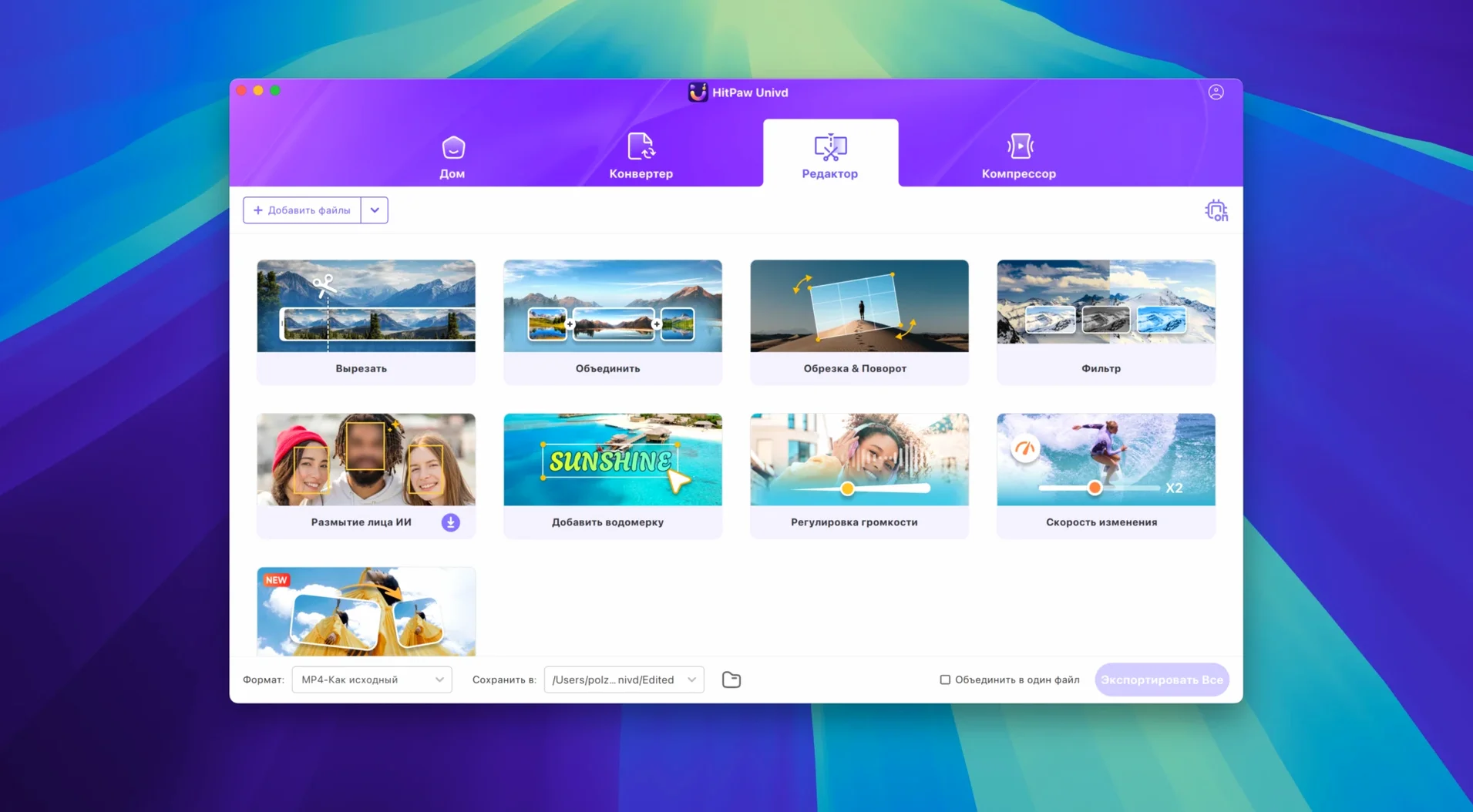
Third: does the built-in editor replace anything serious, or is it just a trimmer? You get cuts, crops, rotation, watermark overlays, and basic color adjustments. It's not Resolve, and it doesn't pretend to be. Think of it as the clean-up pass you run before the file hits your NLE — crop the black bars off a downloaded clip, adjust the saturation that the original uploader crushed, then render to ProRes and drop it into Final Cut. No round-trip to a separate editor for fifteen seconds of trimming.
Monday Morning: A YouTube Reference, a Spotify Track, and a 4 PM Rough Cut
Picture a Monday morning. A client sent a YouTube link for reference footage and wants a rough cut by 4 PM, plus the audio from a Spotify track they own the rights to. A year ago you'd have Downie, a YouTube-to-MP3 site you don't fully trust, and Permute all open at once. Here's the same morning with HitPaw Univd.
You paste the YouTube URL into the download tab. The app populates the available formats — you grab the 4K VP9 version because the client's timeline is 4K. While that pulls down, you switch to the music converter, log into Spotify through the in-app browser, and drop the track onto the queue. Lossless output, FLAC container, destination set to your project's audio folder. Both jobs run side by side, the progress bars stacked neatly in the new 4.7.0 interface.
The download finishes. The clip has a black border on the left edge — the uploader's mistake. You open the built-in editor, set the crop handles, drag them in ten pixels, preview it, and hit apply. Then you set the output to ProRes 422, click convert, and walk away to pour coffee. Ten minutes later you have a trimmed, cropped ProRes master and a clean FLAC file, both sitting in the project folder, named and ready. That's the difference: you didn't open a browser, a download manager, a separate converter, or an image editor. One app, one session, one render queue.
The Hardware Acceleration Toggle That Halves Your Render Times
The hardware acceleration toggle is buried in the preferences and it defaults to on. On an Intel Mac, that means VideoToolbox encoding for H.264 and HEVC outputs, which cuts render times roughly in half compared to a software encode. If you're transcoding a batch of AVI files from an old camera archive, flip that on before you queue them up.
The queue itself supports drag-and-drop reordering. Grab a file and pull it higher if the client emails with "actually send that one first." No cancel-and-restart nonsense.
Right-clicking any file in the queue gives you a "play source" option that opens a small preview window. Useful when you're converting a folder of B-roll and can't remember which clip is the wide shot and which is the close-up. The preview is frame-accurate, not a thumbnail guess.
The downloader tab keeps a history list of the last fifty URLs you've pulled, with a search bar. If you need to re-download a clip you grabbed three weeks ago — and the link is buried in a Slack thread you can't find — the history remembers it even if you've cleared your browser cache. Small thing, but a real time-saver when you're juggling multiple projects.
Move the Output Folder Off Your Movies Drive Immediately
HitPaw Univd ships with a default output folder buried in your Movies directory. Change it immediately to your active project drive — Preferences > General > Output Path. If you work across multiple drives, set it to a "Transcodes" folder on your fastest SSD and move files from there. The app respects the path globally, so downloads and conversions land in the same place unless you override per-job.
The default audio codec for video conversion is AAC at 192 kbps. That's fine for reference exports, but if you're converting footage for editorial, bump it to 320 kbps or switch to PCM if your NLE prefers uncompressed audio. Preferences > Audio > Default Bitrate. It sticks across sessions once set.
Turn on "Keep original file names" in the download preferences. The default behavior appends a quality tag to the filename — "video_1080p.mp4" — which breaks your naming convention. The toggle keeps the uploader's original filename so your project bin doesn't look like a mess of suffixes.
If you regularly pull from Bilibili or Facebook, enable the clipboard monitor in the downloader tab. Paste a URL anywhere on your Mac and HitPaw offers to grab it. The prompt is subtle — a small banner at the top of the window — not a pop-over that steals focus while you're typing an email. A toggle in the same preferences panel turns it off completely if you find it distracting.
The 4.7.0 update brings a cleaner UI and a reworked product model that simplifies how you move between downloading, converting, and editing. Also fixed: the overall user experience now ties the feature set together under one roof instead of separate modules.
- macOS 10.15 or later
- Intel 64-bit processor
Questions I actually get
Does HitPaw Univd convert Apple Music files without quality loss?
Yes, it converts music from Apple Music, Spotify, Deezer, and TIDAL losslessly, so you get a clean file without re-encoding the original stream.
Notes from the edit bay · 0
Sign in or get an edit-bay pass to leave a note.
No notes from the edit bay yet. They go up after I read them.