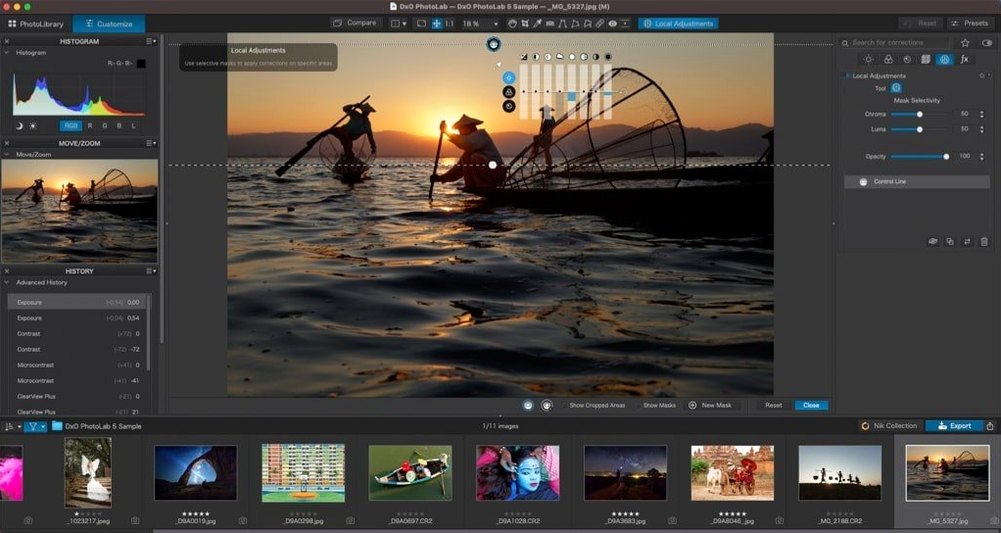
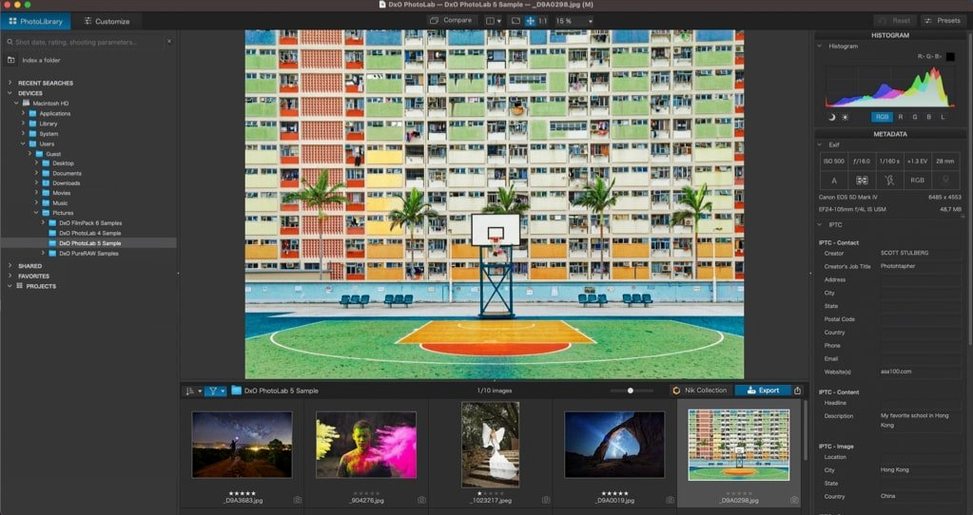
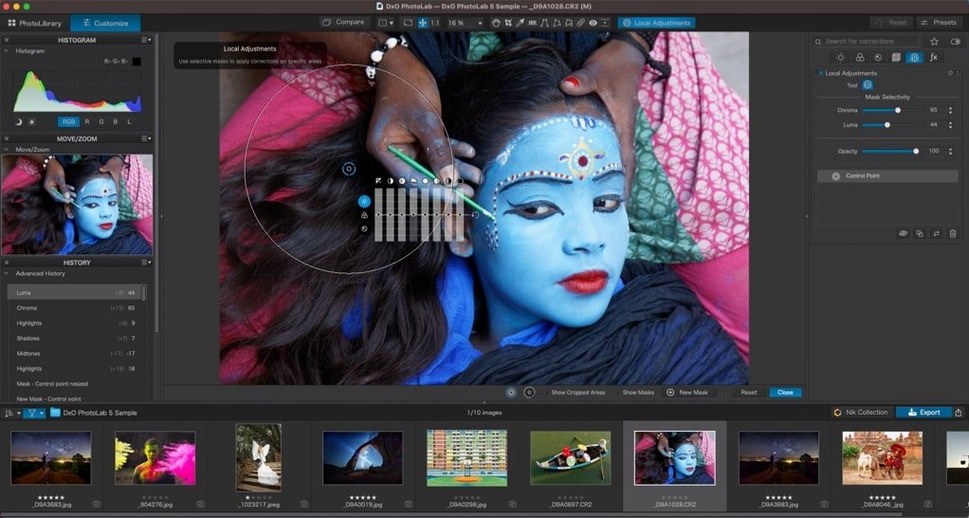
DxO PhotoLab is RAW editing software that hands you precise manual control over automated corrections. Version 9.10.0 runs on macOS 14.7 and processes files from more than 600 digital cameras without touching the interface you already know.
What Stays Solid
- DeepPRIME XD3 — demosaicing and noise reduction combined for Bayer and X-Trans sensors. Clean images at high ISO without watercolor smearing.
- AI Masks — click once to isolate skies, people, backgrounds or animals. No brushing required unless you want to refine the edge.
- U Point — drop a control point, narrow or widen the color and tone radius, adjust locally. Feels immediate the second you drag a slider.
- Edit Sync — copy adjustments across a set of images using Subject Types. Pick a hero frame, push the look to the rest of the shoot.
Why Lens Profiles and Sensor Corrections Come First Here
This is the current state of what used to be called DxO Optics Pro — a RAW processor that leans hard into lens profiles and sensor-specific corrections. Noise reduction lives at the center of the workflow, not off in a side panel. AI masks make the first pass fast, and U Point keeps the final touch local. If your timeline demands a clean base grade before round-tripping to a video editor, PhotoLab 9 fits without reinventing how you organize a shoot.
DeepPRIME at 100 Destroys Detail—Start Lower Instead
The most common one I see: treating DeepPRIME like a global slider you crank to 100. Dial it back. Start at 40–60 luminance for an ISO 3200 shot and creep up only if the shadows still look crunchy. Over-denoising costs you texture — wool becomes plastic, skin loses micro-contrast. Let a little grain live. Your export will thank you.
Another trap is ignoring the DxO Module for your lens. The software doesn't always auto-download it, especially if you import straight from a card without an internet connection. No module means no distortion correction, no vignette fix, no per-lens sharpness map. Before you touch a single slider, open the Lens Sharpness panel and check that the little orange dot is solid. If it's hollow, the module is waiting.
U Point newcomers tend to scatter control points like confetti. A single point can cover a face if you adjust the radius and use the luminosity mask built into it. Stacking three overlapping points on the same cheekbone creates halos and slows the render. Place one, hold Option and drag the outer ring to see exactly what the mask affects, then move on.
Finally, don't sleep on the Export to application command. If you're finishing a batch for a video project, sending 16-bit TIFFs directly to your editor's media folder skips a Finder cleanup step. Set your export preset once, then right-click the thumbnail and send it. The render bar runs in the background while you keep rating the next sequence.
What to Sort Out Before You Even Download the Installer
Does it handle Fuji X-Trans files properly, or do I still get worm artifacts?
DeepPRIME XD3 specifically supports X-Trans sensors, and the demosaicing engine no longer produces the squiggly sharpening artifacts that plagued Fuji shooters for years. The grain structure stays organic. I've pushed X-T5 files shot at ISO 6400 through batch processing, and the foliage detail holds without any painterly mush creeping in. You still need to pick a moderate sharpening level — DxO's default is aggressive on Fuji — but the underlying conversion is solid.
Your Lightroom Edits Won’t Survive the Import
No. PhotoLab opens the RAW file fresh. It can read basic metadata like star ratings and color labels from sidecar files, but exposure, color grading and local adjustments don't transfer. If you're migrating a large catalog, plan on rebuilding your base corrections. The upside: you're starting from the DxO profile, which often corrects distortion and vignetting automatically, so some edits you used to do manually simply disappear from the to-do list.
There’s No Video Editor Plug-In—But a TIFF Sequence Works
There's no plug-in version for Final Cut or DaVinci Resolve. PhotoLab is a standalone converter. The workflow that makes sense for video editors is batch-exporting a stills sequence to TIFF or JPEG and importing that folder into your timeline. For Lightroom Classic users, you can set PhotoLab as an external editor and send a TIFF round-trip — DxO applies corrections, then hands the file back to Lightroom for cataloging.
Where PhotoLab Pulls Ahead of Lightroom and Capture One
DxO PhotoLab vs. Capture One
Capture One gives you sessions and tethered shooting; PhotoLab gives you better noise reduction out of the box. For studio work where you're culling 800 frames with a client over your shoulder, Capture One's speed wins. For a landscape shoot at dawn with ISO pushed to 3200, PhotoLab pulls cleaner shadow detail without a trip to a separate denoise plug-in. U Point local adjustments feel faster than Capture One's layers for quick dodging on a face or darkening a sky, but Capture One's color editor is more precise when you need to shift a specific hue across a wardrobe.
DxO PhotoLab vs. Adobe Lightroom Classic
Lightroom's catalog is the elephant in the room — if you need keyword search across 50,000 images, PhotoLab isn't built for that. It browses folders, not databases. Where PhotoLab bites back is in the first five minutes of editing: the lens-specific sharpness and distortion corrections are applied automatically via DxO Modules, and they're visibly better than Adobe's generic profiles for many lenses. DeepPRIME XD3 also handles high-ISO color noise more naturally than Lightroom's AI Denoise, especially in the transition areas between sharp edges and smooth backgrounds. For a photographer who delivers 20 finished selects per session, PhotoLab's edit-sync and export pipeline feels direct. For someone managing a decade-long archive, Lightroom's organization tools still pull harder.
DxO PhotoLab vs. ON1 Photo RAW
ON1 bundles effects, HDR merging and a layer-based compositing system that PhotoLab doesn't attempt. If you're building composite images with swapped skies and texture overlays, ON1 keeps you inside one application. PhotoLab stays narrower: it converts a RAW file into the cleanest, most optically-corrected version of itself and then stops. The trade-off is depth. PhotoLab's noise reduction and lens corrections are reference-grade; ON1's are functional but softer. Choose based on whether you finish images in one app or pass a clean TIFF to Photoshop or Affinity for the creative layering work.
A Workflow: Fixing a Backlit Portrait
You've got a backlit shot from a golden-hour engagement session. The subject's face is underexposed, the sky is hot but salvageable, and the 85mm lens has mild barrel distortion you didn't notice in the viewfinder.
- Apply the DxO Module. Open the image and confirm the lens module downloads. Distortion and peripheral illumination corrections snap in automatically. The horizon line straightens, and the corners stop sucking light.
- Set the rendering profile. Switch from DxO Standard to Neutral color, linear tone curve in the Color Rendering panel. This flattens the contrast so you can lift shadows without the curve fighting you.
- Lift the subject with Smart Lighting. Set Smart Lighting to Uniform at about 40. This raises the face exposure without blowing the sky further. Spot-meter the forehead with the eye dropper if the auto guess misses.
- Recover the sky with ClearView. Push ClearView to 30–40. It cuts through atmospheric haze and deepens the blue without shifting the color temperature of the skin
- macOS 14.7 or later
- Apple Silicon and Intel Macs supported
Notes from the edit bay · 0
Sign in or get an edit-bay pass to leave a note.
No notes from the edit bay yet. They go up after I read them.