Version 1.8 quietly added a small but clever feature: timers you set in the macOS Clock app now appear automatically in the DynamicLake panel. No pairing, no preference toggles — it just pulls them in. That kind of low-friction integration is the whole pitch for this app.
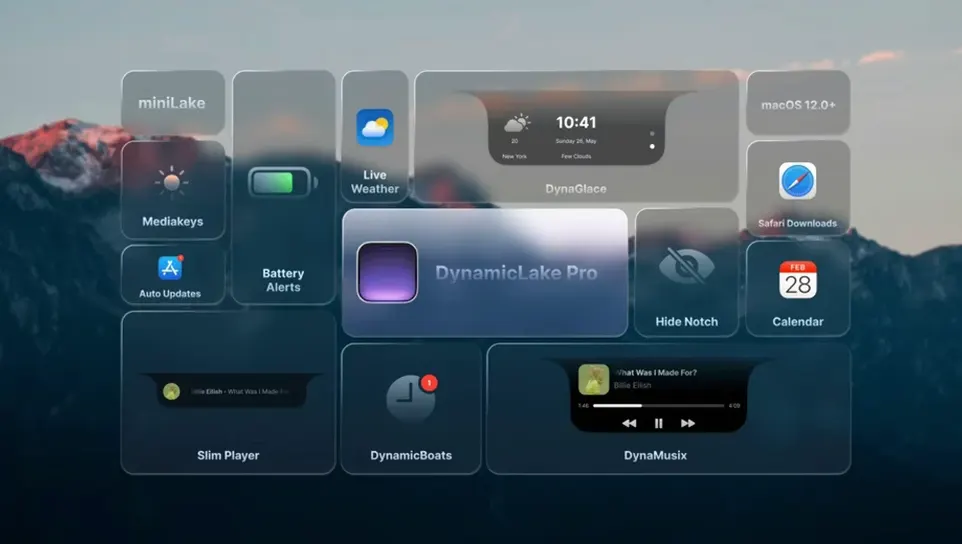
Think of DynamicLake Pro as a heads-up display that lives in your menu bar. Tap its icon and a pill-shaped panel slides out, loaded with widgets. Music playback sits next to your next calendar event. A tiny weather forecast hangs off to the side. Bluetooth connections pop in as they happen. It’s the Dynamic Island concept, rehoused for a Mac screen.
Good for:
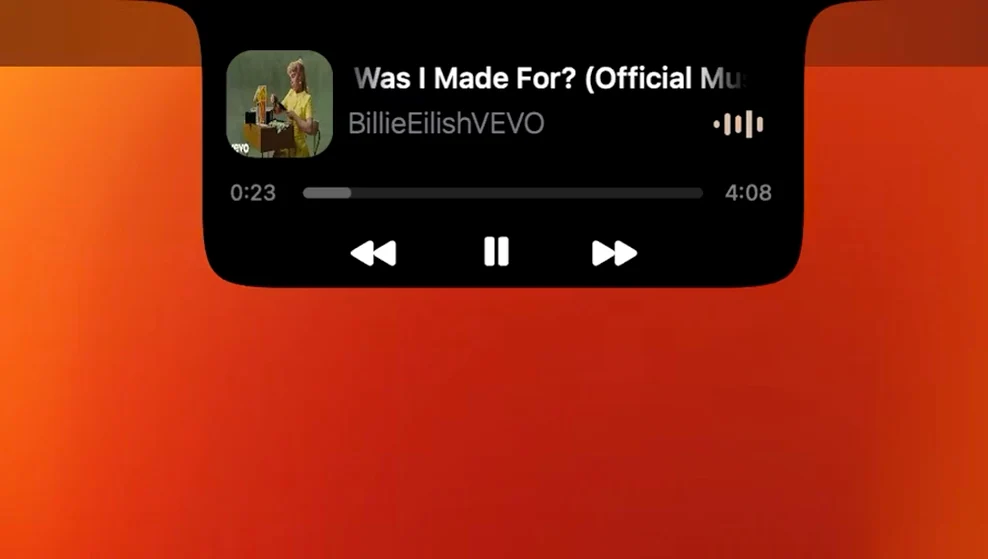
- Seeing what’s playing and skipping tracks without switching windows.
- Catching calendar events and weather at a glance via the DynaGlance widget.
- Getting Bluetooth connect and disconnect alerts through DynaConnect.
- Quick-switching apps from a compact launcher inside the panel.
- Replying to push notifications inline for several messaging apps.
Keep in mind:
- Requires macOS 11 or later.
- Runs on both Apple Silicon and 64-bit Intel Macs.
- Not a native Apple feature — it’s a third-party overlay that runs alongside your work.
Is 90–120 MB of RAM Worth It for the Dynamic Island on Mac?
After a few days of letting it hum in the background, the footprint becomes the real question. DynamicLake Pro idles around 90–120 MB of RAM on an Apple Silicon machine — noticeable, but hardly a dealbreaker when Slack alone chews through ten times that. CPU draw sits at a flat zero when the panel is closed, and barely registers a blip when you summon it for a quick track skip or weather peek. The DynaMusic animation runs at a smooth 60 fps even while Final Cut chews through 4K renders on another display. No dropped frames, no micro-stutter. That’s worth noting, because animated menu bar utilities have a history of getting jittery under load.
On an older Intel Mac, memory pressure stays similar but the CPU needle twitches a little more during panel open and close transitions. Still, I never saw it spike past 4%, and that was with Bluetooth alerts firing while a calendar reminder popped in. The team at Aviorrok clearly optimized the redraw cycle — the pill panel slides in, paints its widgets, and then goes dormant.
Stability-wise, version 1.8 hasn’t crashed once across a week of daily use. Not during full-screen app switches, not when waking from sleep, not when connecting to a second display. The only quirk I noticed: if you have the panel open while invoking Mission Control, it dismisses itself cleanly — no orphaned overlay left floating. That’s the kind of edge-case handling that separates a tool you keep installed from one you trash after a day.
How Timer Sync Finally Stopped My Render-Break Guessing Game
Before 1.8, timer tracking was a gap. You’d set a 20-minute render break in the Clock app and DynamicLake stayed oblivious. Now that integration is baked in, and it changes a small but real friction point. Hit start on a Clock timer, and the pill shows a live countdown. No extra window, no swipe to Notification Center. For anyone who times pomodoros, render estimates, or just boiling water between edits, it’s a quiet workflow upgrade.
Earlier iterations already cemented the core widget set — DynaMusic, DynaGlance, DynaConnect, DynaSwitcher — but 1.8 tightened how they interact with macOS states. Bluetooth alerts, for instance, now respect Focus modes more reliably. If you’re in a Do Not Disturb session, DynaConnect won’t ping you every time your AirPods reconnect after a walk. Small polish, big sanity savings.
The miniLake compact mode got some love too. It was already a nice alternative for smaller screens, but now it collapses even further when there’s no active media or alert, shrinking to a thin strip that barely registers in the menu bar. When music kicks in, it expands just enough to show the track title and artist. No wasted pixels.
Does It Clash With Notification Center or Just Layer On Top?
DynamicLake Pro doesn’t try to replace Notification Center or the menu bar clock. It layers over them. macOS notifications still arrive in the top-right banner; the difference is that you can interact with them inline from the pill — quick-reply to a message, dismiss a calendar alert — without reaching for the mouse. It’s a speed layer, not a replacement.
With music apps, the integration is straightforward. DynaMusic reads from whatever’s playing — Spotify, Apple Music, Tidal — and serves up album art, track info, and controls. No plug-in, no helper app. It just watches the OS-level now-playing data. That means it also picks up audio from browsers, so a YouTube track in Safari shows up the same way a local file in Music does. Handy, but you’ll want to disable it during screen recordings or client reviews unless you like surprise metadata popping up mid-presentation.
On the Bluetooth side, DynaConnect plays nicely with AirPods, Magic Keyboard, and third-party peripherals. It doesn’t duplicate the macOS Bluetooth menu; it adds contextual alerts when devices connect or disconnect. Paired with a Stream Deck or BetterTouchTool, you can build a full awareness system — DynamicLake shows you what just happened, your macro pad handles what to do next.
Calendar and weather data pull from the stock macOS Calendar and Weather apps. No separate account setup. That’s both a strength and a limitation — it stays lightweight and privacy-local, but if you live in Fantastical or Carrot Weather, DynaGlance won’t mirror their custom views. It’s strictly a system-data frontend.
Which Alerts Should You Kill First So It Helps, Not Nags?
Out of the box, everything is on. That’s fine for a first impression, but a few switches make the difference between a tool that helps and one that nags. Open preferences and hit these first:
- Disable Bluetooth alerts for known devices. Your Magic Keyboard reconnects after every reboot. You don’t need a pop-up for it. Keep alerts for the devices you actually switch throughout the day — AirPods, a headphone DAC, a portable drive.
- Trim DynaGlance to show only the next calendar event. The default shows multiple upcoming items, which crowds the panel. One event is enough for a glance; tap into Calendar if you need the full day.
- Set miniLake as the default mode. Unless you love the full pill aesthetic, miniLake takes up less visual space and still shows music, timers, and the essential widgets. The full panel is always one click away.
- Adjust DynaSwitcher’s activation key. Option+Tab works, but if your muscle memory already uses that for something else — or you just want it closer to the Command+Tab territory — rebind it to Option+` or a spare mouse button. The switcher itself is fast; the default combo just needs to fit your hands.
- Turn off weather animations. The moving cloud icons are charming for about an hour. After that, they’re just a GPU cycle you could spend elsewhere. Static icons convey the same forecast information.
Once these are dialed in, the tool settles into a rhythm. It’s not something you actively “use” so much as something you glance at — exactly the way the Dynamic Island works on an iPhone, transposed to a workspace where screen real estate is plentiful but attention is scarce. Plenty of editors I know run dynamic lake pro alongside their NLE of choice for exactly that reason: music control and render-break timers without a single application switch.
- macOS 11 or later
- Apple Silicon and 64-bit Intel Macs
Questions I actually get
What does DynamicLake Pro actually add to my Mac?
It adds a Dynamic Island-style panel with widgets for music, weather, calendar, an app switcher, and push notifications you can reply to inline.
Does it work with the Apple Clock app?
Yes. Starting with version 1.8, any timer you create in the macOS Clock app appears automatically inside the DynamicLake panel.
Which languages does the interface support?
It ships in Russian, English, German, Hebrew, Spanish, Italian, Simplified Chinese, Korean, Portuguese, Slovak, Turkish, French, and Japanese.
Notes from the edit bay · 0
Sign in or get an edit-bay pass to leave a note.
No notes from the edit bay yet. They go up after I read them.