
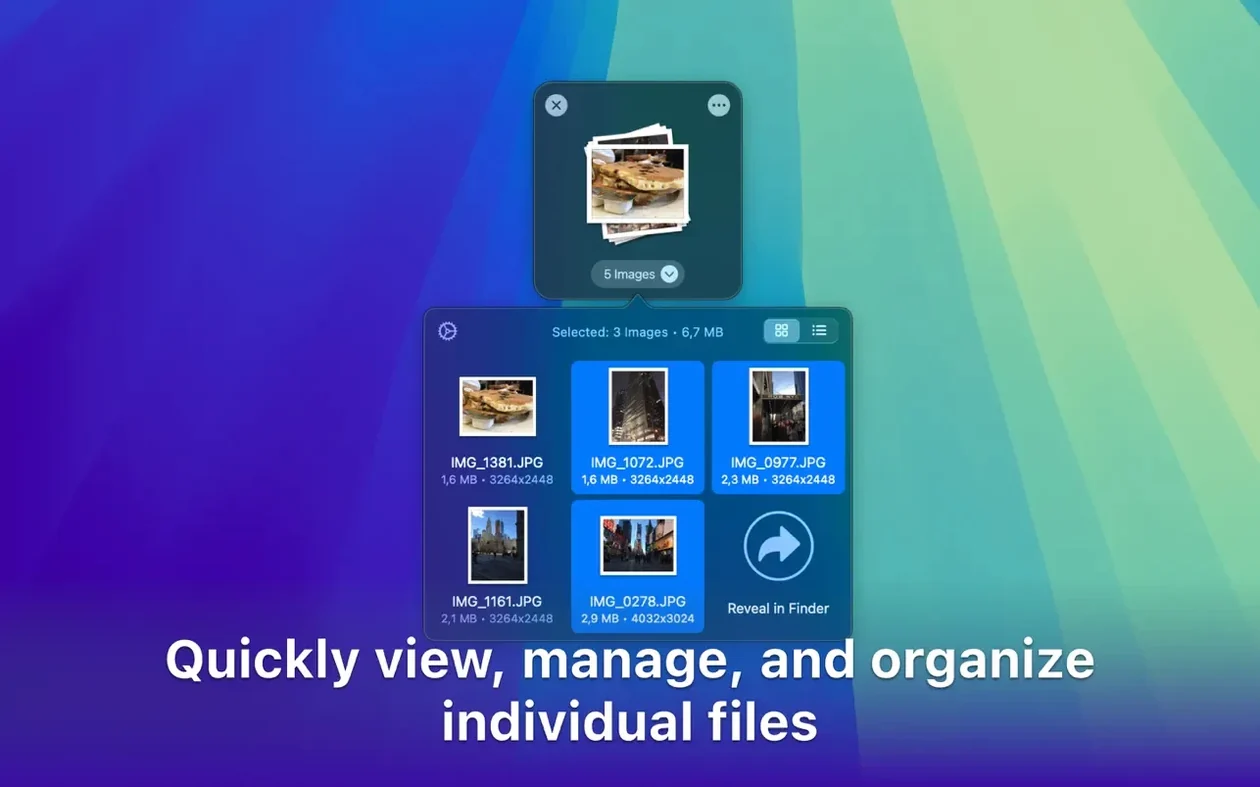
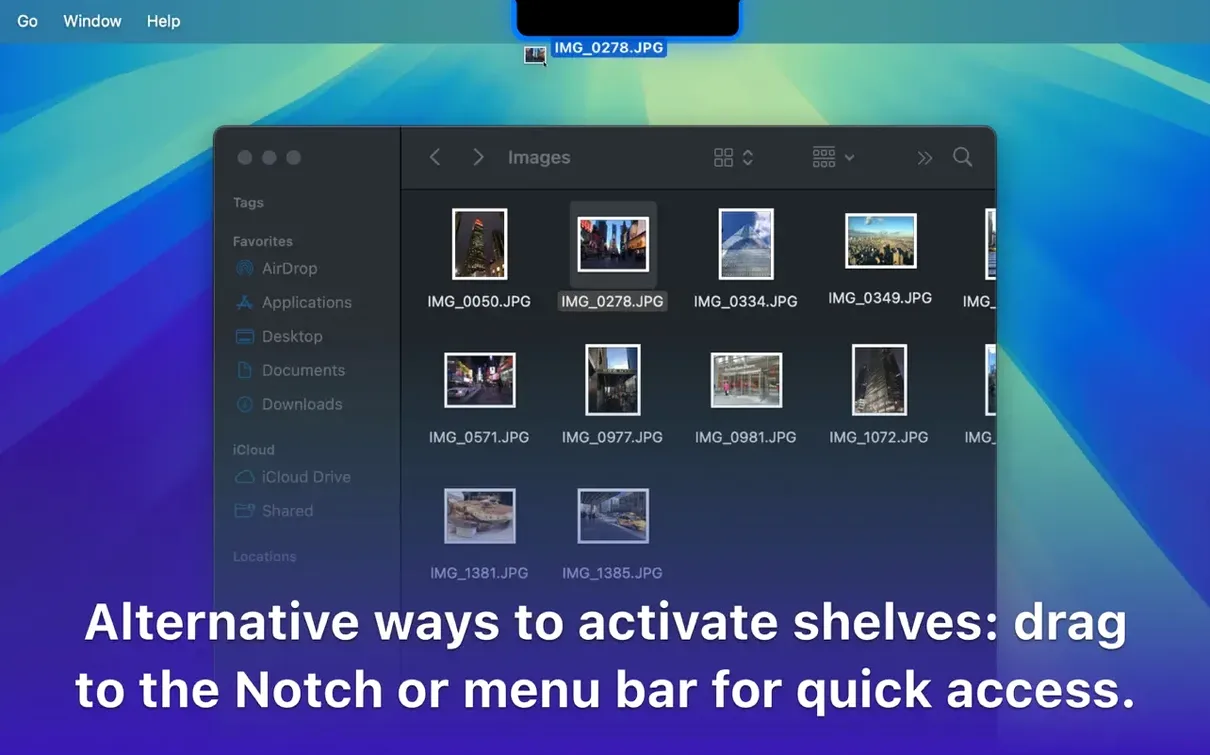
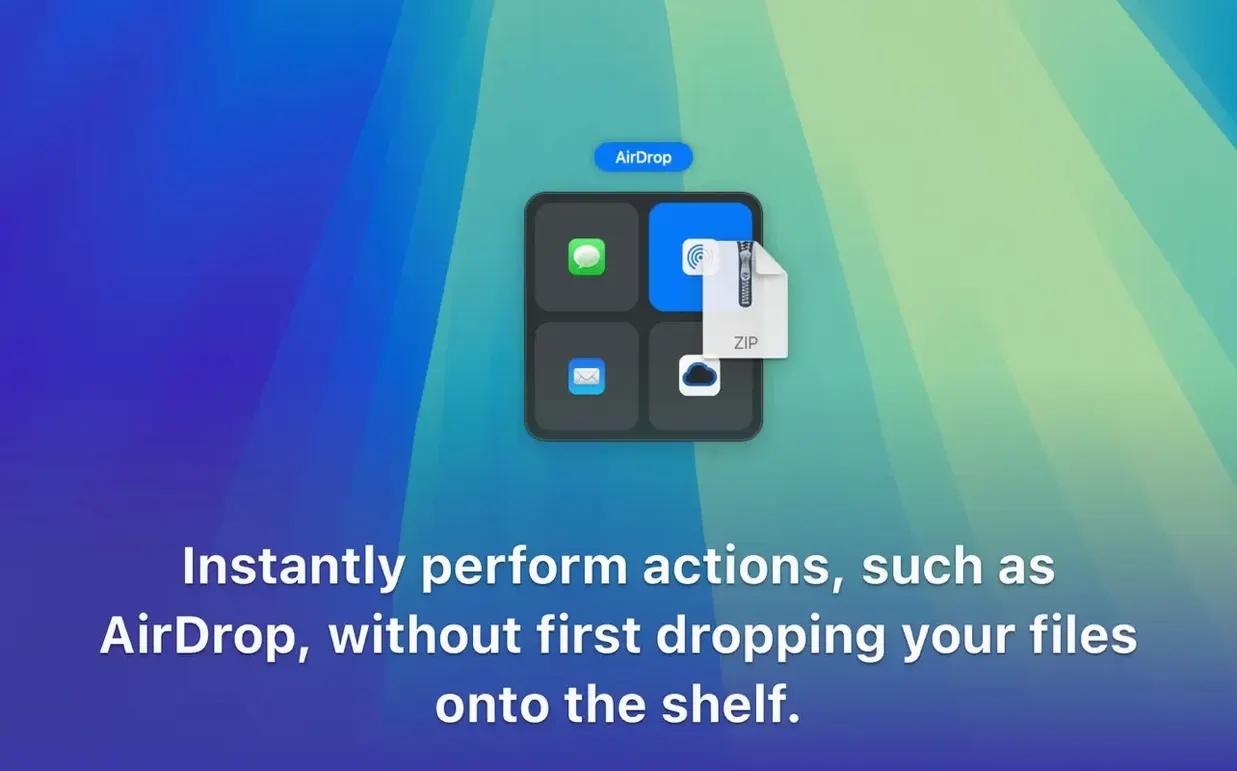
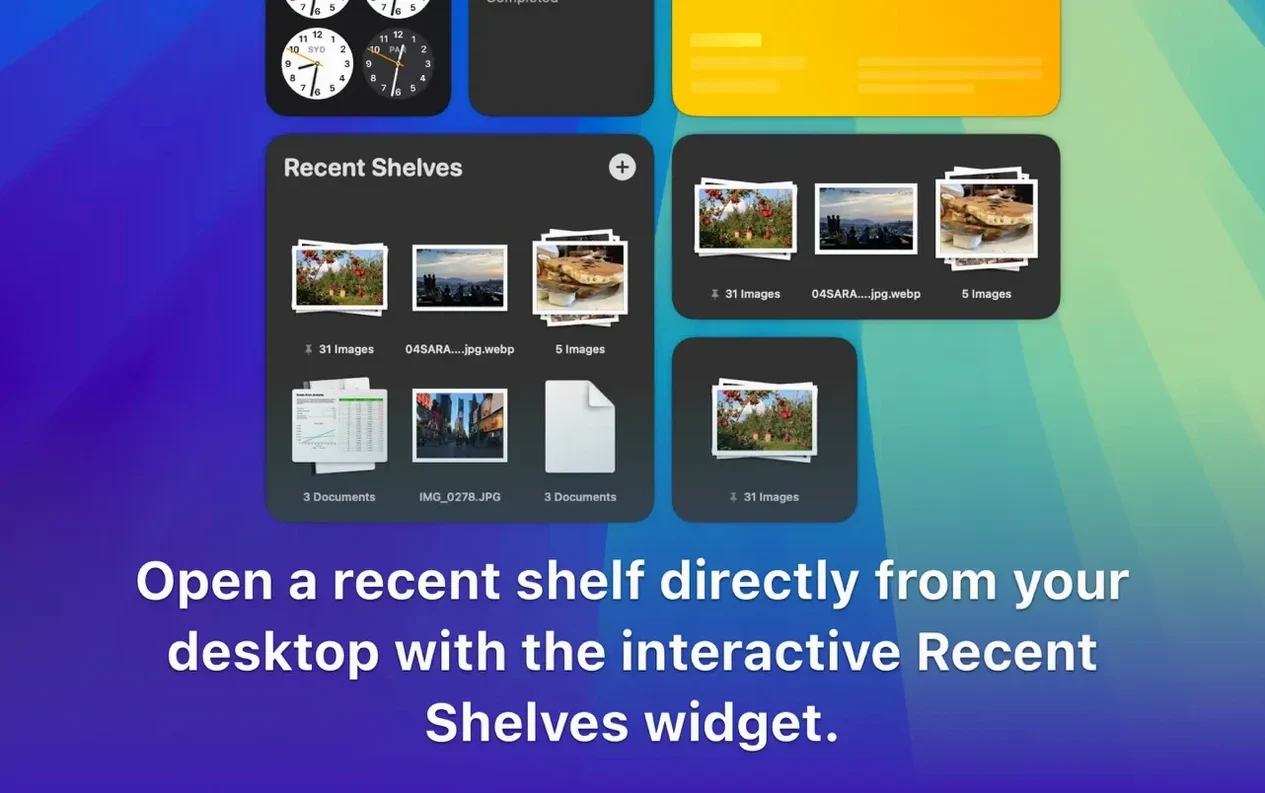
Drag, Hold, and Drop on the Shelf
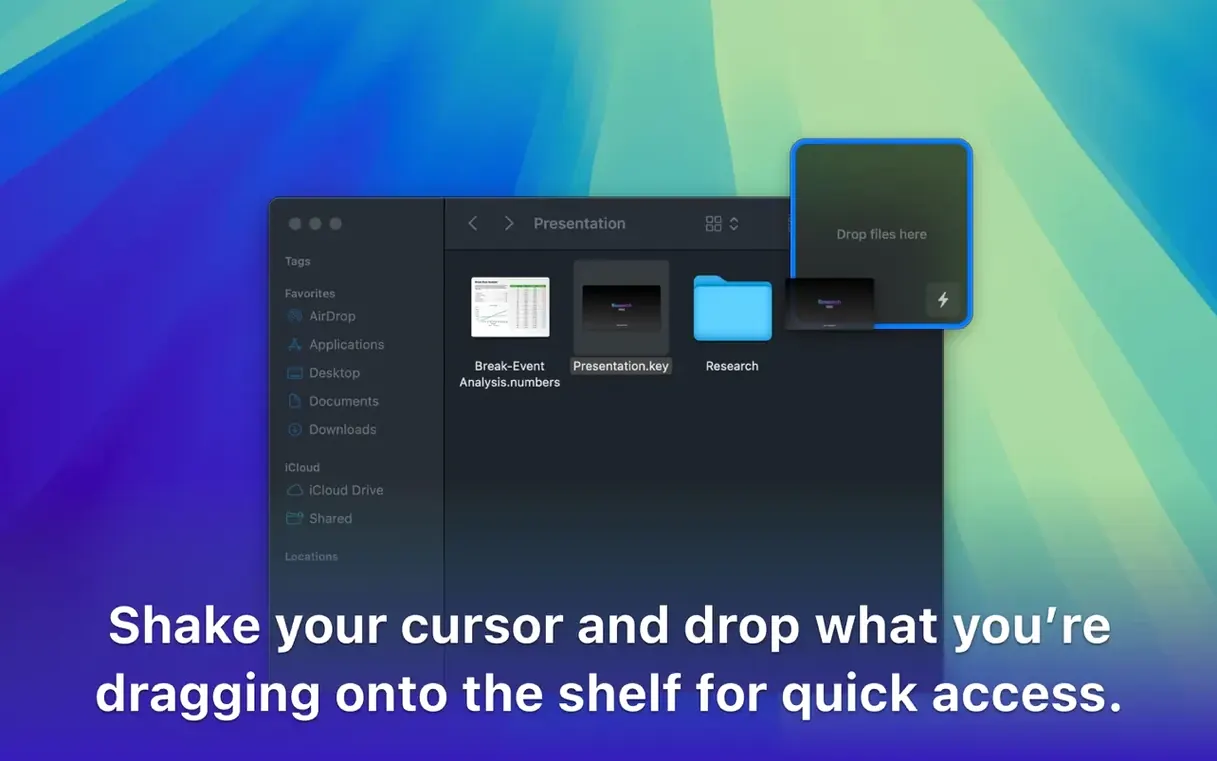
Shake your cursor while dragging files and a floating shelf appears. Dropover holds those items until you decide where they belong. It is the missing middle step between selecting and committing.
Group Before You Move
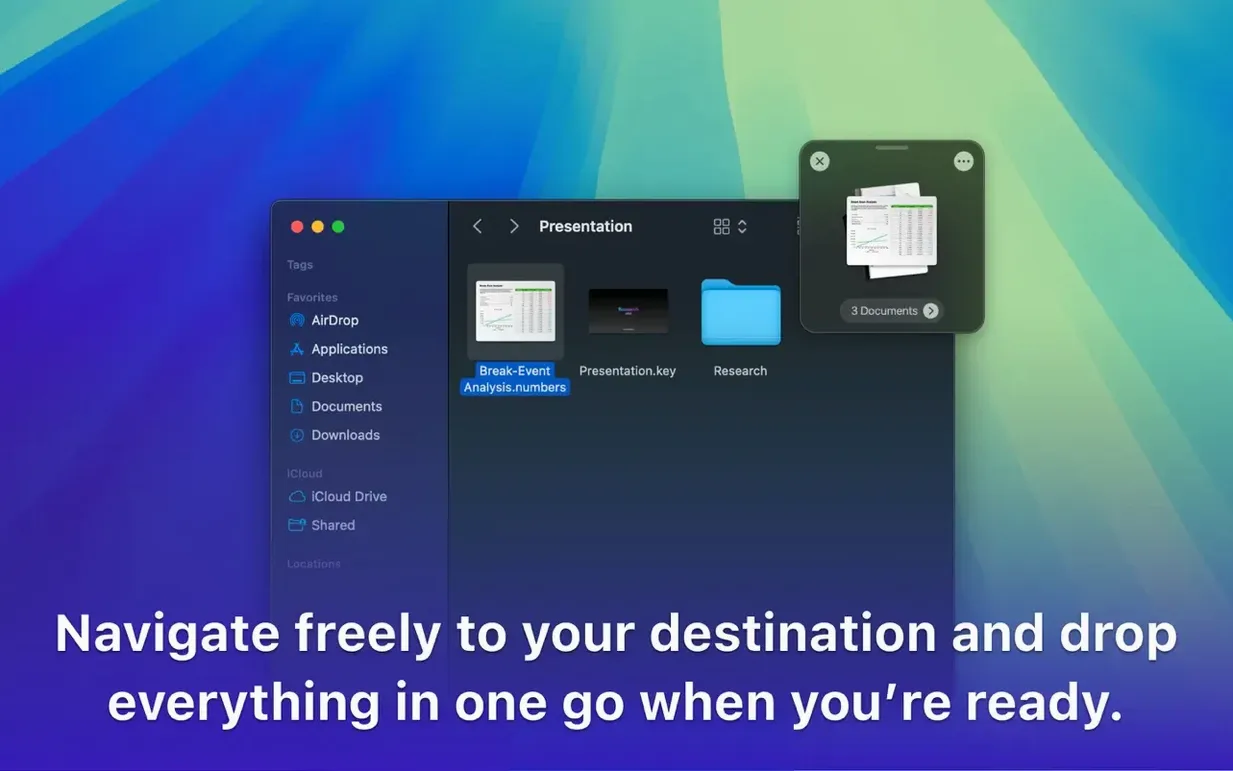
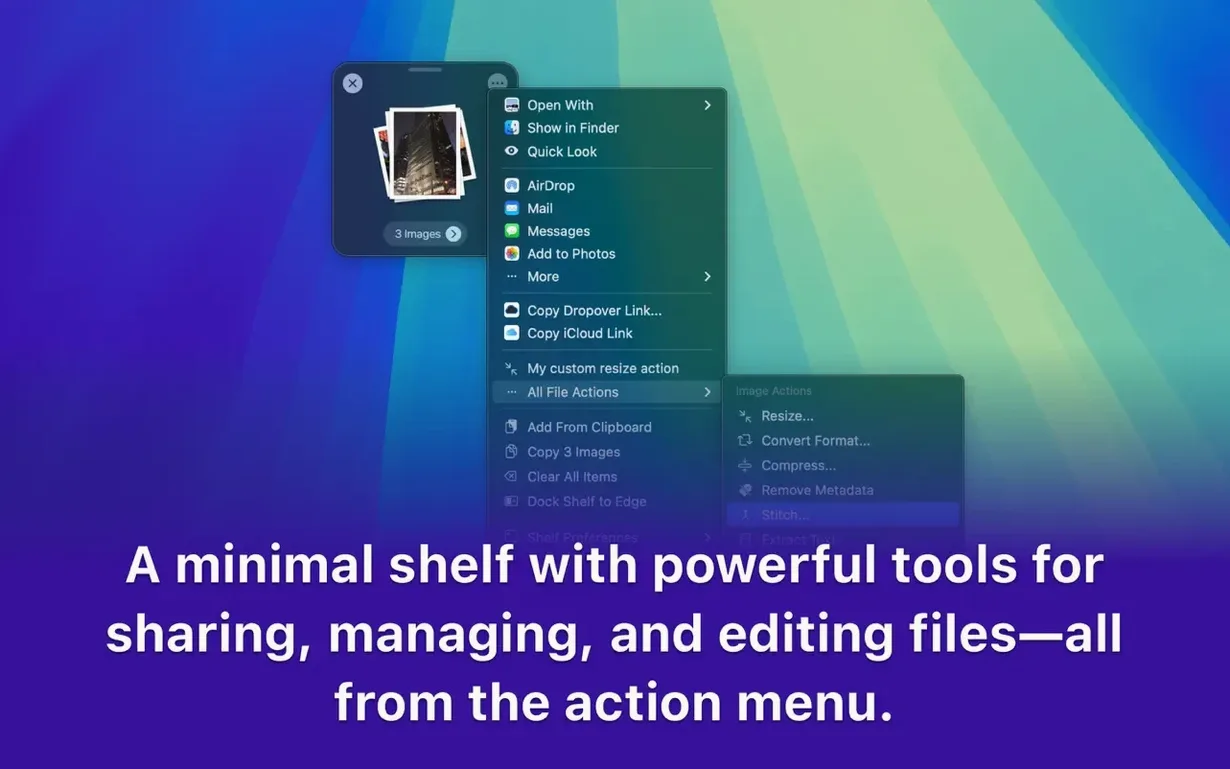
Drag unrelated files from different folders onto the same shelf. Rename them as a batch, compress them into an archive, or share a single link from the stack. No temporary folders required.
Send Straight to a Cloud Share
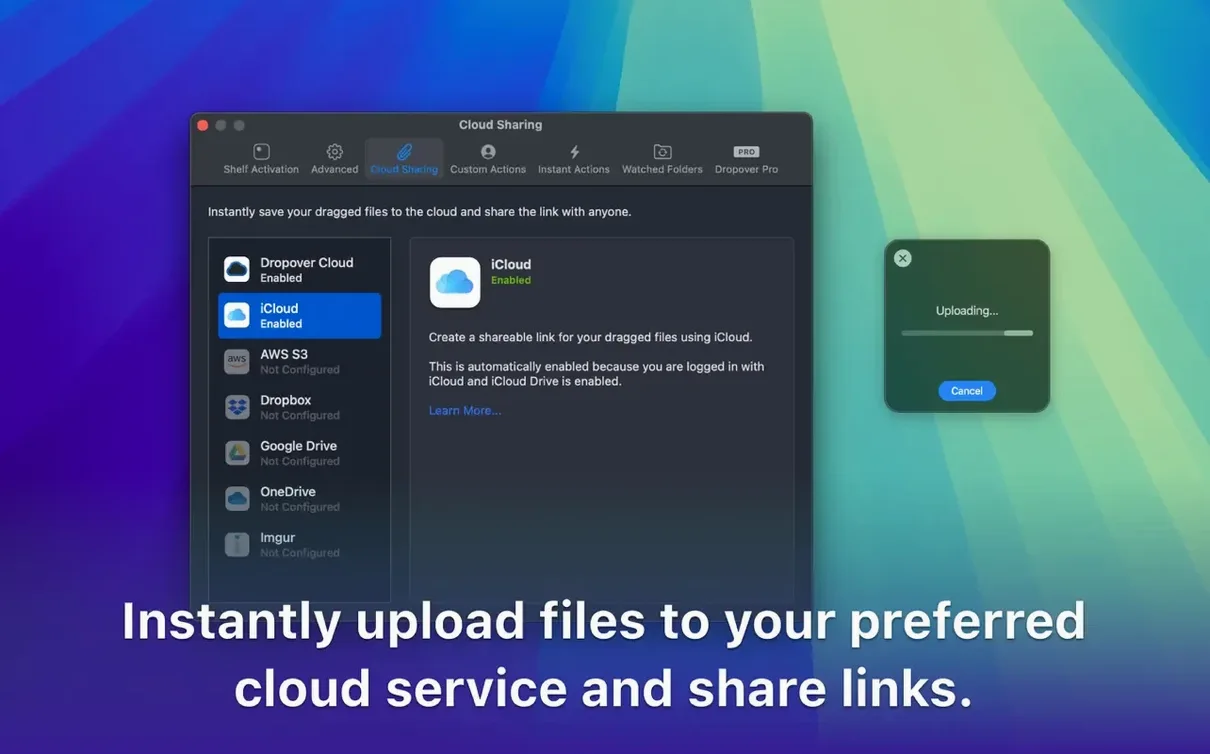
Upload the shelf contents directly to Google Drive or Dropbox and grab a shareable link. It cuts out the step of syncing a local folder first, which keeps the desktop clean during deadline crunches.
Scrubbing Finder Folders into a Floating Timeline Shelf
Video editors assembling a timeline from scattered assets live inside this tool. A dozen clips sit on the shelf while you scrub through Finder folders, then land on the timeline in one motion. It removes the friction of switching between Final Cut and a cluttered desktop.
Designers juggling assets for a deck or a Figma board benefit the same way. Pull images from Photos, vectors from a client folder, and a PDF from Mail — stage them all, then drop the batch into the layout app. The shelf holds context while your brain moves to the next task.
Anyone who uploads client deliverables will lean on the cloud-share actions. Wedding photographers dropping a full gallery to Google Drive without creating a staging folder first, or podcast producers sending a rough mix and show notes together. The shelf becomes a temporary outbox that disappears when the job is done.
If your workflow rarely moves more than two files at a time, the utility feels like overkill. But once you regularly cross three or more folders in a single task, the shelf stops being a novelty and starts being muscle memory.
Why a Nervous Shake Won’t Summon the Shelf
The shake gesture trips people up first. A nervous, tight shake while dragging a single icon often registers as a normal drag — the shelf never appears. The trick is a quick, deliberate wiggle, almost like jiggling a stuck key. Once you feel the haptic click (on a trackpad) or see the shelf pop, you know the timing.
Another early mistake is treating the shelf like permanent storage. Dropover's shelf clears when you quit the app or restart your Mac unless you pin it. New users sometimes leave critical files sitting there overnight, then panic when the shelf is empty the next morning. Pinning a shelf or moving items off it before shutting down becomes second nature after one lost batch.
Overloading a single shelf with forty mixed items — images, zips, text clippings, a DMG — slows down the preview and makes the cloud upload actions sluggish. Breaking large hauls into two or three shelves keeps things snappy. The app lets you spawn multiple shelves from the menu bar, and that feature exists for exactly this reason.
Grabbing Client Assets from Three Drives Without Switching Windows
Picture a Tuesday morning. A client needs a highlight reel from three shoots, and the raw footage lives across an external SSD, a network drive, and a downloads folder that has not been tidied since January.
I start shaking the first clip from the SSD. The shelf appears near the bottom-right corner, where I keep it docked with 60% transparency so it never blocks the Finder window. I drop the clip, then Command-Tab to the network drive and grab a folder of b-roll. Shake, drop. Over to the downloads folder for the interview audio. Shake, drop. The shelf now holds twelve items that would normally require three separate copy-paste trips.
I right-click the shelf and hit Share → AirDrop. The whole batch lands on the assistant editor's Mac in one push. No zip file, no intermediate folder, no Slack upload that compresses the ProRes files into mush. The shelf vanishes after the transfer completes — I did not pin it, so it cleans itself up.
Later that afternoon, I need to send rough cuts to the director. I drag three timeline exports onto a new shelf, click the cloud icon, and pick Google Drive. The upload runs in the background while I keep cutting. A shareable link copies to the clipboard automatically, and I paste it into an email without ever opening a browser tab for Drive. The shelf disappears again. No cleanup, no leftover temp folders on the desktop.
Idling at 30 MB of RAM with Ten Items on the Shelf
Dropover lives in the menu bar and idles at around 30 MB of RAM on my machine. That footprint barely moves with a shelf holding ten items. Push it past thirty large files — 4K ProRes clips, not text snippets — and memory climbs toward 90 MB while the previews generate, then settles back down. The processor hit is negligible unless you batch-encode a shelf of images into a single PDF, which spikes for a few seconds and then flatlines.
The shelf animation runs at a steady 60 frames per second on Apple Silicon, even with transparency enabled and a dozen thumbnails loaded. On an older Intel Mac with integrated graphics, the fade-in can stutter when the shelf first appears over a busy Motion project, but the drag-and-drop mechanics never lag. Files land where you drop them, every time.
I have not seen the app crash during a cloud upload, even when Wi-Fi drops mid-transfer. It retries quietly and puts a small warning icon on the shelf item that failed, rather than freezing the whole batch. That alone saves more time than any feature on the spec sheet — because the worst moment for a utility to fall over is when you are already late.
For a tool that sits between you and every other app, stability is not a bonus. It is the whole job. Dropover treats it that way.
- macOS 12 or later
- Apple Silicon and Intel Macs
Questions I actually get
Can I trigger the shelf without dragging?
Yes, Dropover supports hotkeys and can be activated from the menu bar or Shortcuts so you can stage clipboard content without touching the mouse.
Notes from the edit bay · 0
Sign in or get an edit-bay pass to leave a note.
No notes from the edit bay yet. They go up after I read them.