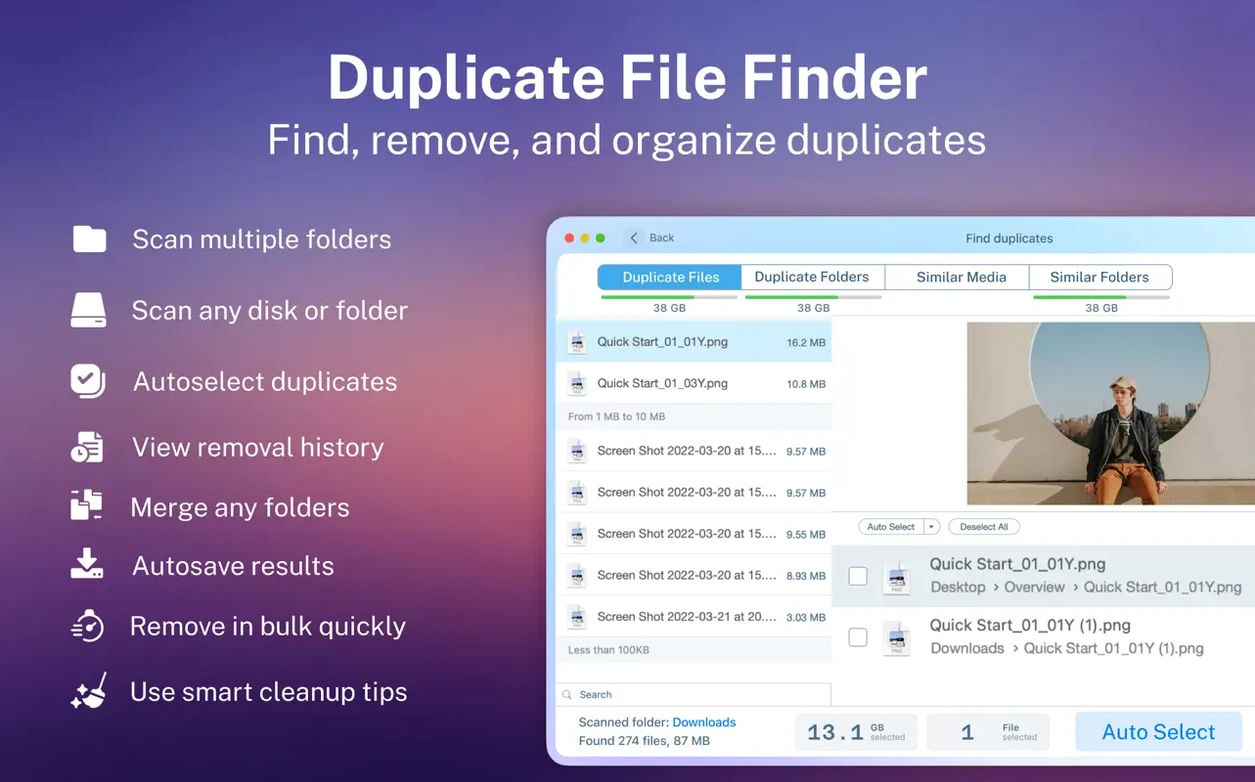
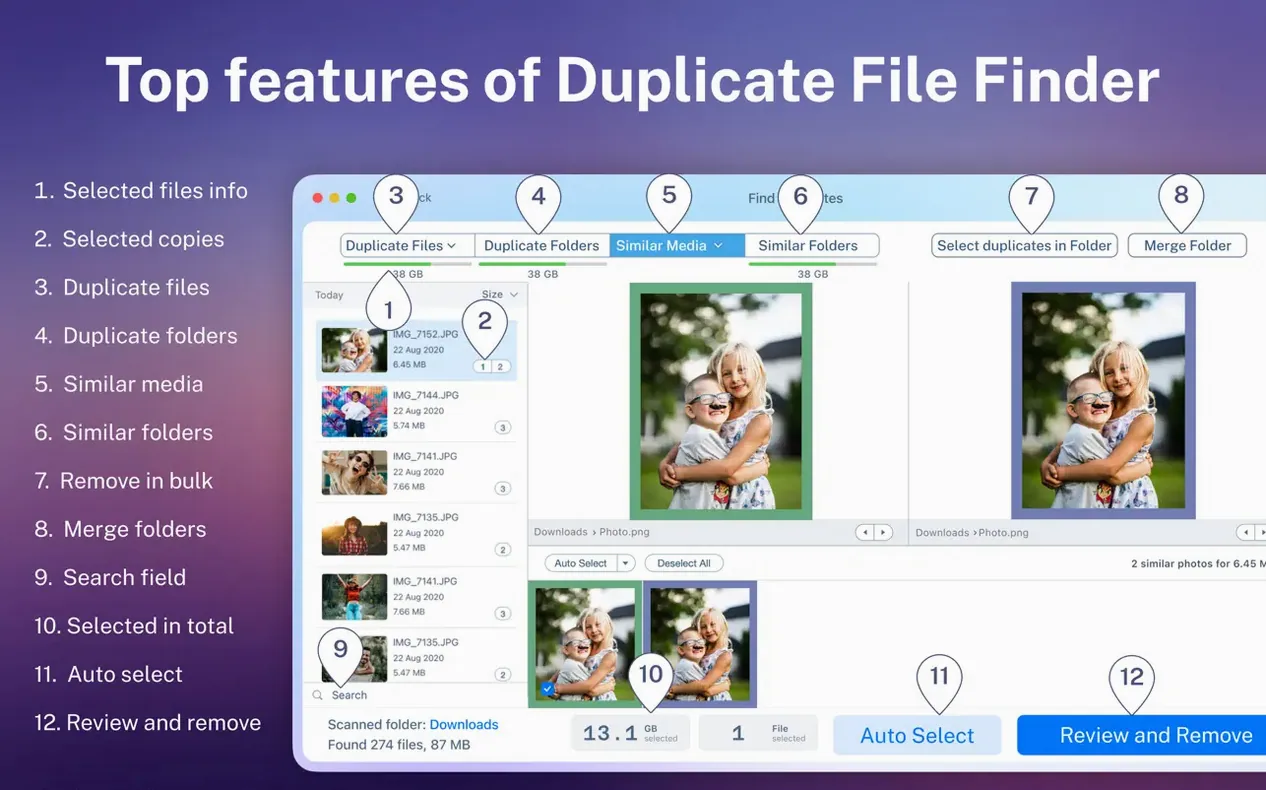
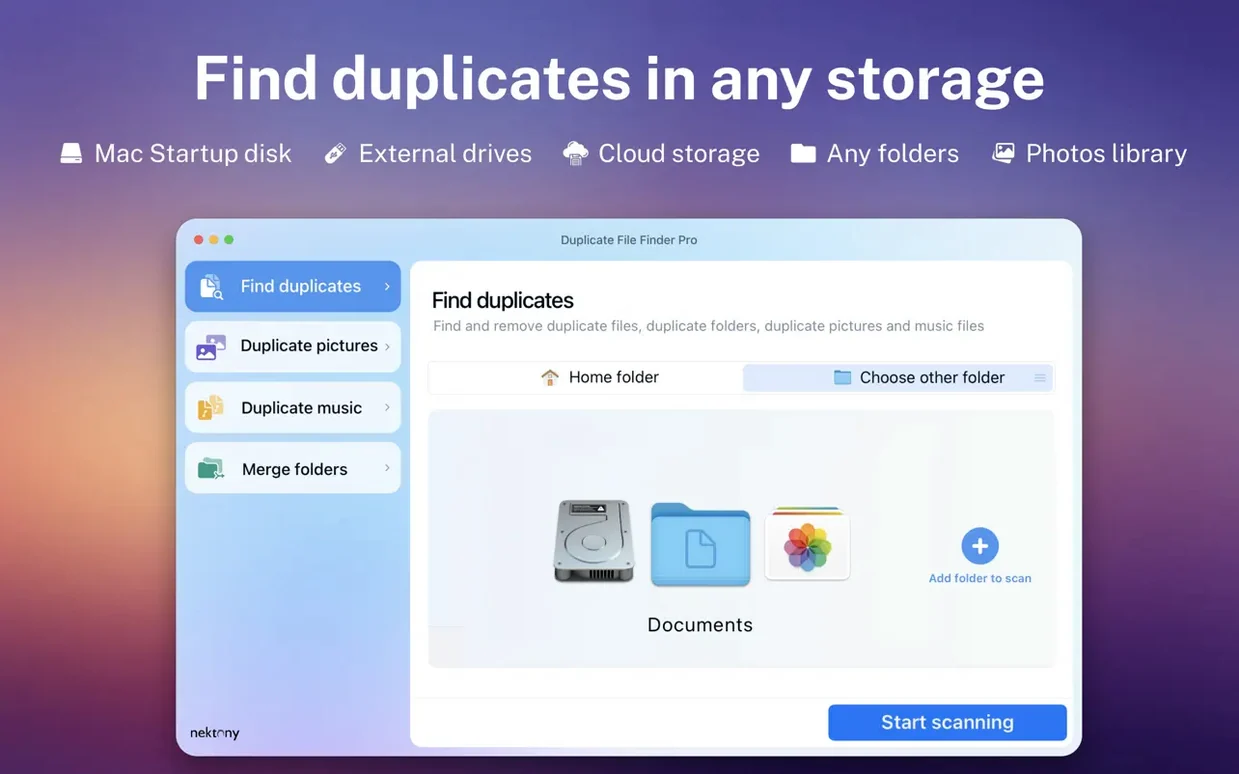
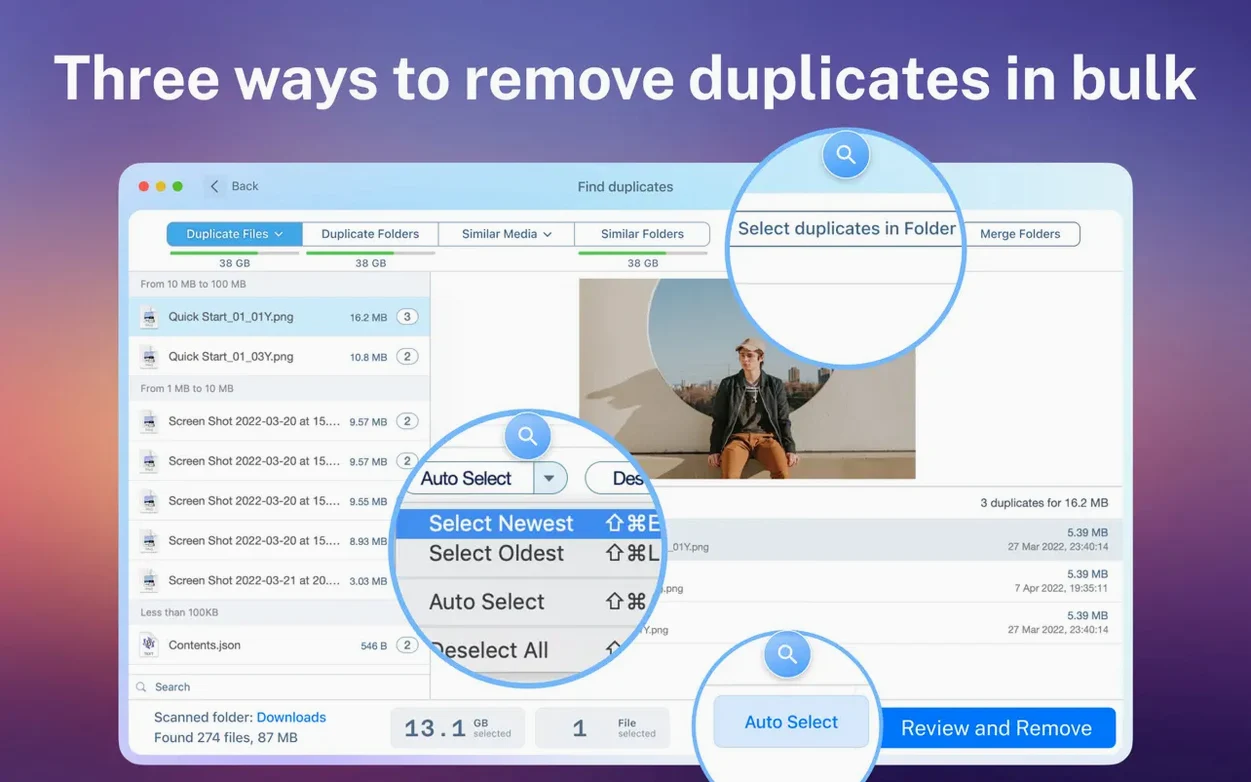
Most scans finish with a list of images, videos, or archives grouped by exact match. Duplicate File Finder Pro lays out every result in category buckets before you click delete.
Scan categories — Images, video, music, archives, and documents are separated automatically so a folder full of raw footage feels distinct from a pile of duplicate PDFs.
Smart selection — One button marks all but the original copy in each group. It follows predictable rules you can override file by file.
Multiple locations — Drag in several folders or external disks and treat them as a single scan pass. Hidden folders are included when you ask for them.
Preview pane — Tap any file to see a quick look before you send it to the Trash or wipe it permanently. Sorting by name, size, total size, type, or duplicate count keeps large offenders at the top.
Where it fits: when the built-in macOS search feels too slow for spotting visual duplicates, or when you need to clean a folder structure shared with a cloud service like Dropbox or OneDrive mounted in Finder. It speaks English, runs on Apple Silicon and Intel Macs, and asks for macOS 11.0 or later.
A Videographer's Friday Cleanup
Picture a freelance shooter wrapping a week of real-estate walkthroughs. Three cameras, four takes per room, and a habit of dragging entire card folders onto an external SSD labeled "Sort Later." Later is now. The drive has 47 GB free and tomorrow's drone shoot starts at dawn.
She points Duplicate File Finder Pro at the SSD and a cloud-synced folder where she stashes client proofs. The scan separates video duplicates from duplicate audio tracks and bloated thumbnail caches. Twenty minutes of dragging icons around becomes three clicks. One button marks all but the master clip in each group. She previews a few, confirms the selections, and moves the rest to Trash. The SSD breathes again.
She's not organizing — she's carving space for the next job. The visual report tells her the largest offenders were 4K clips copied into two "delivery" subfolders by mistake. That alone is 12 GB back.
Mistakes That Cost Time
The biggest one: scanning without checking hidden folders. People with cloud services often forget that Dropbox and OneDrive bury version histories and thumbnails in invisible directories. Duplicate File Finder Pro can reach those, but only when you toggle the setting before scanning. If you skip it, the tool misses half the junk.
Another classic: trusting the "Select Duplicates" button without a quick preview pass. Smart selection keeps one copy per group, but it has no idea which folder is your active project and which is the archive from last quarter. A thirty-second scroll through the sorted list — sorted by total size, ideally — catches the folder you accidentally marked for deletion.
Beginners also treat the merge-folder feature like a simple copy operation. It overwrites files with matching names, so merging two "Music" folders without scanning for duplicates first can replace a lossless track with a compressed version. Scan first, merge later. The order matters.
Merging a Messy Photo Library
Say you have vacation photos scattered across three folders: an SD card dump, a Lightroom export set, and a collection someone AirDropped to you. Duplicates hide everywhere — some are raw files, some are edited JPEGs with different names.
Open Duplicate File Finder Pro and drag all three folders into the location list. Check "Scan hidden folders" if any came from a camera card backup. Start the scan. When the report opens, switch to the Images category tab. Sort by duplicate count to see which shots were copied the most. Use the preview pane to confirm the keepers — usually the highest-resolution version or the edited JPEG.
Hit "Select Duplicates" to mark the rest. Deselect anything you want to keep manually. Move the marked files to Trash. Now run a similar folders scan. The app finds folders with overlapping content. Pick two that should become one, choose "Merge," and let the tool combine them. Empty the Trash when you're confident. The library is one folder, no repeats.
A Session in Real Time
You sit down with a cluttered MacBook that's been nagging you about iCloud storage. Downloads, Documents, and a OneDrive folder mounted in Finder all feel bloated. You launch Duplicate File Finder Pro and drag the three locations into the scan list. The OneDrive folder was added to Finder manually when you set up add onedrive to mac finder months ago — it's been syncing duplicates ever since.
You toggle hidden folders on and start the scan. While the progress bar crawls through the OneDrive directory, you open a Finder window and add dropbox to favorites in finder quickly, because you realize that folder should be scanned next. The scan finishes. Categories fill in: Documents, Archives, Images. You switch to the Archive tab and sort by size. A 2.3 GB zip file appears in four locations. You preview one, confirm it's a client backup from last spring, and mark three copies for deletion.
Next, the similar-folder scan. It finds three iterations of a "Wedding Edits" folder: one from an external drive, one in Documents, and one inside Dropbox. You merge the two local copies into Dropbox, letting the cloud version become the single source. The tool overwrites older files during the merge. You empty Trash, close the app, and let Dropbox sync the cleaned folder overnight. Finder shows 18 GB free. The nag message disappears.
Version 8.5.2 lands as a maintenance update that keeps the scanner stable and the preview pane responsive while picking through large sets of duplicates.
Also fixed: categorization accuracy when mixing document types in the same scan session.
- macOS 11.0 or later
- Apple Silicon or Intel Mac
- English interface
Questions I actually get
Can Duplicate File Finder Pro scan external disks and USB drives?
Yes, you can scan multiple folders and external drives in one pass, and it can also look inside hidden folders when you enable that option.
How does the smart selection feature work?
With one click it automatically selects all duplicate copies while leaving one original file untouched, though you can manually adjust the selection afterward.
What types of files can the app categorize after a scan?
Results are grouped into images, video, music, archives, documents, and other categories so you can review and clean each type separately.
Notes from the edit bay · 0
Sign in or get an edit-bay pass to leave a note.
No notes from the edit bay yet. They go up after I read them.