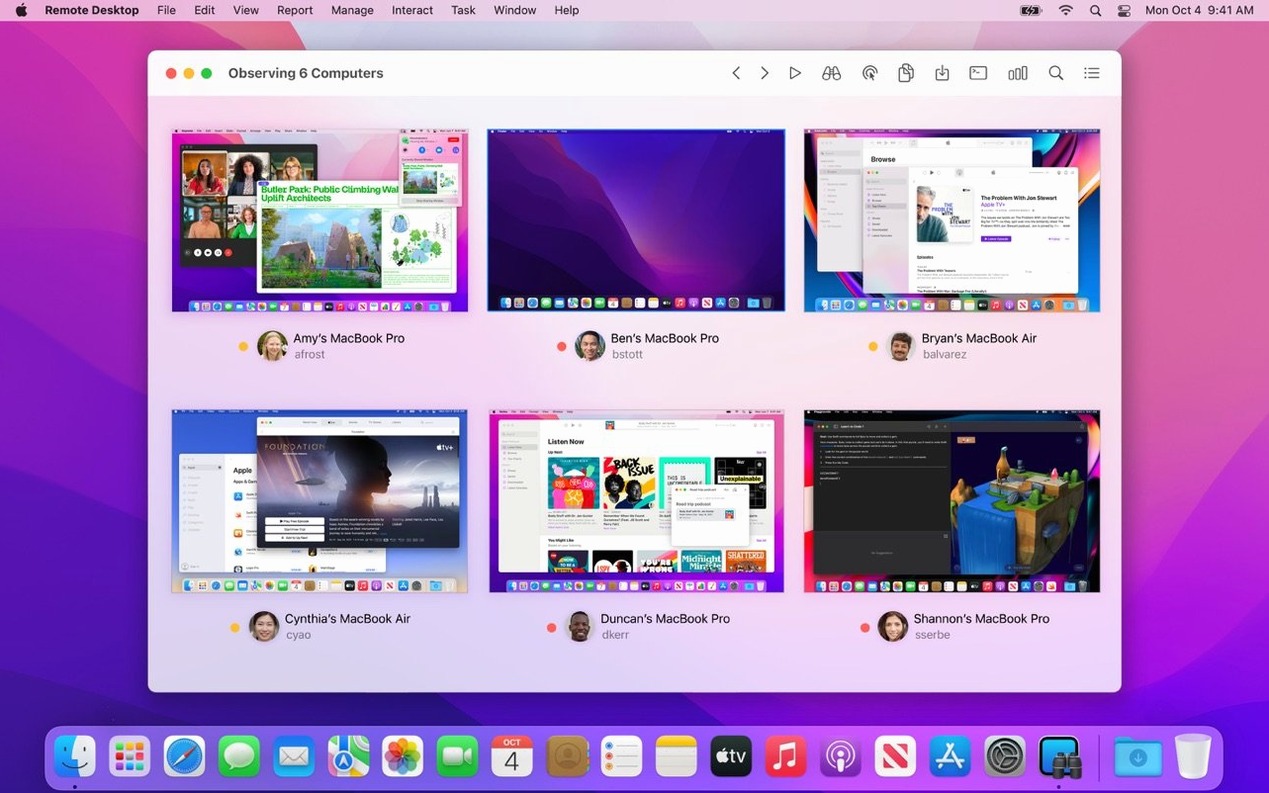
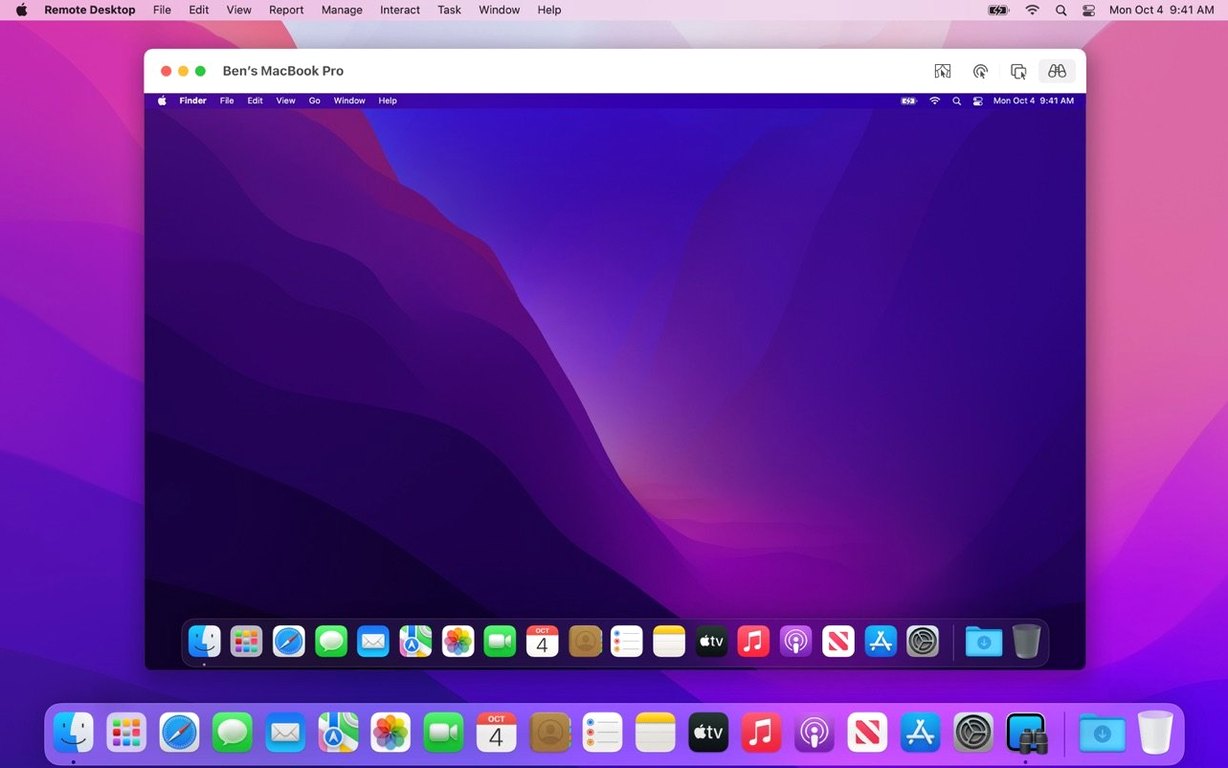
Anyone who has used macOS Screen Sharing knows the basics: it is a straightforward VNC viewer built into the system. Apple Remote Desktop takes that same DNA and scales it into an IT command center. Where Screen Sharing gives you one desktop, Remote Desktop gives you an entire lab, with the reporting and automation to make sense of it all.
Automation That Goes Beyond the Click
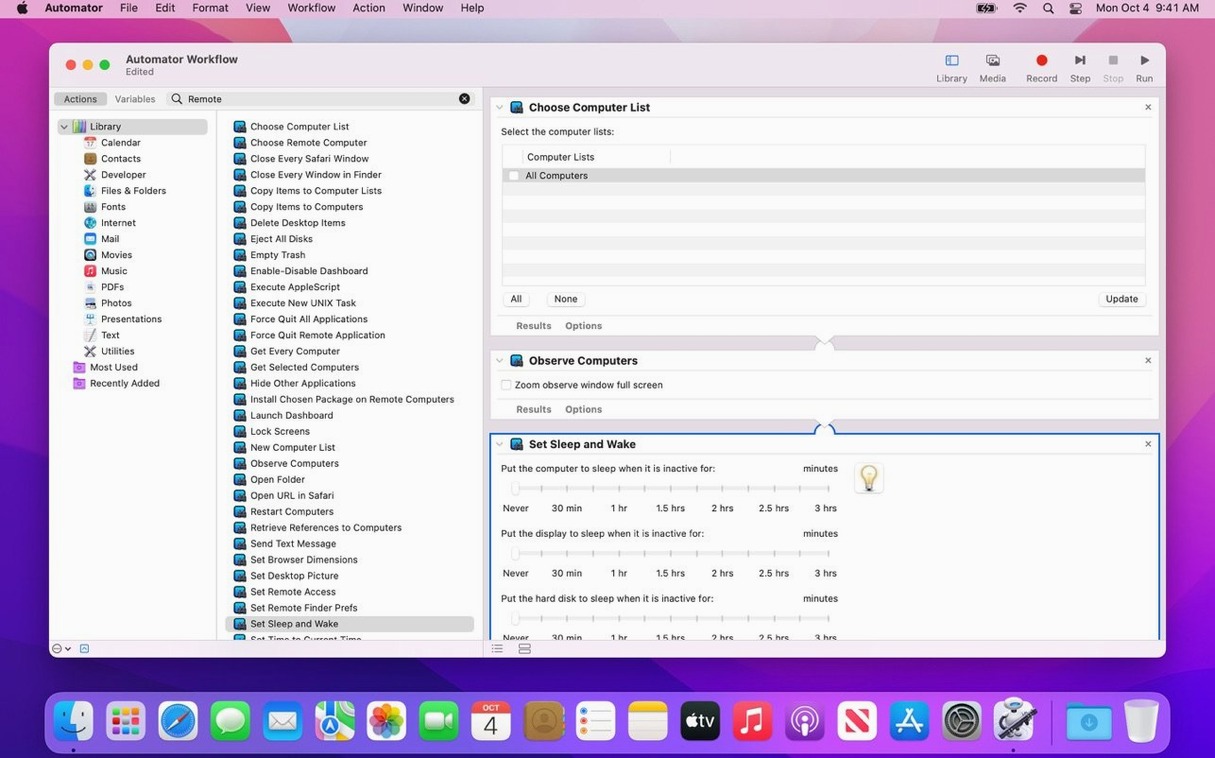
The real power lives in the Automator integration. You get over 40 dedicated actions that turn repetitive administration into a single saved workflow. Need to push a printer preference pane to the third-floor machines, run a UNIX shell script, and then gather a hardware report? Drag, arrange, run. It saves the kind of time you cannot bill for but always lose. Task scheduling drills deeper still—you can queue a package installation for a machine that is currently offline, and the job triggers the moment it reappears on the network.
Intelligence Gathering
Reports separate a remote desktop tool from a remote management platform. Remote Desktop can pull data on over 200 hardware characteristics, from memory DIMM specifics to firmware versions. Combine that with user login tracking and application usage reports, and you get a forensic-level view of how your Macs are actually being used. Add a remote Spotlight search to find a specific file across fifty machines instantly, and the tool shifts from reactive support to proactive oversight. VNC support keeps the door open to Windows and Linux boxes, so the management scope is not strictly Apple-only, even if the reporting is.
Where Apple Remote Desktop Lands Against the Competition
Three names come up when Mac admins compare remote management tools. Each one scratches a different itch.
Jamf Pro lives in the cloud and thinks in policies. It handles zero-touch deployment, conditional access, and identity integration at a scale Remote Desktop was never built for. If you manage five hundred MacBooks spread across time zones with no VPN, Jamf Pro is the answer. Remote Desktop, by contrast, is the hands-on tool for the machines you can see on your subnet right now. Jamf reports compliance; Remote Desktop fixes the thing that broke compliance. They overlap in software distribution and inventory, but the speed gap is real—dragging a package onto a machine in Remote Desktop and watching the install bar beats waiting for a Jamf policy cycle every time.
TeamViewer and AnyDesk target cross-platform remote support with a consumer-friendly face. They punch through NAT and firewalls without a VPN, which Remote Desktop does not attempt. Where they fall short is the Mac-specific depth. Neither can pull a report on which Thunderbolt devices are attached, nor can they run an Automator workflow that locks screens and deploys a configuration profile. They are remote hands; Remote Desktop is remote administration. In a mixed environment, plenty of admins keep both—TeamViewer for the one-off help session with a remote employee, Remote Desktop for the lab of thirty Mac Minis humming in the next building.
Screen Sharing, the built-in macOS app, shares the VNC engine. It is free, it is already installed, and it handles a single connection capably. The moment you need to copy a file to twelve machines at once or run the same terminal command on all of them, Screen Sharing hits a wall. Remote Desktop is the upgrade path for anyone who has outgrown one-at-a-time thinking.
Automator Actions That Turn It into a Scriptable Node
Remote Desktop does not operate in a vacuum. It hooks into macOS in ways that amplify the tools you already use.
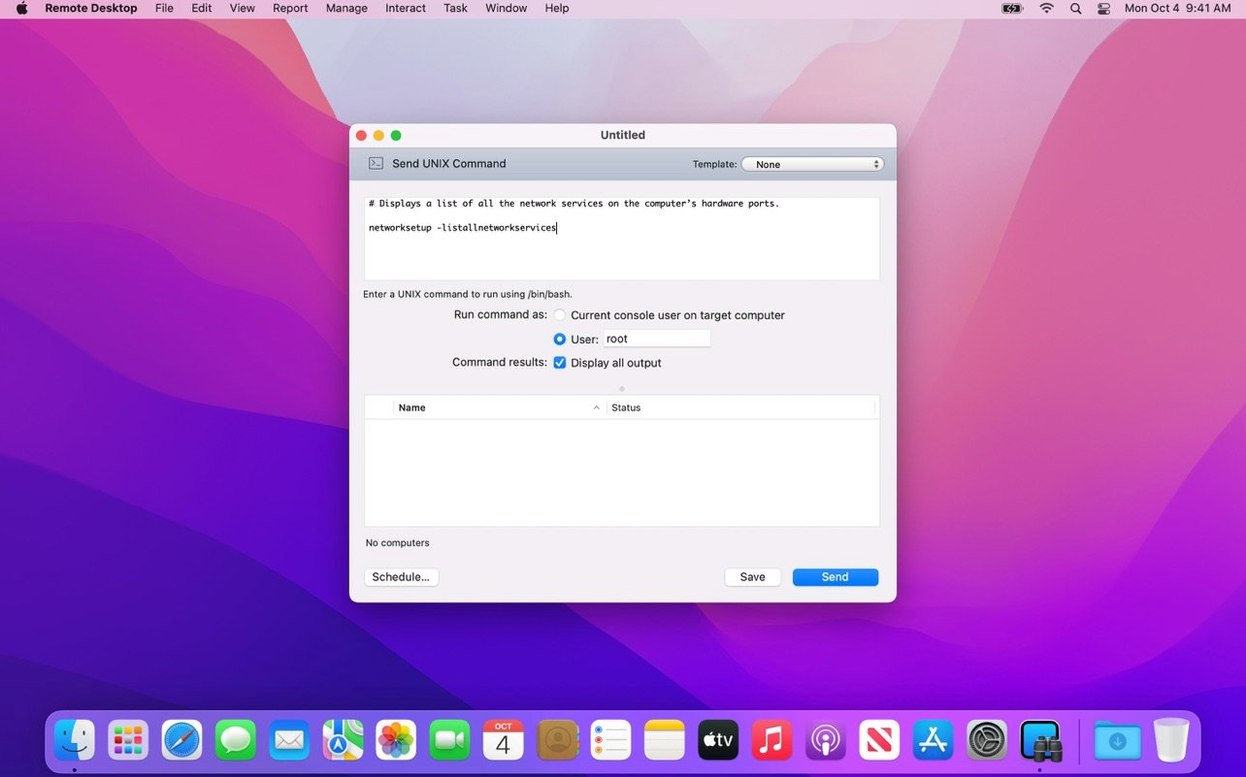
Automator is the native companion. The forty-plus actions Apple includes turn Remote Desktop into a scriptable node in larger workflows. Combine a Remote Desktop "Send UNIX Command" action with a Finder action that sorts the output into a folder, and you have a daily report generator without writing a single line of shell script. For those who prefer code, the same commands run through Terminal or any shell script, with ard command-line utilities available for scripting environments.
Directory services play a role too. Remote Desktop pulls computer lists from Open Directory or Active Directory, so the groups you defined there appear as targets. No need to rebuild your organizational structure inside the app. Network Utility, ping, and ssh remain your go-to diagnostics before launching a Remote Desktop session—if a machine does not respond to ping, Remote Desktop will not reach it either. The tool respects the network layer, it does not bypass it.
For imaging and deployment workflows, Remote Desktop pairs with Disk Utility and System Image Utility on the admin side. Push a freshly built image to a lab overnight, then verify the install with a hardware report in the morning. The pieces fit together without middleware.
A less obvious integration is Spotlight. A remote Spotlight search through Remote Desktop uses the same index the local machine maintains, so the search syntax and speed feel native. If you can find a file on your own Mac, you already know how to find it on a hundred others.
Who Feels the Most Impact
Not every Mac user needs Remote Desktop. For some, the payoff is immediate and outsized.
Lab managers in education or research run the classic use case. Thirty identical iMacs need the same software update, the same printer, the same energy saver settings. Remote Desktop turns a morning's worth of chair-to-chair walking into a five-minute task. Curtain Mode matters here too—students do not need to watch the admin poke around their desktop during class.
Help desk teams in Mac-forward companies get a different kind of value. The ability to pull an application usage report before a support call tells you whether the user actually launched the app they claim is broken. Remote control sessions with copy-paste between machines mean you can paste a terminal command from your troubleshooting notes directly into their session without dictating over the phone.
Freelance Mac consultants who manage small business networks appreciate the low overhead. There is no server component to maintain, no cloud dashboard to log into. You show up, open Remote Desktop on your MacBook, and the client machines appear—assuming the Remote Desktop Client was configured ahead of time. For site visits, it is the fastest path from arrival to resolution.
Power users with a fleet of personal Macs—a desktop, a laptop, a server closet machine—use Remote Desktop for quick file transfers and occasional remote control. The drag-and-drop file copy alone beats AirDrop for reliability across wired networks.
Why It Expects a VPN Instead of Replacing One
Does this replace my VPN? No. Remote Desktop expects machines to be on the same local network or reachable through a VPN connection. It does not create tunnels or broker connections through a relay server. If your remote Macs sit behind a firewall without VPN access, Remote Desktop will not see them unless you forward ports—and that is a security conversation for another day.
Will it slow down my network? Under normal use, no. Remote Desktop compresses screen data efficiently, and the reporting tasks are lightweight. Pushing a large package to thirty machines simultaneously will saturate a slow switch, but that is a bandwidth problem, not an app problem. Schedule large deployments for off-hours and the issue disappears.
Do I need to install something on every Mac I manage? For full control, yes. The Remote Desktop Client must be enabled in System Settings under Sharing, and the admin machine needs the main application. For VNC-only access to non-Mac systems, the client requirement does not apply, but you lose the reporting and software distribution features.
Can I use it with an M-series Mac and Intel Macs together? The app runs on both architectures and manages both architectures without distinction. The reports pull hardware specifics correctly regardless of chip type.
What happens if a machine is asleep? Remote Desktop can send a wake-on-LAN packet if the target Mac supports it and the network allows the magic packet through. If the machine is shut down or disconnected, scheduled tasks queue up and execute when the machine reappears—assuming it does so within the schedule window.
Dragging Across a Dozen Macs to Fix a Lab Printer
It is Tuesday morning and a teacher reports that half the lab Macs are not printing. You open Remote Desktop on your admin Mac and scan the computer list—all twenty-four machines show green. You drag across the twelve affected units, right-click, and choose "Send UNIX Command." The command lpstat -p runs on all twelve simultaneously. In ten seconds you have output confirming the printer queue is paused on each one.
You type a quick resume command, send it, and watch the results scroll in. Printers are back. But since you are already connected, you open a report template for installed applications and let it run across the full lab while you grab coffee. The report reveals three machines with outdated versions of the design software the class uses next week. You drag the updated package file from your desktop onto those three machine icons in the Remote Desktop window. The copy starts, encrypted, while the machines are still in use by another class. You set the install to trigger at 6:00 PM through the schedule pane.
Before closing, you enable Curtain Mode on one machine to check a display setting without distracting the student working there. The screen locks on their end, you make the adjustment, and you disconnect. The entire session took under fifteen minutes, and you never left your desk.
Version 3.10 rolls in full compatibility with macOS Tahoe 26. That means new Accessibility and Remote Keyboard items appear in the menu and toolbar, plus VoiceOver now works across a remote session without breaking stride. Also fixed: the usual round of bug fixes and performance tuning under the hood.
- macOS 15.5 or later
- Apple Silicon or Intel 64-bit Mac
Questions I actually get
Can I copy files between two remote Macs directly?
Yes, Apple Remote Desktop supports copying and pasting content as well as dragging files between your local Mac and remote computers.
Does it only work with Mac computers?
While management reports are Mac-focused, you can observe and control Windows, Linux, and UNIX systems through the standard VNC protocol.
Notes from the edit bay · 0
Sign in or get an edit-bay pass to leave a note.
No notes from the edit bay yet. They go up after I read them.