
Apple Keynote is the presentation app where a blank white canvas actually feels like a starting point, not a chore. Let's walk it through a task that pays the bills: building a crisp, 8-slide pitch deck for a fictional Austin cold-brew startup. You've got a logo, a handful of product shots, and a deadline tomorrow morning.
Good for
- Instant background removal from product images—drag in a shot of the bottle on a cluttered countertop, click 'Instant Alpha,' and the background is gone in a single pass.
- Custom shape masks for framing team photos inside circles or soft-edged rectangles without leaving the app.
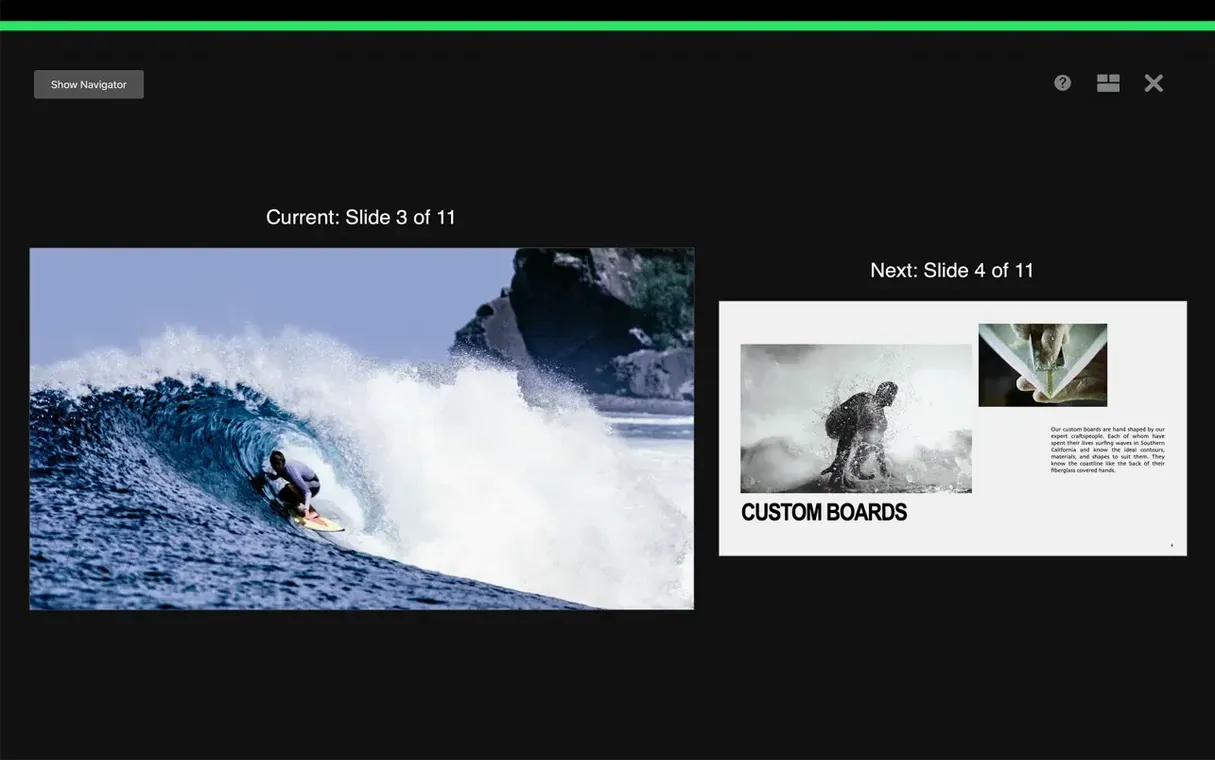
- Rehearsing with a customizable presenter display that shows your next slide, a timer, and your speaker notes while the audience sees only a clean, full-screen slide.
- Directly opening and editing a Microsoft PowerPoint file a client sent over, fixing alignment, and exporting it back as a .pptx without anyone noticing the round trip.
Keep in mind
- Requires macOS 15.6 or later, so an older Mac stuck on Ventura won't run version 15.3.1.
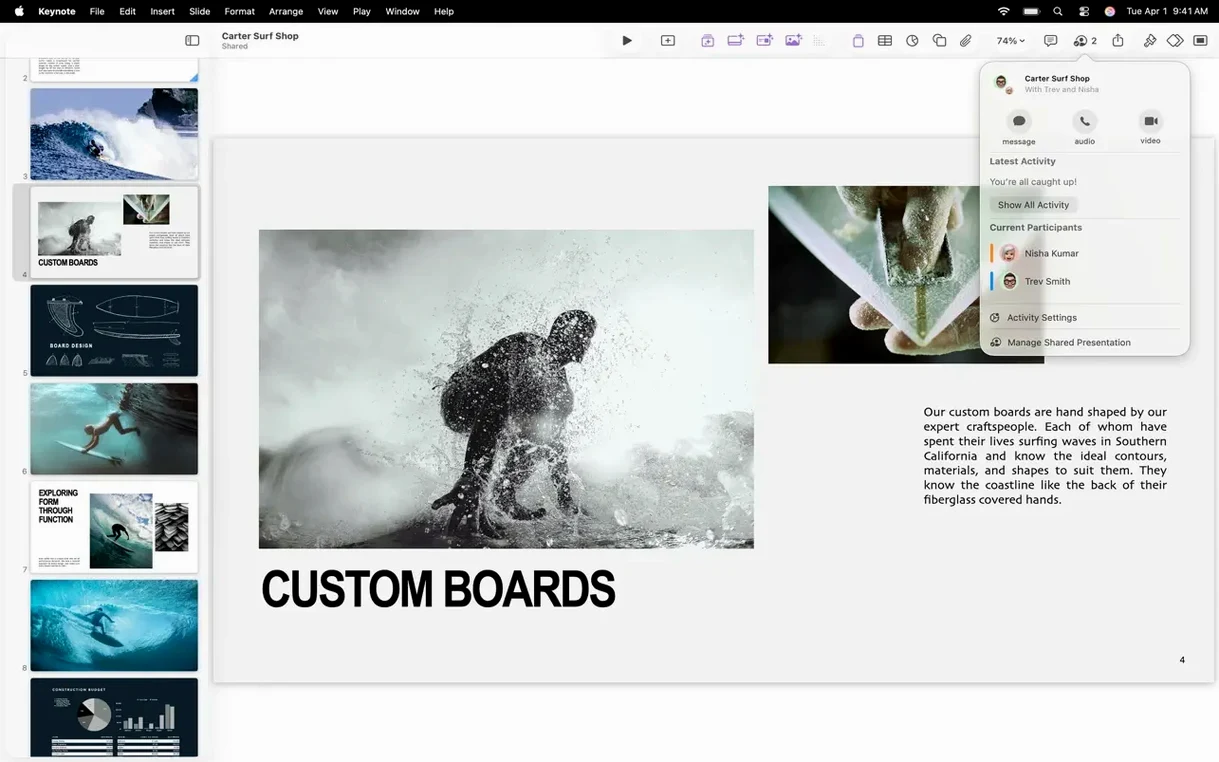
- Collaboration through iCloud or Box works for sharing, but every collaborator needs their own compatible version of Keynote or the iCloud web app to edit.
- Movie exports generate a .m4v file, not a standard .mp4 container—most apps play it fine, but check the container if a rigid upload form rejects it.
Small Conveniences You’re Probably Skipping
Keynote packs a few shortcuts that don’t advertise themselves. Hold Option while dragging a slide thumbnail in the navigator and you duplicate it instantly—faster than copy-paste when you’re building a deck with repeated section dividers. The Command key unlocks pixel-level nudging: select an object, hold Command, tap an arrow key, and the shape moves one screen point instead of snapping to the invisible grid. When you’re aligning a logo against a tight margin, that’s the difference between “close enough” and “client won’t notice.”
The Format panel’s Arrange tab has a “Lock” checkbox at the bottom. Beginners ignore it, then curse when they accidentally drag a background element that took fifteen minutes to position. Lock the master shape, group the rest, and suddenly your layout stops fighting back. On the animation side, you can scrub a build order by hovering over the diamond markers in the Build Order list—no need to play the whole slide to check timing on one element.
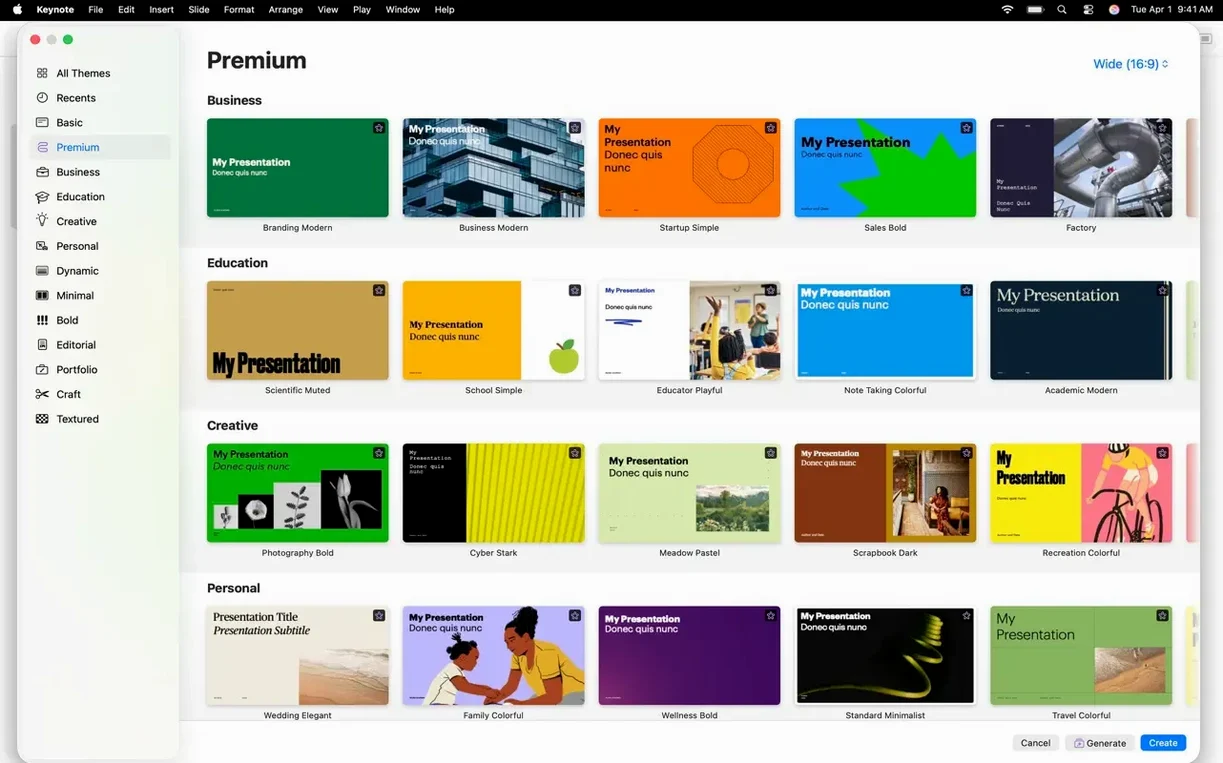
Media placeholders in themes replace themselves. Drop a photo onto a placeholder image in any theme and Keynote scales and masks it to fit the placeholder’s exact frame. You don’t get that behavior dropping onto an empty canvas. If you’ve been deleting placeholders and starting from scratch, give them a second look.
The Single Motion That Replaced Multi-Step Workarounds
Version 15.3.1 didn’t overhaul the interface, but it added transitions and builds that cut out workarounds I used to build manually. The shift transition slides an element between two defined positions in a single motion, replacing the old method of stacking two separate move builds with identical timing and hoping the seam was invisible. Radial wipe reveals an object from its center outward—think of a spotlight hitting a speaker’s name on a title slide—without needing a custom shape mask and a dissolve. Character blur animates text so each letter softens independently, which lands well for quote slides where you want a line to dissolve word by word.
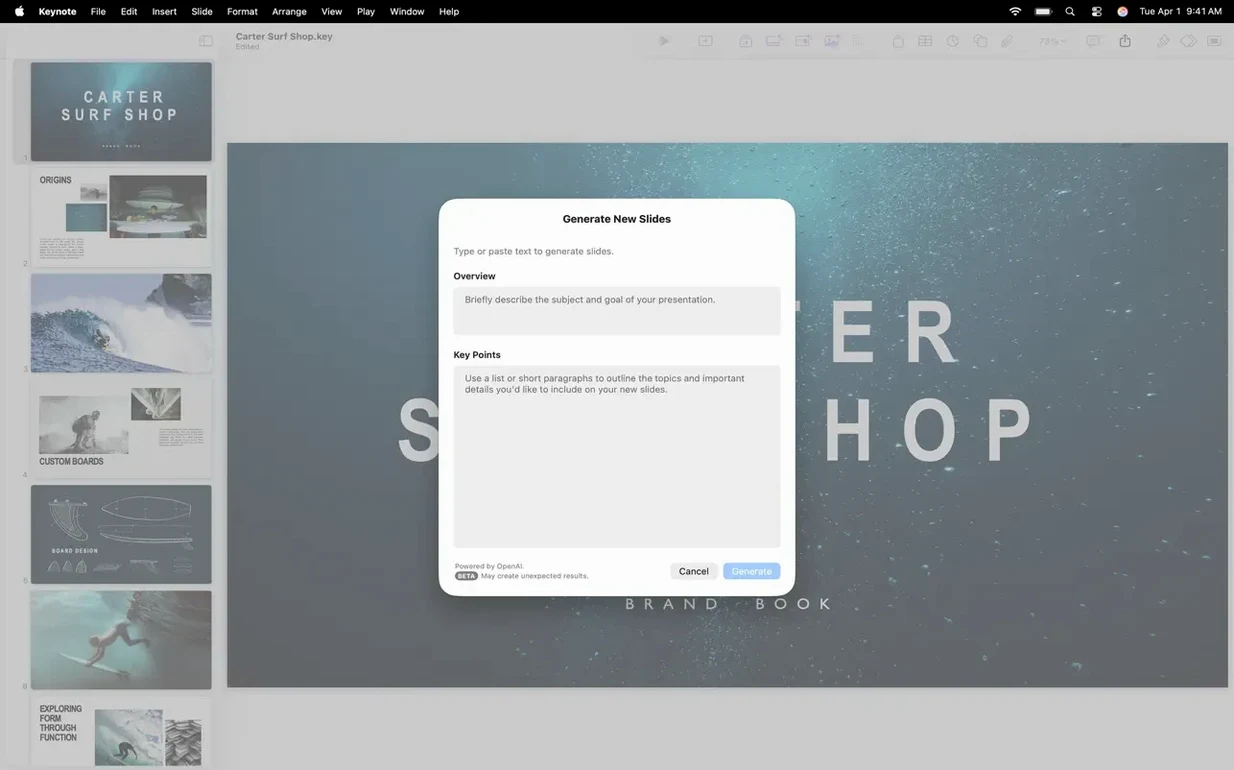
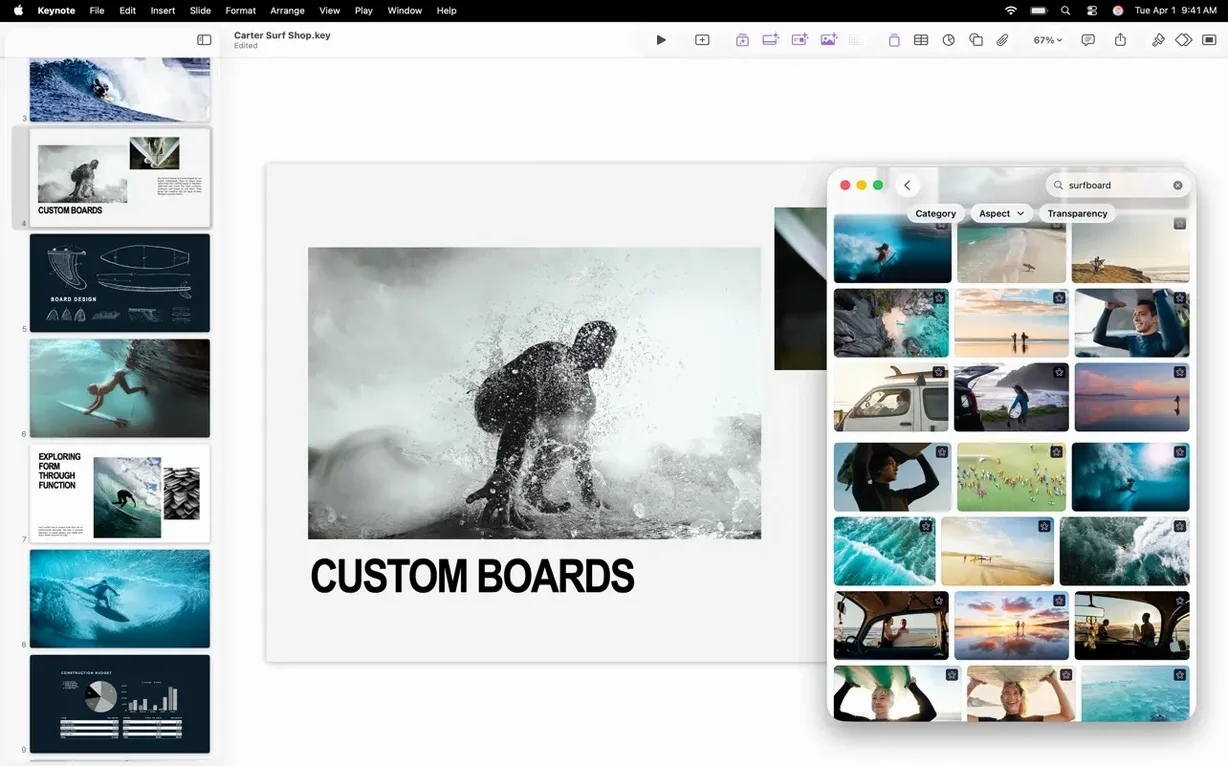
The Content Hub got a quiet upgrade, too. Replacing an image now works directly from the hub’s media browser: click the photo icon on a picture placeholder, pick a new image, and Keynote swaps it without resizing gymnastics. When a client sends revised product shots at 11 p.m., you’re not rebuilding anything—just point to the new file and keep moving.
Bug fixes in this release tightened up a few crashes that hit when exporting long decks to PowerPoint, and performance under Apple Silicon saw a small bump during slide thumbnail rendering. Not glamorous, but a 60-slide keynote torrent build with full-resolution images scrolls smoother now.
Live Charts From Numbers That Update Inside Your Deck
Keynote doesn’t live in a silo. Drop a Numbers chart onto a slide and it stays linked—edit the spreadsheet values later and the chart updates inside the presentation. The same pipeline works with Pages tables. If your pitch deck needs a financials slide, build the data in Numbers, paste it into Keynote, and skip the manual chart rebuild when the CFO revises the projections three hours before the meeting.
With macOS 15.6, the system-wide image lookup (right-click any photo on your desktop, choose “Copy Subject”) feeds straight into Keynote: lift the subject from a busy background, paste it onto a slide, and you’ve got a cutout without opening Preview or Pixelmator. That pairs well with Keynote’s own Instant Alpha—use the system tool for people and complex edges, use Instant Alpha for solid-color product shots on white counters.
Handoff between iPad and Mac works between meetings. Start a deck on your iPad with Apple Pencil annotations, open the same file on the Mac when you’re back at the desk, and the ink strokes come across as editable vector objects. Export options cover the usual suspects: .pptx for clients who live in Office, PDF for print shops, HTML for embedding on a site, and a .m4v movie that plays in QuickTime, VLC, or any modern browser.
Where Beginners Get Tripped Up
Treating slides like pages in a word processor. Keynote is an object-based canvas. If you click the slide background and start typing, nothing happens—you need a text box or a placeholder first. I’ve watched new users triple-click the void, convinced the app is frozen. Draw a text box (Command-Shift-T) or pick a theme with built-in placeholders and the frustration evaporates.
Ignoring the presenter display. Rehearsal mode shows your notes, a clock, and the next slide on your Mac screen while the projector gets only the current slide. People plug in an external display and panic when the audience sees their desktop. Connect the display, then choose “Rehearse Slideshow” from the Play menu—the layout snaps into place. You can customize what appears on each screen under Play > Customize Presenter Display.
Over-animating. Magic Move is addictive. Beginners drop it between every slide, and the deck turns into a motion-sickness demo. One Magic Move per section—between your intro and your first major point, or between product shots—carries more weight. Use the new shift transition for element-level moves and save Magic Move for slide transitions where the objects genuinely share elements.
Forgetting to embed fonts in exports. Keynote uses macOS system fonts natively, but when you export to PowerPoint, fonts that don’t exist on Windows fall back to Arial or Calibri. If your deck relies on something like SF Pro, convert title text to shapes before exporting, or accept that the recipient will see a substitute. The PDF export preserves every glyph perfectly, so send that alongside the .pptx if the design matters.
One last habit worth building: after dragging a keynote dmg into Applications, give the app full disk access in System Settings if your media lives on external drives. Keynote 15.3.1 prompts for permission once, but if you dismiss it by accident, images won’t load and you’ll blame the file format when the fix is a checkbox.
Version 15.3.1 adds three build and transition effects that feel genuinely fresh on the slide—shift, radial wipe, and a character blur that animates text letter by letter. Replacing images got faster, too: the Content Hub now lets you swap a placeholder image in a deck without hunting through the file system. Also fixed: the usual round of bug fixes and performance improvements that keep playback smooth during a presenter-display rehearsal.
- macOS 15.6 or later
- Works on both Intel and Apple Silicon Macs
Questions I actually get
Can I save a Keynote 15.3.1 presentation so someone on an older macOS version can open it?
Yes, by exporting the file through the File > Export To menu and choosing an older Keynote format, or by sending a universally compatible PowerPoint or PDF version.
Notes from the edit bay · 0
Sign in or get an edit-bay pass to leave a note.
No notes from the edit bay yet. They go up after I read them.