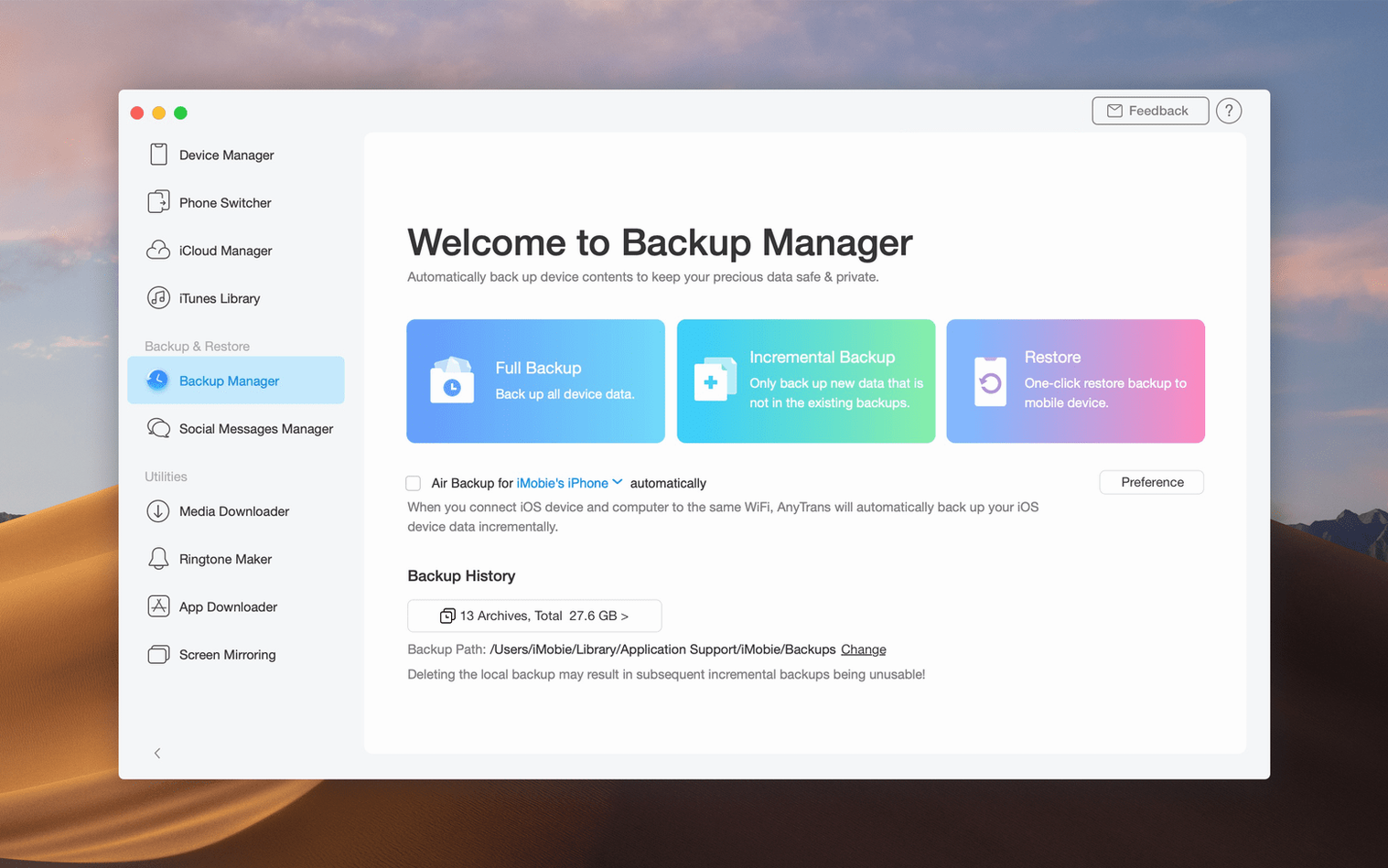
Version 8.9.14 lands as a maintenance update that keeps the engine running smooth on Intel Macs back to High Sierra. No flashy new modules this time — just the same broad toolkit staying compatible as iOS keeps moving.
Where iTunes stops, you keep moving data
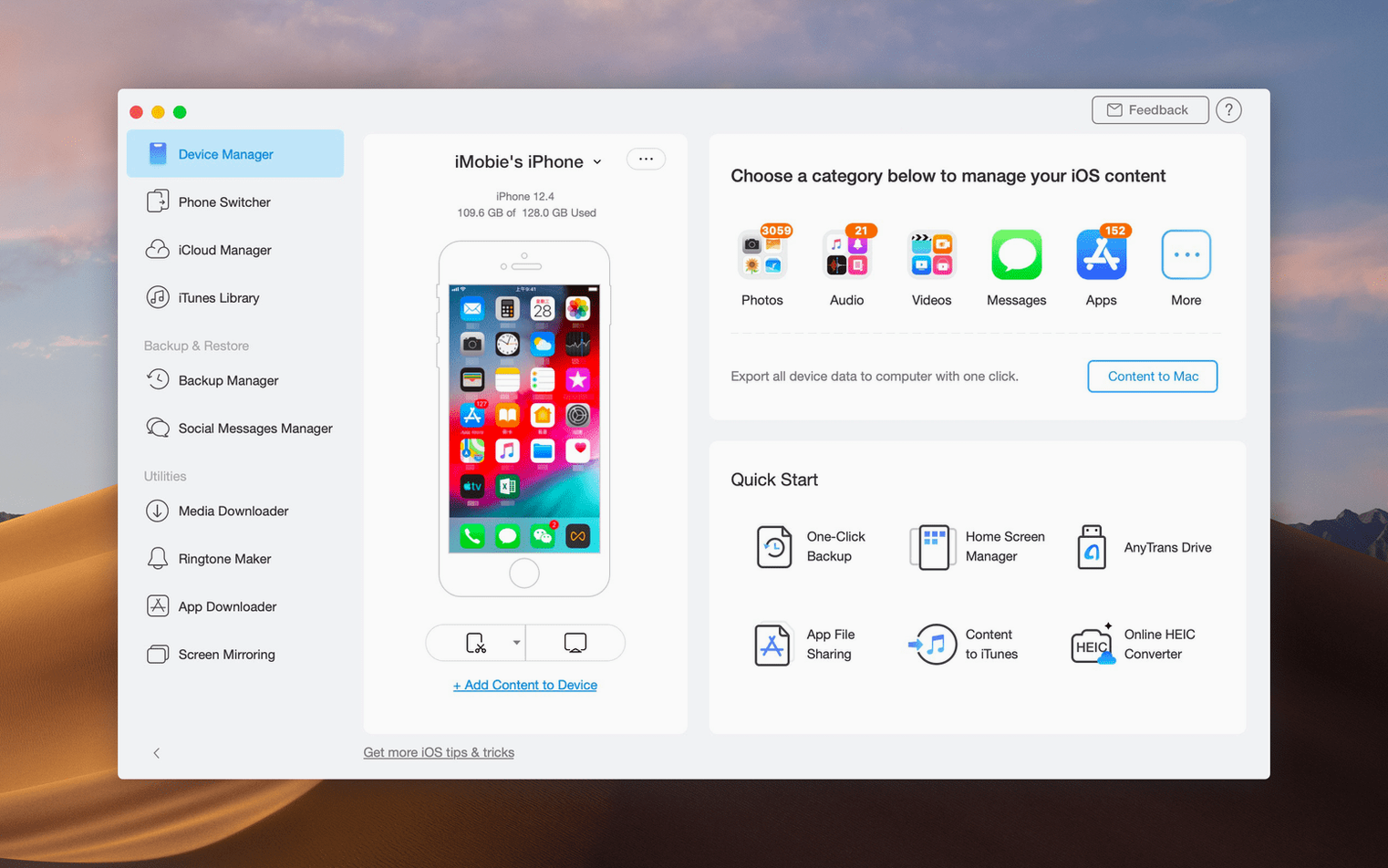
The core job AnyTrans tackles is direct, category-level transfer. Plug in an iPhone or iPad and you can pull messages, photos, music, or contacts straight onto your Mac without syncing an entire library. That granularity saves a render bar’s worth of waiting when you only need a few voice memos from last week’s shoot. It reads your iTunes library too, so a playlist trapped on an old machine can land on a current phone through a USB cable — no cloud round-trip required. The device manager gives you a clear map of what’s going where, which matters when you’re juggling a personal phone, a work iPad, and an archive Mac.
Switching devices without the headache
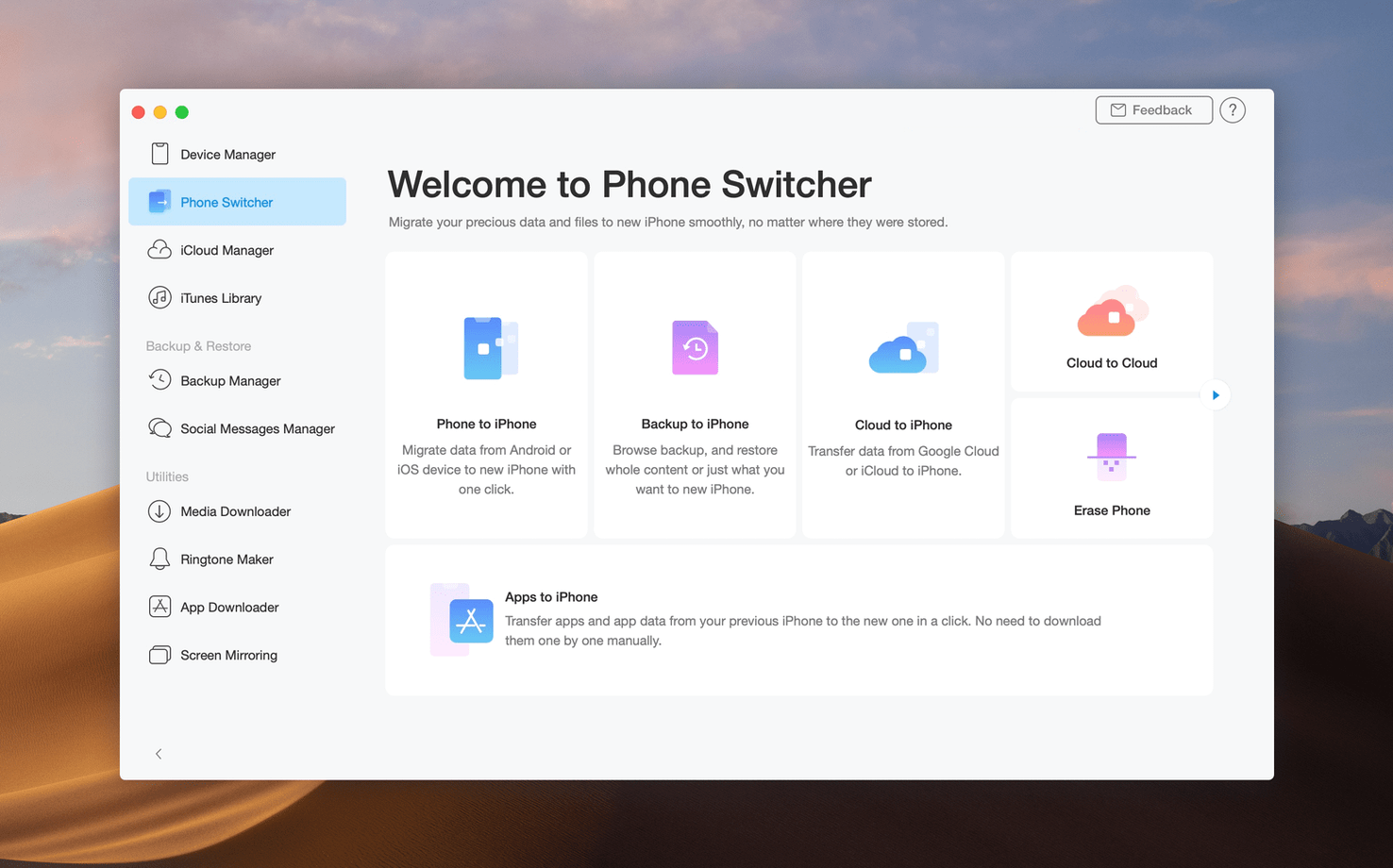
Moving from Android or an older iOS device into a new iPhone turns into a one-click copy job. The same logic applies to cloning content between two iPads or pulling everything off a family iPad onto a Mac for safekeeping. And if you spot a reference clip on a website, the built-in downloader grabs audio or video from over 900 sources and places the file exactly where you decide — ready to cut into a rough edit or drop into a presentation. It’s a set of practical shortcuts built around the question editors ask constantly: “Where does this file live, and how fast can I get it onto the machine I’m working on?”
Export one contact as a vCard, not your whole address book
Right-click a contact inside AnyTrans and you can export it as a vCard straight to a folder — no exporting the whole address book just to grab three clients you met at a shoot. The search bar at the top filters across categories, so typing “B-roll” finds a video file sitting inside an app’s documents folder that the Files app on the phone won’t surface. Double-click any photo to preview it full-screen without leaving the window; it’s a tiny thing, but you’ll use it twenty times before lunch.
A hidden gem: hold Option while clicking “Transfer to Mac” and AnyTrans skips the category picker and dumps everything from the selected section into a dated folder on your desktop. No dialogs, no decisions — perfect when you’re offloading a card’s worth of footage and the client is pacing behind you. The device manager also remembers your last three destination folders per device, so switching between a project drive and an archive drive doesn’t mean navigating the same directory tree twice.
Full backup to an external SSD in minutes
Start by connecting your primary iPhone and walking through the backup panel. A full backup to an external SSD takes minutes over USB and sits as a standard iTunes-style archive — readable by AnyTrans, restorable to any device, and completely local. That’s your safety net. Day two, pick two categories you normally wrestle with in Finder or iTunes — photos and voice memos, for instance — and pull just those onto your Mac. Notice how AnyTrans preserves creation dates and folder structures that a generic AirDrop transfer flattens. Day three, link an iCloud account inside the app and let it index. You don’t need to use the cloud features heavily; just knowing you can drag a Numbers file from iCloud Drive into a local project folder without opening a browser changes how you think about “the file is in the cloud.”
One tip that pays off early: before you rely on the media downloader for a client delivery, test it with two URLs — a YouTube clip and a Vimeo link. Paste the URL, pick audio-only or video, and note where the file lands. Once you’ve verified the quality and the default save path, you’ve got a straight shot from “the client sent a reference link” to “the reference clip is in my bin.”
Drag a voice memo into Logic with its original timestamp
AnyTrans doesn’t fight for attention with Final Cut Pro or Logic — it feeds them. A voice memo dragged from the app into a Logic session keeps its original timestamp, which helps when you’re syncing field audio to multicam footage. Photos exported at full resolution land in a folder you can point Final Cut’s import window at directly. For anyone who uses an iPhone as a B-camera or scratch track recorder, this cuts out the Photos.app middleman entirely.
On the Mac side, the app respects macOS conventions more than you’d expect from a third-party utility. It writes to standard file types, so a .m4a dragged out is just an .m4a — no proprietary wrapper. Quick Look works on exported images right in Finder. And if you’re running an older Intel Mac that’s stuck on High Sierra or Mojave, AnyTrans still launches and connects, which makes it one of the few bridges between an ancient editing tower and a modern iPhone running iOS 19. That alone keeps it in the dock on a lot of ageing Mac Pro cylinders.
A workflow: pulling reference stills from a client iPad to a grading session
Suppose a director hands you an iPad with a Photos library full of stills from a location scout — lighting references, color swatches, the works. You need those images in a folder on your Mac, organized by the albums they already sit in, and you need them now.
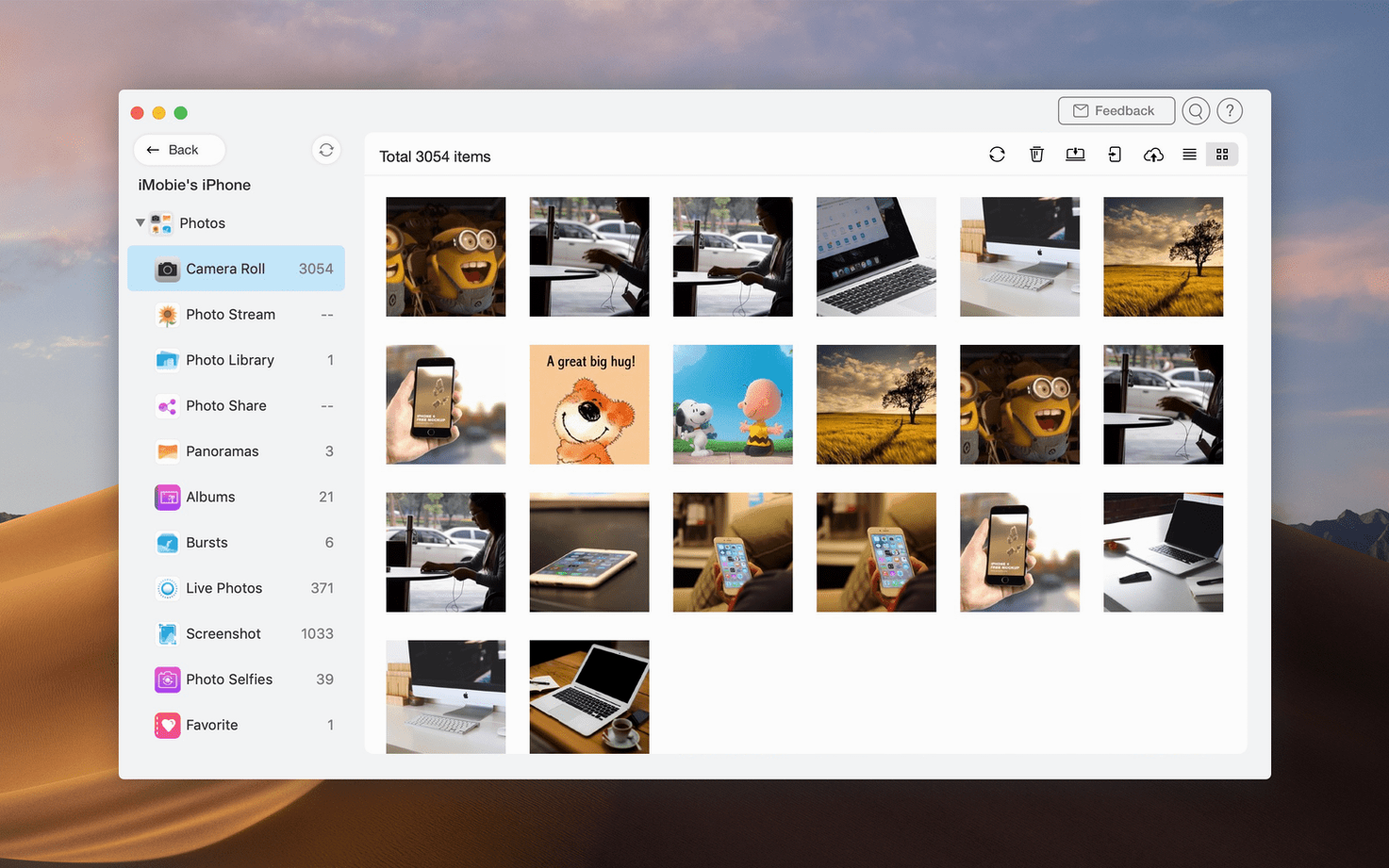
Plug the iPad in via USB. AnyTrans opens and shows the device in the sidebar within seconds. Click Photos, and the album list mirrors exactly what’s on the iPad — no flattening, no guessing. Select the three albums from the scout, Shift-click to grab them all, and hit “Export to Mac.” Choose a folder on your desktop called Client_Refs. AnyTrans recreates the album structure inside that folder, so you get Client_Refs/Exteriors, Client_Refs/Light_Tests, and Client_Refs/Color_Palette without extra clicks. The files arrive as full-resolution JPEGs with intact metadata.
From there, open DaVinci Resolve, point the media pool at Client_Refs, and all three folders appear as bins. You can pull a still onto a node and sample a color directly. Total time from plugging in the iPad to seeing the reference images in your grading suite: under ninety seconds, no iCloud sync, no emailing yourself attachments, no AirDrop gymnastics with file naming collisions. That’s the kind of straight line AnyTrans draws when you stop thinking of it as an iTunes replacement and start treating it as a direct pipe between iOS storage and your working folders.
- macOS 10.13 High Sierra or later
- Intel processor
- Interface languages: English, German, Arabic, Spanish, Simplified Chinese, French, Japanese
Questions I actually get
Can AnyTrans move data from Android to an iPhone?
Yes. It supports transferring contacts, photos, messages, and other content from an Android device straight to a new iPhone.
Does AnyTrans work without an internet connection?
USB transfers between an iOS device and a Mac work entirely offline, so you can move data without Wi-Fi or iCloud.
Notes from the edit bay · 0
Sign in or get an edit-bay pass to leave a note.
No notes from the edit bay yet. They go up after I read them.