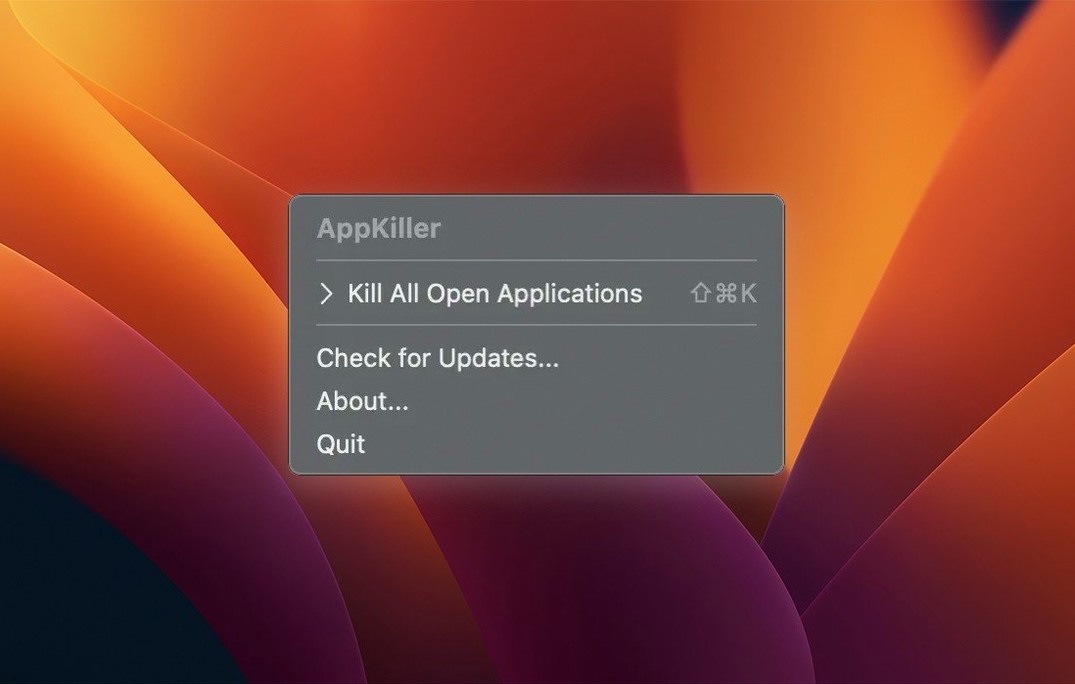
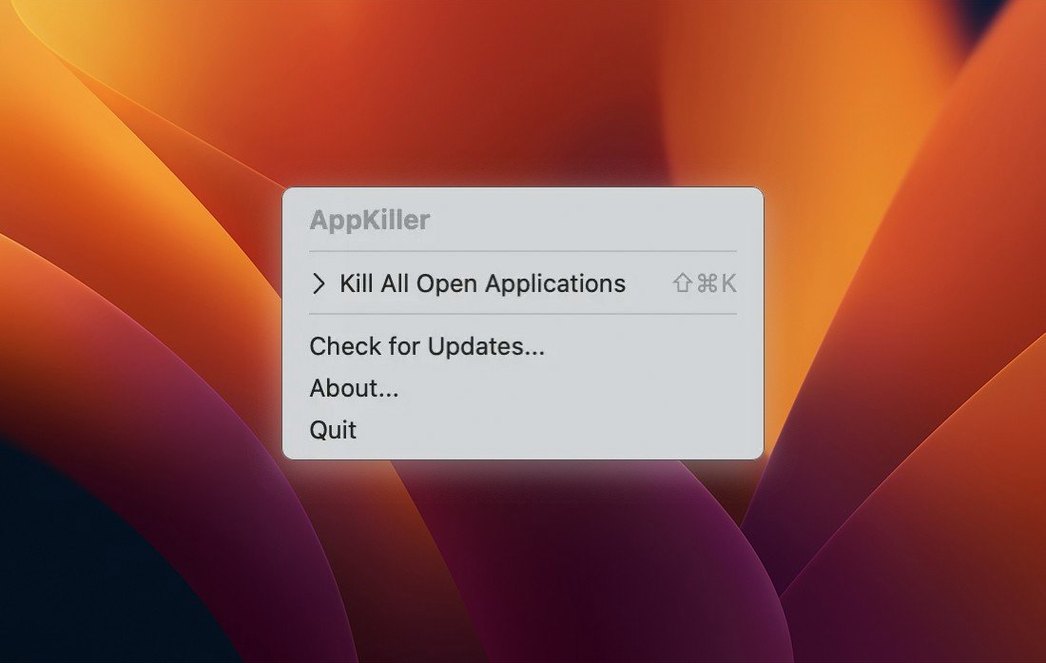
Editors with a render ticking and a desktop buried under five NLEs, a graphics app, and three browser windows. That's who picks up AppKiller. When memory pressure spikes and you'd rather not play whack-a-mole with the Dock, a single kill-switch for every open app earns its spot in the menu bar.
What the Power User Notices
- It’s a true instant kill. No confirmation dialog, no per-app prompts. Click the status-menu icon and every app quits — exactly what you want when the beachball takes over.
- The keyboard shortcut respects muscle memory. Assign a combo once and you’ll never touch the menu again. That’s the difference between a utility you install and one you actually deploy under deadline pressure.
- Apple Silicon native, but old-Mac friendly. The app runs on M1 through M4 machines and still supports macOS 10.12 for aging edit suites that refuse to die.
The Eject Button After Final Cut Swaps and Resolve Hogs VRAM
AppKiller isn’t a session manager and doesn’t pretend to be. It’s the eject button. When Final Cut starts swapping and DaVinci Resolve is holding VRAM hostage, a single shortcut clears the deck. You restart only the tools you need and get back to the timeline. The menu bar icon stays out of the way until you need it — which is exactly how a utility like this should behave.
A Quick-Close Workflow for Stubborn Sessions
Here’s a drill I run at least twice a week. A client sends a late revision, so I’m juggling Premiere for conform, After Effects for a lower third, a color-managed QuickTime player, and Finder windows pointing to three drives. The MacBook Pro fan sounds like a freight train. I’m about to reboot anyway, but I don’t want to sit through a beachball parade hitting ⌘Q on each app individually.
With AppKiller already living in the menu bar, the sequence is muscle memory: save whatever’s modified, tap my assigned shortcut, and every open app vanishes in under a second. The desktop goes still. Swap clears instantly. I can launch only the project I need next without the leftover memory churn. On Intel Macs that feel sluggish with Swap-heavy loads, this is the single biggest relief you can gift the system between marathon export sessions. It’s the digital equivalent of yanking all the patch cables at once so you can re-patch clean.
First-Day Tips After You Drag It to Applications
Don’t just let it sit in the menu bar and forget about it. Spend ten minutes on day one to make it automatic.
- Rebind the shortcut immediately. The default works, but you’ll internalize it faster if you choose a combo that sits next to your most-used keystrokes. I map it near my render shortcuts, so it becomes part of the same physical rhythm — finish export, kill session, walk away.
- Test it on a safe session first. Open TextEdit, Safari with a dummy tab, and Calculator. Fire the kill command. Watch how fast it clears. Trusting the tool means you’ll actually use it when the machine is grinding to a halt and unsaved work is at stake.
- Decide whether you want it to auto-launch at login. Right-click the menu bar icon and set it. The point is to forget AppKiller is even there until the moment you need a hard reset of your app state.
Pairing AppKiller with Other Tools and macOS
AppKiller plays well with app-focused utilities. If you use an appkiller mac utility like this one, you’re probably already running a launcher or a window manager. The natural pairing is a tool like Alfred or Raycast: kill all apps, then re-launch a saved set with a quick string. Together they simulate a session-restore workflow without any of the overhead of actual session managers.
With macOS’s built-in Resume feature, a mass quit can feel risky — but only if you rely on Resume to rebuild state. I disable Resume on most media apps anyway, because I want a cold start when I open a project. AppKiller fits that philosophy: it gives you a clean slate, and you consciously choose what comes back. For machines running older macOS builds, where every daemon and background helper nibbles at available RAM, a total app purge before starting a heavy encode is just good housekeeping. The menu bar icon also coexists peacefully with Bartender or Hidden Bar if you’re pruning your status menu — just make sure its icon stays visible, because you don’t want to hunt for the kill switch when the cursor is stuttering.
Version 4.3.0 focuses on speed and stability under the hood. The app triggers noticeably faster, especially on older machines still running macOS 10.12. Also fixed: code cleanup squashes a handful of edge-case hangs, plus minor tweaks to the menu bar icon's responsiveness.
- macOS 10.12 or later
- Intel or Apple Silicon (M1, M2, M3, M4) Mac
- Interface language: English
Questions I actually get
Does AppKiller ask for confirmation before quitting apps?
No. It instantly quits all open applications with a single click or keyboard shortcut — no confirmation dialog appears.
Which Macs can run AppKiller?
It works on any Mac running macOS 10.12 or later, and supports Intel as well as Apple Silicon chips including M1, M2, M3, and M4.
How do I launch AppKiller?
You can trigger it from the status menu icon or assign a custom keyboard shortcut for a faster, hands-on-keyboard workflow.
Notes from the edit bay · 0
Sign in or get an edit-bay pass to leave a note.
No notes from the edit bay yet. They go up after I read them.