A MacBook battery is rated for a finite number of charge cycles, and the chemistry inside degrades fastest when it sits at 100% for days. AlDente gives you direct control over that ceiling. Set a percentage, and the charging hardware stops pulling power once it hits your target.
Beyond the Slider
Most people install it and drag the limit to 80%. That works. But an experienced user will dig deeper into a few spots that turn a simple limiter into a full longevity toolkit.
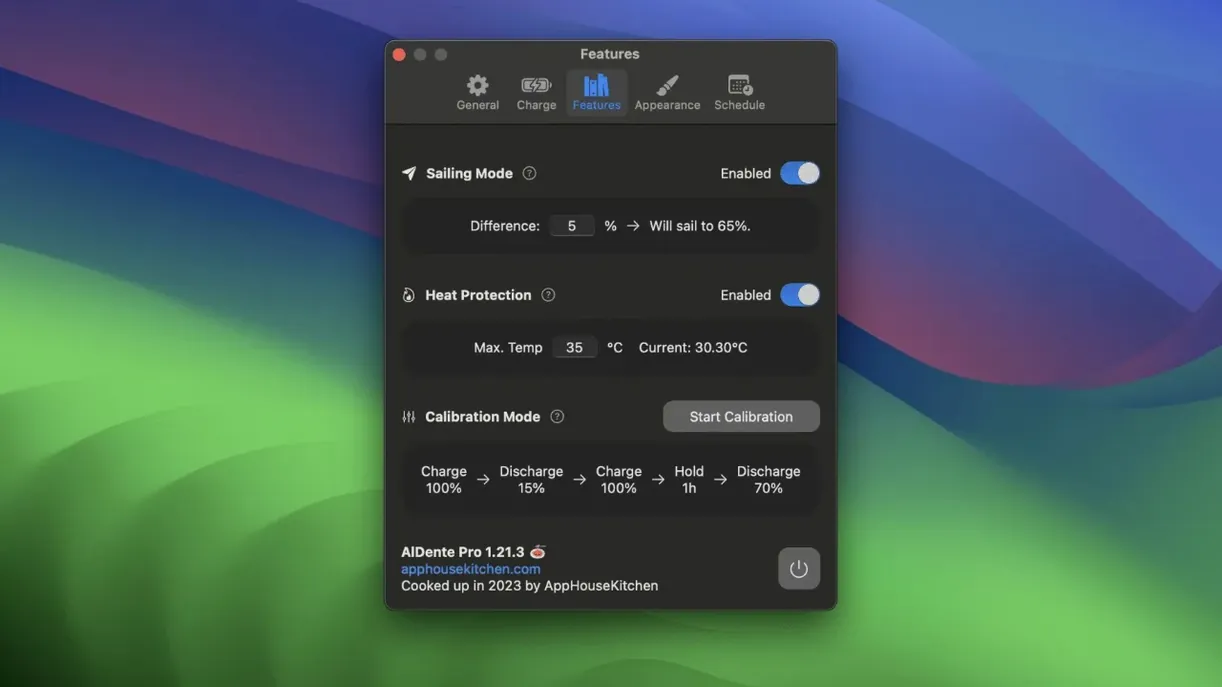
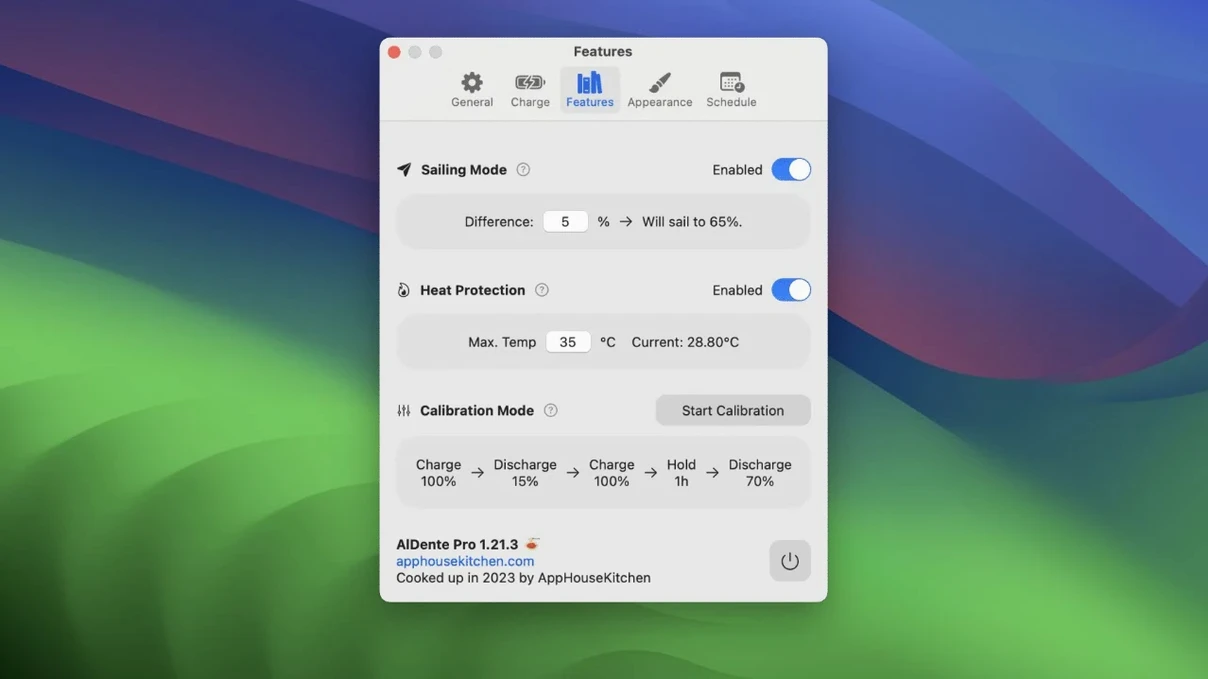
- Calibration Mode. Once in a while your battery's percentage readout drifts from reality. Running a full discharge-to-charge cycle manually is a hassle. Flip this on and AlDente handles the drain and the 100% top-off while you keep working. The result: macOS gets a clean baseline again.
- Sailing Mode. A charge limit isn't great when you actually need a full tank. Turn this on and the app lets the battery charge to 100%, then stops charging and runs the Mac directly off the power adapter — like taking the battery out of the equation entirely. The fans might spin up a little less during a long render, and you skip the micro-cycles that happen when a full battery bounces around 99-100%.
- Discharge. Sometimes you just want to coast down to your limit without unplugging. This runs the Mac off battery until the percentage hits your set point, then re-engages power passthrough. It's a small thing, but it means you don't have to babysit the menu bar.
The app lives in the menu bar, and the popover keeps an eye on temperature, current capacity, and whether you're drawing wall power or battery. It runs on most Intel and Apple silicon MacBooks from macOS 12 Monterey onward, and the interface comes in over a dozen languages including Russian, Korean, and Arabic.
Mistakes I See Fresh Installers Make
Enthusiasm leads to overly aggressive limits right away. Someone grabs the slider and cranks it down to 50% because "lower is better," then wonders why their MacBook dies before lunch in a coffee shop. A charge limit isn't a virtue contest. Pick a number that matches your actual afternoon. If you're desk-bound all day, 70-75% gives you real chemistry benefits without making portability a panic attack.
Another classic: forgetting Calibration Mode exists for three months, then blaming AlDente when the percentage readout jumps from 20% to 7% in two minutes. That's not the app — that's a drifting fuel gauge. Run a calibration every four to six weeks. The software can't protect a battery whose state-of-charge estimate is completely unmoored from reality.
Third mistake: leaving Sailing Mode on permanently. It's a feature for docked stretches, not a set-and-forget state. If you sail 24/7, you lose the benefit of occasional shallow discharges that keep the battery chemistry limber. Use it during a two-week desk stint, then let the battery breathe.
When Apple's Optimized Charging Falls Short on Irregular Schedules
macOS has its own Optimized Battery Charging, and that's the first thing people compare. Apple's solution learns your schedule and holds at 80% until it predicts you'll unplug. It works — when your days are predictable. If you work irregular hours or bounce between a desk and a shoot, it never learns a pattern and your battery sits at 100% anyway. AlDente doesn't guess. You set the ceiling and it holds, period.
BatFi is a newer entrant with a cleaner aesthetic and a similar charge limiter. It does one thing cleanly, and the UI feels light. Where AlDente pulls ahead is the depth tools: Sailing Mode, Calibration Mode, heat protection thresholds, and a discharge button that batfi simply doesn't offer. If all you want is a slider, either app works. If you want granular control over how and when power flows, AlDente covers more ground.
CoconutBattery is a monitoring tool, not a limiter. It reads cycle counts, design capacity versus current maximum, and manufacturer data — great for diagnosing an aging battery. But it won't cap your charge. A lot of users run both: CoconutBattery for the deeper health snapshot, AlDente for the active protection. They complement each other without stepping on toes.
Why Calibration Is the First Overnight Task After Installing
Start by running a full calibration. Yes, it takes hours. Do it overnight. A fresh install needs a truthful baseline, and calibration gives macOS and AlDente the same reference point. After that, set your charge limit based on your typical work setup — not an ideal you aspire to. If you're plugged in six hours a day, 75% is a solid starting number.
Second, open the popover and check the heat protection toggle. AlDente can pause charging if the battery temperature creeps past a threshold. It defaults to on, and you should leave it there. A hot battery degrades faster than a full battery, and summer days or a poorly ventilated stand can push internals past comfort without you noticing.
Third, take thirty seconds to set the menu bar display to show something useful. I keep it on current percentage and charge status. The tiny icon alone tells you nothing; a number in the bar means you'll catch a misbehaving charge limit at a glance without opening the popover.
Where AlDente Sits in the Bigger Workflow
AlDente plays well with the Mac's Low Power Mode. If I know I'm away from an outlet all day, I drop the charge limit to 100% via the slider, let it fill, then toggle Low Power Mode in System Settings. The two don't conflict — AlDente controls the ceiling, macOS throttles background activity. They're separate levers for the same goal: stretching the hours you get on battery.
It also pairs naturally with a menu bar system monitor like Stats or iStat Menus. AlDente gives you battery-specific data; a broader monitor shows total system draw in watts. When you see both side by side, you start to notice which apps spike power consumption. A Chrome tab you forgot about, a background render in After Effects — spotting those becomes easier when you watch the discharge rate in real time.
On the software side, the aldente pro mac download experience sits in that utility layer I think of as "set once, benefit daily." Unlike a creative app that demands active attention, AlDente runs quiet. You'll touch it when your routine shifts — a travel week, a long editing session — and otherwise it lives in the menu bar doing its job. That's exactly what you want from a battery tool.
The 0.1% CPU Footprint You'll Never Notice on an M2 Air
In daily use, AlDente is effectively invisible. The background process sips resources — I've watched it hover between 0.1% and 0.3% CPU on an M2 Air across a full workday. Memory use sits around 45-60 MB. It's not zero, but it's the kind of footprint you stop checking after the first day because it never becomes a problem.
The popover opens instantly. I've never seen a beach ball from the menu bar widget, and the charge limit engages within a second or two of plugging in. The only time you'll notice a delay is during Calibration Mode when it's deliberately draining the battery at a controlled rate — that's not lag, that's the feature pacing itself.
Stability has been uneventful in the best way. Version 1.39.4 addressed a visual glitch that appeared in early macOS 27.2 builds, so if you grabbed an aldente pro cracked build from a sketchy source earlier, you might have seen jittery UI elements in the popover—just make sure SIP is configured correctly and the helper tool has proper permissions. The current release is solid. On an M1 Pro running Monterey and an M2 Air on Sonoma, I've had zero kernel panics, zero unexpected wake-from-sleep behavior, and no conflicts with other power management tools. The app respects macOS sleep states properly — when the lid closes, it doesn't fight the system.
One thing worth knowing: if you use an al dente mac crack that's been tampered with, take a moment to verify the code signature and grant full disk access in System Preferences so it can read battery telemetry properly. Battery management sits close to the hardware, and a modified binary can introduce the exact kind of unpredictable charging behavior you're trying to avoid. A clean aldente mac download from a reliable source keeps things boring and predictable, which is exactly what you want from software that controls your power flow.
- macOS 12 Monterey or later
- Intel or Apple Silicon MacBook
Notes from the edit bay · 0
Sign in or get an edit-bay pass to leave a note.
No notes from the edit bay yet. They go up after I read them.