
AirBuddy is the bridge that makes your AirPods and Beats headphones feel like a native, deeply integrated part of your Mac's system.
| Detail | Info |
|---|---|
| Version | 3.0-890 |
| Architecture | Intel & Apple Silicon |
| macOS | 14 or later |
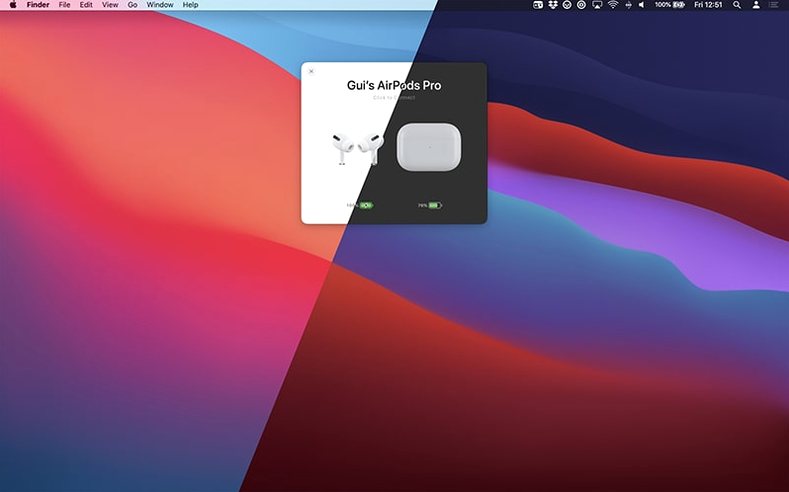
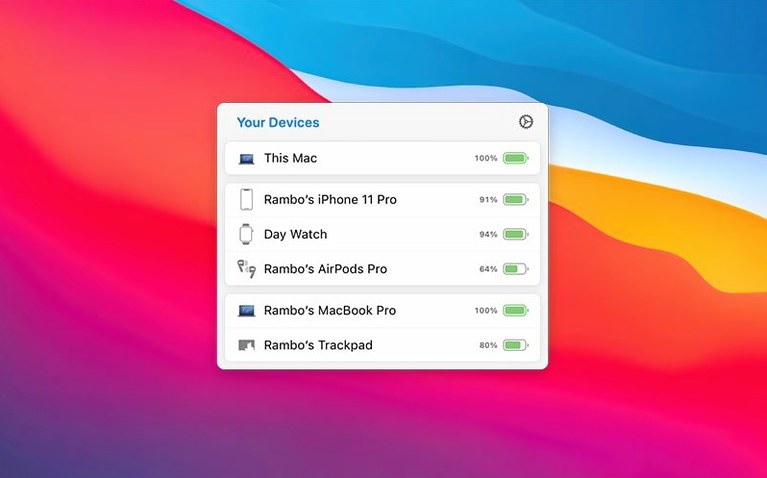
macOS shows you a tiny battery pop-up when you flip open an AirPods case, but AirBuddy keeps that information visible and actionable. It lives in the menu bar, showing charge levels for each earbud and the case at a glance. You can even spot when the left pod is draining faster than the right. A single click lets you connect, switch between Noise Cancellation and Transparency modes, or jump into playback controls. The beta also rolls out a menu bar icon picker—stick with the app icon, use the battery indicator itself, or hide it entirely. There is a proper Magic Handoff feature in here too, so you can punt a Magic Mouse, trackpad, or keyboard straight to a nearby Mac without digging through Bluetooth settings. It slots in next to the stuff you already use—your existing menu bar utilities, your shortcut muscle memory, and the Bluetooth pane you'd rather not open. Think of it as the control surface Apple's headphones deserve on the desktop.
First Days With AirBuddy
Once the app is running and your devices have been discovered, spend ten minutes dialing in the connection modes. These are the real time-saver. For each pair of AirPods or Beats, you can set what happens automatically when they connect to your Mac: switch to Transparency and drop the volume to 20% if you're in an office, or lock into Noise Cancellation with the mic muted for a coffee-shop grind session. Set these once and you will never tap through Control Center again.
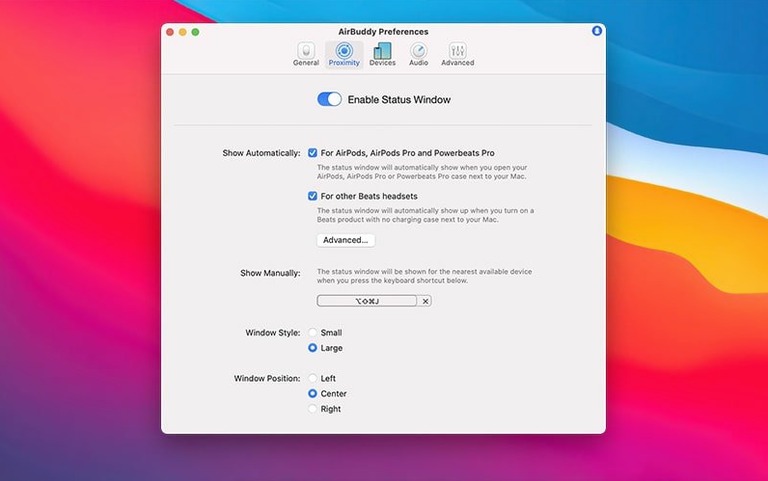
Next, decide what lives in your menu bar. The beta introduced three options: the full AirBuddy icon, a compact battery ring, or nothing at all. If you already run a crowded menu bar, the battery ring is the sweet spot — it shows a combined charge level without eating real estate. Clicking it still pulls up the full status window. If you prefer pure keyboard access, hide the icon and bind the connection shortcut to something you will actually remember.
Also worth doing early: drag the large status window somewhere on screen and leave it open for a full afternoon. Watching charge levels update in near real-time while you move between rooms gives you a feel for range and polling behavior. Some users notice the case battery refreshes less often than the individual pods — that is expected, not a bug. The app polls intelligently to avoid hammering Bluetooth.
Where the Editor Feels the Difference
A freelance editor in Austin bounces between a Mac Studio at the desk and a MacBook Pro in the edit bay. Both machines sit within eight feet of each other. Before AirBuddy, switching a Magic Trackpad and AirPods Max between them meant opening Bluetooth settings on the destination Mac, waiting, hoping, and sometimes power-cycling the headphones in frustration.
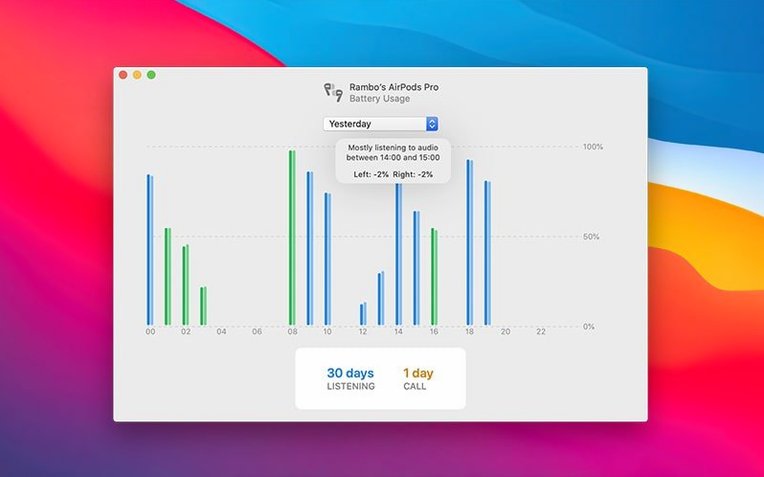
With Magic Handoff and one-click connection, the trackpad jumps between Macs from a menu bar shortcut. The AirPods Max reconnect to whichever machine wakes first. During a tight client review, the editor pulls down the status window, sees the headphones at 18% on the left cup and 22% on the right, and grabs a charging cable before playback stutters. The usage history tab later reveals three hours of listening and forty minutes of talk time that day — a quick gut check on whether those marathon sessions are creeping too long. It is not a flashy feature, but it is the kind of data that changes behavior.
Workflow: Connecting AirPods Pro and Starting a Call
Here is a full path from waking the Mac to joining a voice call, tuned for speed.
- Pop the AirPods Pro case open. AirBuddy's status window appears on the desktop within a second, showing individual pod and case battery levels.
- Click Connect in the status window — or hit the keyboard shortcut you assigned. The connection mode you configured for "Work Calls" kicks in: Noise Cancellation on, volume set to 40%, microphone enabled.
- Glance at the menu bar battery ring. Both pods show green. You are good.
- Launch your call app. AirBuddy does not interfere with audio routing; the AirPods are already the active output and input device because they connected with the mode that set the mic active.
- Mid-call, someone walks into the room. Swipe down on the Magic Trackpad — if you bound the listening-mode gesture — and AirBuddy switches to Transparency. Swipe again to return to Noise Cancellation when the conversation ends.
- After the call, open the usage history pane. Confirm you are not over-skewing to one ear; the left-right drain comparison flags if you need to swap the dominant pod more often.
This entire sequence keeps you out of Bluetooth preferences and Control Center. The only Apple UI you touch is the call app itself.
Restart the Bluetooth Daemon to Fix Stubborn Devices
Some devices refuse to show up on the first launch. The Mac's Bluetooth stack can be stubborn. Open the AirBuddy status window, click the gear icon, and choose Restart Bluetooth Daemon. Wait ten seconds. Nine times out of ten, your Beats or AirPods appear. If not, toggle Bluetooth off and on from the menu bar — the daemon restart handles most cases, but a hard toggle sometimes shakes loose a stuck discovery cycle.
Magic Handoff occasionally stumbles when both Macs run different versions of macOS. The handoff expects identical Bluetooth behavior across machines. If a Magic Mouse will not transfer, check that both Macs are on the same Wi-Fi network and signed into the same iCloud account. The feature leans on Apple's continuity backbone even though the handoff itself runs through AirBuddy's own plumbing. A quick reboot of the destination Mac's Bluetooth module usually sorts it.
Listening-mode switching via trackpad gesture can feel inconsistent if you have not calibrated the gesture sensitivity. Head into AirBuddy's preferences and adjust the swipe threshold. Too low and it fires when you scroll; too high and you will never trigger it deliberately. Aim for a three-finger downward swipe with moderate pressure — the default works for most, but large trackpads benefit from bumping the threshold slightly.
If the menu bar battery ring shows a question mark, the app lost communication with a previously paired device. This happens most often when a device was connected to an iPhone or iPad and the Mac has not seen it recently. Open the case or wake the headphones near the Mac, wait for the status window to refresh, and the ring updates within seconds. No need to re-pair or restart AirBuddy itself.
- macOS 14 or later
- Apple Silicon or Intel Mac
Notes from the edit bay · 0
Sign in or get an edit-bay pass to leave a note.
No notes from the edit bay yet. They go up after I read them.