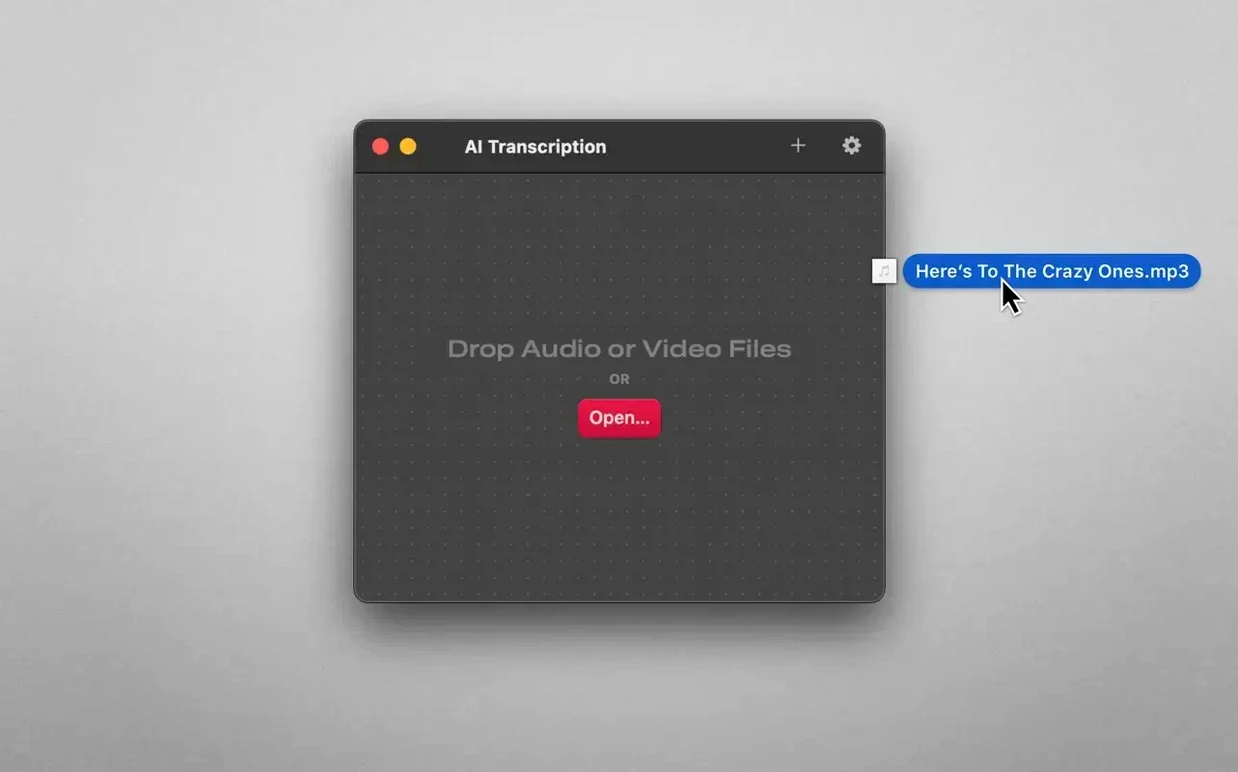
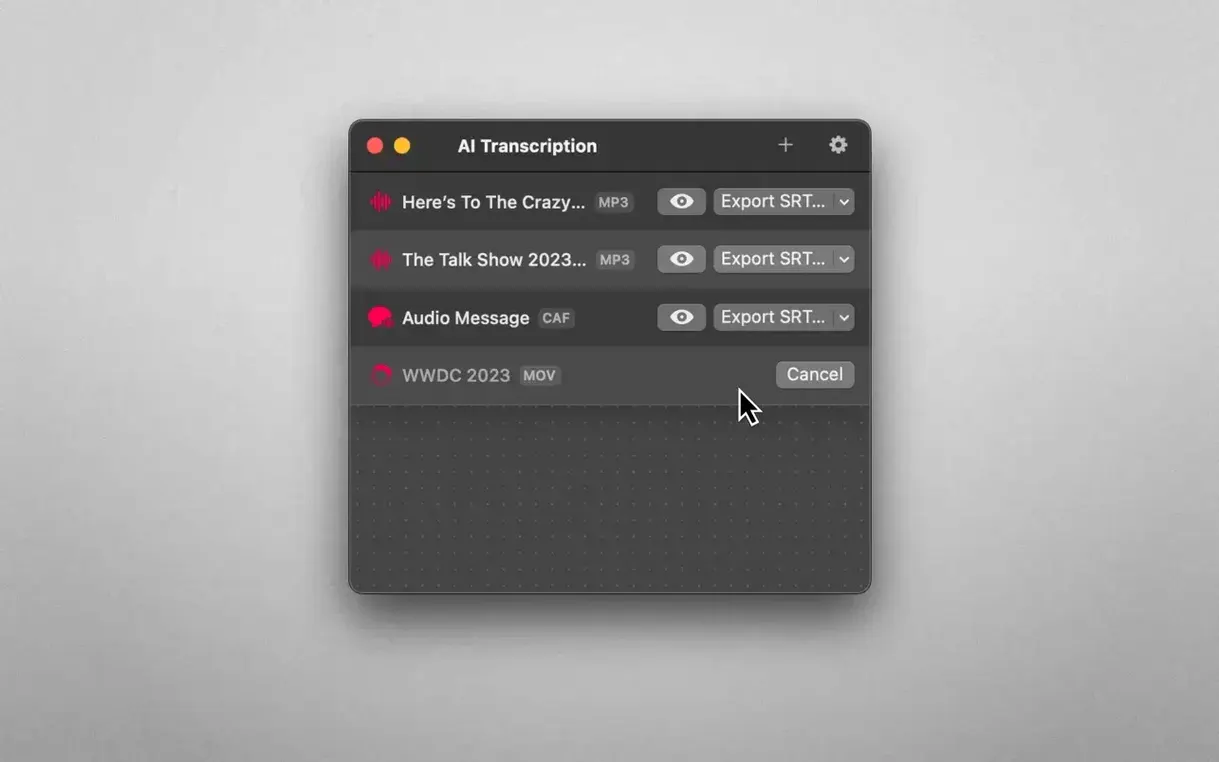
Editors cutting interviews, producers logging footage, and anyone who needs a quick text record of a take will get along with AI Transcription. It turns MP3, WAV, CAF, AIFC, M4A, and MP4 files into readable text without an internet connection, which matters when you're working with unreleased material or sitting in a cutting room with spotty Wi-Fi.
| Key detail | What you get |
|---|---|
| Engines | OpenAI Whisper, Apple Speech Recognition |
| Privacy | Audio never leaves the Mac |
| Mac support | Intel and Apple Silicon, macOS 14.6+ |
The standout feature is the dual-engine setup. Whisper handles the heavy lifting on longer files and trickier audio, while Apple Speech Recognition gives you a faster pass when you just need a rough cutdown. Both run locally, so a forty-minute interview doesn't stall while you babysit a progress bar. That's the job: get text into your notes app, your NLE, or an email without leaving the timeline for long.
Most complaints I used to hear about AI Transcription centered on a single thing: the app was accurate but slow when you threw a ninety-minute panel at it. That changed around the 2.12 and 2.13 cycle, where the developer tightened the Whisper pipeline enough that the same file finished while I grabbed a second coffee instead of a full lunch. By the time ai transcription 2.15 landed, batch processing felt like the real deal — queue up four MP3s from a day's shoot, walk away, and come back to finished SRTs. The 2.16 release didn't chase big new features. It fixed a timing drift some users saw with WEBVTT exports longer than an hour, and the export panel now remembers your last format, which saves a click every single time you bounce a transcript. Also fixed: a rare crash when switching engines mid-transcription on Intel machines with less than 8 GB of RAM.
Switch Default Export to SRT for Instant Timeline Captions
The defaults are sensible, but three adjustments make the app fit a video editor's brain better.
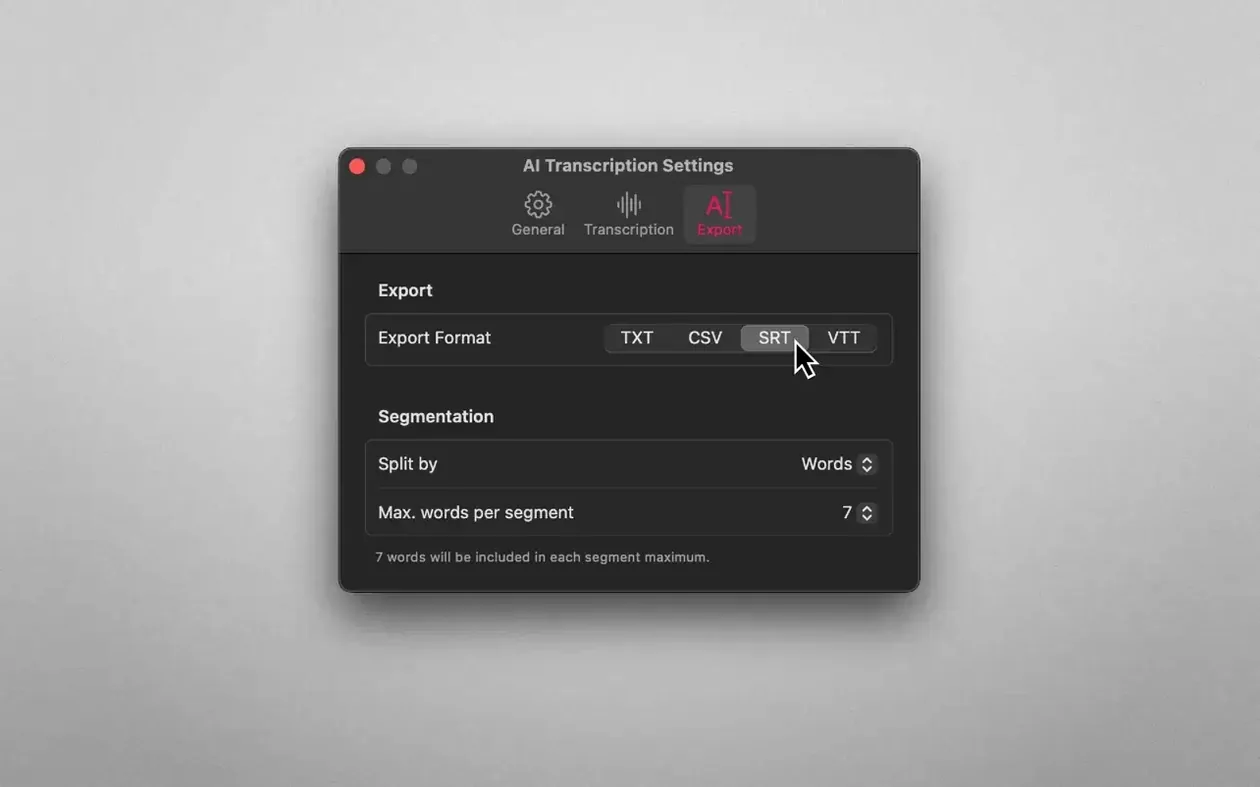
- Default export format to SRT. If you live in an NLE, you want timestamps. Opening Preferences and setting the export format to SRT means every transcript lands on your drive ready to drop onto a timeline. Plain text is fine for logging, but SRT is the lingua franca of caption tracks in Final Cut, Premiere, and Resolve.
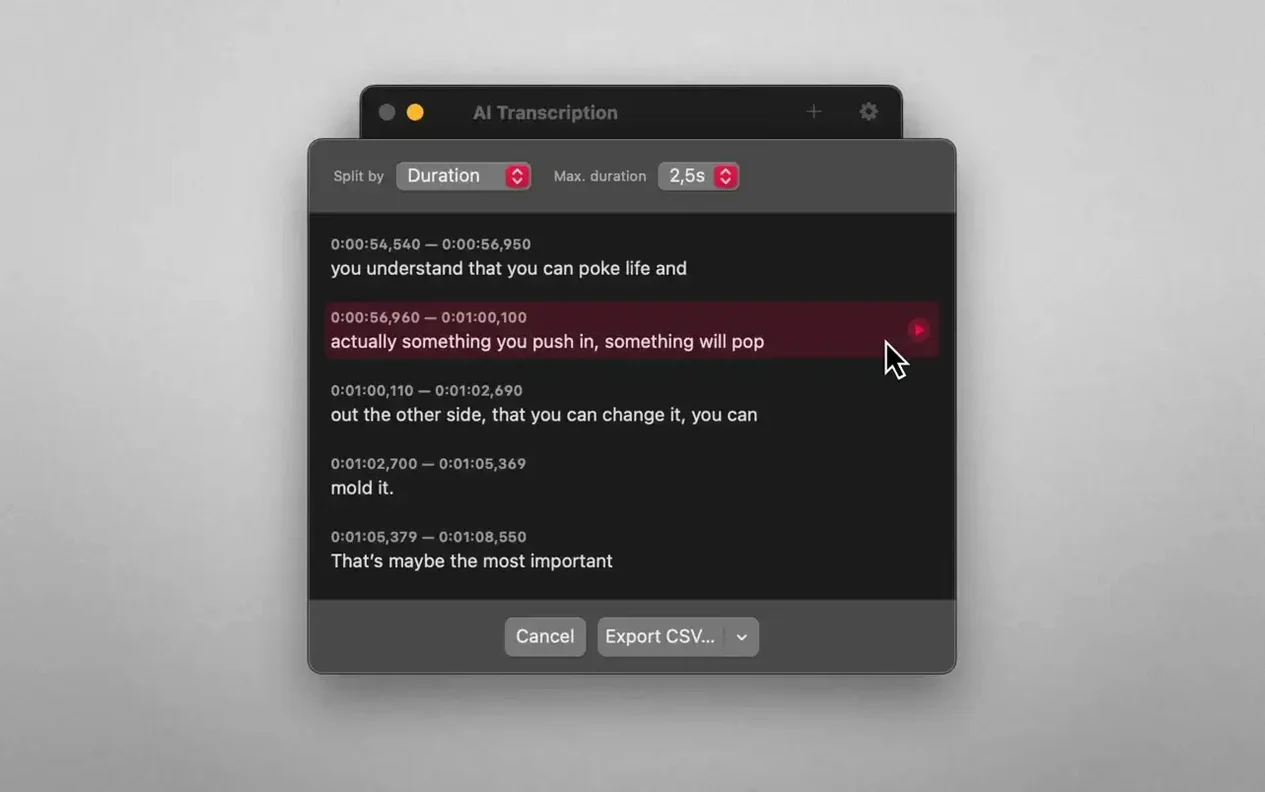
- Sentence splitting, not word splitting. The app can split transcripts by word, sentence, or fixed duration. Sentence mode produces the cleanest captions out of the gate. Word mode is useful if you're doing linguistic analysis, but for subtitles it creates a mess of one-word blocks that no timeline deserves.
- Pick your engine per job. The toggle between Apple Speech Recognition and Whisper isn't just a tech spec — it's a workflow decision. For rough selects from a two-hour interview, Apple's engine is fast enough to skim while you build a paper edit. For the final transcript that goes to a client or into your documentary cut, wait the extra minutes for Whisper. I set Apple as the default for the first pass and switch to Whisper only on the keeper files.
Drag SRT Stacks Straight into Final Cut or Premiere
AI Transcription doesn't try to be a media player, a note-taking app, or an NLE. That restraint is what makes it slot into a real pipeline.
Final Cut Pro and Premiere. Export an SRT, drag it into your timeline, and you have a caption track synced to the waveform. AI Transcription's timestamps have been frame-accurate on everything I've thrown at it since the 2.13 updates. For a rough assembly, I transcribe the selects reel, skim the text, drop markers where the good quotes land, and build the timeline around those. That's faster than scrubbing waveforms.
Notes and text editors. Plain text exports open directly in Bear, Obsidian, or a bare TextEdit window. When I'm logging b-roll interviews for a corporate project, I transcribe the entire day's audio folder, load the text files into a single note, and search for keywords across all interviews at once. Spotlight indexes the exported text files immediately, so a Finder search for a phrase finds the right transcript without opening the app again.
macOS services. Since the app writes standard file formats to disk, Quick Look previews SRT and text files without launching anything. Select a transcript in Finder, hit the spacebar, and read the content inline. The app also respects your Mac's Dark Mode setting and stays out of the menu bar when you don't need it, which keeps a cluttered desktop marginally cleaner.
First Days with AI Transcription
If you install this on a Tuesday and have a project due Friday, here is how I would spend the first hour.
Test on known audio first. Before you trust a transcript for client delivery, run a file where you already know every word. A thirty-second clip of your own voice, recorded in the room where you'll do most of your work, tells you how the Whisper model handles your microphone, your accent, and your ambient noise. That thirty seconds eliminates surprises later.
Learn what trips it up. Whisper is good, but it is not magic. Heavy cross-talk, music beds under speech, and people who finish each other's sentences will produce garbled lines. Run one chaotic file early — a panel with three people talking over each other — so you learn what the app's error patterns look like. You will start to recognize them at a glance instead of proofreading every line in panic mode.
Organize exports from day one. The app drops files wherever you point it, so create a Transcripts folder inside your project directory before you transcribe anything. Set it as the output destination and leave it. A week later, when an agency asks for the raw interview text, you will know exactly where twelve SRT files live.
Batch overnight. If you have a drive full of dailies, queue them before you leave the edit bay. With Apple Silicon, a dozen forty-minute interviews finish by morning. You walk in to a folder of text files and a rough paper edit before the director has finished their coffee. That is the kind of efficiency that keeps a freelance editor booked.
- macOS 14.6 or later
- Apple Silicon or Intel 64-bit
Questions I actually get
Does AI Transcription work without an internet connection?
Yes. Transcription runs on the Mac using OpenAI Whisper or Apple Speech Recognition, so audio files never leave the machine.
Notes from the edit bay · 0
Sign in or get an edit-bay pass to leave a note.
No notes from the edit bay yet. They go up after I read them.