You're laying out a band poster, and the client just sent a logo in an AI file you can't open. You need to wrap the tour dates along a curved path, tweak the typography, and export a press-ready PDF without leaving a single app. That's where a dedicated vector workspace saves the gig.
| Detail | Spec |
|---|---|
| Current Version | 2.6.5 |
| Architecture | Apple Silicon & Intel 64-bit |
| Minimum OS | macOS 10.15 (Catalina) |
| Key File Support | AI, PSD, PDF, EPS, SVG, EXR |
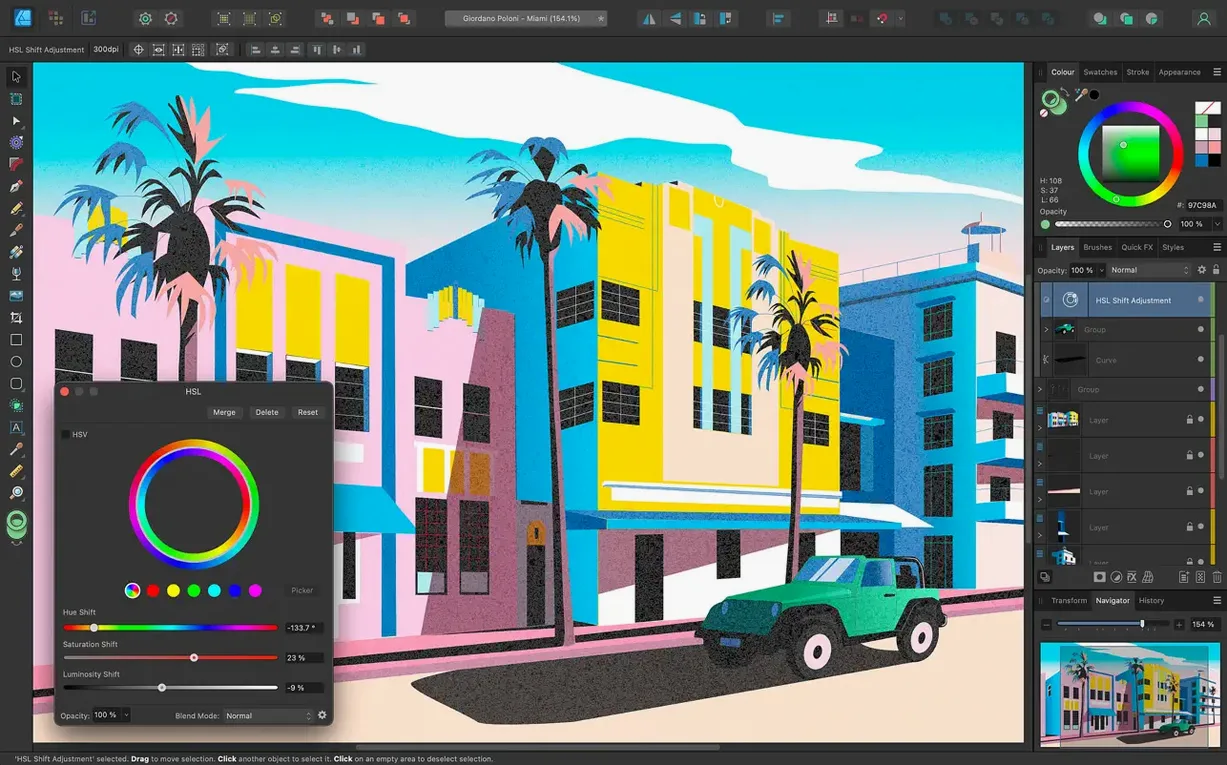
Affinity Designer runs natively on both ARM and Intel Macs. That means no Rosetta translation layer on an M-series chip — just a responsive canvas even with complex, multi-artboard documents. The 2.6.5 update brings the Pencil tool improvements and a Command-key toggle for marquee intersection behavior. Combine that with brush stabilization for smooth freehand curves, and you get a drawing experience that feels direct. The app switches between vector and raster workspaces, handles 16-bit per channel color, and respects ICC profiles for consistent output. Interface support spans English, German, Japanese, and five other languages. Touch Bar and Force Touch trackpad features are baked in, giving quick access to tool parameters without hunting through menus.
First Days: Tame the Canvas Before It Tames You
A fresh install of Affinity Designer dumps you onto a blank canvas with a default dark UI and a lot of panels. Give yourself 20 minutes to set three things, and the next week will feel less like fighting the app and more like drawing in it.
Switch the color mode early. The app defaults to RGB, but if your work heads to print, hit File > Document Setup > Color and pick CMYK before you build anything. Changing later is possible, but swatches you've mixed will shift — sometimes dramatically. While you're there, assign the ICC profile your printer expects. Designer ships with a solid set, and it respects them end to end.
Build a personal toolbar. Right-click the toolbar at the top of the workspace and choose Customize Toolbar. Drag the Corner Tool, the Vector Flood Fill, and the Stroke Width Tool up there. These three live in menus by default, but you'll reach for them constantly once they're one click away. While customizing, remove anything you never touch — fewer icons means faster target acquisition when a deadline is ticking.
Set your autosave interval. Go to Affinity Designer > Settings > Performance and dial the autosave down to 120 seconds. The app is stable, but it's also ambitious — large artboards with live filters and hundreds of curves can still trip it up. A two-minute safety net has saved more revisions than any manual Cmd-S habit ever will.
A Logo Redraw, Start to Finish
Suppose a client sends you a flat JPG of their logo and asks for it in vector with three color variations by end of day. The scan is 72 dpi and slightly rotated. Here's how that job flows inside Designer.
1. Place and lock the reference. Drag the JPG onto the canvas. In the Layers panel, click the padlock icon on the image layer, then drop its opacity to 60% using the slider at the top of the panel. Double-click the layer name and call it "ref" — you'll thank yourself when the layer count hits 30.
2. Straighten with the Measure Tool. Pick the Measure Tool from the toolbar, draw a line along the logo's skewed horizontal edge, then hit the Straighten button in the context toolbar. The canvas rotates to match. This keeps all your vector work axis-aligned, so holding Shift for straight lines actually gives you straight lines.
3. Trace with the Pen, not the Pencil. For a logo, you want clean, minimal anchor points. The Pen Tool gives you that. Set the stroke to a bright magenta in the Color panel and the fill to none — high contrast against the faded reference. Work one shape at a time. Use the Node Tool to refine curves after each closed path. The 2.6 release improved the Pencil Tool for freehand work, but for precision logo tracing, the Pen still rules.
4. Build color variations with Global Colors. Once the shapes are clean, open the Swatches panel and create a new Document Palette. Add each brand color as a Global Color — when you drag the palette onto a shape, it links by reference. Right-click the palette entry and pick "Make Global," then duplicate it twice and adjust the hex values. Three colorways, updated everywhere at once just by editing the swatch.
5. Export with slices. For the color variations, use the Export Persona. Create a slice for each artboard, name them logo_red, logo_blue, logo_black, and set them all to SVG with identical scale. Hit Export All. One render pass, three files, zero manual re-exporting.
Freehand curves that survive fast strokes
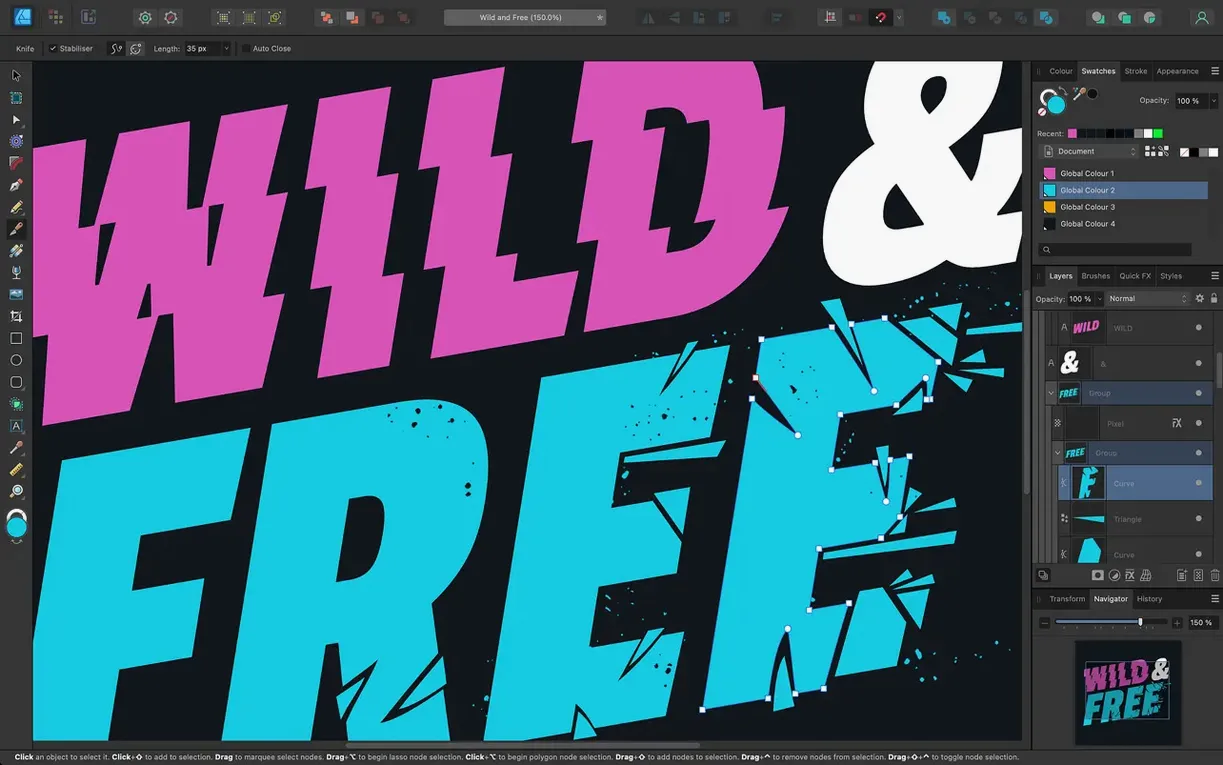
The jump to 2.6 wasn't a splashy UI overhaul — it tightened the tools you already use. The Pencil Tool improvements mean freehand curves hold their shape better on fast strokes, especially useful when you're roughing out concept sketches directly in vector instead of jumping to a raster app first. The line feels less jittery, and the stabilization slider in the context toolbar gives you finer stops between loose and rigid.
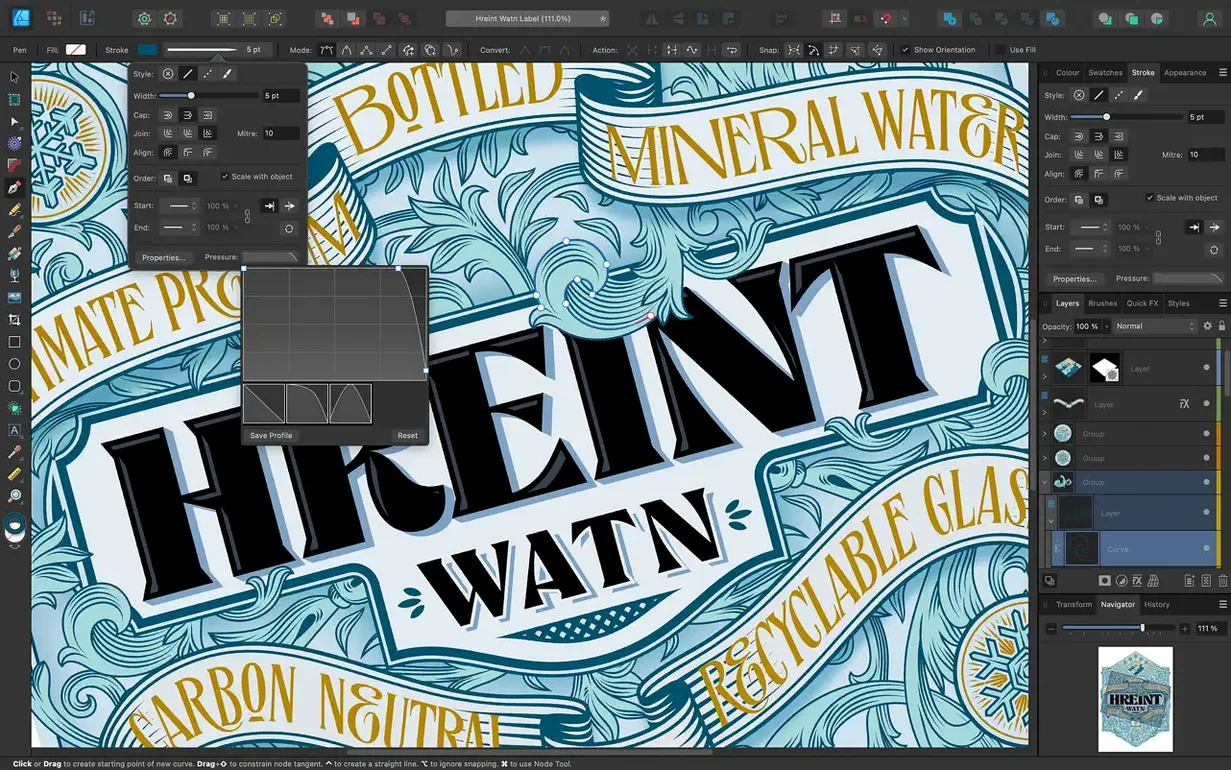
The Stroke Width Tool got a quiet but meaningful upgrade: profiling adjustments are smoother, and the new Reset Profile button kills any accidental width variation on a curve with one click. If you've ever warped a stroke by dragging the wrong handle and then tried to eyeball your way back to uniform, that button alone saves minutes per session.
The marquee selection toggle — hold Command (or Ctrl on a non-Mac keyboard) while dragging — now lets you switch between adding to a selection and intersecting it on the fly. Before 2.6, marquee behavior was a preference buried in settings. Now it's a modifier key, which means you adjust it per gesture instead of per project. That's the kind of change that re-wires muscle memory in a week and then feels essential.
Double-click any color well for the full picker
- Double-click a color well anywhere in the interface to open the full color picker, even if the panel is collapsed. Works on fill, stroke, and text color swatches.
- Hold Spacebar during any shape-draw operation to reposition the shape before you commit it. Less undoing, more placing.
- Right-click any layer thumbnail and pick "Find in Layers Panel." In a document with 80 unnamed curves, this is faster than scrolling and squinting.
- Cmd-drag on a node with the Node Tool to temporarily switch to the Node Transform mode. Release and you're back to editing curves — no tool switching.
- The Corner Tool works on any sharp node, not just rectangles. Click a corner of a hand-drawn shape, drag the radius widget, and you've got a rounded version without rebuilding the path.
- Use the Appearance panel to stack multiple strokes and fills on a single object. Offset strokes with different weights and dashes, and you can build complex line styles without duplicating shapes.
Version 2.6.5 is a stability release that squashes bugs and keeps the app feeling solid during long sessions. The bigger workflow additions came in the 2.6 update, which reworked the Pencil tool for smoother sketching, added Stroke Width Tool profiling with a Reset Profile option, and introduced a Command or Ctrl toggle to switch marquee select intersection behavior on the fly.
- macOS 10.15 (Catalina) or later
- Apple Silicon or Intel 64-bit processor
Questions I actually get
Can I place text along a curved path?
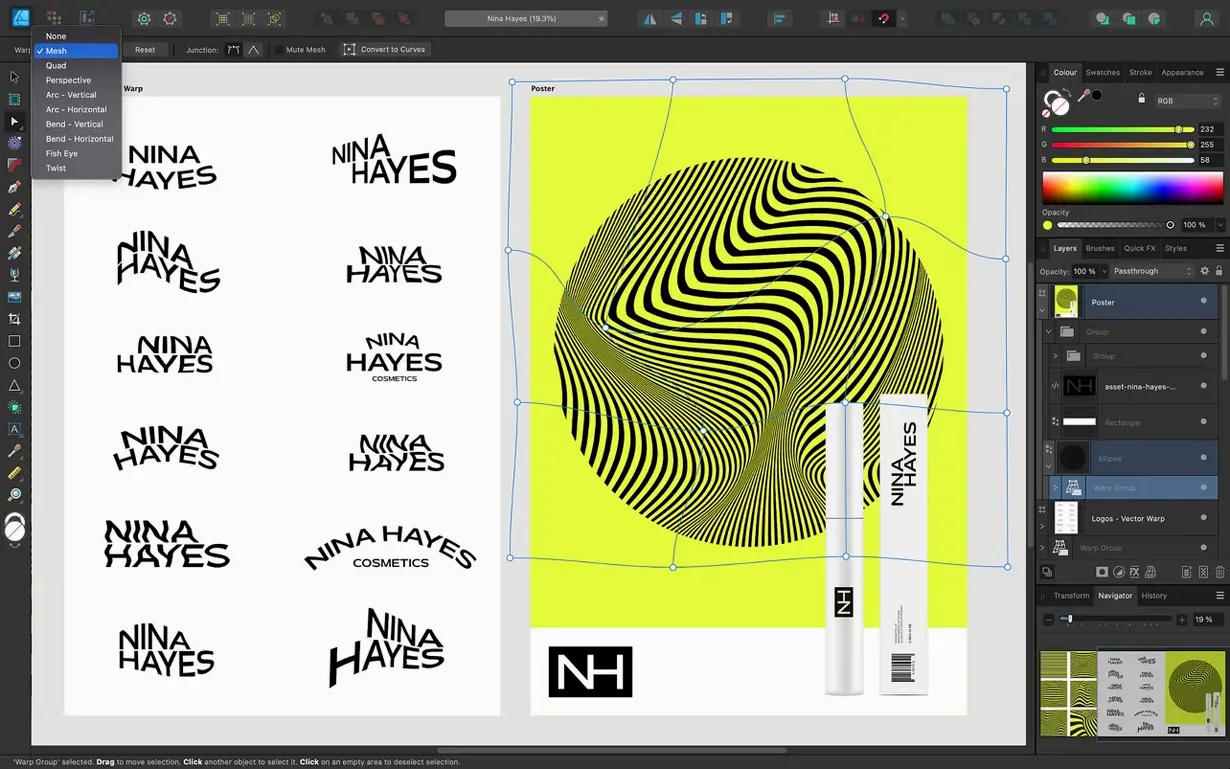
Yes, Affinity Designer supports text on a drawn path, giving you full control over typography that follows any curve or shape.
What file formats can I open and save?
It opens and exports PSD, AI, PDF, EPS, SVG, JPG, TIFF, and EXR files, making it easy to slot into a workflow with Adobe apps.
Notes from the edit bay · 0
Sign in or get an edit-bay pass to leave a note.
No notes from the edit bay yet. They go up after I read them.