
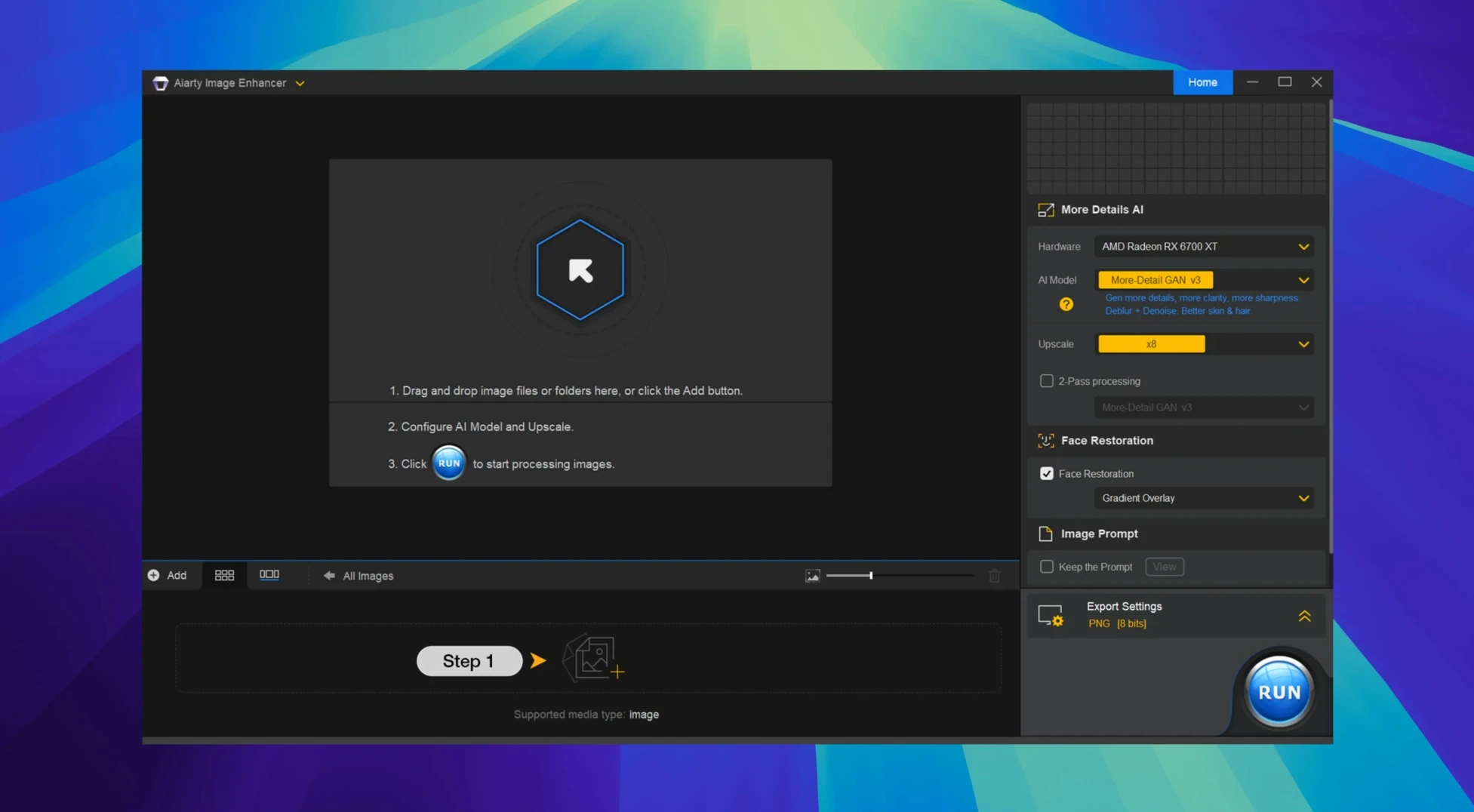
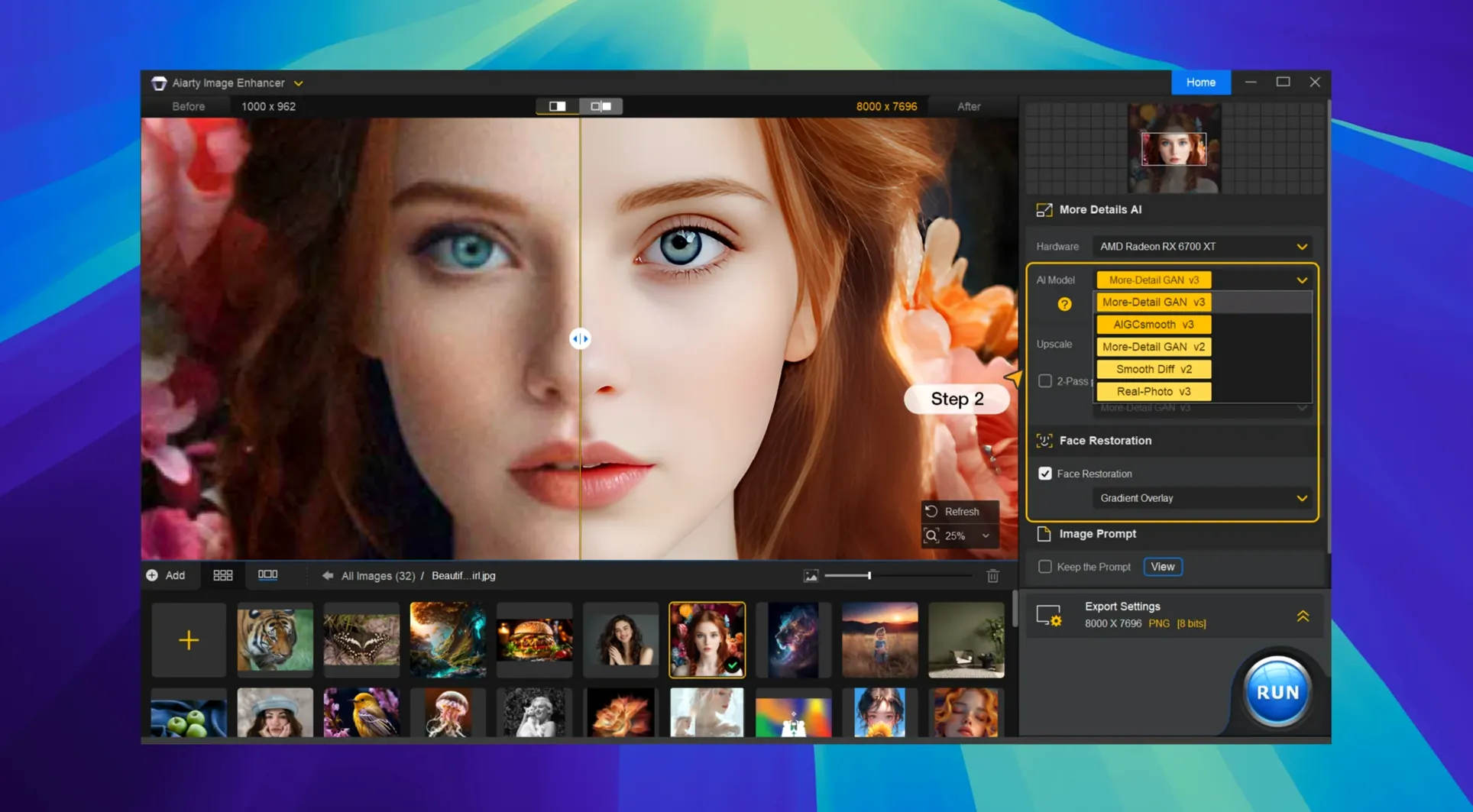
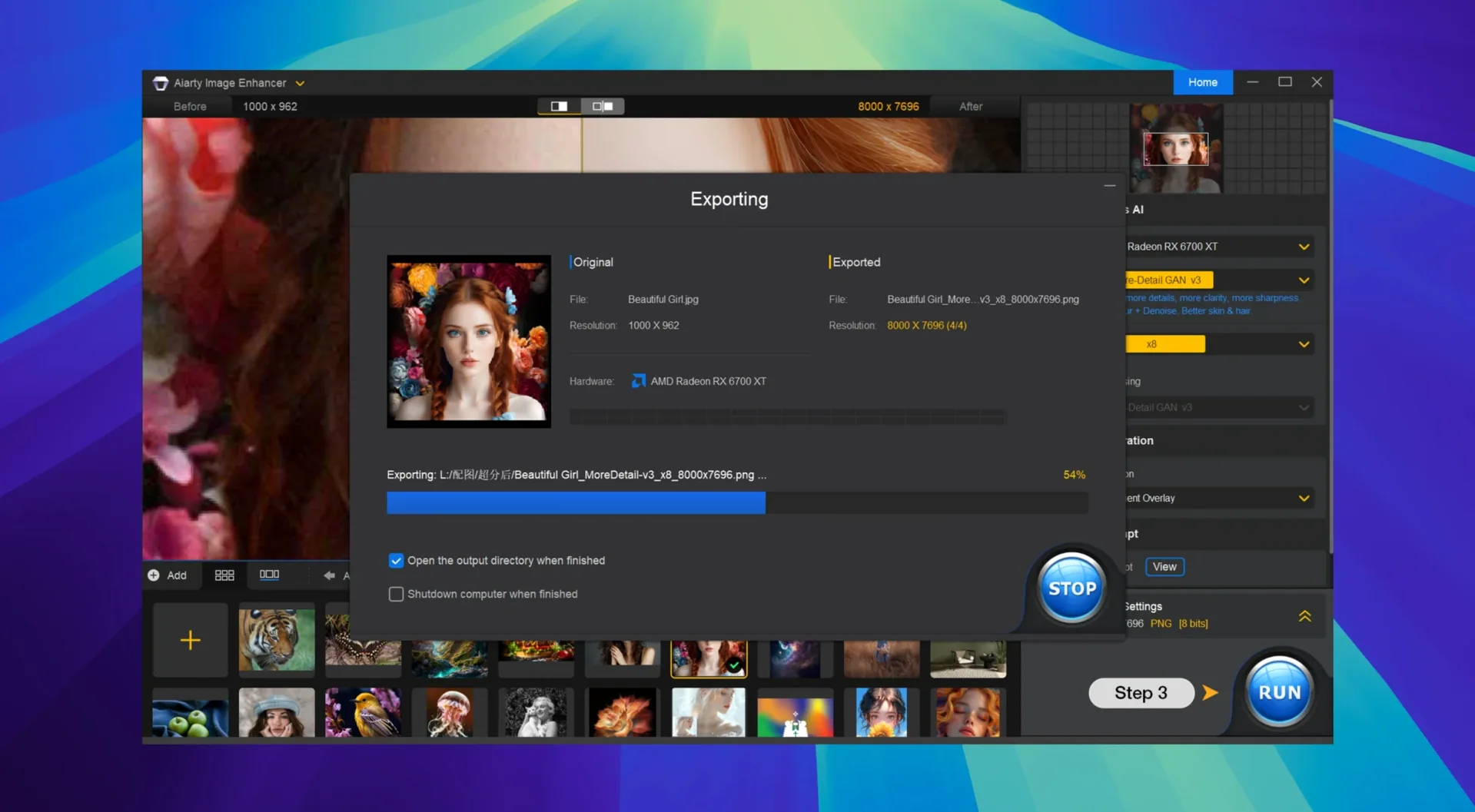
Photographers pulling old RAW files off a dusty drive, print designers stuck with a client's tiny logo, and anyone who has ever looked at a noisy night shot and wished for a do-over — Aiarty Image Enhancer is built for that moment.
Denoising — Strips luminance and color noise without turning the image into plastic. Keeps the grain structure plausible when it matters.
Deblurring — Tackles motion blur and slight focus misses. Not magic, but it pulls back edges that were smeared across pixels.
Upscaling — Bumps resolution while its generative models fill in skin texture, hair strands, and fabric weaves that weren't visible at the original size.
Format support — Handles JPEG, PNG, TIFF, WebP, BMP, and AVIF. No format conversion dance before processing.
Lightroom tie-in — Version 3.14 adds workflow improvements for sending files from Lightroom Classic. EXIF data stays accessible, so you're not guessing about lens or settings after the fact.
First Days: Three Moves That Make a Difference
After the drag-to-Applications step, open a folder of ten problem images and run them through before you touch a client file. This is your calibration run. Aiarty needs to learn how its sliders translate to your taste, and a batch of familiar rejects is the fastest teacher.
Turn off auto-preview on the first round. The app will render a small crop by default, and that's fine for quick checks, but you want full-frame results on your calibration batch. Pick one image, apply Denoise at 40, note the skin texture. Bump it to 70, compare. You'll find the knee point where pores start looking painted — and that threshold becomes your ceiling for every project after.
Tag your RAW files before you enhance. Aiarty respects EXIF in 3.14, but the Finder doesn't care what you processed. Drop a color tag on the originals before you send them through. When you're staring at an upscaled TIFF three weeks later and can't remember which version of the edit you started from, that green tag on the NEF saves you.
The Export Preset panel is worth five minutes of setup. Dial in TIFF as your default output if you're heading into Lightroom or Capture One for further edits. Use PNG only when the destination is a web layout. AVIF is tempting for file-size wins, but not every CMS handles it yet — check your delivery spec first.
From a Client Logo to a Billboard: A Full Workflow
A common panic: the client sends a JPEG logo pulled from their website header. It's 600 pixels wide. The printer needs 9000 pixels for a booth backdrop, and the deadline is tomorrow.
Step one: open Aiarty and drop the JPEG in. Don't touch upscaling yet. First, zoom to 200% and check for JPEG artifacts around the edges. Those mosquito-noise halos will only get amplified if you scale first and clean later. Set Denoise to 25, just enough to knock down compression crud. Switch to the Deblur panel. Even a "sharp" logo loses edge definition when it's been resized six times by a CMS. A Deblur value of 15 to 20 tightens the letterforms without thinning them.
Now the upscale. Set the output dimensions to 9000 pixels on the long edge. Aiarty's model will generate the intermediate data. For vector-flat graphics like logos, the generative texture tricks aren't needed, but the edge reconstruction matters. Process the file.
Open the result in Preview and check one letter at actual size. If the edge has a faint ghost, drop back to the original, halve the Deblur, and re-render. Once it's clean, export as TIFF and hand it to the print shop. That's a 15-minute turnaround from panic file to production-ready.
Dragging a Cave-Lit Gig Folder Onto the Thumbnail Grid
It's 9 a.m. and a folder of event photos landed from last night's gig. The venue had the lighting of a cave. I open Aiarty and drag the whole folder onto the window. The thumbnail grid populates, and I sort by ISO — the metadata column in 3.14 makes this a one-click sort.
I grab the worst frame first. ISO 12800, color noise in the shadows, a guitarist mid-strum with slight motion blur. Denoise goes to 55. I toggle the preview split-screen to see the before/after on a patch of black jacket fabric. The chroma noise melts, but the fabric still reads as wool. Good. Deblur at 20 pulls the hand movement back into focus without introducing that brittle oversharpened look. I save this as a preset called "venue hell" and apply it to the other high-ISO shots in the batch.
Mid-batch, I hit a shot where the model's eye is just slightly soft. I pull that file out of the batch queue and process it solo. Deblur at 30, Denoise at 20. The iris detail snaps back, and the catchlight keeps its shape. Back into the batch with the milder preset for the rest. By 9:25, the entire folder is TIFFs, tagged, and ready for the color grade.
The Gap Between Lightroom Enhance Details and Topaz Gigapixel
Aiarty doesn't replace Lightroom, but it slides into the gap between Lightroom's Enhance Details and a dedicated upscaler like Topaz Gigapixel. The Raw Details enhancement in Lightroom is good for demosaicing, but it doesn't touch motion blur or do a 32K upscale. Aiarty handles those jobs and sends the result back as a linear TIFF that Lightroom treats like any other file, with the EXIF chain intact.
With Photoshop, the dynamic is different. If you're restoring a scanned print, run Aiarty first to denoise and upscale the scan, then do your spot-healing and curves in Photoshop. Cleaning dust on a low-res scan is a waste of time — upscale it first, and the clone stamp has more pixels to work with.
The Finder's Quick Actions don't talk to Aiarty directly, but you can build an Automator folder action that watches a "To Enhance" folder and opens new files in Aiarty automatically. Combine that with a Hazel rule that moves finished TIFFs out of the output folder into your Lightroom auto-import directory, and you've got a hands-off pipeline for batch work.
If you already use Adobe Audio Enhancer for cleaning voice tracks on video edits, Aiarty fills the same role for stills: it's the pass you run before the creative work begins, not the final step. Clean plate first, then grade, retouch, or composite.
- macOS 11 or later
- Intel and Apple Silicon Macs
- Interface: English, German, Traditional Chinese, Simplified Chinese, Japanese
Notes from the edit bay · 0
Sign in or get an edit-bay pass to leave a note.
No notes from the edit bay yet. They go up after I read them.