
For the Big Screen, Not the Browser Tab
Video editors and movie hoarders with a Chromecast dongle know the pain of janky browser casting. BitCave Ltd.’s Airflow is built for that person. It's a dedicated, no-nonsense bridge between a folder of video files and a television.
The Workflow
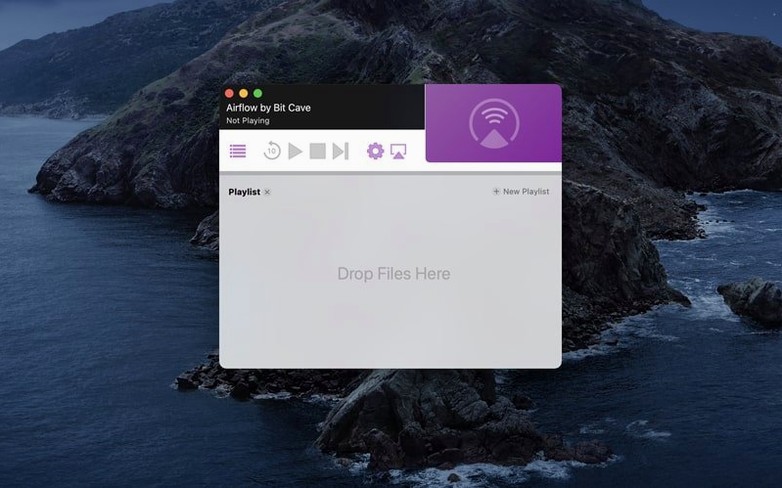
- Pick a file. Drag any video into the window—no transcoding, no cloud uploads waiting to sync.
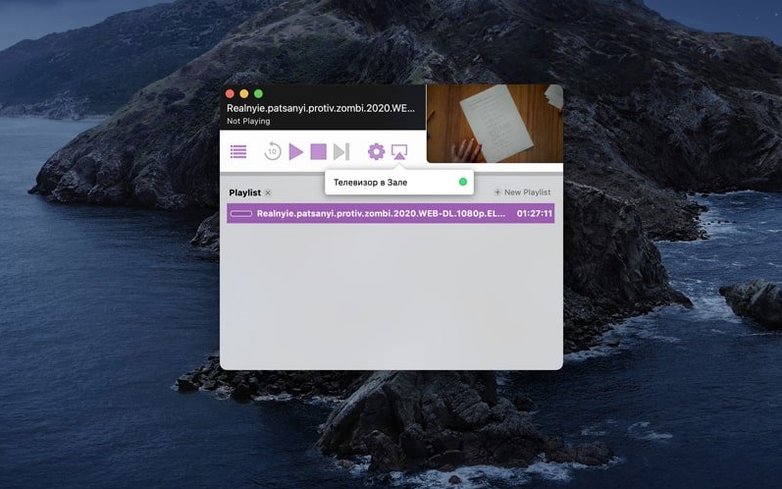
- Choose the target. Airflow scans the local network and lists every Chromecast device. One click selects it.
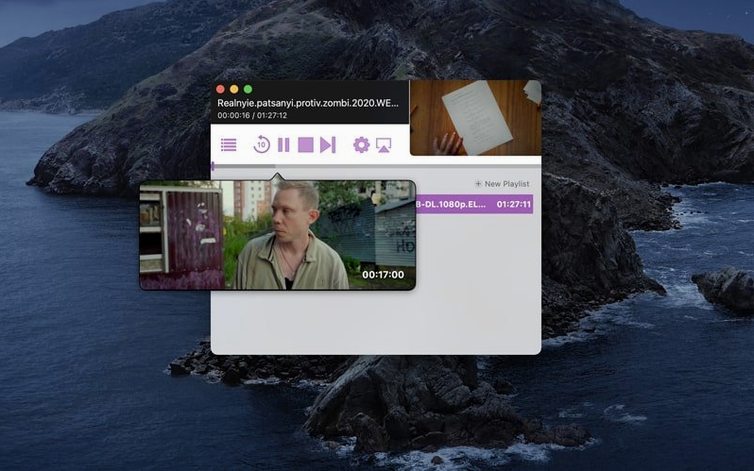
- Hit play. Playback starts cleanly on the TV. You can scrub, pause, or queue up the next clip from the Mac while the stream runs unaffected.
A Single-Purpose Streamer for Local Files
It’s a single-purpose tool for Intel Macs still on macOS 10.12 or later. Since it doesn’t try to be a media library or a torrent client, the interface stays out of the way. If your evening involves a hard drive of MKVs and a Chromecast, this is the direct line between them.
Subtitles Pass Through Without Extraction
“Does it handle subtitles without a separate extract step?” Yes. Airflow reads embedded subtitle tracks in MKV and MP4 containers and passes them to the Chromecast. If your file has an external SRT sitting next to it with the same name, it picks that up too. No remuxing, no burned-in re-encode. The subtitle toggle lives right on the playback bar, so you can switch tracks mid-stream without restarting.
“Will it choke on a 4K remux over Wi-Fi?” That’s more a question for your router than the app, but Airflow doesn’t add overhead. It sends the original bitstream. On a decent 5 GHz network, a 60 GB HEVC file starts within a few seconds and seeks without buffering spirals. Wired Chromecast adapters make it even snappier. The app itself runs lean — Activity Monitor shows it barely sipping CPU while a stream is active, because it’s not transcoding in the background.
“What if I want to play a whole season without babysitting?” Drag a folder instead of a single file. Airflow builds a playlist automatically. Episodes play in order, and you can reorder them by dragging entries in the queue panel. The playlist survives app restarts, so you can close your MacBook and pick up where you left off the next evening.
Cast Reliability vs. VLC’s Drop-Prone Menu
Vs. VLC’s built-in renderer. VLC can push a stream to a Chromecast, but the setup asks you to pick a renderer from a drop-down buried in the playback menu, and the connection drops more often than not if the file format doesn’t match what the Chromecast expects natively. Airflow’s whole reason for existing is that handshake. It negotiates the format before the first frame appears, so you don’t get the “file not supported” black screen that VLC users learn to dread.
Vs. Elmedia Player. Elmedia casts to Chromecast and handles more audio formats than Airflow, but it also wants to be a general-purpose media player. That means a heavier interface with playlist tabs, equalizer sliders, and streaming protocol toggles. Airflow does one thing. For someone who already has a preferred desktop player and only needs a cast button, Airflow’s single-window approach feels less cluttered.
Vs. Google Chrome tab casting. Tab casting re-encodes the video in real time. Quality takes a hit, audio sync drifts on longer files, and the Mac’s fans spin up. Airflow sends the file as-is decoding on the Chromecast end. The difference on a large TV is immediately visible — no macroblocking in dark scenes, no lip-flap lag.
Made for Pre-Streaming Media Collections
People with a local media collection that predates streaming subscriptions. If your Mac has a “Movies” folder measured in terabytes and you’ve spent time naming files properly, Airflow slots into that existing structure without asking you to import anything into a library. It respects the folder hierarchy you already have.
Editors and DITs reviewing dailies on a client monitor also benefit. Drag a folder of ProRes or DNxHD exports straight onto the app, cast to the big screen in the suite, and scrub through without rendering timelines or uploading to a frame.io-style service. The lack of metadata scraping means client files don’t get mismatched poster art popping up on screen.
Intel Mac households with mixed-generation Chromecast hardware find it especially useful. Airflow detects first-gen Chromecasts, second-gen, Ultra, and devices built into TVs. It doesn’t lock you into the newest Google dongle. For anyone keeping an older iMac or Mac mini around as a home server, this is one of the few streaming tools that still runs on macOS 10.12 without nagging for an OS update.
Fullscreen Toggle Without Touching the Mac
- Command-Shift-F for fullscreen on the TV toggles the stream without touching the Mac’s display. Useful when the laptop is across the room and you realize the aspect ratio needs a nudge.
- Right-click any file in the queue and choose “Show in Finder.” A tiny detail, but when you’re juggling multiple cuts of an export with near-identical filenames, it’s faster than hunting through folders manually.
- Hold Option while launching to reset the discovered device cache. Chromecasts that have gone missing after a router reboot reappear without needing to restart the Mac.
- Space bar pauses playback even when Airflow isn’t the frontmost app. It grabs the media key and forwards the command to the Chromecast, so you can pause from a keyboard without switching windows.
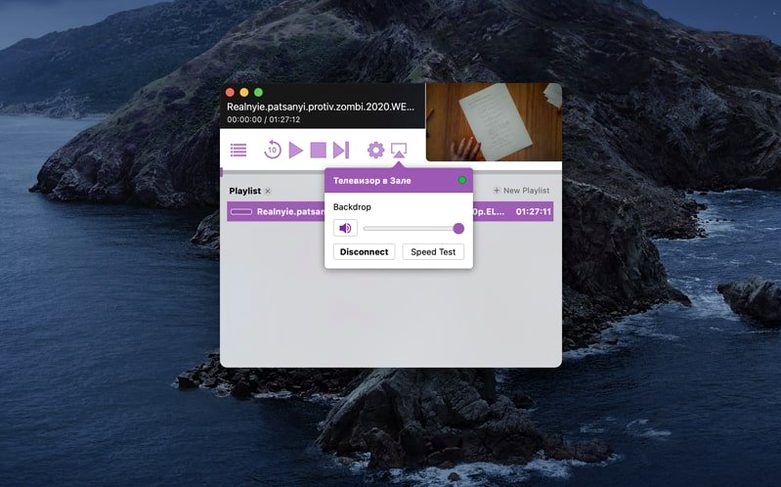
- The volume slider in the menu bar icon controls the Chromecast’s HDMI output level directly, independent of system volume. You can mute the TV from the menu bar while the Mac keeps playing audio through headphones for something else entirely.
These shortcuts aren’t advertised on the splash screen. They surface naturally after a few evenings of use, and once you know them, casting without them feels clumsy.
- macOS 10.12 or later
- 64-bit Intel Mac
Notes from the edit bay · 0
Sign in or get an edit-bay pass to leave a note.
No notes from the edit bay yet. They go up after I read them.