Airfoil talks to over a dozen speaker types, from an old AirPort Express to a modern HomePod. Version 5.13.0 just restored streaming to Apple TV and HomePod, so the list is full again. If you've never opened it, the first three moves below will get sound moving fast.
How do I pick a speaker?
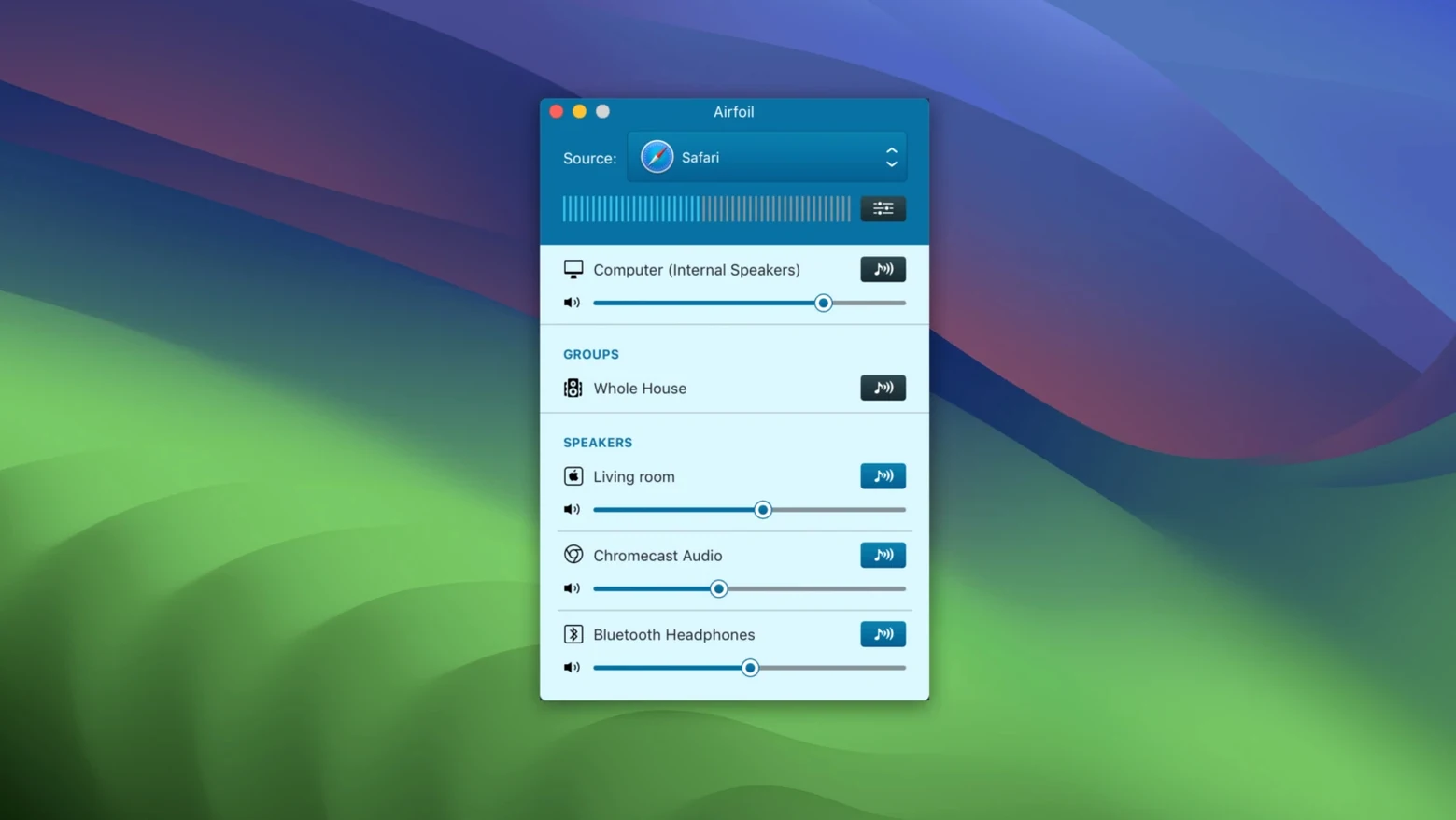
Click the speaker icon next to the source selector. Every AirPlay, Bluetooth and Google Cast device on your network shows up in the list. Check more than one box and Airfoil sends the same audio to all of them in sync.
Can I stream just one app instead of everything?
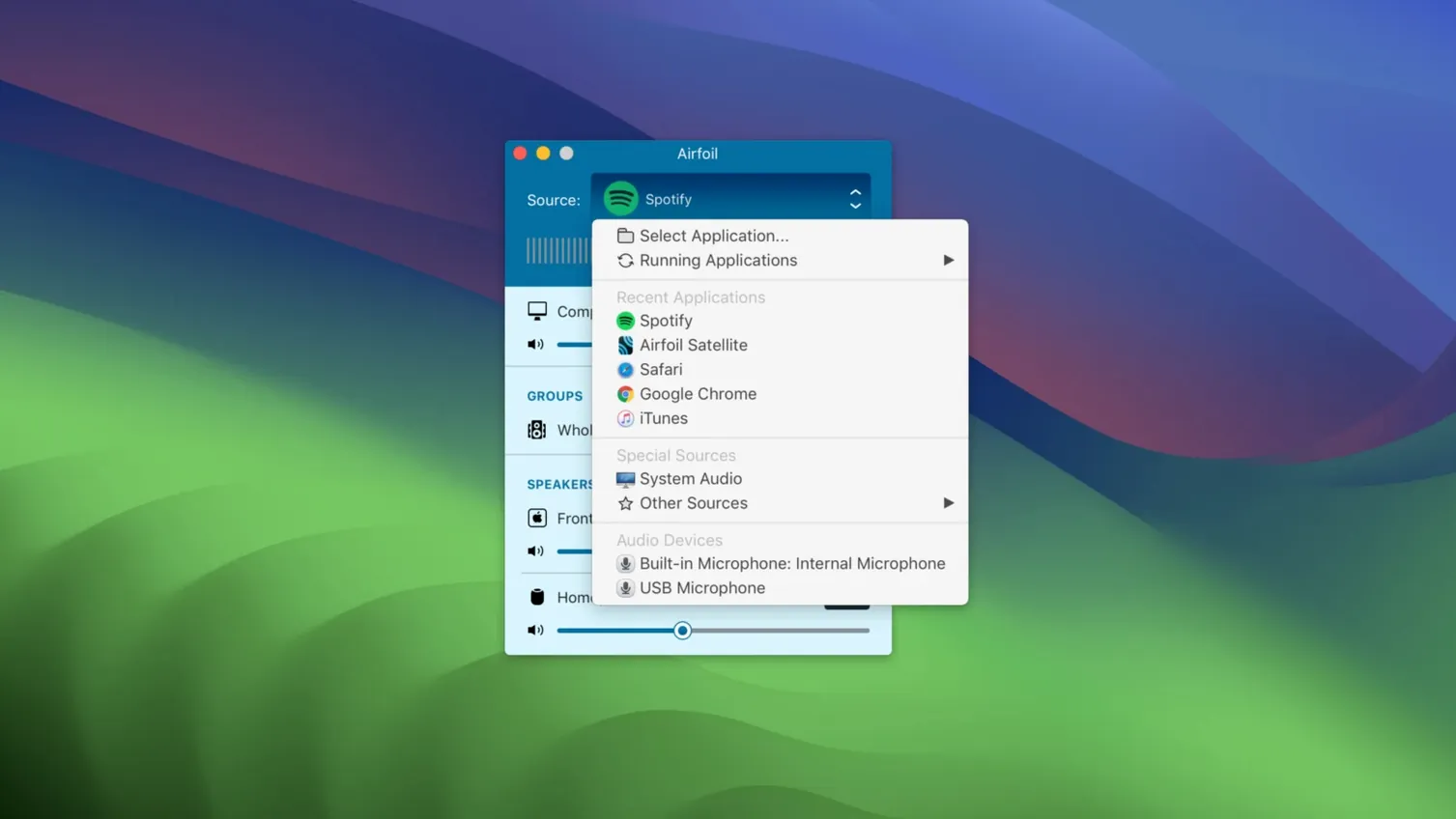
Yes. The source menu at the top lets you grab audio from a single application — Safari, Music, QuickTime — so a system alert won't interrupt your living room mix. The rest of your Mac stays silent.
What does the Satellite app do?
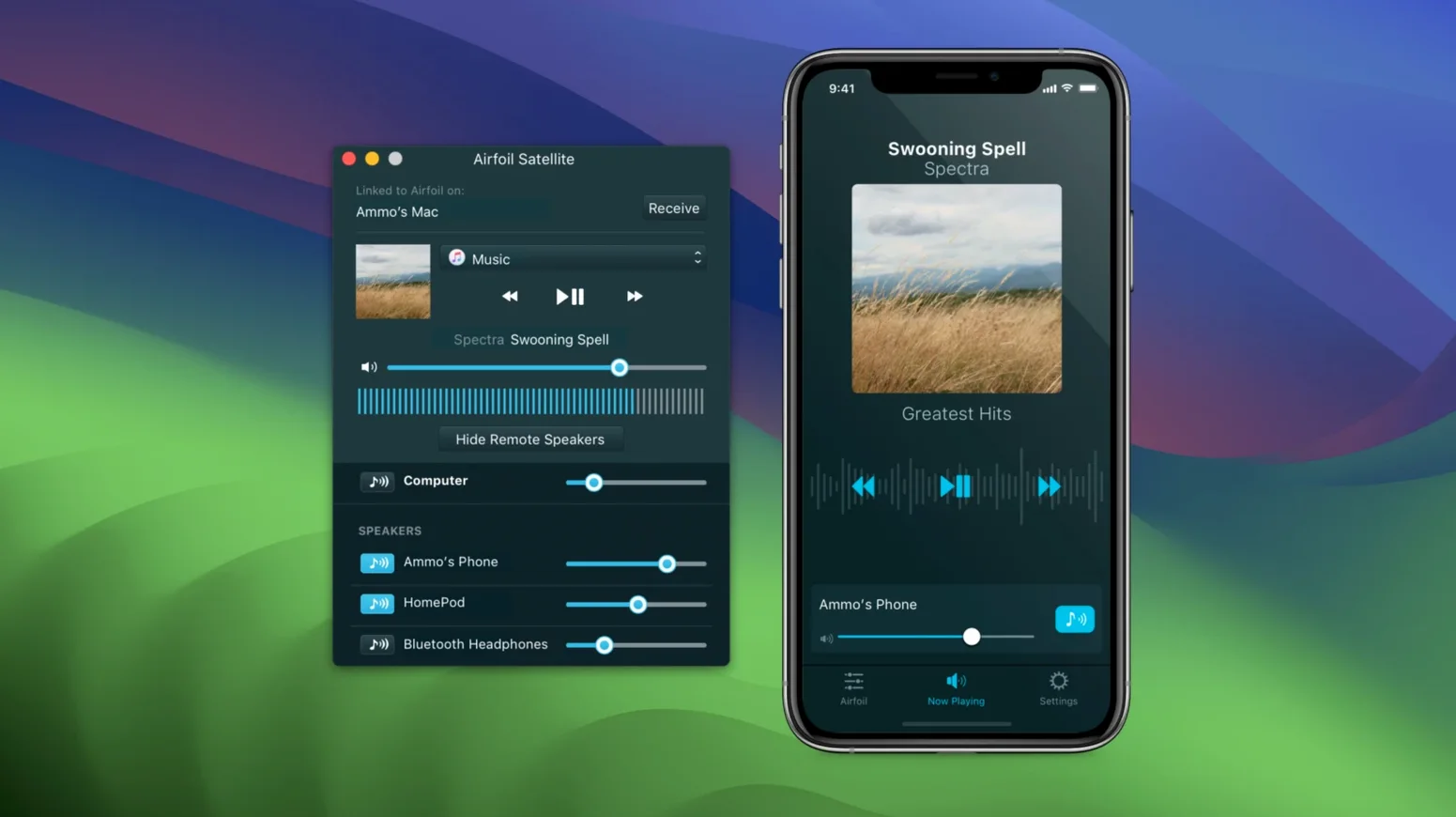
Airfoil Satellite turns an iPhone, iPad or another Mac into a receiver or a remote control. Install it on the extra device, and you can either play the stream there or adjust volume and speakers from across the room without walking back to your desk.
Airfoil vs. SoundSource, Audio Hijack, and the System AirPlay Menu
Rogue Amoeba makes three audio tools that overlap just enough to confuse people. Knowing which one solves your actual problem saves an evening of fiddling.
SoundSource lives in your menu bar and controls where audio goes locally — per-app volume, output device routing, EQ. It doesn't stream to other devices. If you just need Spotify louder than your browser, SoundSource is the answer. If you need Spotify playing in the kitchen, you need Airfoil.
Audio Hijack captures and records audio. It can route things around, sure, but its core job is building recording chains — grab a Zoom call, add a compressor, save to disk. Airfoil doesn't record a thing. It sends live audio out. The two complement each other well: capture a stream with Audio Hijack while Airfoil pushes it to patio speakers.
The built-in macOS AirPlay menu in Control Center sends your entire system output to one AirPlay device at a time. It won't pick a single app as a source, it won't send to Bluetooth and AirPlay simultaneously, and it won't touch a Chromecast. Airfoil's whole reason for existing is breaking those three limits. If you've ever tried to play music on a HomePod mini and a Bluetooth speaker at the same time, you already know the system menu can't do it.
Per-Device EQ Settings That Stick Around
The equalizer window looks like an afterthought — ten sliders in a floating panel — but it's per-device. Set a bass bump for the little Bluetooth speaker on the porch and leave the living room HomePod flat. The settings stick between sessions.
Double-click a device name in the speaker list to rename it. "Living Room Apple TV" beats decoding a MAC address at a dinner party.
The volume slider for each remote device has a keyboard shortcut nobody talks about: hover over it and use the up and down arrow keys. Tapping a precise level is way easier than dragging a tiny handle.
In the app source selector, apps with a speaker icon next to their name are actively playing audio. Saves you from hunting through a list of thirty background processes.
A hidden switch in Preferences lets Airfoil launch and immediately start streaming to a preselected device. If you turn on a kitchen speaker every morning, this means zero clicks after the first day.
Why Your Notification Ding Blasted Every Speaker
The number one rookie move is leaving the source set to "System Audio" and wondering why a notification ding just blasted across every speaker in the house. Pick a specific app before you walk away.
Expecting perfect sync between a Bluetooth speaker and an AirPlay device is another common one. Airfoil does its best with buffering, but Bluetooth introduces latency that AirPlay doesn't have. The result is a slight echo between rooms if you can hear both at once. Group similar connection types together and the problem mostly disappears.
Some people install Airfoil Satellite on an iPhone and expect it to appear as a source. Satellite makes a device a receiver or remote — it won't send the iPhone's audio back to the Mac. The direction matters.
A quiet mistake with a loud result: turning up the source volume in the sending app instead of in Airfoil. The app volume drives the signal before Airfoil touches it. Clipping at the source means clipping everywhere downstream. Keep Music or Spotify at 80% and do the actual level changes in Airfoil's per-speaker sliders.
Forgetting to check the network band is less obvious. If your Mac is on 5 GHz Wi-Fi and a Chromecast is on 2.4 GHz, they might not see each other reliably. Airfoil can't fix a split network — your router has to bridge the bands.
A Real Workflow: Morning Audio Across Three Rooms
Here's how a typical three-speaker morning setup plays out with Airfoil 5.13.0, start to finish.
1. Prep the receivers. Turn on the kitchen HomePod mini, the bathroom Bluetooth speaker, and the old Apple TV connected to living room speakers. All three are already paired or on the network from previous sessions. Open Airfoil Satellite on an iPad that lives on the kitchen counter — it'll act as the volume remote once things are running.
2. Set the source. Launch Airfoil on the Mac. In the source dropdown, pick Music. This keeps system sounds off the stream and lets you browse playlists without worrying about YouTube ads blaring through the house.
3. Pick the speakers. In the speaker list, check the boxes next to the HomePod mini, the bathroom Bluetooth speaker, and the Apple TV. You notice the Apple TV name is still its default "Apple TV (2)" — double-click it and rename it "Living Room" so the iPad remote makes sense later.
4. Adjust per-room levels. The bathroom speaker is small and distorts at high volume, so pull its slider down to 60%. The HomePod stays at 75%. Living room gets 85% because the Apple TV feeds a proper amplifier. Open the EQ panel and add a slight midrange bump for the bathroom speaker — helps podcast voices cut through tile reverb.
5. Start the stream. Hit play in Music. Walk to the kitchen. On the iPad running Satellite, the three-speaker layout mirrors what you set on the Mac. Adjust the kitchen level from the counter while you make coffee. No need to touch the computer again.
6. Wrap up. When the morning routine ends, tap the power button icon in Airfoil Satellite to disconnect all speakers at once. Or leave the "auto-transmit on launch" preference off until tomorrow — having it fire up every time you open the app gets old unless your routine is truly identical each day.
The whole thing takes under a minute once the devices are paired. The real time-saver isn't the initial setup — it's never opening three different apps or digging through Control Center to manage separate streams. Airfoil puts every speaker in one panel, and Satellite keeps that panel within arm's reach.
Streaming to Apple TV and HomePod is back in 5.13.0 — those devices reconnect without the hiccup the previous build introduced. Also fixed: a handful of discovery issues that kept Google Cast speakers from showing up after a network change.
- macOS 14.4 or later
- Apple silicon or Intel 64-bit Mac
Questions I actually get
Will Airfoil remember my speaker next time?
It can. Turn on 'Automatically transmit on launch' in Preferences, pick a device, and audio starts streaming the moment the app opens.
Does it work on Apple silicon Macs?
Yes. Airfoil 5.13 runs natively on Apple silicon and Intel 64-bit Macs, requiring macOS 14.4 or later.
Notes from the edit bay · 0
Sign in or get an edit-bay pass to leave a note.
No notes from the edit bay yet. They go up after I read them.