
A local band needs a trifold brochure for their EP release show, and the printer wants it by 4 p.m. Affinity Publisher steps into that slot neatly — it's a desktop publishing app built for multi-page print work, and the 2.6 update just added native support for foldable spreads like the trifold I'm about to build.
How do you set up a foldable spread?
Create a new document and check 'Facing pages'. The New Document window now includes fold options like gatefold, accordion, and trifold. Pick a trifold, set your trim size, and the spread splits into three panels automatically. No math, no guides by hand.
What handles the repetitive layout pieces?
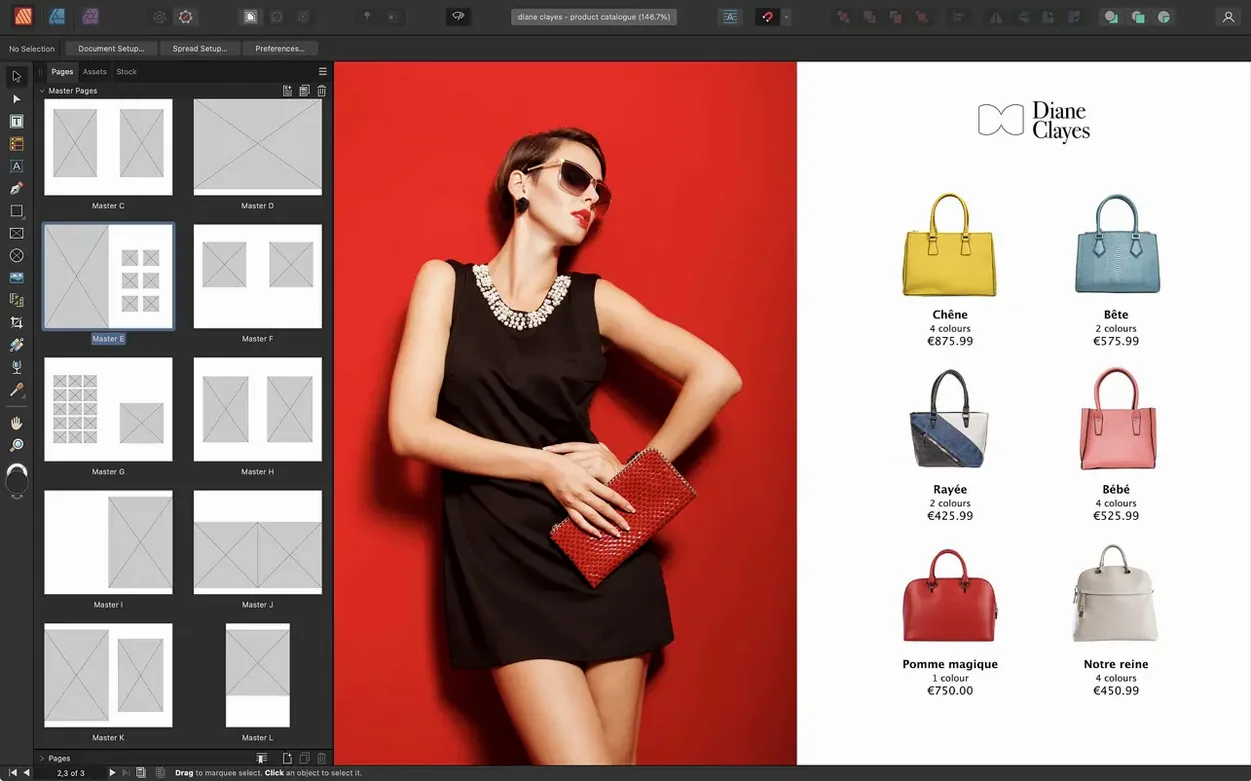
Master pages. I drop the band's logo and a page-number marker onto a master, then assign it to the spread. When the bassist asks for a last-minute tracklist swap, I edit the style once and the whole document follows. Nested masters let me stack a photo-background master under the text master, which saves a ton of clicking.
How does text flow across the brochure?
Draw three text frames on the panels and link them. Copy in the band bio, and overflow text threads from panel one into panel two, then three. Drop caps and paragraph styles make the cramped tour-date column readable, and I can set an initial word in bold to pull the eye without leaving the text frame.
Why Pasting Footers onto 40 Individual Pages Is a Trap
The most common one I see: ignoring master pages entirely. Someone will paste a footer onto 40 pages by hand, then the client changes the phone number. Master pages exist so you edit once. If a page needs a variation, you can detach that single element without breaking the link — right-click, Edit Detached, and tweak only what needs to differ.
Another classic: scaling images by dragging the corner handle of the frame instead of the content. You end up with a thumbnail floating inside a giant empty box. Double-click the image to select the content itself, then scale. Or use the Picture Frame Properties panel and set scaling to None, Stretch to Fit, or Scale to Max Fit — predictable every time.
Beginners also confuse linked and embedded images. By default, Publisher links images to keep the file light, but if you hand off the .afpub file without the linked folder, the recipient sees nothing but low-res previews. The Resource Manager (Window > Resource Manager) shows every image's status. Before sending a file to someone, either embed the critical images or use File > Save as Package to gather everything into one folder.
Overflow text blindness is real. You paste a long article and don't notice the red eye icon on the text frame's out-port. That red eye means text is hidden. Click it, then click another frame to thread the overflow, or shift-click to auto-create linked frames on new pages. Don't shrink the font to fit — that's what the red eye is warning you about.
Building an Eight-Page Zine from Desktop Photos to PDF/X-4
I'm building an eight-page zine from scratch. The photos are on my desktop, the articles live in two Word docs, and the printer wants a PDF/X-4 by tonight.
I launch Publisher and hit New Document. The preset picker opens — I choose A5, facing pages on, 3 mm bleed all around, CMYK/8 color format. Margins at 10 mm, and I add a 12-row baseline grid because the text will be dense. I save immediately as zine_final_v2.afpub. Version numbers in filenames have saved my sanity more than once.
Masters come next. I open the Master A spread and draw a thin rule across the top of both pages with the Pen tool, set to a spot color I grabbed from the Swatches panel's Pantone library. A page-number marker lands on the outer edge. I name a second master "Photo Spread" with a full-bleed picture frame and a semi-transparent black rectangle for reversed text, then nest Master A underneath it via the Layers panel so the rule and page numbers still show.
Now I place the articles. I draw linked text frames across pages 2 through 6, then File > Place the first Word doc. Publisher imports the text with basic formatting intact, but I strip it by applying a Body paragraph style I've already defined in the Text Styles panel. I tweak that style once — Minion Pro, 9 pt, 14 pt leading, optical kerning — and the entire zine follows. Drop caps on the opening paragraph take two clicks in the Paragraph panel.
Images go in next. I place a PSD from the photographer into a picture frame on the Photo Spread master, and the layered file sits there non-destructively. I can double-click it to adjust its position inside the frame, or apply an adjustment layer — a Black & White conversion, say — directly in Publisher without hopping into Photo. StudioLink means I can switch personas and use full Affinity Photo tools on the image right here in the layout.
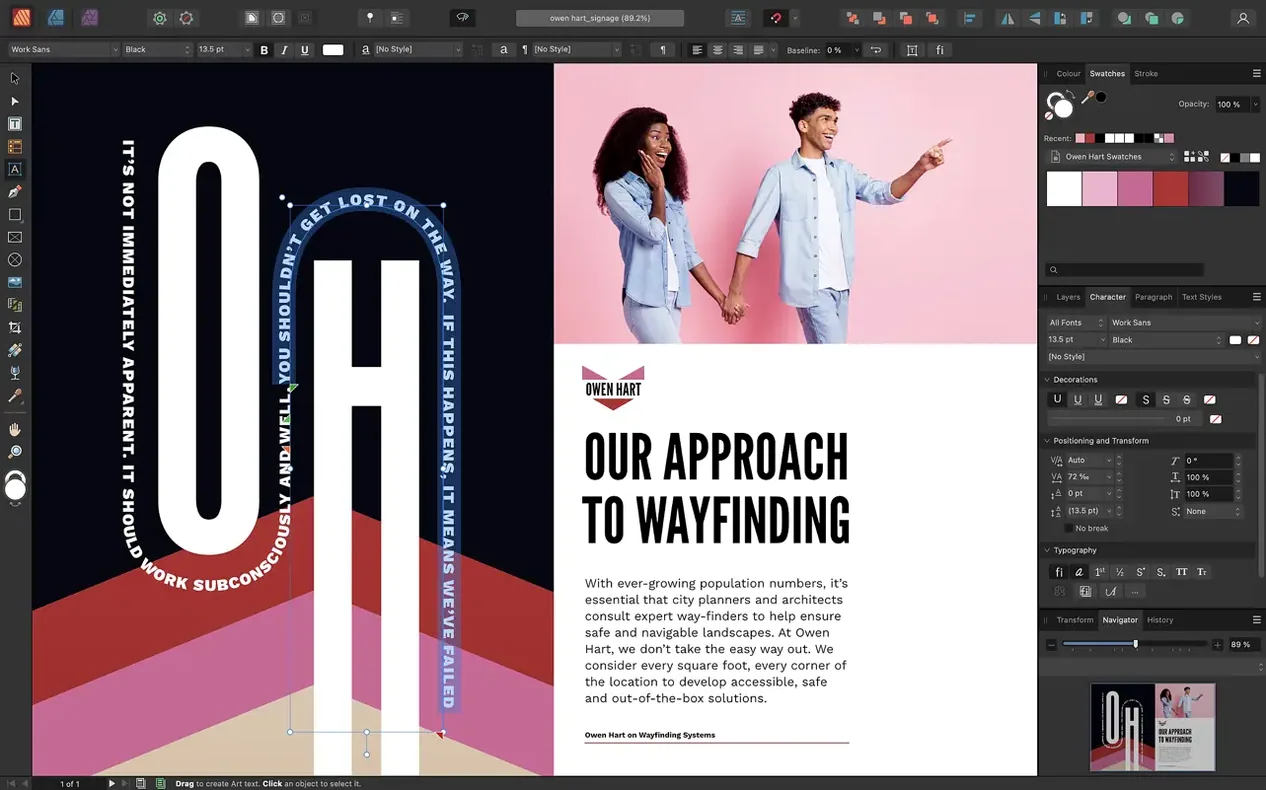
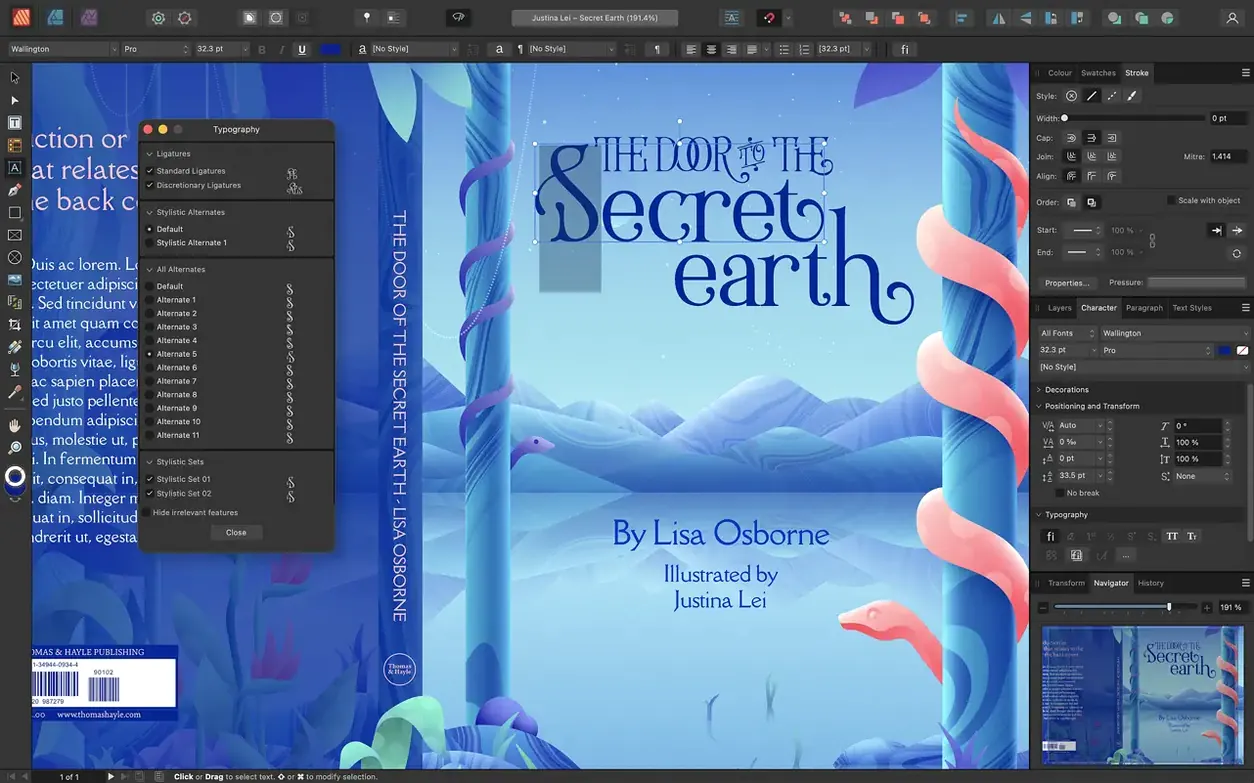
The cover gets a headline on a curved path. I draw a circle with the Ellipse tool, convert it to a text path, and type. The text rides the curve while I adjust start and end points with little orange handles. A boolean subtract operation on two rectangles behind the headline creates a cutout effect, no need to switch to Designer.
Export time. File > Export > PDF/X-4, bleed and crop marks on, color space as document. I click the Reading Order panel to verify the tags flow logically — headline first, then body, then images marked as artifacts if they're purely decorative. The PDF renders with the multipage spread layout intact, and I send it off before the printer's deadline closes.
Placed Text Vanishes Because It Overflows a Hidden Thread
Text disappears when I place a file. You probably clicked an existing text frame by accident, threading the new content into it. Publisher flows the entire document into that one frame, and most of it overflows. Undo, then click on a blank area of the page instead. The place cursor changes from a linked-chain icon to a clean text-insertion icon when you're over empty space.
Images look jagged or pixelated in the workspace. Publisher defaults to a draft render for performance. Head to View > View Mode > Vector or Pixel (Retina) to see the real resolution. Exports always use full resolution regardless of the view mode, so this is purely a screen preview thing.
My spot color doesn't show in the exported PDF. Check that you used the spot color swatch from the Swatches panel and not a manually mixed CMYK value that happens to look similar. In the Export dialog, under the Advanced section, make sure Honor spot colors is checked. If the printer still can't see it, open the PDF separations preview in Acrobat to confirm the plate exists before troubleshooting further.
StudioLink buttons are grayed out. You need Affinity Designer and Affinity Photo installed on the same machine, and they must be the same version number (2.6.5 in this case). The apps talk to each other only when their versioning matches. If you updated Publisher but not Photo, the link breaks — update all three together.
The bleed isn't showing on export. Bleed is page-level, not document-level. Select a spread in the Pages panel, check the bleed settings in the Spread Setup dialog, and also tick Include bleed in the Export window's Bleed section. Both must be active.
Folding Styles Become Real Spreads Instead of Separate Pages
Before 2.6, building a trifold or gatefold meant manually arranging three separate pages and hoping the imposition software sorted them out later. Now you pick the fold style at document creation, and the panels behave as one spread — you can drag images across the fold line, run text across all three panels, and export a single spread PDF that the print shop handles directly. If you work with short-run digital printers who want reader spreads, this change alone cuts out 20 minutes of fiddly imposition per job.
The Reading Order panel changed how I prep accessible PDFs. You could tag elements before, but the panel gives you a drag-and-drop list of every tagged item — headings, paragraphs, figures, artifacts — and lets you reorder them without digging into the Layers panel. For a government report or a university brochure where accessibility is a hard requirement, this turns a half-hour of tag wrangling into five minutes of rearranging a list. Marking decorative images as artifacts is a single click per item.
In practice, I find myself reaching for Publisher on jobs I used to start in InDesign. The multipage spread support closed the last workflow gap that mattered for print, and the affinity publisher mac download process is straightforward on any Apple Silicon machine. Version 2.6.5 runs natively, and opening a 48-page catalog with linked TIFFs is snappy — no Rosetta translation, no hitching while panning across spreads.
Multiple-page spreads are the headline here — foldable layouts like gatefolds, trifolds, and accordion folds are now first-class citizens instead of manual hacks. Also fixed: a Reading Order panel for PDF accessibility that keeps tagged exports predictable.
- macOS 10.15 or later
- Apple M-series or Intel processor
- 8 GB RAM recommended
- Up to 2.8 GB available disk space
- Display 1280×768 or larger
Questions I actually get
Can I edit vector artwork inside Affinity Publisher?
Yes. The Pen and Node tools are built in, so you can draw and adjust curves directly on the page without switching to a separate vector app.
Does it handle CMYK and spot colors for print?
Absolutely. It supports both CMYK and spot color workflows, which is essential when your printer needs plates for a metallic band logo.
How does the Reading Order panel help?
Introduced in version 2.6, it lets you define the logical reading order for PDF accessibility, so screen readers parse the layout correctly.
Notes from the edit bay · 0
Sign in or get an edit-bay pass to leave a note.
No notes from the edit bay yet. They go up after I read them.