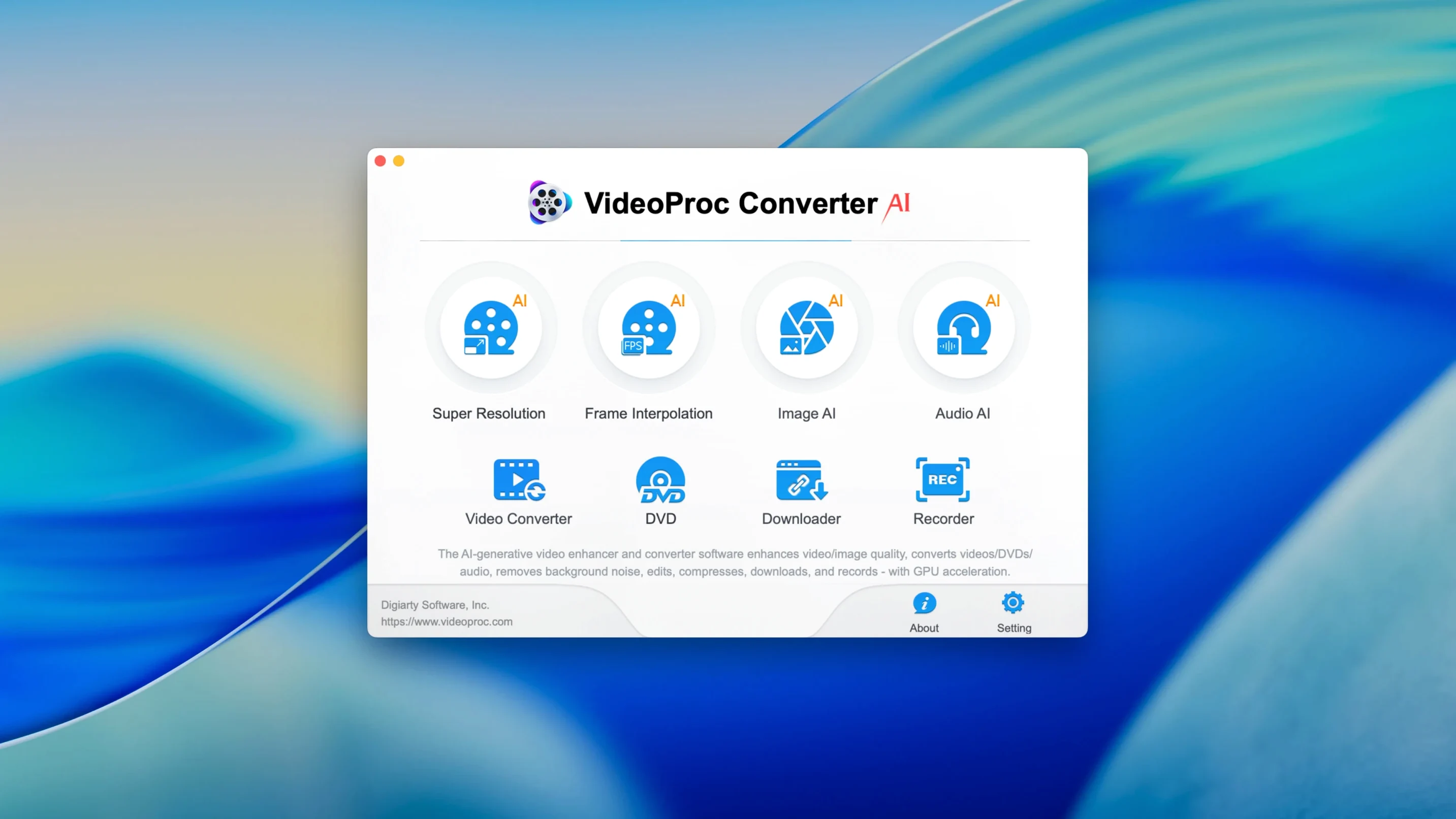
VideoProc Converter AI is the utility belt a Mac video editor reaches for when Compressor feels like overkill and QuickTime can't open the file.
Who Is It Good For?
- Format gymnastics. Batch-convert a pile of client clips to ProRes or squeeze them into a TikTok-friendly MP4. Handles subtitles, watermarks, and basic effects without spawning a whole timeline.
- Grabbing source material. Built-in downloader pulls footage from the web, and the screen recorder captures the Mac desktop with voice commentary — handy for rough-cut walkthroughs.
- Rescuing old footage. Stabilization, denoising and AI upscaling to 4K or 8K are aimed at shaky DV tapes and noisy VHS captures. Audio gets the same treatment: extract, convert to MP3 or FLAC, tweak bitrate.
What Should You Keep in Mind?
- It's a toolbox, not a timeline. You're trimming and converting, not building a layered edit. For that, the project still lands in Final Cut.
- Platform presets are broad. The Instagram, YouTube, and TikTok optimizations save a click, but you'll still check the bitrate yourself before sending anything to a client.
Does It Touch My Final Cut Library?
Does it trample my Final Cut library? No. VideoProc Converter AI works on standalone files — it never touches your FCP bundle, events, or projects. Drag a clip out of the Finder, convert it, then import the result. Clean separation.
Will it actually use my M-series chip, or just pretend to? It leans on Metal, Intel Quick Sync, and the Apple Neural Engine depending on what your Mac has under the hood. On an M1 Max, the hardware acceleration is real — you'll see the GPU spike in Activity Monitor during a 4K HEVC encode. The app doesn't just check a box; it routes the heavy math where it belongs.
How much disk space am I committing? The installer shrank noticeably in version 8.12, down from earlier builds. The app itself is lean. Your working space depends entirely on the files you throw at it — a ProRes 422 HQ transcode will eat drive space whether this app or any other tool makes it. Keep your scratch disk in mind before batch-converting a full day's footage.
Is the downloader a gimmick? Not in practice. The 8.12 downloader improvements mean fewer stalled grabs from YouTube and Vimeo. It pulls the highest available resolution, and you can drop a playlist link and walk away. For pulling reference footage or stock video clips without juggling browser extensions, it earns its spot.
Check the Output Folder Before Your First Convert
Open the preferences before your first convert. The hardware acceleration toggle is on by default, but check that the output folder points somewhere sensible — the default is your Movies folder, which gets messy fast. I set mine to a _Transcodes folder on the desktop and clear it weekly.
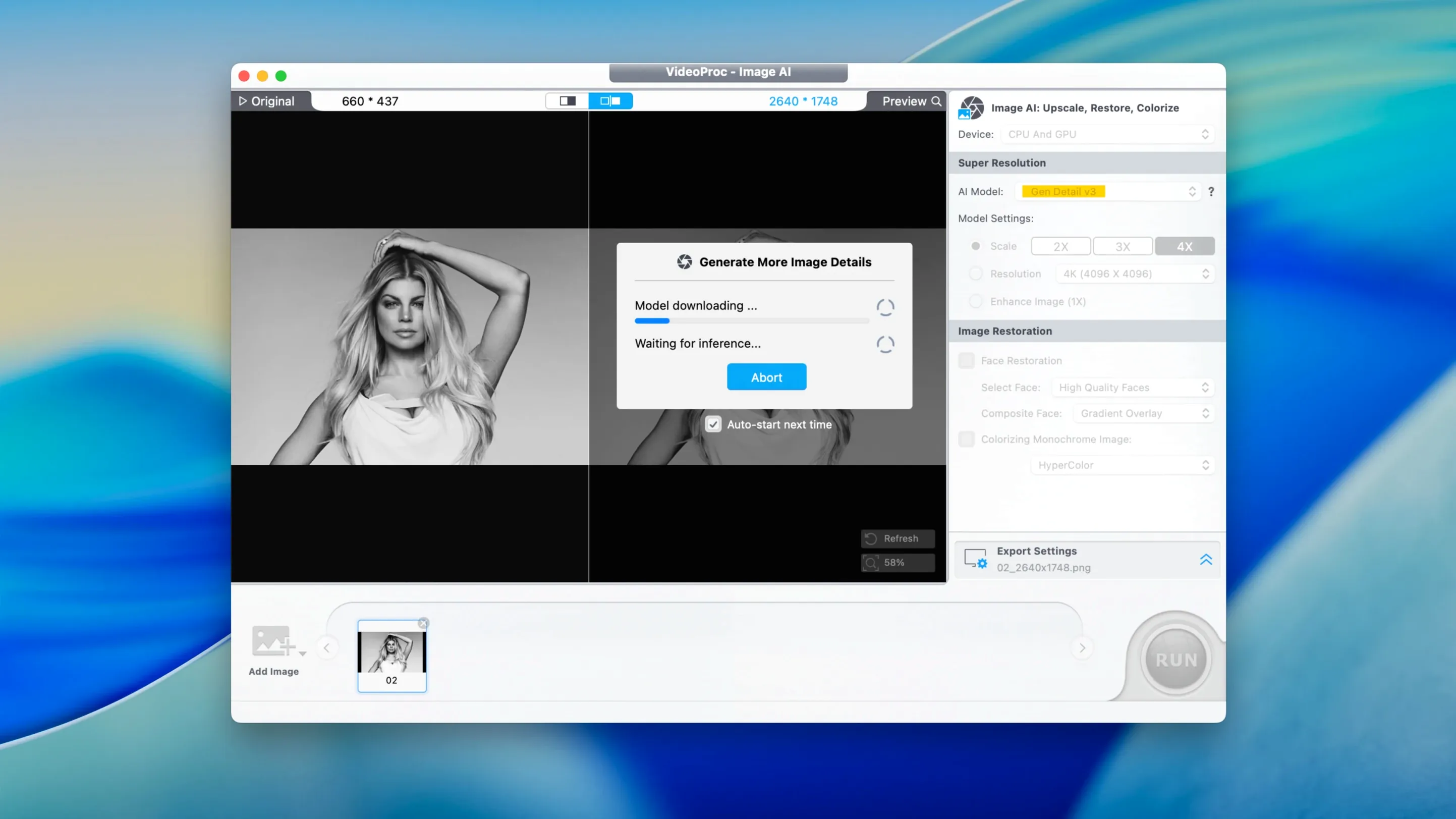
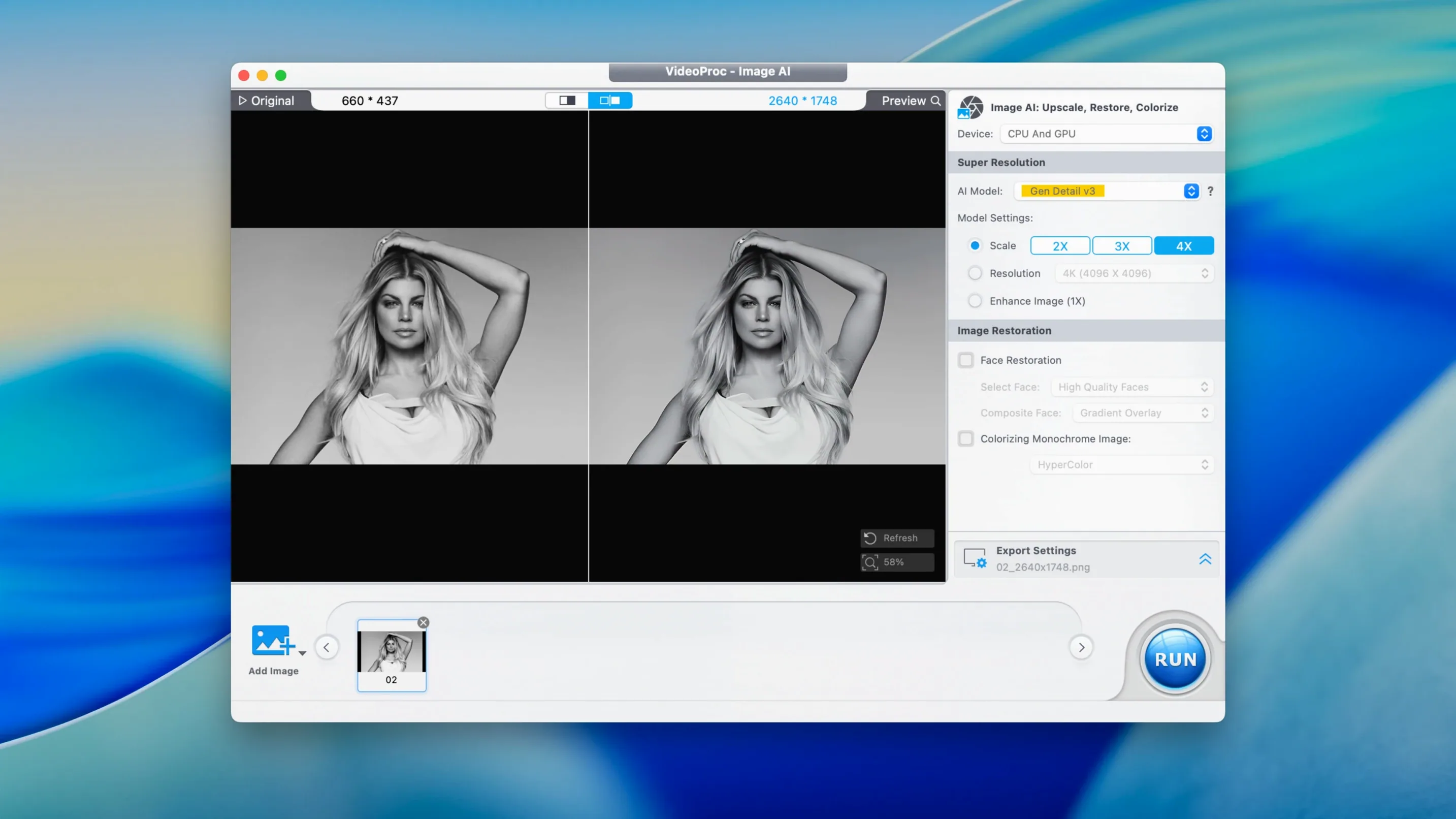
When the AI upscaling feels slow, it's not stuck. The progress bar for Super Resolution crawls because it's doing genuine frame-by-frame analysis, not a quick bilinear resize. On an M2 MacBook Air, a 1080p clip headed to 4K runs at roughly real-time speed. Pour a coffee, let it cook, and check the result against the original side by side before you commit to a whole batch.
Presets are starting points, not finished recipes. The YouTube preset targets a safe bitrate, but if your footage has heavy grain or fast motion, bump it up a notch manually. You're a video editor — you already know the platform's encoding guidelines. Use the preset to skip the tedious dropdown selections, then massage the numbers.
Right-click on any file in the queue. The context menu gives you quick access to trim, crop, and audio extraction that new users miss because they're hunting through the top toolbar. Once you internalize that right-click, prepping clips gets faster.
A Workflow: Rescuing Old DV Footage for a Documentary Cut
You've got MiniDV tapes captured years ago — 720x480, interlaced, shaky, and noisy. The director wants them in a 4K timeline without looking like a blown-up postage stamp. Here's the chain.
Step one: stabilization. Load the clip, open the stabilization panel, and let it analyze. The algorithm locks onto background features well enough for handheld wobble, though it won't fix a full camera drop. Preview the result before moving on — sometimes a tiny crop is the trade-off, and you want to see where the frame edges land.
Step two: denoise. DV noise sits in the shadows and chroma channels. The denoiser targets both grain and compression artifacts. Dial it in by eye; overdoing it turns skin tones waxy. I usually land around 50-60% strength for old tape footage.
Step three: upscale. Send the cleaned clip through AI upscaling to 4K. This is where videoproc converter ai earns its keep — the model reconstructs detail rather than inflating pixels. Fine lines in brickwork and fabric texture come back in ways a simple resize never delivers. The render will take time; queue it overnight if you're processing an hour of footage.
Step four: format and import. Transcode the result to ProRes 422 for the edit. No one cuts with H.264 in a 4K timeline. Drop the finished file into Final Cut and it sits comfortably alongside native 4K material. The aspect ratio conversion from 4:3 to 16:9 happens in the crop step if the director wants it, or you pillar-box in the timeline.
The Utility Infielder Between QuickTime and the Heavy Hitters
Think of VideoProc Converter AI as the utility infielder between macOS's built-in options and the heavy hitters. QuickTime opens MOV and MP4 and that's about it — the moment someone hands you an MKV or a VOB rip, QuickTime shrugs. Finder's right-click "Encode Selected Video Files" handles basic format swaps but gives you zero control over bitrate, crop, or audio channels.
Compressor does the pro-grade batch work with Final Cut integration, but it doesn't download YouTube clips, record screens with voiceover, or denoise old tape captures. HandBrake is a fantastic open-source transcoder, and you'll still reach for it when you need deep codec tweaking, but it lacks the AI upscaling and stabilization that videoproc converter ai 8.8 introduced. These tools don't replace one another — they form a chain. HandBrake for the obsessive encode settings, VideoProc for the grab-bag of fixes and format jumps, Compressor for the Final Cut roundtrip.
For screen recording, QuickTime Player does the basics, but VideoProc adds voice commentary and webcam overlay in one pass. OBS Studio is more powerful for live streaming, yet it's also overkill when you just need a 90-second client walkthrough of an edit timeline. Pick the tool that matches the scope of the job.
The downloader integrates with the converter directly — pull a 4K clip from Vimeo and send it straight to a ProRes transcode without intermediate files cluttering your desktop. That's the kind of small pipeline win that saves ten minutes per project, and ten minutes at render o'clock matters.
Version 8.12 arrives with iPhone 18 support baked in and a leaner installer that doesn't hog space on your working drive. The Downloader engine got a quiet speed polish, and macOS 27 is now supported.
- macOS 10.15 or later
- 64-bit Intel or Apple Silicon Mac
Questions I actually get
Can VideoProc Converter AI stabilize shaky footage?
Yes. It includes a dedicated stabilization module, aimed at handheld clips and older DV and VHS material.
Does version 8.12 support the latest macOS?
It does — 8.12 added full support for macOS 27 while cutting the installer size and improving downloader performance.
Notes from the edit bay · 0
Sign in or get an edit-bay pass to leave a note.
No notes from the edit bay yet. They go up after I read them.