A workhorse media converter that bundles format wrangling, downloads, disc burning and quick-fix tools under one roof. This build covers OS X 10.11 or later on both Apple Silicon and Intel.
Can It Batch Convert HEVC Rushes?
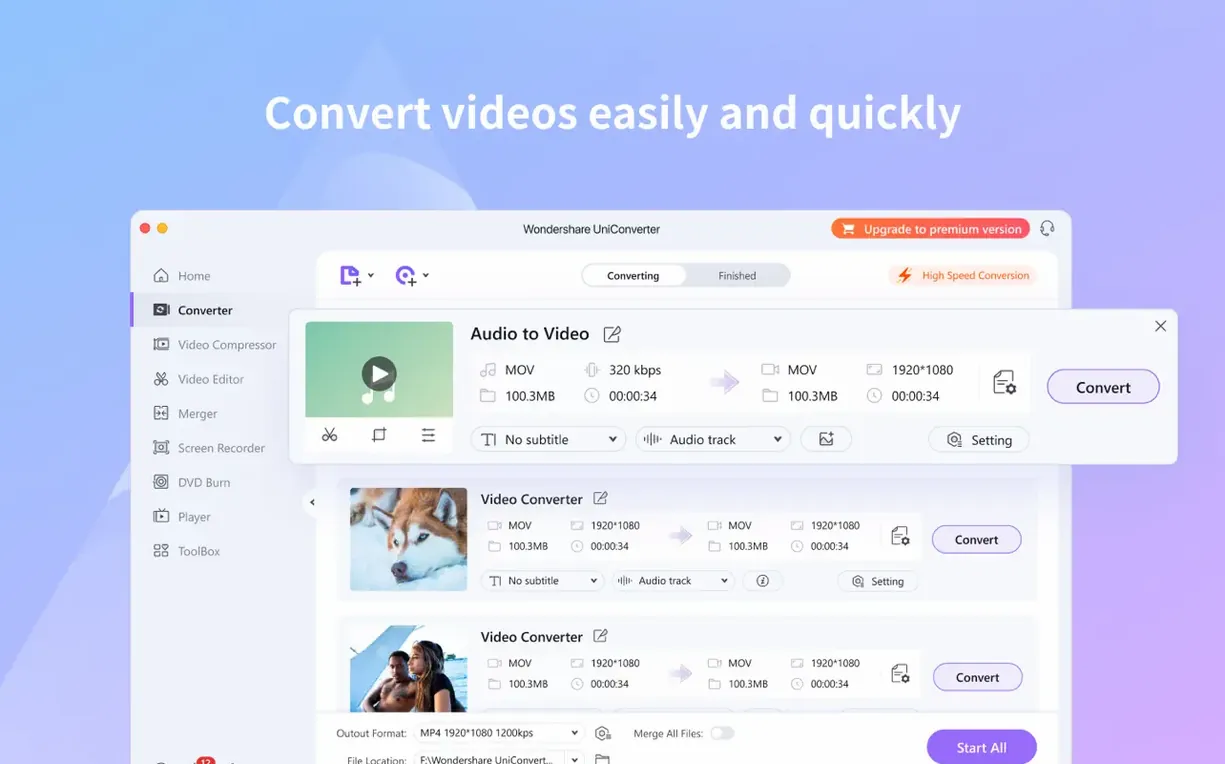
Drag a pile of H.265 clips in, pick an output format and let UniConverter chew through the queue while you grab coffee. Batch mode handles the queue without babysitting, and the codec library includes native codecs for iMovie and Final Cut.
Can It Pull Audio From a DVD?
The audio-extraction routine strips soundtracks from DVDs and other video files in a few clicks. Metadata comes along for the ride if you're pushing the result into iTunes later.
Can It Split a Long Recording?
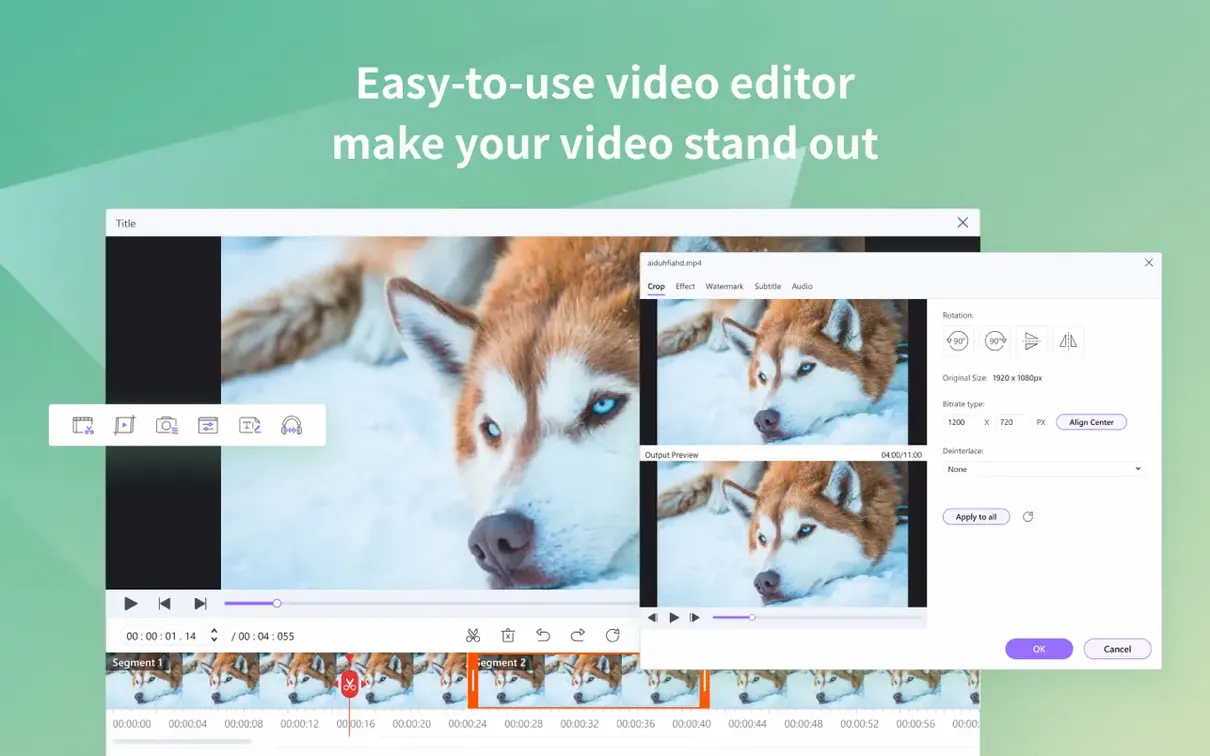
The built-in trimmer and split tools let you chop a single file into clean segments or fuse a handful of clips into one timeline. It's not a finishing suite, but it saves a round-trip for rough assembly before the final grade.
Outperforming HandBrake’s Sluggish CPU Transcoding
If you've been hunting a uniconverter mac solution, you've probably bumped into HandBrake and Permute alongside this one. HandBrake is the open-source tank — free, reliable and painfully slow on anything that isn't pure CPU transcoding. It handles DVDs, spits out H.264 and H.265 and asks for nothing in return. What it won't do is download a YouTube clip, burn a disc or trim a video before conversion. That's where UniConverter pulls ahead. The HandBrake queue works, but UniConverter's batch engine feels snappier on Apple Silicon because it leans on hardware acceleration without making you dig through advanced tabs.
Permute keeps things simple. Drag, pick format, done. It's elegant in the way macOS utilities should be, and it converts audio and video with almost no interface. The trade-off: no downloads, no disc tools, no editor and zero DVD support. UniConverter does everything Permute does plus a dozen other jobs, though with a busier window. If you want a clean one-trick app, Permute wins on focus. If you want a single tool that replaces three or four apps, UniConverter makes the stronger case.
MacX Video Converter Pro sits closer to UniConverter's territory — downloads, conversion, some editing, DVD ripping. Its interface feels dated next to UniConverter's darker, flatter layout, and its HEVC performance on M-series chips lagged behind in my experience. UniConverter's codec pack for iMovie and Final Cut also gives it an edge for editors who hate transcoding inside their NLE. Neither app is perfect, but UniConverter covers more ground without forcing you to open a second program.
Where UniConverter Fits in a Mac Toolkit
Think of UniConverter as the bridge between raw media and the apps where you finish work. Footage lands from a camera, a screen recording or a YouTube rip. UniConverter normalizes it — codec, resolution, frame rate — then hands it off. The codec library plugs directly into iMovie and Final Cut, so those apps see usable files instead of throwing import errors. That alone saves a headache on projects with mixed-source footage.
Audio extraction dovetails with the Music app. Pull a soundtrack from a DVD, convert it to AAC and the metadata lands intact, ready for your library. The wireless transfer feature talks to Apple's sharing stack, letting you push converted files to an iPhone or iPad without opening the Finder. It's not a replacement for AirDrop, but it handles format conversion during the transfer, which AirDrop doesn't touch.
For disc-based workflows, UniConverter fills the gap Apple left when they dropped optical drive support. Rip a DVD to an MP4 for archival, or burn a finished project to a playable disc for a client who still wants physical media. It's a niche need, but when it comes up, no built-in macOS tool helps you.
Four-Minute HEVC Conversion on an M1 MacBook Air
On an M1 MacBook Air, a 30-minute 4K H.264 file to HEVC took just under four minutes with hardware encoding switched on. The same job in HandBrake's VideoToolbox mode finished in roughly the same time, but UniConverter's queue kept churning without the occasional frame drop I've seen in HandBrake's preview window. RAM usage hovered around 600 MB during conversion, spiking to 900 MB when downloading and converting simultaneously. That's reasonable — not lightweight, but it won't choke a machine with 8 GB of unified memory.
Stability held up across a dozen batch runs. One crash occurred when I queued 47 files of mixed formats with download tasks running in the background — likely a memory pressure issue. Smaller batches of 15 to 20 files sailed through. The app launches in about four seconds on Apple Silicon, a beat slower on Intel, and the interface stays responsive during conversion. Progress bars update smoothly, and the preview window scrubs without stuttering even while the encoder is busy.
The GPU decoding toggle makes a real difference on HEVC-heavy workloads. Without it, the fan on an Intel MacBook Pro spun up noticeably. With it, temperatures stayed flat and conversion times dropped by roughly thirty percent. If you're working on an older Intel machine, that toggle is worth checking before you queue a long batch.
A Specific Workflow: YouTube Clip to Final Cut Pro
Say a client sends a YouTube link for reference footage you need to cut into a project. Open UniConverter's Downloader tab, paste the URL and pick "MP4 - 1080p" from the format list. The download runs at whatever speed the server allows — usually a minute or two for a five-minute clip. Once it lands, switch to the Converter tab and import the downloaded file.
Before converting, head to the trim editor. Mark in and out points around the relevant section and crop the 16:9 frame to remove the channel's watermark bar at the bottom. Then set the output to Apple ProRes 422, which Final Cut swallows without transcoding. Tick the hardware encoder checkbox and hit Convert. The resulting file drops straight into a Final Cut event, ready for the timeline with no import lag.
The whole round-trip — download, trim, crop and convert to ProRes — runs inside one app. No browser extensions, no separate trimmer, no format mismatch errors when you drag the clip into your NLE.
Ripping a Concert DVD While Converting Drone Clips
Monday morning, three tasks land at once. A producer needs DVD footage from a 2012 concert ripped to H.264 for an archive. A director wants a rough assembly of four H.265 clips from a drone. And a musician sent a YouTube link for a reference track you need as an MP3.
I open UniConverter and start with the DVD. Insert the disc, the app detects it and lists the titles. I pick the main feature, deselect the commentary track and set the output to H.264 at 1080p. That job starts encoding; I minimize the window and move on.
Next, the drone clips. I drag all four into the Converter window, select "Merge all files to one" from the options at the bottom and set the output to HEVC. While the DVD encode runs, the merge queue waits in line — UniConverter processes sequentially, which is fine because I'm not in a race.
Finally, the YouTube link. I paste it into the Downloader, grab the highest-quality audio-only option and let it pull the stream. By the time the download finishes, the DVD encode is halfway done. I extract the MP3 from the downloaded file in the Audio tab, and the metadata — artist, title, album art — populates from the video's info.
Forty minutes later, everything is done. The DVD encode sits in a folder, the merged drone clip is ready for color grading and the MP3 is in the Music app. Three jobs, one app, no frantic window-switching. That's the rhythm UniConverter settles into once you stop treating it like a converter and start using it like a media hub.
This build supports OS X 10.11 or later and runs on both ARM and 64-bit Intel Macs.
- OS X 10.11 or later
- Apple Silicon or 64‑bit Intel processor
Notes from the edit bay · 0
Sign in or get an edit-bay pass to leave a note.
No notes from the edit bay yet. They go up after I read them.