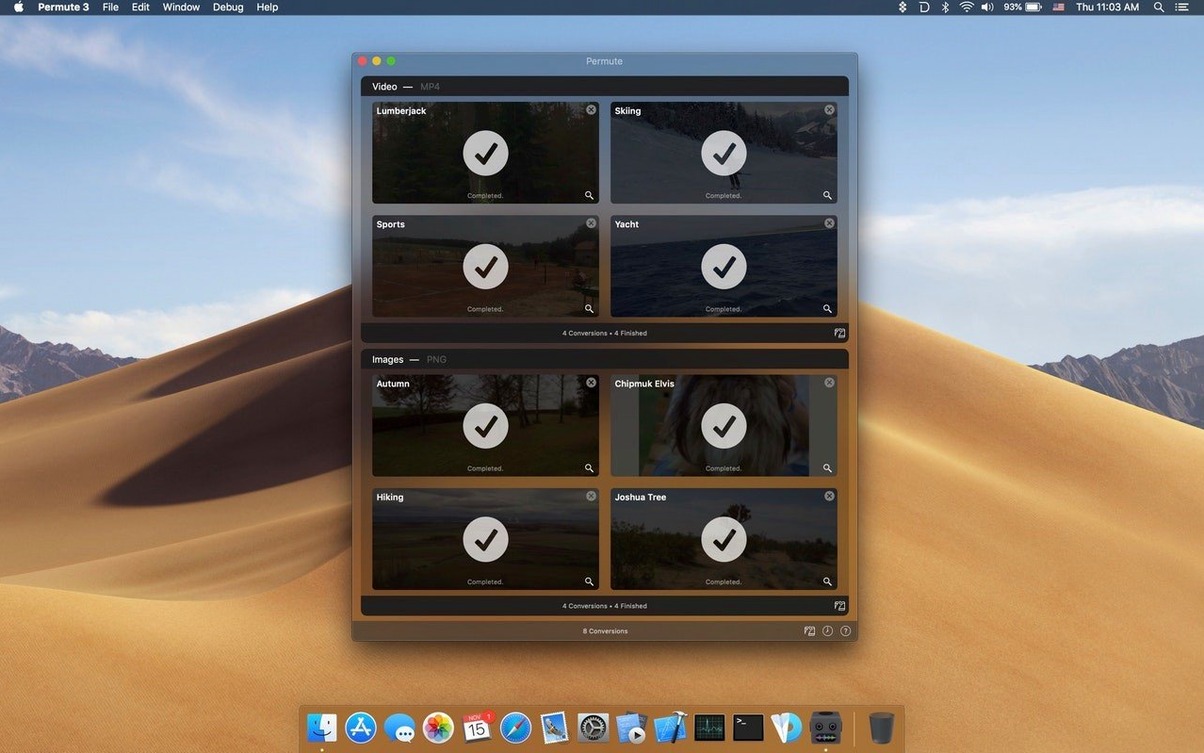
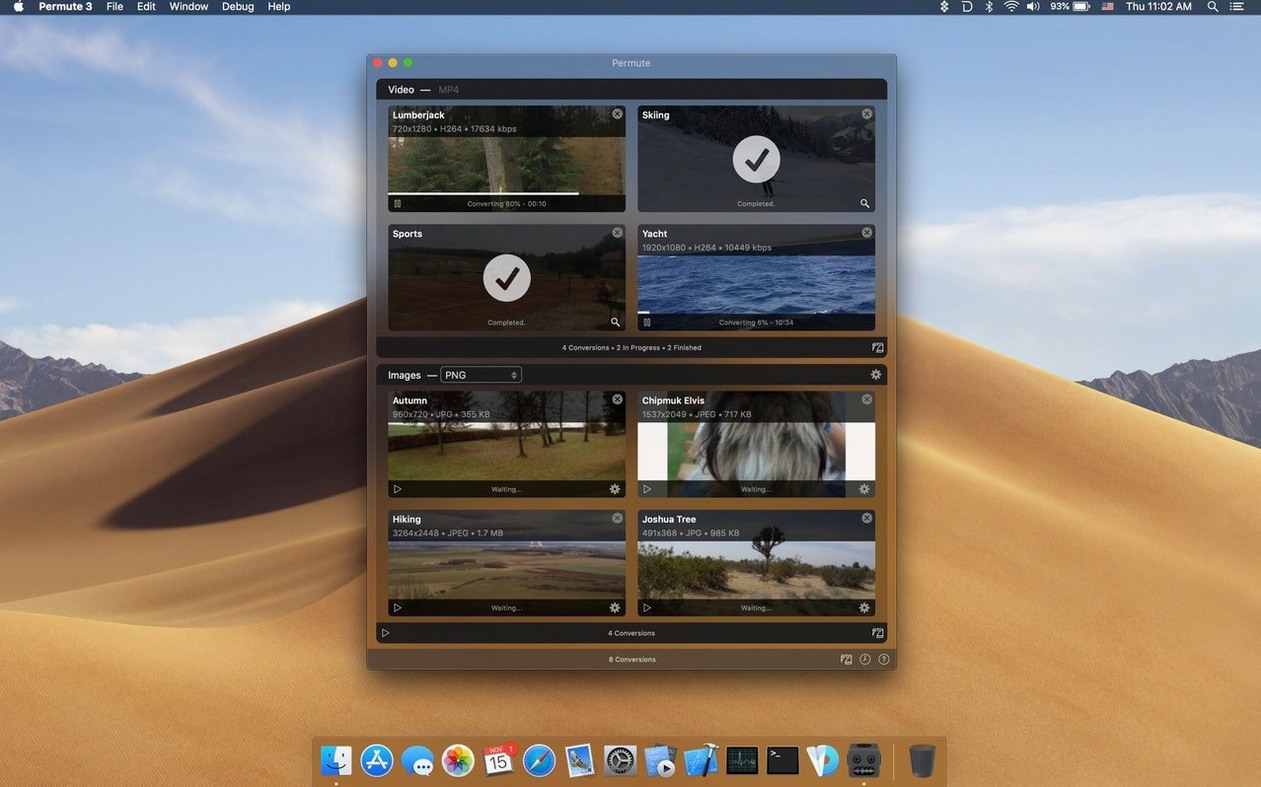
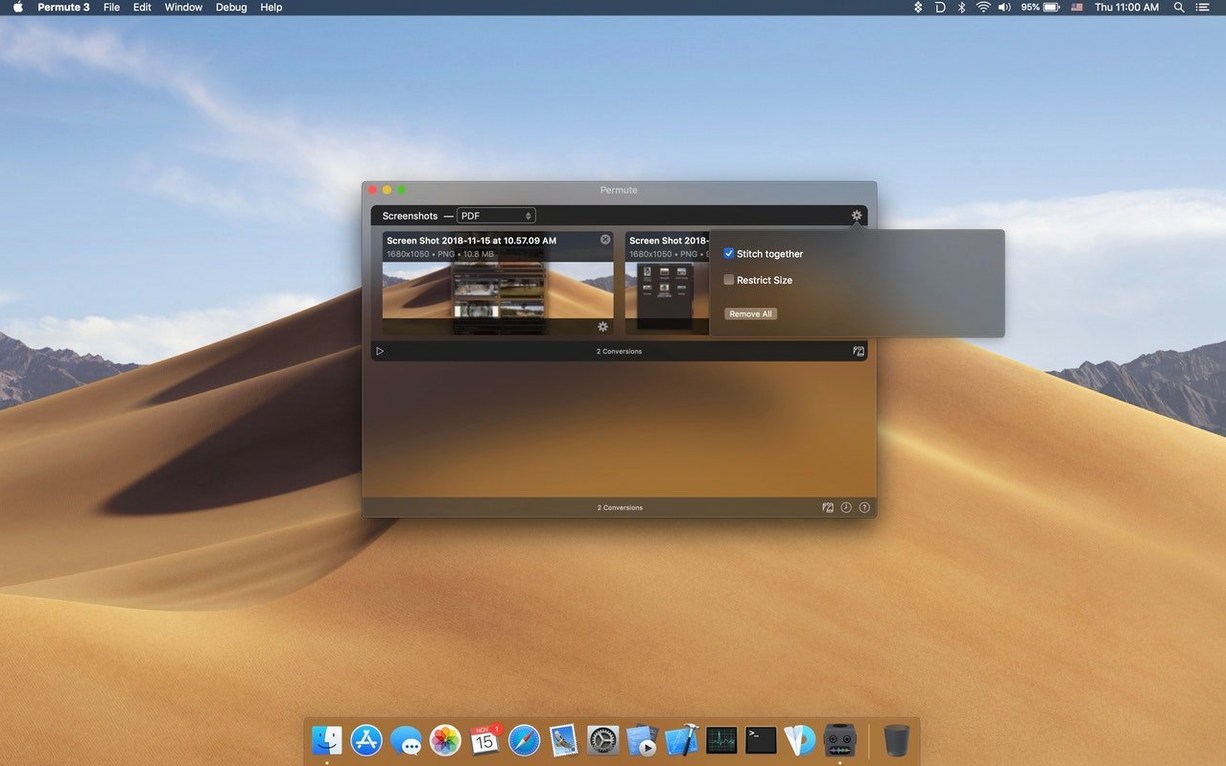
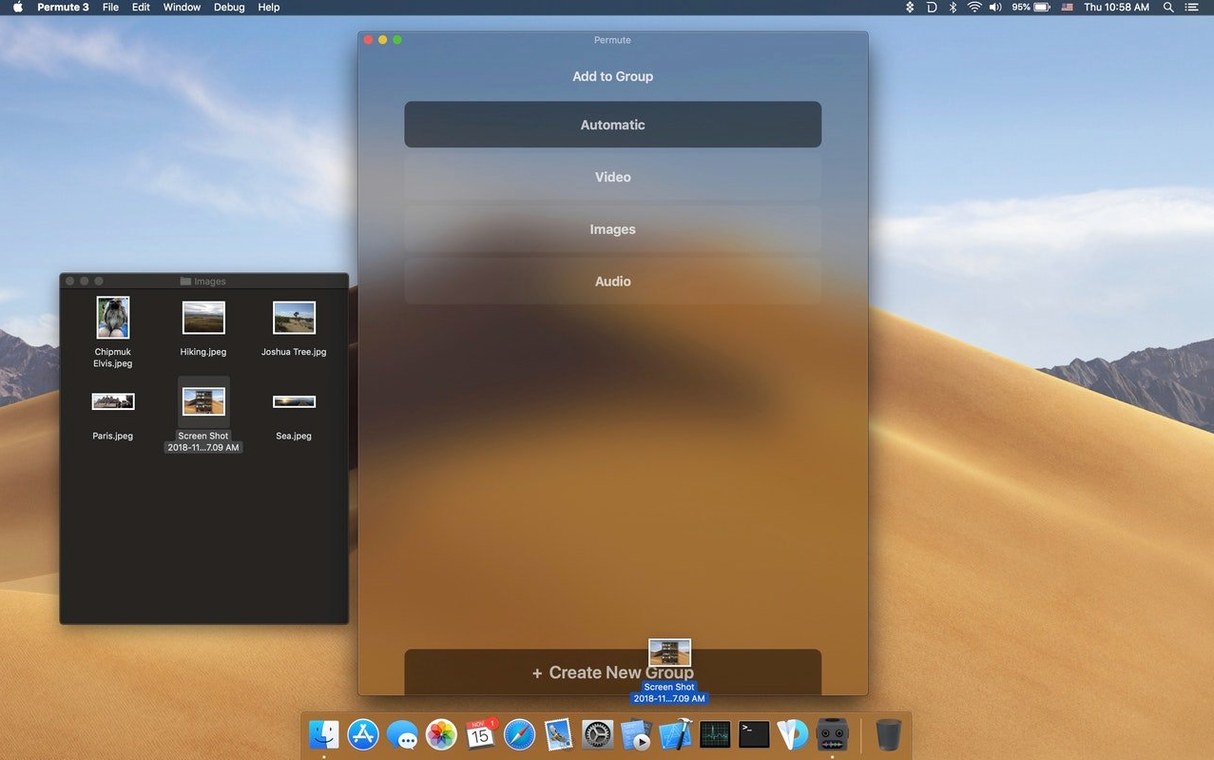
Charlie Monroe keeps Permute 4 tight and focused. Version 4.0.11 needs macOS 26 or later and an Apple Silicon Mac — Intel machines are out.
Need a Quick Format Swap?
You have a video clip and you need the audio. Drop it in, pick MP3 or M4A, and walk away. It also converts images and audio files between formats, adds a subtitle track to a video, and can even make an ISO, without burying you in codec jargon.
Can It Join Two Clips?
Stitch two video files into one clean clip. It’s not a timeline editor, just a straight join that saves you from launching a heavy NLE for a basic task.
A right‑now file converter beside Finder and QuickTime
Permute sits next to Finder and QuickTime. It’s the utility you call when a file needs to be a different file, right now. Built by a single developer, it stays out of your way and finishes the job while you keep working.
Permute vs. The Competition
HandBrake is the name everyone drops first. It’s free, open-source, and packed with fine-tuning controls. If you need to dial in a specific RF value or tweak an encoder profile frame by frame, HandBrake delivers. Permute doesn’t compete on that battlefield. It competes on speed of intent — drag, pick a preset, done. HandBrake makes you think about the encode; Permute lets you forget about it.
Adapter used to fill a similar slot — a friendly face on ffmpeg conversions. It faded away, and the interface feels like a time capsule next to Permute’s clean, modern Mac aesthetic. Permute 4 also handles image sequences, ISO creation, and subtitle muxing that Adapter never touched.
Then there’s Apple’s own Compressor. It’s powerful, integrates with Final Cut Pro, and supports distributed encoding. It’s also a heavyweight built for a specific pro ecosystem. For a quick MOV-to-MP4 pass before uploading a rough cut for client review, Compressor is overkill. Permute is the tool you actually open when the clock is ticking and the export preset in your NLE isn’t what the client asked for.
Where Permute Plays Nicely With Others
I keep it pinned in the Dock between QuickTime Player and Preview. The three together handle most quick-media needs without launching a creative suite. QuickTime plays and trims, Preview crunches PDFs and crops stills, and Permute 4 reshapes the actual file container and codec.
It also threads neatly into Finder workflows. Select a batch of WAV stems in a folder, right-click, Open With Permute, and convert the whole lot to FLAC while you pull the next session from the server. Since it leans on ffmpeg under the hood, the format support stays broad without ballooning the app itself. If you use Retrobatch for complex image pipelines, Permute handles the video and audio side of the same “batch conversion” brainspace.
macOS Shortcuts gets a nod here too. Drop a Permute action into a shortcut that watches a shared folder, and you’ve got a hands-free ingest station. A producer dumps a ProRes file into a network folder, and by the time you walk over with coffee, an H.264 proxy is waiting.
A Real Workflow: Clean Audio From a Client Rough Cut
Last week a director sent me a rushed screener — a single MKV with h.265 video, AAC audio, and baked-in commentary I didn’t need. I had to isolate the dialogue track, convert it to a format my transcription tool would accept, and attach the cleaned file back to a trimmed version of the video.
Step one: drag the MKV onto Permute. I chose the “Audio Only” preset group and picked WAV 16-bit. Permute 4 stripped the video stream entirely and handed me a clean audio file in under a minute. No timeline, no export dialog with twelve dropdowns.
Step two: I ran the WAV through my transcription service, got an SRT back, and spotted a section of dead air at the top. QuickTime trimmed the silence off the WAV with a simple Edit > Trim. I renamed the trimmed audio to match the original filename so the next step would stay idiot-proof.
Step three: back in Permute, I dropped the original MKV again, but this time I switched to the “Mux” workflow. I set the video to “Passthrough” so no re-encoding would happen, added the trimmed WAV as the new audio track, and attached the SRT as a soft subtitle track. Permute 4 rewrapped everything into a clean MP4 in about the time it took me to check email.
The whole chain — MKV to WAV to MP4 with subs — touched three apps and zero heavy editors. That’s the muscle Permute flexes best: not the deep encode settings, but the fast, repeatable shape-shifting that keeps a tight deadline from turning into a panic. Whether you’re grabbing permute 3 mac workflows from an old machine or setting up permute app mac on a new Apple Silicon rig, that speed stays consistent.
- macOS 26 or later
- Apple Silicon
Questions I actually get
Can Permute 4 extract audio from a video file?
Yes. You can drop in a video and convert it directly to an audio format like MP3 or AAC.
Notes from the edit bay · 0
Sign in or get an edit-bay pass to leave a note.
No notes from the edit bay yet. They go up after I read them.