A client sends a folder of WAV stems and wants FLAC back, tags intact, by end of day. That's the kind of job dBpoweramp Music Converter is built for: batch audio conversion that doesn't need babysitting.
How Does One Conversion Go, Start to Finish?
- Pick the source. Right-click the files in the Finder and choose Convert with dBpoweramp. The whole selection lands in one queue.
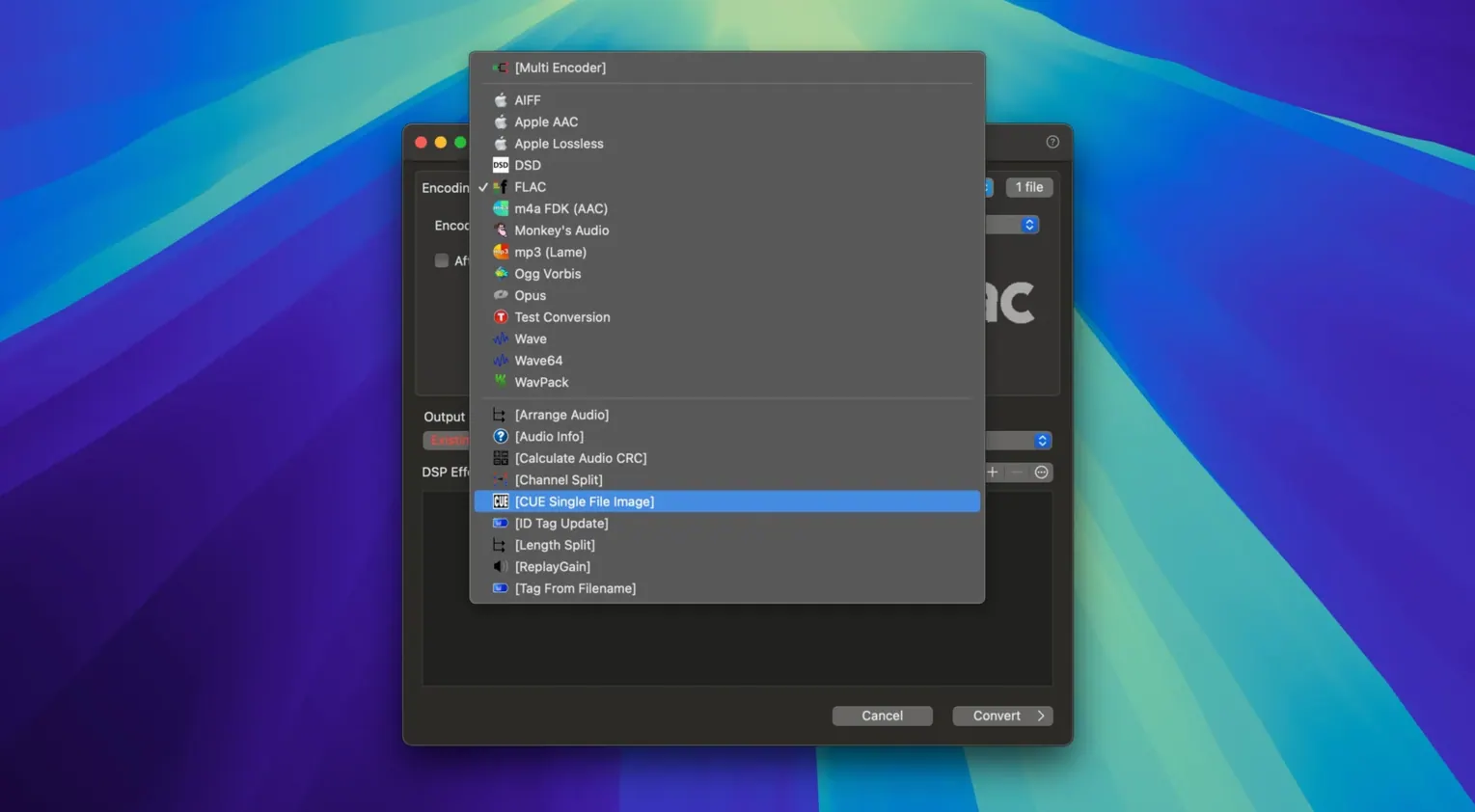
- Set the output. Choose FLAC, Apple Lossless, AAC or MP3, then add DSP if you need it — volume normalization, sample rate or bit-depth conversion.
- Hit Convert. The multi-core engine works through the batch while ID tags and artwork carry over to the new files.
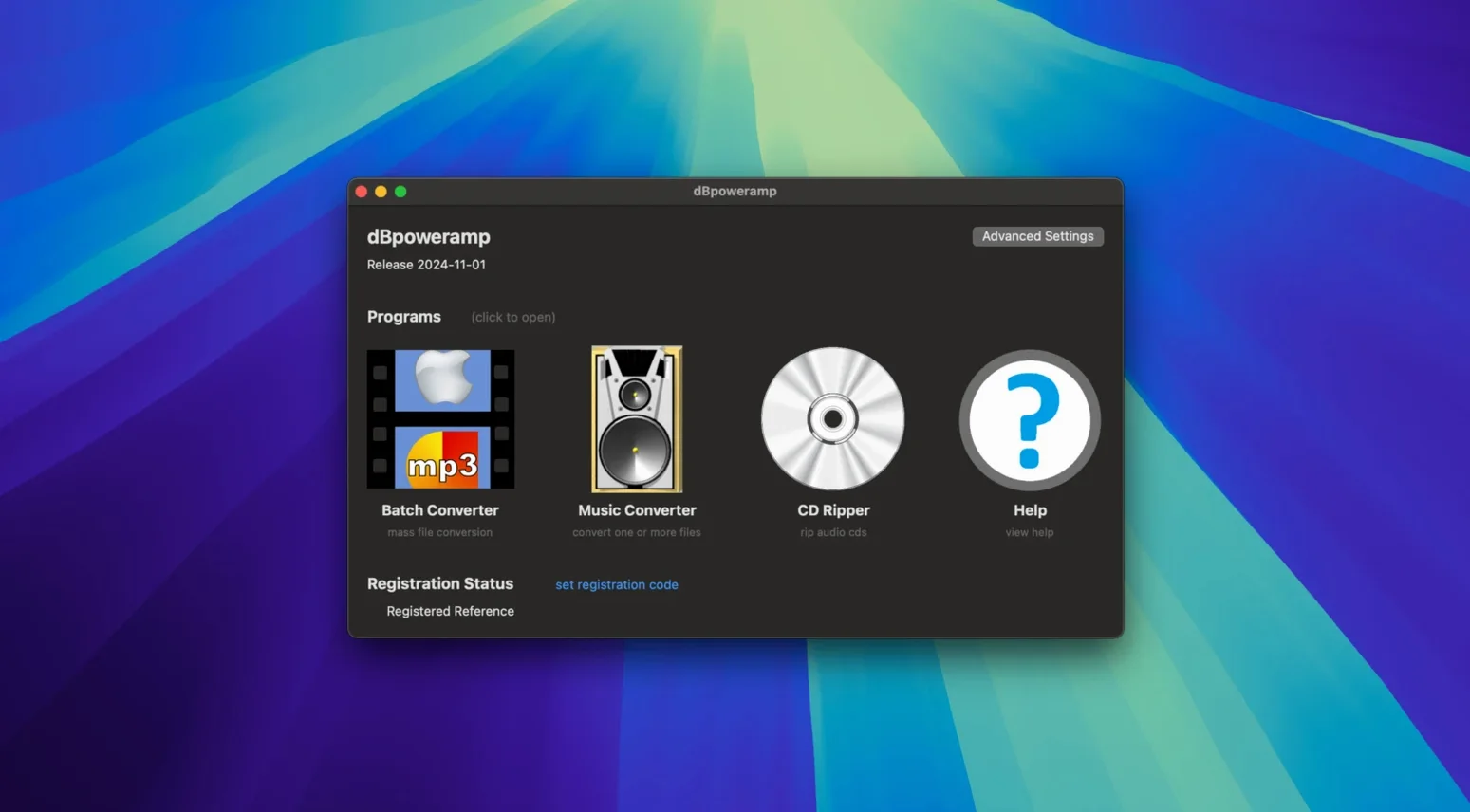
What makes it stick is that it never gets in the way. The Finder integration means no separate file browser, and when a client asks for Apple Lossless instead of FLAC, you swap one codec and re-run the queue. It reads WAV, AIFF, MP3, M4A, AAC and WMA too, and the package includes a Batch Converter, an ID Tag Editor and a CD Ripper alongside the main app.
The Output Folder Default That Scatters Files Next to Originals
Out of the box, dBpoweramp makes sensible choices — but two defaults will trip you up if you're moving between video editing apps and audio libraries.
Output folder behavior. By default, converted files land next to the originals. That's fine until you're pulling selects from a session folder and suddenly your FLACs are sitting among Pro Tools session files. Open Preferences, switch the output to a dedicated folder, and tick Preserve source folder structure. Your new files mirror the source tree in a clean location. Every time.
DSP order matters. The DSP chain runs top to bottom, and the default order isn't always what you want. If you're normalizing and resampling, put resampling first. Normalizing after a sample rate conversion measures the final waveform, not the intermediate one — otherwise you'll clip or leave headroom on the table. Drag the DSP blocks in the processing window until the chain reflects the actual signal flow.
Also worth a click: enable Multi-CPU Force in the advanced encoder settings for FLAC and Apple Lossless. It's off by default on some codecs, and on an M-series Mac that's leaving cores idle for no reason.
Mistakes That Eat Your Afternoon
The most common one I see: converting lossy to lossy without checking the chain. Dragging an MP3 into dBpoweramp and exporting as AAC creates a second generation of compression artifacts. The app won't stop you — it assumes you know what you're feeding it. If the source is already a lossy file, either keep it as-is or transcode only when the delivery spec demands it, and listen back to the quiet passages.
Another trap: trusting the filename instead of the tags. The Finder shows one thing; the ID Tag Editor shows another. After a batch conversion, open a few files in the Tag Editor and confirm that album, artist and track number made the jump. If they didn't, you probably had a mismatch between the source container's metadata and what dBpoweramp read. Fix the tags before converting, not after you've sent the files.
Beginners also overlook the log. Every conversion writes a log file, and when something sounds off — a stereo file collapsed to mono, a sample rate that doesn't match what you asked for — the log tells you exactly what DSP was applied and in what order. Don't close it without reading it.
Save Three Delivery-Profile Encoders for Right-Click Batch Jobs
Start by building three or four encoder profiles and naming them after real delivery specs. "Client_FLAC_48k" with resampling and no normalization. "Library_ALAC" with bit-depth set to match your Apple Music library. "Reference_MP3_320" for rough cuts. Once they're saved, the right-click menu skips the configuration step entirely — two clicks from Finder selection to render.
Test the Batch Converter early, not when you're under pressure. Drop fifty files from different folders into it and watch how it handles nested directories. The Batch Converter doesn't just mirror the main app's features — it lets you filter by file type before adding to the queue, which means you can point it at a messy project folder and grab only the WAVs without touching the MP3 reference tracks.
If you're coming from a Windows background and you've used a dBpoweramp Music Converter torrent there, the Mac version's Finder integration replaces the Windows shell extension you're used to. The right-click workflow is the same concept, just invoked differently. The macOS build also lacks the Explorer-style column view for tags, but the standalone ID Tag Editor fills that gap once you dock it next to your Finder window.
Halve Logic Pro Backup Sizes by Batch-Converting Stems to FLAC
dBpoweramp works alongside Logic Pro and Final Cut Pro as a pre- or post-session tool. Export stems from Logic as WAV, batch-convert them to FLAC for archival, and you've cut the project backup size in half. For video editors, converting reference audio to AAC before laying it into a timeline avoids unnecessary transcoding inside Final Cut — the NLE reads the compressed file directly and spends its cycles on picture, not audio decoding.
The app also pairs well with macOS tags and Spotlight. Converted files inherit the source's Finder tags if you've set the output folder to preserve metadata, which means smart folders based on tag color still work after a batch run. If you're running a dbpoweramp full setup on multiple machines, the encoder profiles live in the app's preferences file — copy that between Macs and your custom presets follow.
For anyone grabbing dbpoweramp for mac to replace a collection of free converters, the CD Ripper ties into the same DSP engine and tag database. Rip a CD directly to FLAC with artwork fetched from the internal metadata sources, and the files land in your library already tagged, normalized, and ready to import into whatever player or DAW you use. That's the loop: rip, convert, tag, archive — all inside one toolchain that doesn't bounce you between four different utilities.
Resampling gets a quality bump in this update, with cleaner conversion across sample rates. Also fixed: the Enter key now behaves correctly in the tag editor when autocomplete suggestions are showing, and an Intel-only component warning on the latest macOS has been squashed.
- macOS 11 or later
- Apple Silicon or Intel 64-bit Mac
Questions I actually get
Does dBpoweramp work on Apple Silicon Macs?
Yes, it runs on both Apple Silicon and Intel 64-bit Macs with macOS 11 or later.
Can I edit audio tags inside the app?
Yes. It includes an ID tag editor, and the latest build fixed the Enter key closing the Edit Tags dialog when the autocomplete list is visible.
How do I convert multiple files at once?
Select a group of files in the Finder, use the Convert with dBpoweramp command, and the app processes the entire batch in one operation.
Notes from the edit bay · 0
Sign in or get an edit-bay pass to leave a note.
No notes from the edit bay yet. They go up after I read them.