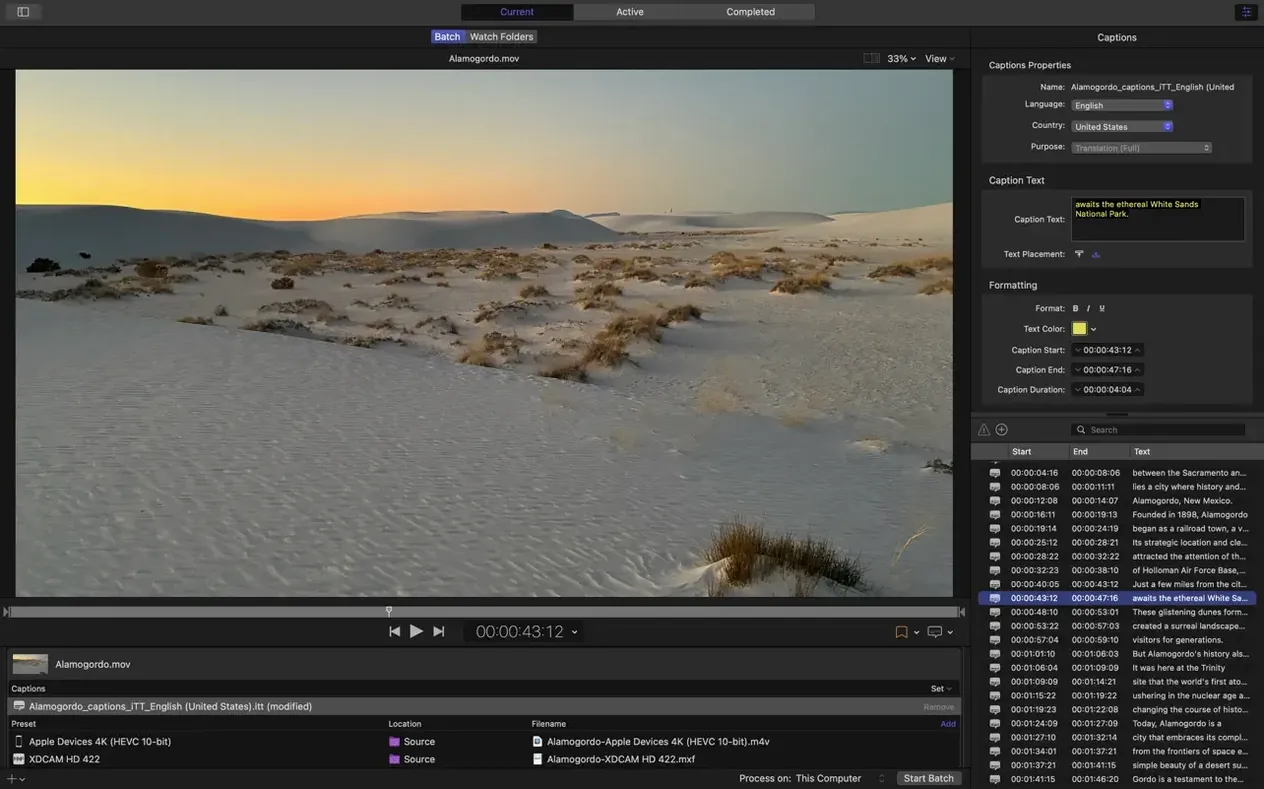
Compressor 5.3 lands on any Mac that can run macOS 15.6, covering every Apple silicon machine and the last few generations of 64-bit Intel hardware. If your Mac is current enough for the latest OS, it's ready for this update. The app is a dedicated transcoding and encoding companion that feels less like a simple converter and more like a finishing bench for someone who needs exact control over every frame and channel.
Inspect Spatial Metadata Before the Render
- Pre-encode immersive metadata viewer: Inspect spatial metadata on 180° and 360° sources before you commit to a long render.
- 180° Apple Projected Media Profile: Export directly to a format recognized by Apple's immersive playback pipeline.
- Anaglyph preview for stereoscopic video: Check depth placement and stereo alignment on a standard monitor.
- 5.1 AAC in Apple Device settings: Surround audio now survives the trip to an iPhone or iPad export without switching to a custom preset.
- HEVC data rate limits on Apple silicon: Hardware-accelerated encodes respect a ceiling, keeping file sizes predictable on M-series chips.
- Immersive source transcoding without WAV files: The pipeline no longer demands separate audio tracks for spatial video sources.
Fine-Tune GOP Structures and Audio Channels
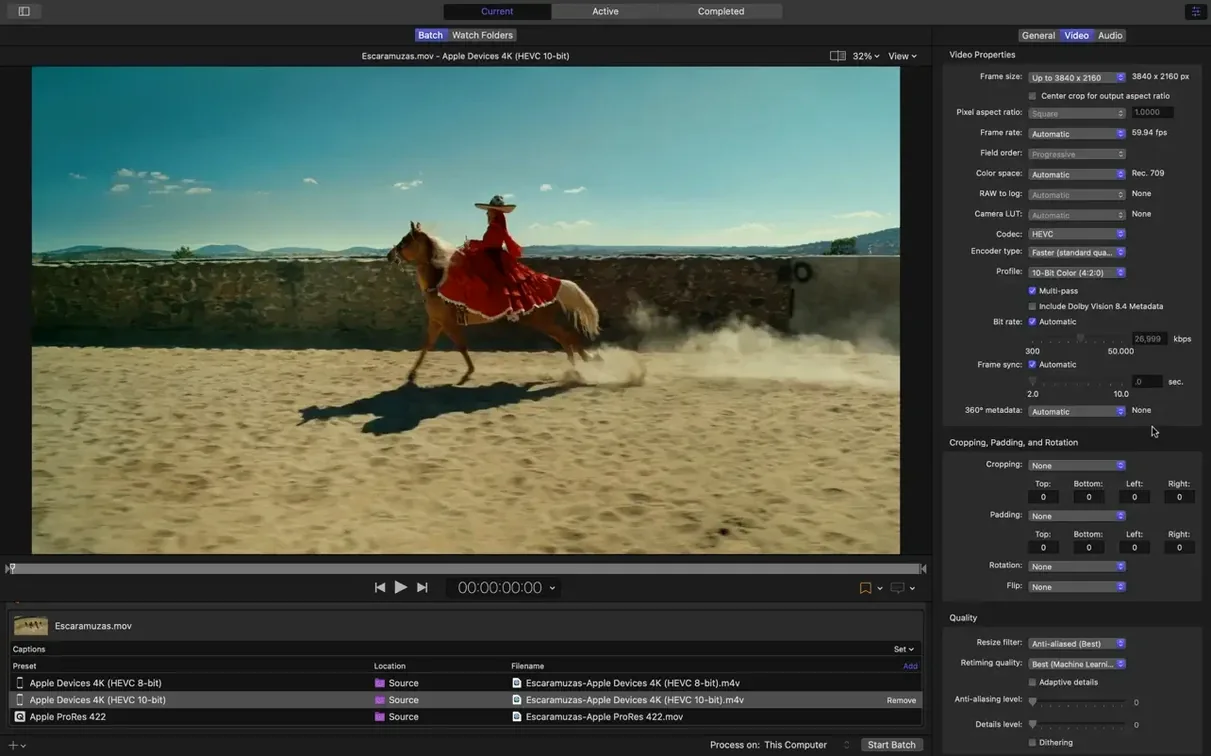
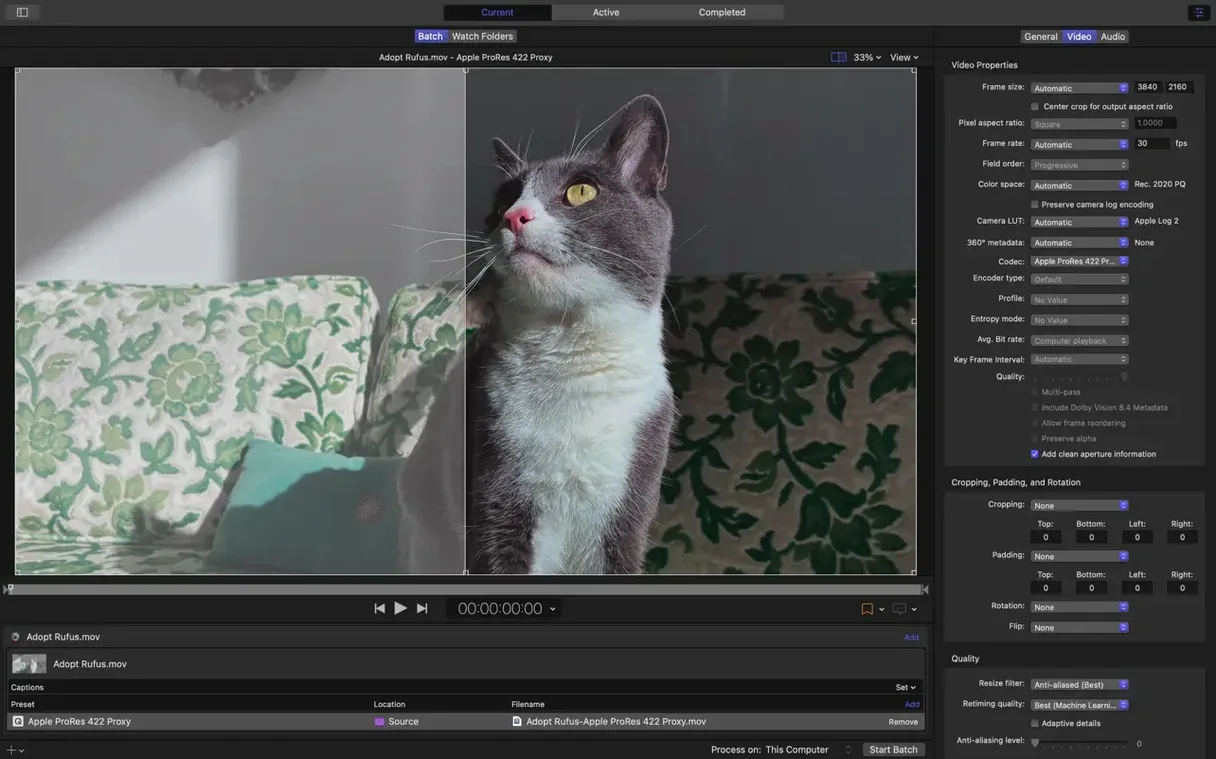
Anyone who lives in Final Cut Pro already knows the basic Send to Compressor path. The deeper value is in the side panel of encoding settings and the inspector—where you tweak pixel formats, reorder audio channels, and set GOP structures. Distributed encoding spreads work across the CPU cores in your Mac, hardware encoders handle H.264 and HEVC, and post-encode actions can email you, copy or move the file, or run a script. It's batch processing built for a deadline. Motion users get the same direct handoff, so a complex title animation can render straight into a mastering codec. The app doesn't chase novelty. It sharpens the export tools that editors and motion designers already reach for when the built-in Share menu isn't enough.
Where Do People Get Stuck?
The most common headache: a Final Cut Pro project sent to Compressor, and the encode just sits there—no progress bar, no error, no crash. The fix is almost always an audio channel mismatch. Open the Inspector, switch to the Audio tab, and confirm the output channel layout matches the source. A 7.1 source routed to a stereo preset silently refuses to start. Reassign the channels or swap to a matching preset, and the job kicks off immediately.
Another classic: hardware encoding on an M-series Mac suddenly tanks frame rates halfway through an HEVC export. That usually tracks back to a thermal ceiling on fanless machines. In the Video settings, toggle Data rate from Automatic to a manual cap—something around 25 Mbps for 4K usually keeps the encoder from throttling. The new HEVC data rate limits in 5.3 make this predictable, but an explicit ceiling still beats the auto-guess when your MacBook Air is already warm.
If a distributed encoding cluster doesn't pick up a shared Mac, restart the Compressor service on the remote node. Preferences > Shared Computers sometimes loses the connection after a macOS point update, and a quick toggle of the sharing checkbox—off, then on—re-registers the machine. Also check that both Macs live on the same local subnet; Compressor doesn't route through VPN tunnels gracefully.
A Clean Workflow: Mastering a Multi-Format Deliverable
Picture this: a 22-minute episode, cut in Final Cut Pro, needs a ProRes 422 HQ master, an H.264 review copy with burned-in timecode, and a 4K HEVC version for the client's iPad library. Doing that manually is three separate exports and a lot of babysitting.
Here's the Compressor path. First, send the timeline directly from Final Cut Pro—File > Send to Compressor, or hit Shift-Command-E. Once the project lands in the batch window, you're not just dropping presets on a single source; you're building a job with three distinct targets.
Drag the ProRes 422 HQ setting from the Apple ProRes group onto the source clip. Then drag the Apple Devices 4K (HEVC) setting, open its Inspector, and under Video, limit the data rate to 30 Mbps—keeps the file lean for the iPad without visible mush. For the review copy, duplicate the H.264 preset from the Apple Devices group, rename it "Review Burn-In," and in the Video tab, check the Apply timecode overlay option. Set the position to bottom center so it doesn't clash with lower-third graphics.
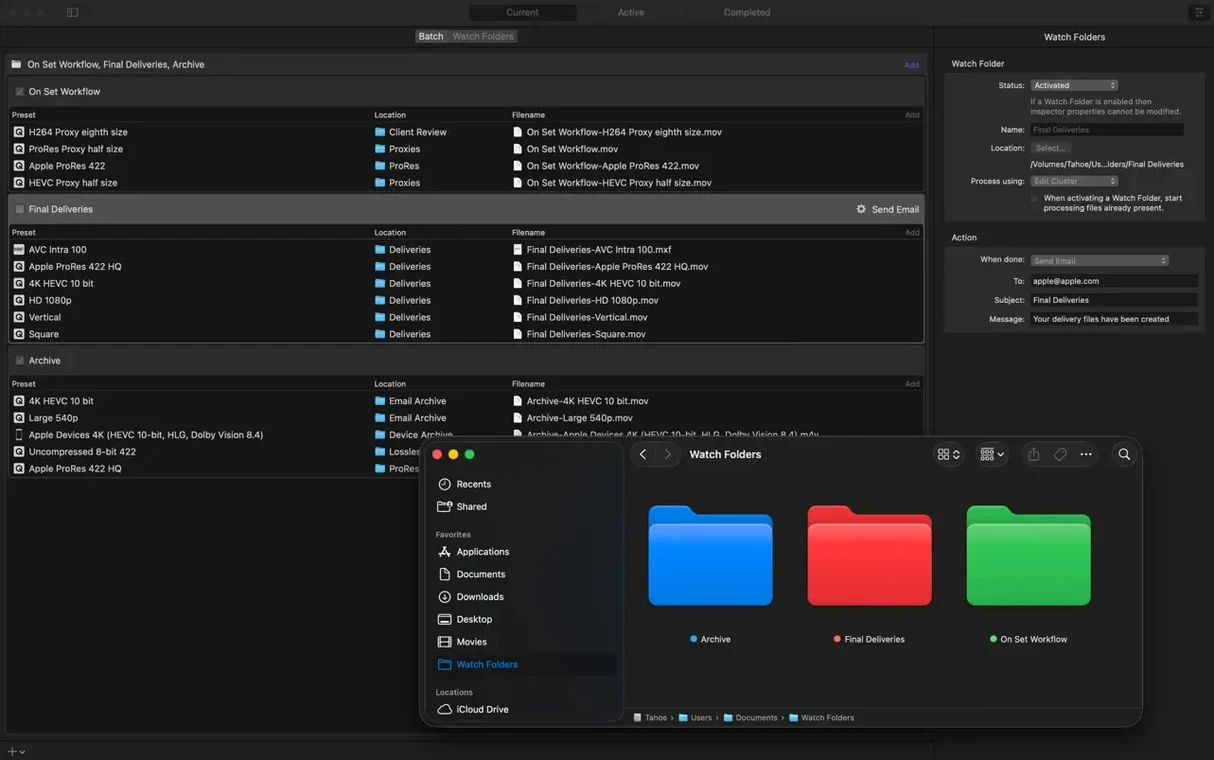
Before you hit Start, select all three targets, open the Audio inspector, and confirm the 5.1 AAC option is on for the HEVC output—the client wants surround downmix, and the new 5.1 AAC setting in Apple Device exports handles it without a separate audio preset. Finally, add a post-encode action to the review copy: Copy to a watched folder on a local server where producers grab screeners. Click Start Batch. All three renders queue, the hardware encoder chews through the HEVC pass, and Compressor fires off the file copy when the review export finishes. One timeline, three deliverables, one coffee break.
How It Actually Feels Day to Day
Speed-wise, Compressor leans hard on whatever silicon it's running on. On a Mac Studio with an M2 Ultra, a 10-minute 4K ProRes 4444 source transcodes to H.264 in about two minutes—hardware encoding keeps the fans barely audible. The real time savings show up in batch runs. Stacking six or seven jobs and walking away beats standing over Final Cut Pro's Share menu, clicking through each export individually.
Stability is what you'd expect from an app that uses the same rendering engine as Final Cut Pro and Motion. Crashes are rare during encoding; when they happen, it's almost always a third-party plug-in that trips the decode stage. Compressor itself doesn't leak memory or slow the interface when the queue runs deep. The batch window stays responsive even with a dozen jobs, and the thumbnail scrubbing doesn't bog down.
Resource use is a conversation about priorities. Distributed encoding will pin every core you allocate, and that's by design—editors often run overnight batches specifically to max out the machine. For lighter daytime work, you can throttle the number of concurrent jobs in Preferences. A good middle ground on an M3 Max MacBook Pro: two simultaneous encodes with hardware acceleration on, leaving enough headroom to grade in DaVinci Resolve or tweak a Motion project without stutter.
One thing to note: the Inspector's responsiveness on Intel Macs feels a tick slower than on Apple silicon. Selecting a preset and flipping between video and audio tabs there's a beat of lag on a 2019 Mac Pro that doesn't exist on an M1 Max. Not a dealbreaker, but noticeable when you're in rapid preset-building mode. On any modern Apple silicon machine, the whole interface keeps pace with clicks.
The 5.3 update is all about spatial video. An immersive metadata viewer lets you inspect sources before exporting, 180° Apple Projected Media Profile output is new, and an anaglyph preview checks stereoscopic depth on a flat screen. Apple silicon Macs get HEVC data rate limits, and Apple Device settings gain a 5.1 AAC option.
Also fixed: immersive sources without WAV files can now be transcoded to Apple Immersive outputs.
- macOS 15.6 or later
- Apple silicon or 64-bit Intel Mac
- 8 GB memory
- 1.2 GB available disk space
Notes from the edit bay · 0
Sign in or get an edit-bay pass to leave a note.
No notes from the edit bay yet. They go up after I read them.