Movavi Video Converter 22.5.0 is an Intel build for macOS 10.13 or later that converts video, audio and images, with basic editing built in.
How Does a Rough Clip Become a Deliverable?
Here's a practical run. A client sends an MKV screen recording with two minutes of dead air at the front. You need a clean MP4, fast.
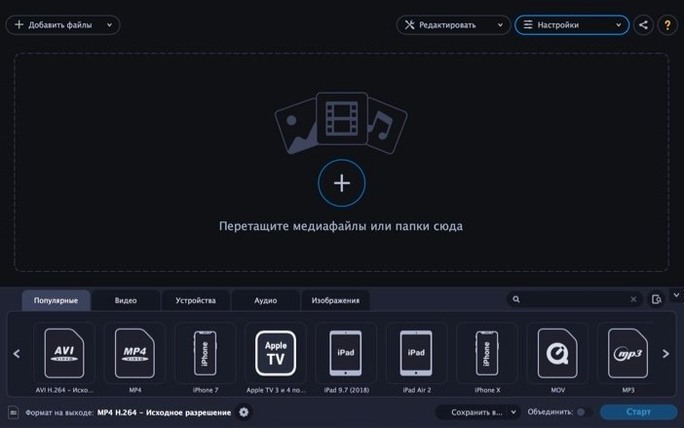
- Load the source. Drag the MKV straight into the main window, or add a whole folder for a batch.
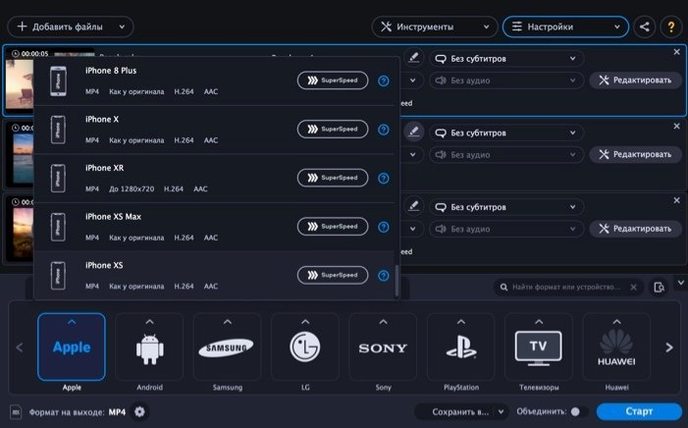
- Set the target. Click the format bar at the bottom. Choose MP4, then pick a Samsung device profile from the ready-made list. The resolution and codec lock into place.
- Trim the fat. Hit the scissors icon. Drag the playhead to the first frame of actual content and set an in-point. Two minutes of silence, gone.
- Grab the audio separately. Add a second output in MP3 and the app extracts the audio track from the MKV.
- Convert both. Hit Convert; SuperSpeed mode helps when the format allows it.
That’s the whole job. No diving through menus for basic edits like the trim, and the device profiles save you from guessing pixel dimensions. For quick, repeatable conversion tasks where you aren’t building a timeline, it slots in without fuss.
Will It Wreck the Quality?" and Other Pre-Launch Worries
The same handful of concerns appear in every editor group chat. Here's what people actually ask.
"Will it wreck the quality?" No converter magically improves a source file, but Movavi's lossless conversion mode keeps the original bitrate and codec when the output format matches. If you're re-encoding — say, MKV to MP4 — you control the resolution and bitrate sliders. Stay close to the source numbers and the difference is invisible on a client screen.
"Does it handle weird codecs from cheap screen recorders?" Usually, yes. The input list covers the usual suspects — WebM, MKV, WMV, and MPEG. If a file opens, it converts. For truly obscure captures, try dragging it in anyway; the parser is more forgiving than QuickTime's.
"I just want audio from a video. Do I have to convert the whole thing?" Nope. Set the output to MP3, AAC, or WAV and the app extracts only the audio stream. No silent video file hanging around afterwards unless you ask for it.
"What's the point of the image converter?" Three real uses: converting a folder of TIFF scans to JPEG for a web gallery, saving a single frame of a video as a PNG, or making a GIF from a short clip without opening Photoshop.
Forty Minutes From 4K ProRes Dropbox Link to MP4 Proxies
Tuesday, 9:15 AM. A producer pings with a Dropbox link: twelve MOV files from a multi-camera shoot, all in 4K ProRes. The editor needs 720p MP4 proxies by lunch. Here's how the next forty minutes play out.
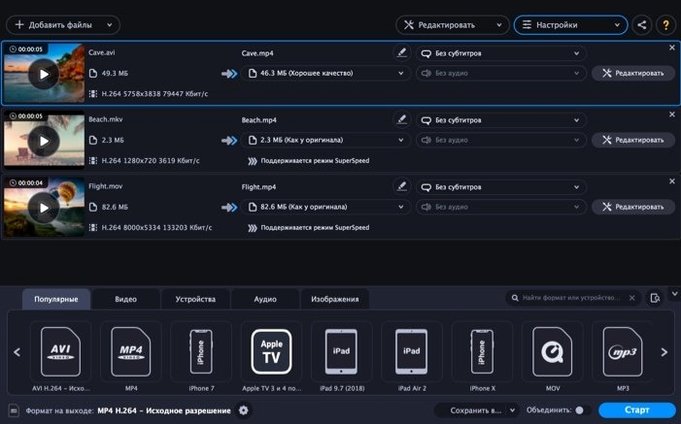
You drag the entire folder onto the app window. All twelve clips stack in the queue, each showing its duration and codec. You switch the output to MP4, dial resolution down to 1280×720, and set the bitrate to 8 Mbps — enough for offline editing without choking a laptop. Because these are all going to the same preset, you check the "Apply to all" box once and move on.
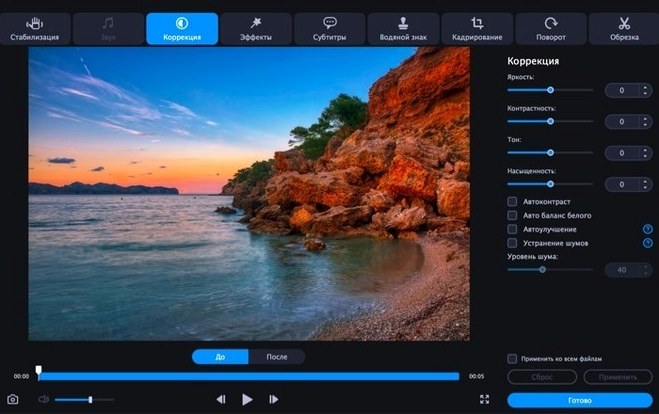
Clip three has a dead camera for the first eighteen seconds. You open the trim tool directly from the queue, scrub to the slate clap, and set the in-point. Clip seven is shot in log and looks like dishwater. A quick contrast bump and a five-percent saturation nudge in the color tab make it watchable for the edit. No round-trip to a grading app.
You hit Convert. SuperSpeed kicks in for the clips where the codec supports it; the rest run at a steady pace. While the bar crawls, you pull the audio from clip nine as a separate MP3 for the sound designer. The whole batch finishes before the coffee run.
Save a 15 Mbps MP4 Preset Before the Week Gets Hectic
Install the app, convert one test file, and you're functional. But a few habits make the week smoother.
Build a preset for your most common deliverable. If every project ends with an MP4 at 15 Mbps, save that as a custom profile. Next time it's two clicks instead of five sliders. The device presets for Apple and Samsung are fine starting points, but tweak them once and save your own.
Set the output folder on day one. By default, files land next to the source. Point it to a dedicated "Converted" folder on your scratch drive instead. You'll stop hunting through project directories for yesterday's renders.
Test lossless mode on a short clip first. Not every format pair qualifies. Run a ten-second sample before committing a two-hour timeline export. The quality checkbox grays out when the combo isn't supported, but a quick test confirms you didn't miss it.
Use the batch folder feature for image sequences. If a motion designer sends 300 TIFF frames, don't add them one at a time. Drop the folder, set output to JPEG, and walk away.
Converting a Whole Clip When You Only Needed the Trimmed Segment
Most mistakes aren't about the software — they're about assumptions carried over from heavier editors.
Ignoring the trim tool before conversion. People queue up a twenty-minute file, convert the whole thing, then open it in another app to cut the top and tail. The scissors icon is right there. Trim first, convert once.
Picking a device preset without checking the resolution. A "Samsung" profile might default to 720p. If your source is 1080p, you're downscaling without meaning to. Always glance at the output dimensions before hitting Convert.
Stacking too many edits in one pass. The noise reduction, stabilization, and color correction tools are handy, but they aren't a full post suite. Stabilization especially adds render time. If a clip needs serious work, convert it clean first, then treat it in your editor.
Forgetting the audio extract is a separate output. New users pick MP3 as the format and wonder why they got a silent video. You need to add a second entry in the queue — one for video, one for audio — or choose audio-only if you don't need the picture.
None of these are dealbreakers. They're just the difference between a five-minute job and a twenty-minute rerender when the deadline is already tight. The movavi video converter workflow rewards a few seconds of checking before you commit the queue.
- macOS 10.13 or later
- Intel processor
Questions I actually get
Can it stabilize shaky footage?
Yes, the built-in editing tools include a stabilization filter alongside options for color correction and noise reduction.
Notes from the edit bay · 0
Sign in or get an edit-bay pass to leave a note.
No notes from the edit bay yet. They go up after I read them.