Start with the option that saves output by artist or album. Pick one, and ViWizard Spotify Music Converter sorts the files before they hit your drive. That alone saves a manual filing session later.
Why Start With a Full Playlist?
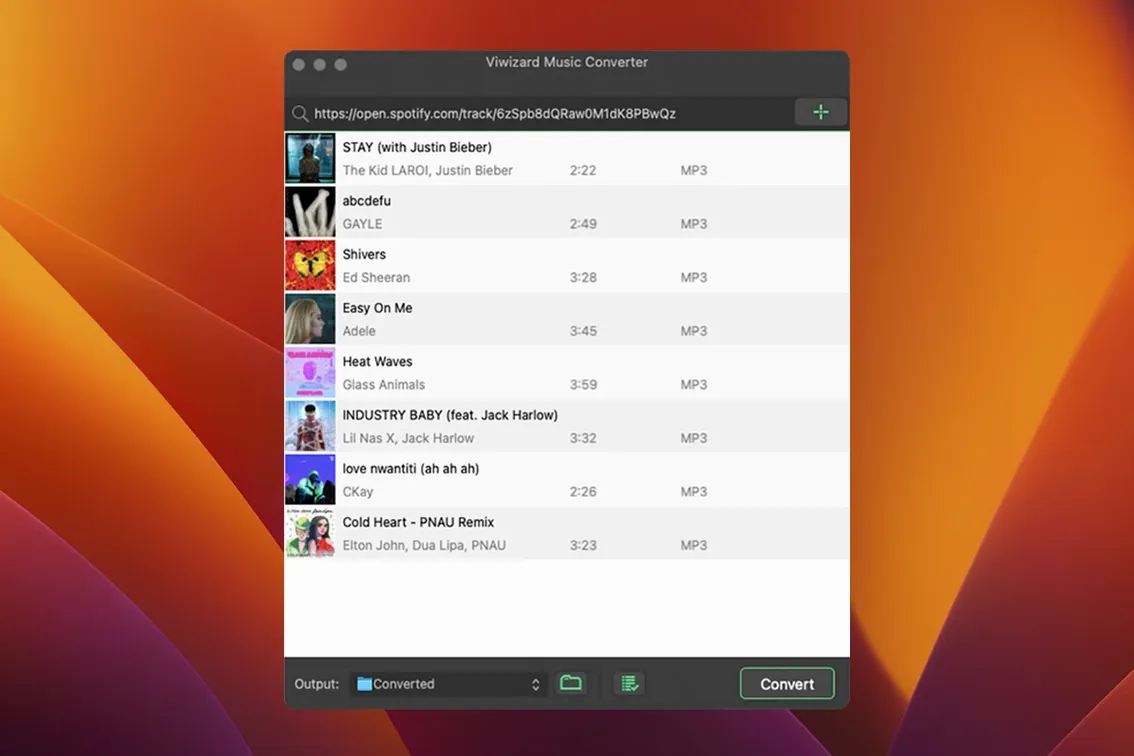
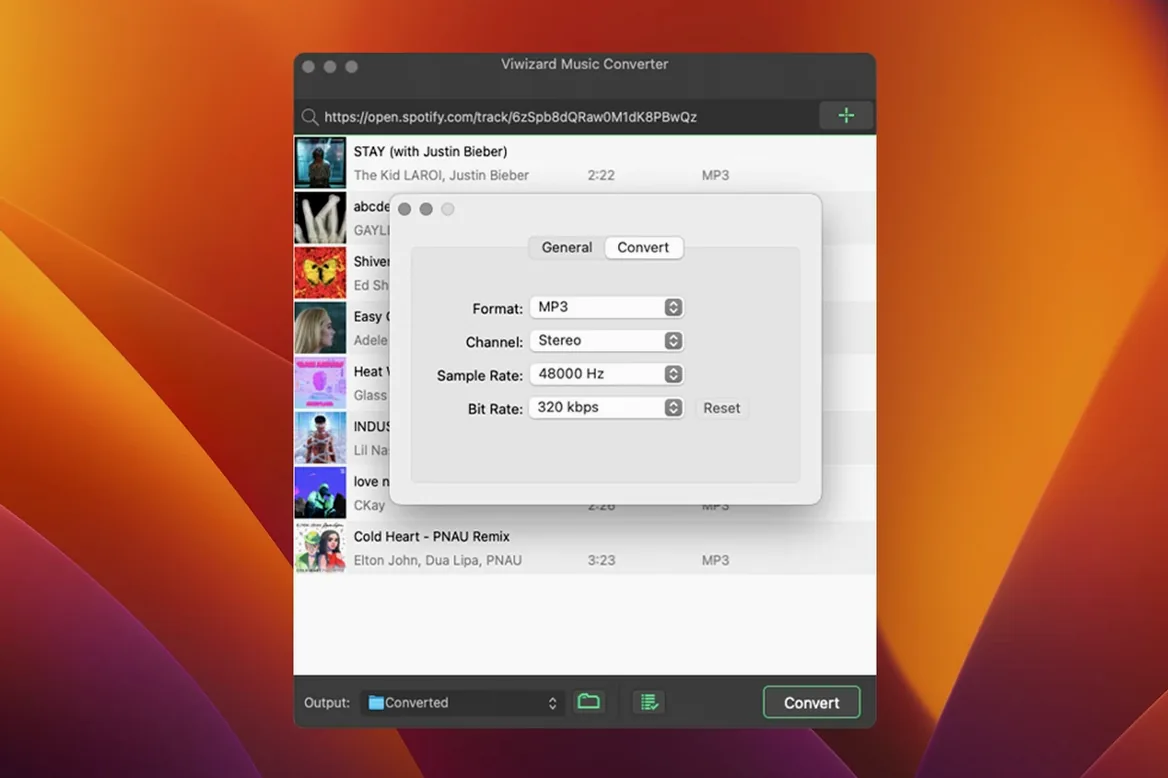
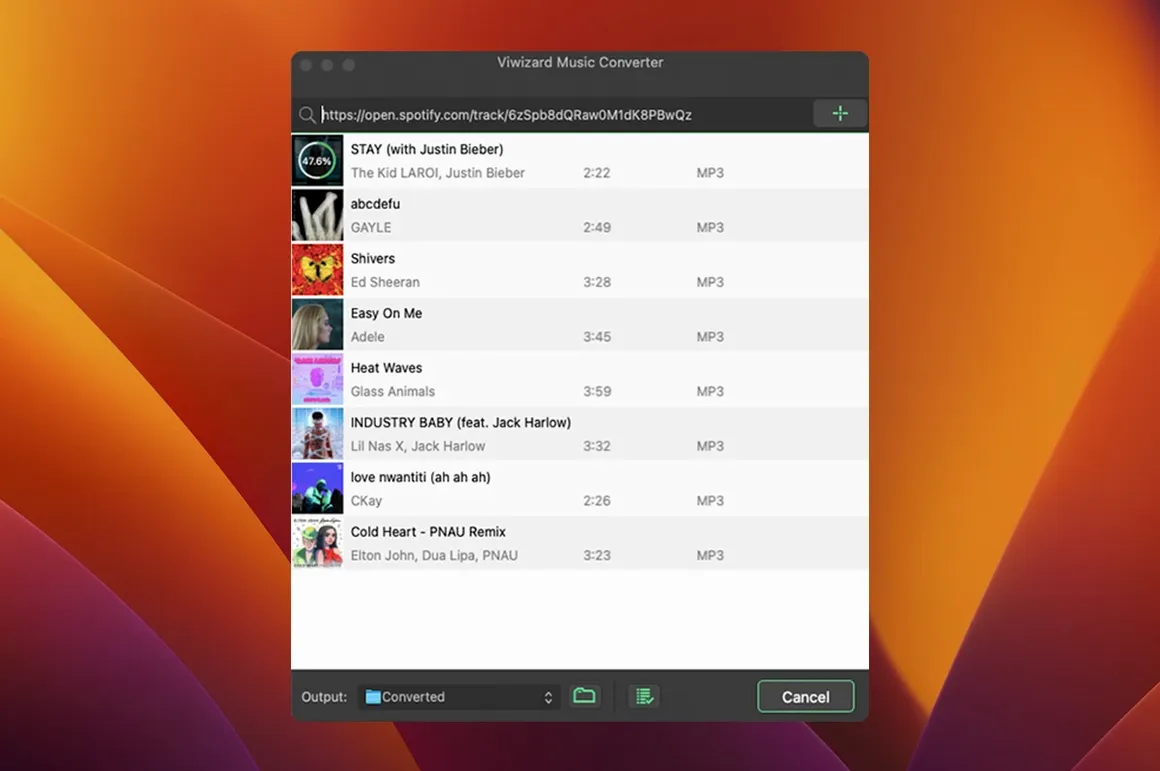
Don’t test with a single track—that tells you nothing about real-world speed. Drag a chunky playlist into the main window. The app reads via Spotify’s web player, so it sees your library instantly. Pick MP3, set channel, bitrate and sample rate, and let batch mode chew through it while you switch back to your timeline. Metadata comes along.
What About Long-Form Audio?
If you deal with long-form audio, switch the format to M4B. It's the format audiobook players expect, which is handy for audiobooks and long podcast edits. The encoder options for sample rate and bitrate are right there in the settings.
Flip the Default Output From MP3 Before You Queue a Single Track
Before you queue up anything serious, open the preferences panel and flip a few defaults. The output format sits on MP3 out of the box—fine for casual listening, but if you're pulling tracks into a video editor, switch it to WAV or AIFF. Uncompressed audio plays nicer with Final Cut Pro's timeline; you avoid the decode hit during playback, and sync stays tight when you're lining up a music bed under picture.
Next, check the output path. ViWizard defaults to dumping everything into a single folder. Toggle the option to sort by artist or album. That tiny switch means your downloads land in a folder structure you can actually browse, instead of a flat list you'll have to clean up later. While you're in there, confirm the bitrate and sample rate match what your project demands. For archival purposes, 320 kbps MP3 or 16-bit/44.1 kHz FLAC covers most needs. If you're pulling samples for sound design, consider 24-bit WAV—it gives you more headroom when you start pitching and stretching.
Also worth a look: the auto-detect language setting. The interface runs in English, German, French, or Japanese, and if metadata matters for your workflow—say, classical music with track titles in German or French—confirm it's set to the language your library actually uses. Metadata errors compound fast when you're batch-converting hundreds of files.
Forty-Seven Reception Tracks to Pull, License, or Replace in Three Days
Imagine an Austin-based editor who cuts wedding films. She has three days to deliver a highlight reel and a full ceremony edit. The couple sent over a Spotify playlist titled "Our Reception"—forty-seven tracks they want licensed or replaced. She needs clean instrumental stems to build around, plus a few key songs to time her cuts to. ViWizard sits right in the middle of that prep.
She queues the whole playlist before lunch. The batch runs through while she grades ceremony footage on her Intel Mac. When she returns, the tracks are sorted by artist in FLAC, metadata intact. She imports the folder into Final Cut, drops markers on the beat, and starts cutting. Later, she pulls three specific tracks into Logic to strip vocals with stem separation tools—the uncompressed FLAC files hold up under processing. No re-downloads, no streaming hiccups mid-export, no hunting through a flat folder for the right version of a song. The converter handled the grunt work while she stayed in her creative flow.
Run a Five-Track Format Gauntlet on Day One to Catch Encoder Quirks Early
Day one: run a small batch of five tracks through all six output formats. Time each one. You'll learn which format converts fastest on your specific Mac, and you'll spot any encoder quirks before they affect a big project. On older Intel machines, M4A and MP3 encode noticeably faster than FLAC—useful when you're against a clock.
Day two: test the batch size ceiling. ViWizard handles large queues, but the Spotify web player it relies on occasionally throttles when you throw a thousand tracks at it. Break massive libraries into album-sized chunks. The converter stays responsive, and you avoid the frustration of a stalled session with no clear culprit.
Day three: build a small "reference library" folder. Convert a handful of tracks you know intimately—songs you've edited to before, tracks where you recognize every transient. Use those as benchmarks when you need to verify output quality quickly. It's faster than running a full QA pass on an unfamiliar playlist.
Also, if you grabbed the viwizard spotify music converter mac torrent, remember the Terminal bypass step during install is a one-time gate. Once you've dragged the app to Applications and launched it, future opens are straightforward. Don't move the app out of the Applications folder afterward—macOS expects it there for permissions to stick.
Editors Scrubbing Timelines and Podcasters Grabbing Stingers From Playlists
Video editors who cut to music benefit the most, no contest. Having local audio files speeds up timeline scrubbing and eliminates buffering pauses that break concentration. The same goes for podcast producers pulling intro music or stingers from Spotify playlists—batch conversion turns a discovery session into a ready-to-use asset folder.
Audiobook listeners are an underrated second group. The M4B output supports chapter markers, which means you can convert a Spotify audiobook and load it straight into Apple Books or a dedicated player. If you commute through dead zones, having the file stored locally beats hoping the stream holds out.
DJs and sound designers fall into the third camp. They need high-quality source files for sets, remixes, or sample libraries. A viwizard spotify music converter torrent build that outputs FLAC or WAV gives them lossless material to manipulate without worrying about compression artifacts surfacing after heavy processing. The batch workflow also means they can pull entire artist catalogs while planning a set, then sort by album for quick navigation.
Casual listeners who just want offline copies of a few playlists will find ViWizard functional but over-specced. The interface assumes you care about bitrate, sample rate, channel configuration, and output structure. If that sounds like noise to you, the app still works—just set MP3 as the default and ignore the advanced panels. But the people who really click with it are the ones who already think in terms of codecs, metadata, and folder hierarchies. For them, ViWizard slots into the workflow like a utility that finally understands what they're trying to do.
- macOS 10.10 or newer
- Intel Mac (x86 64-bit)
Questions I actually get
Can it convert a full podcast series?
Yes, it handles podcasts and audiobooks alongside standard tracks, so you can pull an entire series in one batch.
What audio formats does it write?
It outputs MP3, AAC, WAV, AIFF, FLAC, M4A and M4B, with control over channel, bitrate and sample rate.
Notes from the edit bay · 0
Sign in or get an edit-bay pass to leave a note.
No notes from the edit bay yet. They go up after I read them.